

You spot a jacket in a video, a sign in a language you cannot read, or a song you half recognize. The old routine was to screenshot it, open another app, and hope. There is a much faster way sitting on your phone already. This guide shows you how to use Circle to Search in about thirty seconds. Then it walks through the tricks most people never find, including identifying a song playing inside another app and checking whether a photo has been altered.
How to Use Circle to Search: The One Gesture to Learn
Everything else in this guide builds on a single gesture. Learn it once and the rest takes seconds. How you trigger it depends on which navigation style your phone uses.
| Your Navigation Style | What to Hold |
| Gesture navigation | Touch and hold the navigation bar, the small handle at the bottom |
| Three-button navigation | Touch and hold the Home button in the middle |
Once you know which one you use, the flow is the same every time.
- Open whatever you are looking at. A photo, a video, a webpage, a message, or an app screen all work.
- Touch and hold the navigation bar or Home button. The screen dims slightly and a search bar appears at the bottom.
- Circle, highlight, scribble on, or tap what you want. Any rough shape works, so precision is not required.
- Read the results that slide up from the bottom. Swipe up on that panel to see more.
- Refine if you need to. Type extra words into the search bar, such as adding a color or the word price to narrow things down.
That is the whole thing. As Google’s Android Help documentation explains, you never leave the app you were in, which is exactly why it feels faster than screenshotting.
Does Your Phone Actually Have It?
Worth being straight with you here. Circle to Search arrived in early 2024 on the Galaxy S24 and Pixel 8, and it has spread across a very wide range of Android phones since. Google still describes it as available on selected models rather than every single one, so the safest answer is to test rather than assume.
The check takes ten seconds. Open any app, touch and hold your navigation bar or Home button, and see whether the search bar appears. If nothing happens, open Settings, search for Circle to Search, and check that the toggle is on. If the setting does not exist at all, your phone or your Android version does not support it yet.
| Good to Know On an iPhone you are not completely locked out. Google offers a similar tool inside the Google app and Chrome called Search screen with Google Lens, which lets you circle or highlight things on screen in much the same way. The gesture is different and it lives inside those apps rather than system-wide, but the core idea carries over. |
What Each Button in the Bar Does
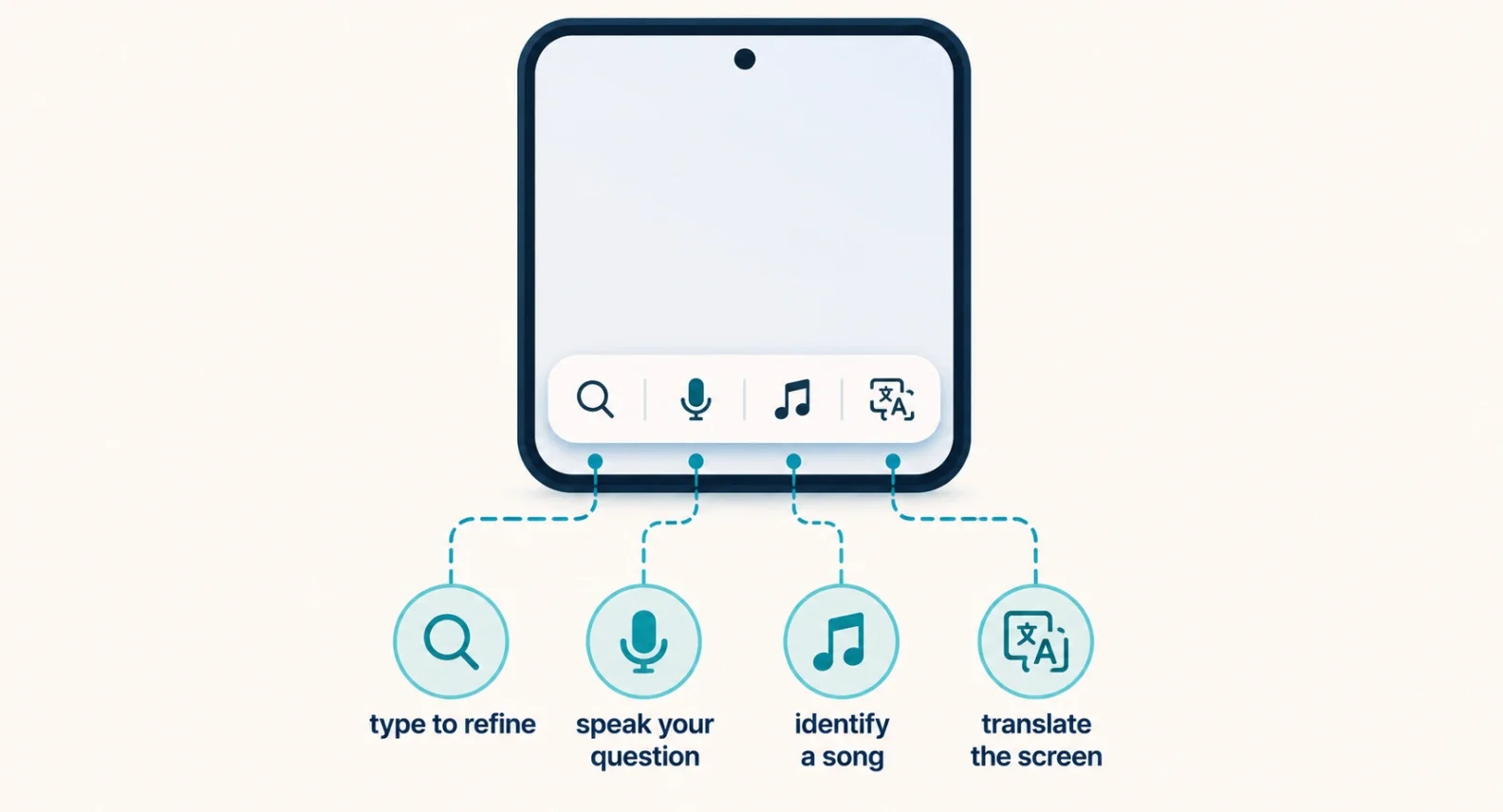
Most people circle something once, get an answer, and never look at the rest of the bar. That is where the good stuff hides.
| The Button | What It Does |
| The search bar | Type extra words to refine, or tap it to search your whole screen |
| The microphone | Ask your question out loud instead of typing it |
| The music note | Identify a song playing nearby or inside an app on your phone |
| The translate icon | Translate on-screen text into your language automatically |
Tapping the search bar without circling anything is the trick worth remembering. It searches the entire screen at once, which is ideal when you cannot tell which part of a busy page holds the answer.
How to Use Circle to Search to Identify a Song
This one deserves its own section, because it does something most song-finder apps struggle with. Bring up Circle to Search and tap the music note. Your phone listens for a few seconds and returns the track, artist, and album.
The part people miss is the source of the audio. As Android Central points out, it recognizes music playing around you and music playing through your own device. So the song in a video you are watching, or in a friend’s story, is identifiable without holding one phone up to another. That alone replaces a separate app for most people.
How to Translate Anything on Your Screen
Bring up Circle to Search and tap the translate icon next to the search bar. It detects the language and converts the text into your phone’s default language. Keep scrolling and new text translates as it appears, which makes reading a foreign webpage or a menu genuinely practical.
Two small controls help. Tap the language pill at the bottom to shrink it out of your way. To leave translation mode, tap Close beside that pill, or dismiss it from your notification shade. One real limitation to know: translation covers webpages, messages, and social posts, but not videos or GIFs.
How to Check Whether a Photo Is Real
This is the newest reason to keep Circle to Search handy. It can flag whether an image is an original or shows signs of modification. That is a useful sanity check in a feed full of AI-generated pictures.
Circle the image, then look in the results for the information about that picture. Treat it as a helpful signal rather than a verdict, since no automated check catches everything. For the manual clues that back it up, our guide on how to spot AI-generated images walks through what to look for with your own eyes.
Small Tricks That Make It Much Better
These are the habits that separate casual use from actually relying on it.
Zoom before you circle. Pinch with two fingers to enlarge the screen before triggering the gesture, and your selection lands far more accurately on small details. Adjust rather than restart: if your circle catches too much, drag the edges of the selection instead of starting again. Move the panel when it covers something, using a two-finger pan or by dragging the search bar to the top or bottom of the screen. And add words to the search bar to steer results, since circling a chair and typing the word cheaper gives you a very different list.
| The Cool Part On the newest Pixel phones there is an extra trick called Find the look. Circle an entire outfit in a photo, tap that option, and Google breaks the outfit into individual pieces with shoppable matches for each one. Google lists it for the Pixel 10 family and devices supporting AI Mode and AI Overviews, so it is not everywhere yet, though it shows where this feature is heading. |
Where Circle to Search Will Not Work
Knowing the limits saves you from thinking your phone is broken. A few situations simply will not respond.
| The Situation | Why It Happens |
| Banking and other confidential apps | Blocked on purpose, to protect sensitive screens |
| Videos and GIFs, for translation | Translation covers static text, not moving content |
| No internet connection | Results are fetched online, so a signal is required |
| Unsupported phones | Availability depends on your device model and Android version |
| Blurry or tiny selections | Visual matching needs a reasonably clear target |
The banking one is a feature rather than a fault. Screens holding your account details stay off limits to on-screen search, which is exactly what you want.
How to Turn Circle to Search Off
If you keep triggering it by accident, switching it off takes a moment.
- Open Settings on your Android phone.
- Search for Circle to Search in the settings search box.
- Tap the Circle to Search result and turn the toggle off.
Samsung handles it slightly differently. On a Galaxy phone, Samsung’s support guide points you to Settings, then Apps, then Choose default apps, then Digital assistant app, where you switch off the option to analyze on-screen images. Switching it back on later follows the same path.
Circle to Search is one of those rare features that pays you back the first time you use it. One long press, one rough circle, and the answer arrives without you leaving the app. Learn the gesture, then remember the three buttons beside the search bar, because the music note and the translate icon are where the real time savings hide.
Frequently Asked Questions
How do I use Circle to Search on Android?
Touch and hold the navigation bar at the bottom of your screen, or the Home button if you use three-button navigation. The screen dims and a search bar appears. Then circle, highlight, scribble on, or tap whatever you want to look up, and the results appear at the bottom. You never leave the app you were using.
Which phones support Circle to Search?
It launched in early 2024 on the Galaxy S24 and Pixel 8 and has since reached a wide range of Android phones. Google still describes it as available on selected models. The quickest check is to hold your navigation bar and see whether the search bar appears, or to search for Circle to Search in your Settings app.
Can Circle to Search identify songs?
Yes. Open it and tap the music note, then let your phone listen for a few seconds. It identifies music playing in the room and, more usefully, music playing inside an app on your own device. That means you can name a track from a video or a story without needing a second phone or a separate app.
Why is Circle to Search not working in my banking app?
That is intentional. Google blocks the feature on banking and other confidential apps so that sensitive screens cannot be captured and searched. Nothing is broken on your phone. The same restriction can apply to certain secure screens in other apps that handle private financial or identity information.
Does Circle to Search work on iPhone?
Not as a system-wide gesture. Google offers a close equivalent inside the Google app and Chrome on iPhone, called Search screen with Google Lens, which lets you circle or highlight things on screen. You have to be inside one of those apps to use it, rather than triggering it from anywhere.
How do I turn Circle to Search off?
Open Settings, search for Circle to Search, tap the result, and switch the toggle off. On Samsung Galaxy phones, go to Settings, then Apps, then Choose default apps, then Digital assistant app, and turn off the option to analyze on-screen images. You can switch it back on the same way whenever you want.

