
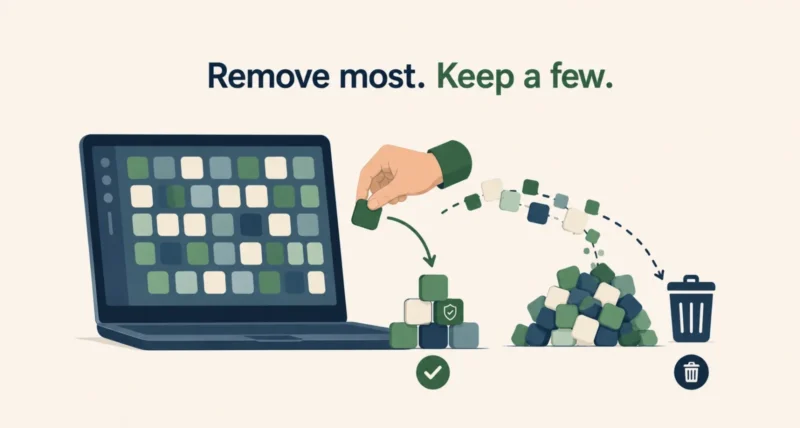
A new laptop arrives with games you did not ask for, a trial antivirus that starts nagging on day three, and four utilities from the manufacturer. Clearing them out is easy. Doing it without breaking something is the part most guides skip.
This guide covers how to remove bloatware Windows 11 ships with, in three tiers from safest to most thorough. It also covers the apps that look like junk and absolutely are not. Deleting one of those is how people end up with a laptop whose fan never spins up.
| The Short Answer Open Settings, then Apps, then Installed apps. Find the app, click the three dots beside it, and choose Uninstall. That handles most bloatware safely. For anything Settings cannot remove, use the winget command in Windows Terminal. For apps that reinstall themselves, use PowerShell. Before you start anything, create a restore point. And leave your manufacturer’s hardware utilities alone, because those often control your battery, fans, and function keys. |
Do These Three Things First
Five minutes of preparation turns an irreversible mistake into a ten-minute inconvenience.
- Create a restore point. Press Windows and S, search for Create a restore point, open it, select your system drive, and click Create. This is your undo button.
- Install pending updates and restart. Open Settings, then Windows Update. Removing apps mid-update causes odd failures that are hard to diagnose afterward.
- Check your account has admin rights. Some removals need elevation, and finding out halfway through is frustrating.
| Do This First If this is a work or school laptop, stop here and ask your IT team. Managed devices often reinstall removed software automatically, and some changes breach policy. This guide is written for personal computers you own. |
What You Should Never Remove
This section comes before the instructions on purpose. Almost every horror story about debloating starts with someone deleting one of these.
| Leave This Alone | Why It Matters |
| Manufacturer control apps | Often run fan curves, battery limits, and function keys |
| Anything naming Intel, AMD, Realtek or NVIDIA | These are drivers, not apps. Removing them breaks hardware |
| Microsoft Visual C++ Redistributables | Other programs depend on them and will stop launching |
| .NET Runtime or Desktop Runtime entries | Same problem. Many apps quietly need these |
| Windows Security | This is your antivirus |
| Anything you do not recognize | Search the name first. Thirty seconds beats a reinstall |
The manufacturer utilities are the genuine trap. A program called something like Command Center or System Manager looks exactly like padding. On some laptops it is the only thing controlling how fast the fans spin, or whether the battery stops charging at 80 percent. Open it once before deciding. If it has hardware settings inside, keep it.
| The Golden Rule If you cannot say what an app does, do not remove it yet. Write the name down, search it, and come back. Bloatware removal has no deadline, and the cost of guessing wrong is far higher than the cost of leaving one extra program installed for another week. |
How to Remove Bloatware Windows 11 Installed: The Settings Method
Start here. This removes most preinstalled junk, needs no commands, and is the method Microsoft supports.
- Open Settings with Windows and I, then select Apps, then Installed apps.
- Sort by Size or Name to see what is actually taking up space.
- Click the three dots beside an app you recognize and do not want, then choose Uninstall.
- Confirm, then repeat. Work through the list once, removing only what you are sure about.
Two shortcuts are worth knowing. Right-clicking an app in the Start menu gives you an Uninstall option directly. And for older desktop programs that never appear in Settings, open Control Panel, then Programs, then Programs and Features.
What you can safely clear here: sponsored games, trial antivirus, streaming and shopping apps you did not install, duplicate media players, and manufacturer software that only advertises other products.
When Settings Cannot Find It: The winget Method
Some programs do not show up in Settings, or show up under a name that tells you nothing. Windows has a built-in package manager that gives you an exact inventory.
Open Windows Terminal from the Start menu. First, list everything so you can find the precise identifier.
| Step 1: See what is installed
|
Find your app in that list and note its exact ID. Then remove it by that ID rather than by name, which avoids matching the wrong thing.
| Step 2: Remove it precisely
|
Three details matter. Wildcards do not work here, so guessing with partial names will fail. If your query matches more than one package, Microsoft’s documentation notes that winget shows the matches and asks you to narrow it down rather than picking one for you. And adding –source winget to the end avoids an unnecessary Microsoft Store prompt.
| Worth Knowing Read what winget prints before you confirm. It shows the publisher and version of what it is about to remove, and that is your last chance to notice you have matched a driver package rather than the game you meant to delete. If winget is missing entirely, it arrives with the App Installer from the Microsoft Store, and Microsoft documents the setup on its Windows Package Manager page. |
When the App Keeps Coming Back: PowerShell
Some built-in apps reappear after an update or when you add a new user account. That happens because Windows stores two separate copies: one installed for you, and one waiting in the system image for future accounts.
Removing it properly means dealing with both. Open PowerShell as administrator by right-clicking Start and choosing Terminal (Admin).
| Remove it for your account Get-AppxPackage *AppName* | Remove-AppxPackage |
| Stop it installing for new accounts Get-AppxProvisionedPackage -Online | Where-Object {$_.PackageName -like “*AppName*”} | Remove-AppxProvisionedPackage -Online |
The first command removes the app from your account, but it returns for anyone new. The second stops it arriving for new accounts while leaving existing ones untouched. Use both together for a clean removal. Replace AppName with part of the package name, and check what the search matches before removing anything.
| The Catch Nobody Prints on the Box Skip the ready-made debloat scripts circulating online unless you can read every line of one. They remove dozens of packages at once, some of which other features quietly depend on, and the damage often appears weeks later as a broken Store, a missing camera app, or updates that fail without explaining why. Removing six apps you chose beats removing sixty you did not. |
Turn Off the Ads and Suggestions
Not all clutter is an app. Windows 11 also promotes things inside its own interface, and those switches live in different places.
| What to Turn Off | Where to Find It |
| Suggested apps in Start | Settings, Personalization, Start |
| Notification suggestions and tips | Settings, System, Notifications |
| Suggested content in Settings | Settings, Privacy and security, General |
| Startup apps you do not need | Settings, Apps, Startup |
| Widgets on the taskbar | Settings, Personalization, Taskbar |
The startup list is the one that changes how the machine feels. Every entry there loads when you sign in. Switching off five things you never use affects boot time more than uninstalling ten apps you never open.
The Clean Slate Option
If a PC arrived buried under manufacturer software, removing items one at a time may not be worth the effort.
Windows has a supported way to start over. Open Settings, then System, then Recovery, then Reset this PC. Choose to keep your files, and when it asks whether to restore preinstalled apps, say no. You get a clean Windows install with your documents intact and none of the manufacturer additions, and it stays fully supported by Microsoft.
Set aside an hour or two, and expect to reinstall the programs you actually use afterward. For a new machine you have barely set up, this is often faster than an afternoon of careful uninstalling.
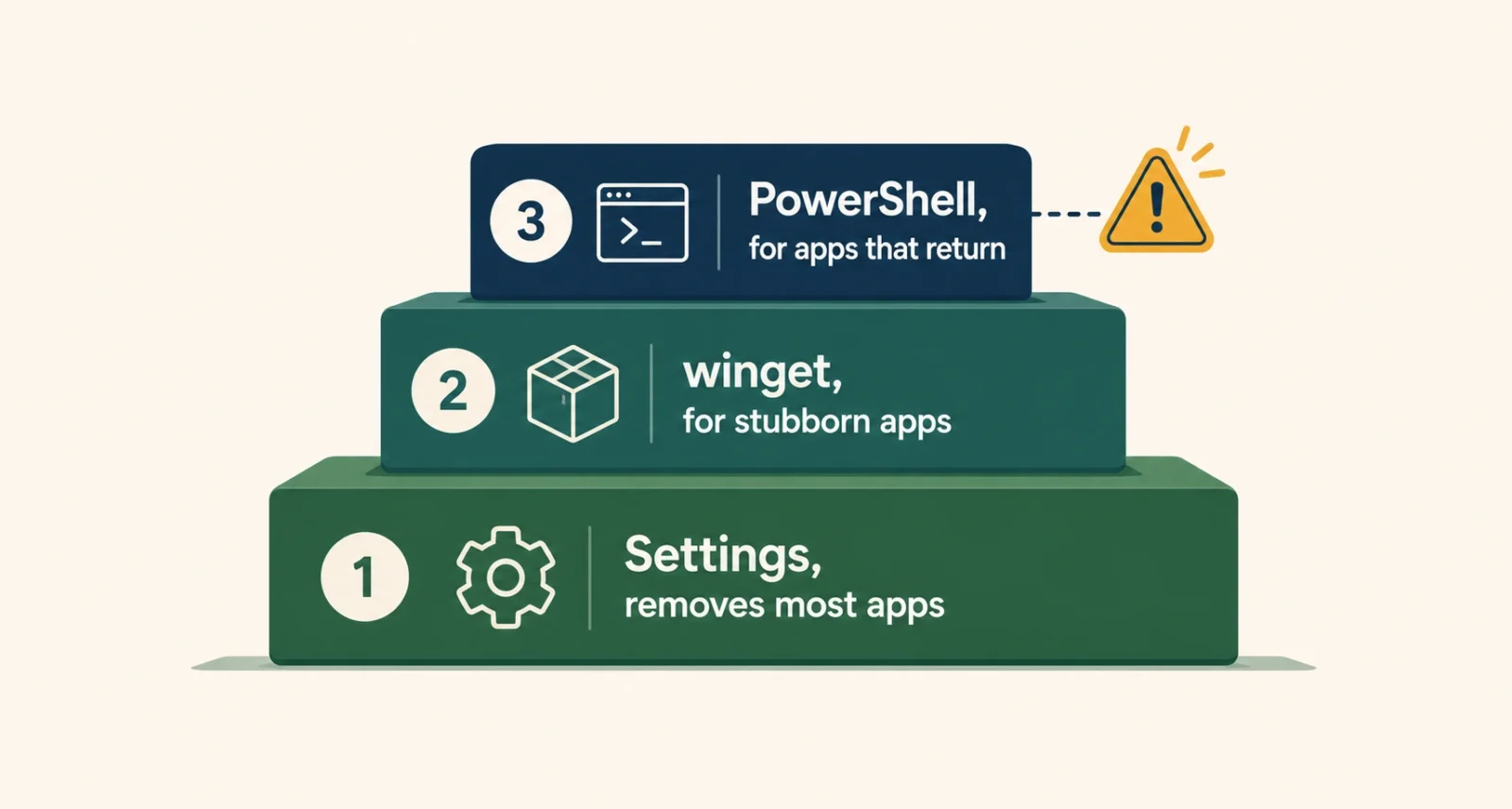
Work down from the safest method rather than starting with the most powerful one. Settings clears most of it, winget handles the stubborn remainder, and PowerShell deals with the few apps that keep returning. Most people never need to go past the first tier.
Frequently Asked Questions
What is the safest way to remove bloatware from Windows 11?
Settings, then Apps, then Installed apps. Click the three dots beside an app and choose Uninstall. This handles most preinstalled software, requires no commands, and is fully supported by Microsoft. Create a restore point first, and only remove applications you actually recognize.
Which preinstalled apps should I not delete?
Leave manufacturer hardware utilities alone, since they often control fan speeds, battery charging limits, and function keys. Also keep anything naming Intel, AMD, Realtek or NVIDIA, as those are drivers. Keep Visual C++ Redistributables and .NET Runtime entries, because other programs depend on them, and keep Windows Security.
Why does an app come back after I uninstall it?
Windows keeps two copies of some built-in apps: one installed for your account and one provisioned in the system image for future accounts. Removing only the first leaves the second in place. Use Remove-AppxPackage for your account and Remove-AppxProvisionedPackage to stop it installing for new accounts.
Does removing bloatware actually make a PC faster?
Somewhat, and mainly at startup. The biggest gains come from disabling startup entries rather than uninstalling apps, since programs that never launch use almost no resources. Removing preinstalled software does free significant disk space, and it reduces background updaters and notification pop-ups, which is often the real annoyance.
Are debloat scripts from GitHub safe to run?
Treat them cautiously. They remove many packages at once, and some Windows features quietly depend on components those scripts strip out. Problems often surface later as a broken Microsoft Store or failing updates, which is hard to trace back. If you cannot read the script yourself, remove apps manually instead.
Can I remove bloatware on a work laptop?
Check with your IT department first. Managed devices frequently reinstall removed software through policy, so changes may not stick, and some removals breach acceptable use rules. Company machines also run security and management agents that look like unnecessary software but are required. Ask before changing anything.

