
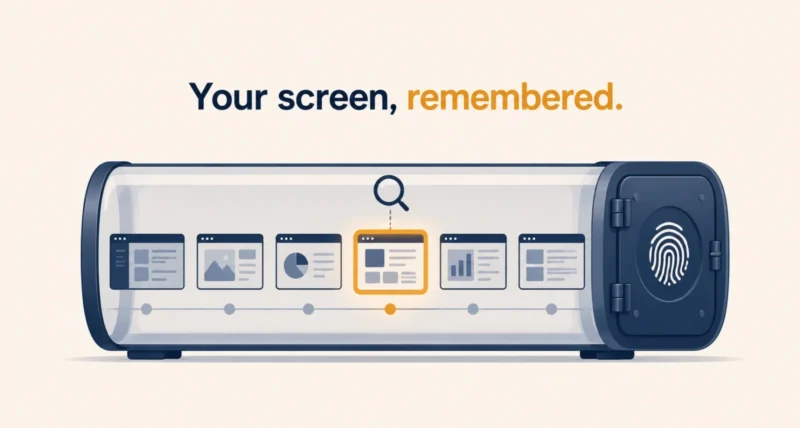
Few Windows features have been received as badly as this one. Microsoft announced it in 2024 and security researchers called it a privacy disaster. The company then pulled it back, rebuilt it, and delayed it repeatedly before letting anyone use it.
So what is Windows Recall now, after all that reworking, and is it actually safe? The honest answer is more interesting than either side of the argument. Microsoft fixed a great deal, one real risk remains, and whether that risk matters depends entirely on what you do with your PC.
| The Short Answer Recall takes periodic snapshots of your screen, stores and analyzes them on your own device, and lets you search your past activity by describing it. Everything stays local, nothing goes to Microsoft, and it is off until you switch it on. It needs a Copilot+ PC with a fast NPU, 16 GB of RAM, and fingerprint or face sign-in, so most Windows 11 machines cannot run it. Microsoft protects the data well against other people using your computer. It cannot fully protect it against malware running inside your own signed-in session, which is the risk worth weighing. |
What Is Windows Recall Actually Doing?
Recall is a searchable memory of everything you have seen on your screen.
It takes a snapshot whenever the content on your display changes meaningfully, then arranges those snapshots into a timeline. Character recognition running on your own machine reads the text and images inside them. You then search that history the way you would describe it to a person. Something like the invoice with the blue logo I looked at last Tuesday will find it.
A companion feature called Click to Do sits on top of the results. It lets you copy text out of an old snapshot, or send an image from it into another app. Microsoft still labels the whole thing as a preview in its own documentation, which is worth knowing before you rely on it.
What You Need to Run It
This is the part that ends the conversation for most people. Recall is not a Windows 11 feature so much as a Copilot+ PC feature.
| Requirement | The Detail |
| A Copilot+ PC | Must also meet Microsoft’s Secured-core standard |
| NPU performance | 40 TOPS, which rules out most machines sold before 2024 |
| Memory | 16 GB RAM minimum |
| Processor | 8 logical processors |
| Storage | 256 GB, with 50 GB free to switch it on |
| Disk encryption | BitLocker or Device Encryption must be enabled |
| Sign-in | Windows Hello with face or fingerprint. A PIN alone will not do |
As of early 2026, reporting suggested fewer than one in ten Windows 11 PCs could run the current version. If you are reading this on an older laptop, the feature is very likely not available to you at all.
How Microsoft Secured It
The rebuild was substantial, and it deserves to be described accurately rather than waved away.
| Protection | What It Means |
| Off by default | You must actively opt in. Nobody can enable it for you |
| Entirely local | Snapshots never leave your device and are not sent to Microsoft |
| Always encrypted | Windows encrypts snapshots and the search index at rest |
| Keys in hardware | Encryption keys sit in the TPM, locked to your biometric identity |
| Biometric gate | Windows Hello gates both opening Recall and viewing snapshots |
| Isolated processing | Keys stay inside a hardware-backed secure enclave |
| No cross-user access | Other accounts on the same PC cannot see your snapshots |
Two claims from Microsoft’s own documentation are worth repeating precisely, because they answer the most common fear. Microsoft states that it cannot access or view your snapshots, and that IT administrators cannot either. On company-managed devices, Recall is removed entirely by default, and an administrator cannot switch snapshot saving on for you. That choice requires your consent.
| Worth Knowing There is also a sensitive information filter, on by default, which uses the same detection engine Microsoft sells to enterprises for spotting confidential data. When it recognizes something like a credit card or an identity number on screen, it skips saving the snapshot entirely. It is a genuine safeguard, though like all automated detection it will not catch everything. |
What Recall Will Not Capture
Windows excludes several things automatically, and knowing those edges matters more than knowing the headline.
| Excluded Automatically | Notes |
| Private browsing windows | In Edge, Firefox, Opera, Chrome and newer Chromium browsers |
| DRM-protected content | Streaming video and similar protected material |
| Audio and continuous video | Recall saves still snapshots only |
| Game footage in Game Mode | On platforms that support it |
| Most remote desktop sessions | Including Remote Desktop Connection and Azure Virtual Desktop |
You can add your own filters too, blocking specific apps and websites from Settings. But read Microsoft’s own caveat carefully, because it is easy to miss. Website filtering applies to the site in the foreground or the active tab. Parts of a filtered site can still appear in snapshots through embedded content, your browser history, or a tab sitting open in the background.
| The Catch Nobody Prints on the Box Filtering is not a guarantee, and Microsoft does not claim it is. It reduces what gets captured rather than eliminating it. If a category of information would be genuinely damaging to have sitting in a searchable local archive, filtering the app is weaker protection than simply not enabling Recall on that machine. |
The Risk That Actually Remains
Here is the part that most coverage handles badly in one direction or the other. The precise shape of the risk matters.
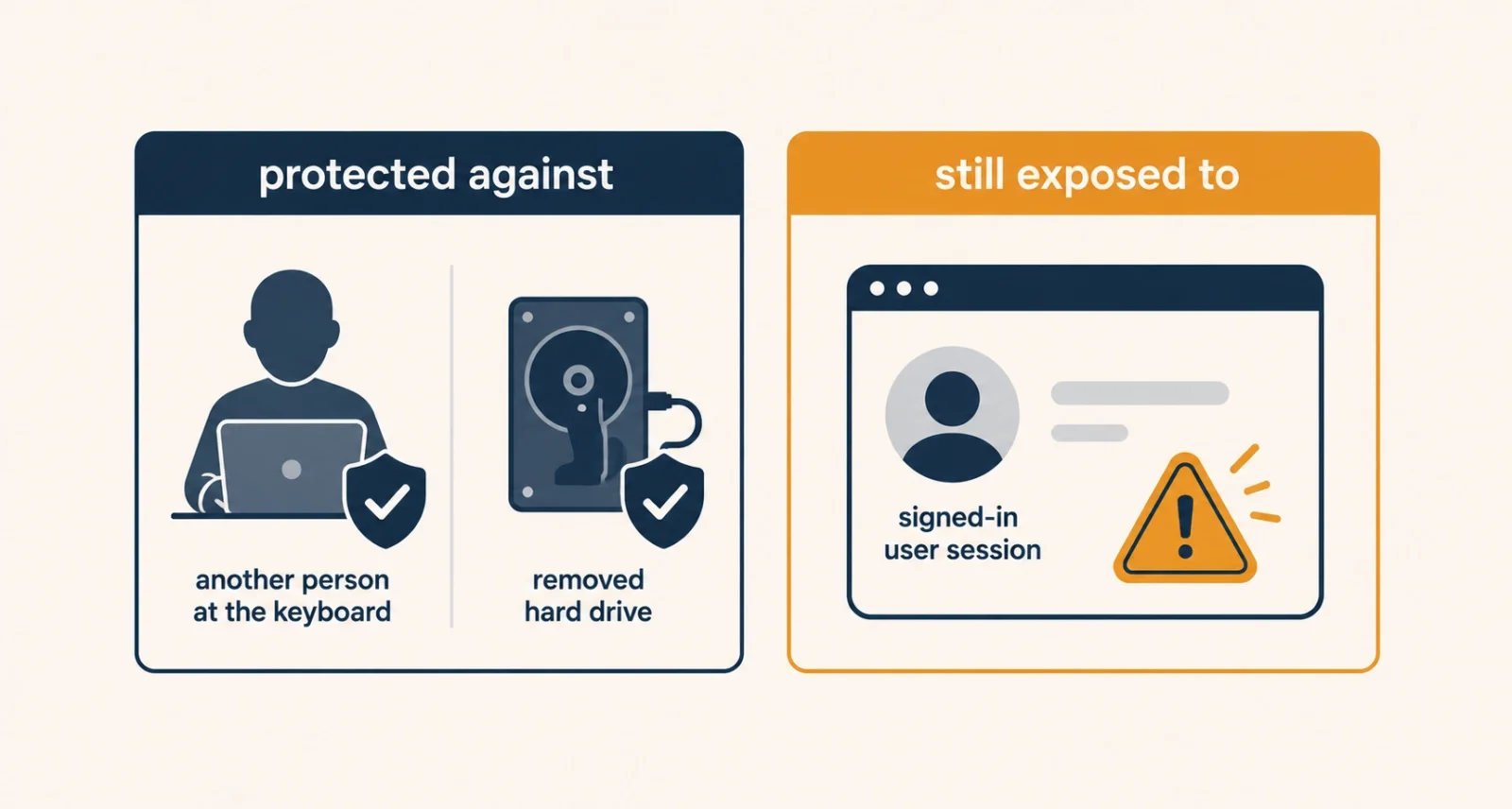
Recall is well defended against two threats. Someone else using your computer cannot read your snapshots, and someone who steals the drive cannot decrypt them. Those were the loudest early criticisms, and Microsoft addressed them properly.
The remaining exposure is different. Because snapshots decrypt when you authenticate, anything running inside your signed-in session can potentially reach them while you are working. Security researcher Kevin Beaumont, whose original analysis drove much of the 2024 backlash, credited Microsoft with serious effort on the rebuild while continuing to document weaknesses. GeekWire reported in April 2026 that malware capable of extracting Recall data already exists.
| Quick Take The honest way to think about this: Recall does not make you easier to hack. It changes what an attacker gets if they succeed. Without it, a compromise gives someone access to your machine from that moment forward. With it, the same compromise can also hand over a searchable record of everything you looked at for weeks beforehand. Whether that shift matters depends on what has been on your screen. |
Should You Turn It On?
There is no universal answer, so match yourself to a row instead.
| If This Is You | Reasonable Position |
| Personal PC, everyday browsing and documents | Reasonable to try, with filters set up first |
| You handle client, legal, medical or financial data | Leave it off |
| You work with source code or credentials | Leave it off |
| Shared or family computer | Only with separate accounts, and think hard |
| Work or school laptop | Ask IT. It is usually removed by policy anyway |
| You research sensitive personal topics | Leave it off |
The pattern is simple enough. Recall is a productivity feature with a real cost, and the cost scales with how sensitive the contents of your screen are. Someone who mostly reads articles and writes documents faces a very different calculation from someone whose screen regularly shows other people’s private information.
How to Check, Pause, or Turn It Off
Everything lives in one place. Press Windows and I to open Settings, then go to Privacy and security, then Recall and snapshots.
- Check whether it is running. Look at the Save snapshots toggle. If it is off, Recall is not building any history, and no snapshots exist.
- Add filters before enabling anything. Use the app and website filter lists for your password manager, banking sites, work tools, and anything else sensitive.
- Pause temporarily when you need to. The Recall icon in the system tray lets you stop capture for a while, and shows a badge when a filter is active.
- Delete what exists. The same settings page lets you remove snapshots from a time range or clear the entire history.
- Turn it off entirely by switching Save snapshots off. Existing snapshots can be deleted separately, so do both if you want a clean slate.
Switching Recall off does not affect anything else. Copilot, Windows Search, and general performance all behave exactly as before. Microsoft’s consumer privacy guide covers the individual controls in more detail if you want to go further.
Recall in 2026 is a genuinely different product from the one announced in 2024. Local storage, encryption tied to your fingerprint, opt-in by default, and removal on managed devices are meaningful changes rather than cosmetic ones. The researchers who attacked the original design have acknowledged the effort.
Frequently Asked Questions
What is Windows Recall and what does it do?
Recall periodically captures snapshots of your screen, stores and analyzes them locally on your PC, and lets you search that history using natural language. On-device character recognition reads the text and images inside those snapshots. You then find things by describing how you remember them rather than by filename or date.
Does Windows Recall send my data to Microsoft?
No. Microsoft states that snapshots stay on your device for storage and analysis, and never reach Microsoft. Neither Microsoft nor IT administrators can access or view them. No internet connection is needed to save or analyze snapshots. Some ordinary diagnostic data may still be sent depending on your general Windows privacy settings.
Is Windows Recall safe to use?
It defends well against other people using your computer and against someone stealing the drive. Snapshots stay encrypted and need your fingerprint or face to open. The remaining risk is malware running inside your signed-in session, which can potentially reach snapshots while they are decrypted. Whether that matters depends on how sensitive your screen contents are.
Is Recall on by default?
No. It stays off until you deliberately enable it, and Microsoft cannot switch it on for you. On work or school devices managed by an IT department, Recall is removed entirely by default. An administrator still cannot enable snapshot saving on your behalf, since that requires your own consent.
Can I run Recall on any Windows 11 PC?
Almost certainly not. Recall requires a Copilot+ PC meeting the Secured-core standard. That means a 40 TOPS neural processing unit, 16 GB of RAM, and 8 logical processors. You also need 256 GB of storage, disk encryption enabled, and Windows Hello set up with fingerprint or facial recognition. Reporting in early 2026 suggested fewer than one in ten Windows 11 machines qualified.
How do I turn Windows Recall off?
Open Settings, go to Privacy and security, then Recall and snapshots, and switch off Save snapshots. Delete any existing snapshots separately from the same page, since turning the feature off does not remove what it already captured. Disabling Recall has no effect on Copilot, Windows Search, or system performance.

