

Handing your child a phone or iPad can feel like a leap of faith. The good news is that Apple just made that leap a lot safer. It is rolling out a fresh set of parental tools that are genuinely easy to use, no tech degree required.
On June 8, 2026, Apple previewed its new child safety features, arriving this fall. This guide walks you through what is new and, step by step, exactly how to set each one up for your kid. Let us make your family’s devices safer together.
The Quick Version
In a hurry? Here is everything the update brings, at a glance.
| Detail | What to Know |
| Announced | June 8, 2026, by Apple |
| Arrives | This fall, with the Screen Time update in iOS 27, iPadOS 27, and macOS 27 |
| Headline tools | Ask to Browse, Time Allowances, a redesigned Screen Time, and easier child-account setup |
| Works on | iPhone, iPad, and Mac |
| Child account | Required for kids under 13, available up to 18 |
| Best first step | Set up a child account, which switches on age-based protections automatically |
1. What Apple Just Announced
Apple previewed a suite of parental tools built with guidance from online safety and health experts. As the company explained in its official child safety announcement, the goal is to let parents manage what kids see, who they talk to, and when they can use apps, all from simple settings.
Here are the standout new features.
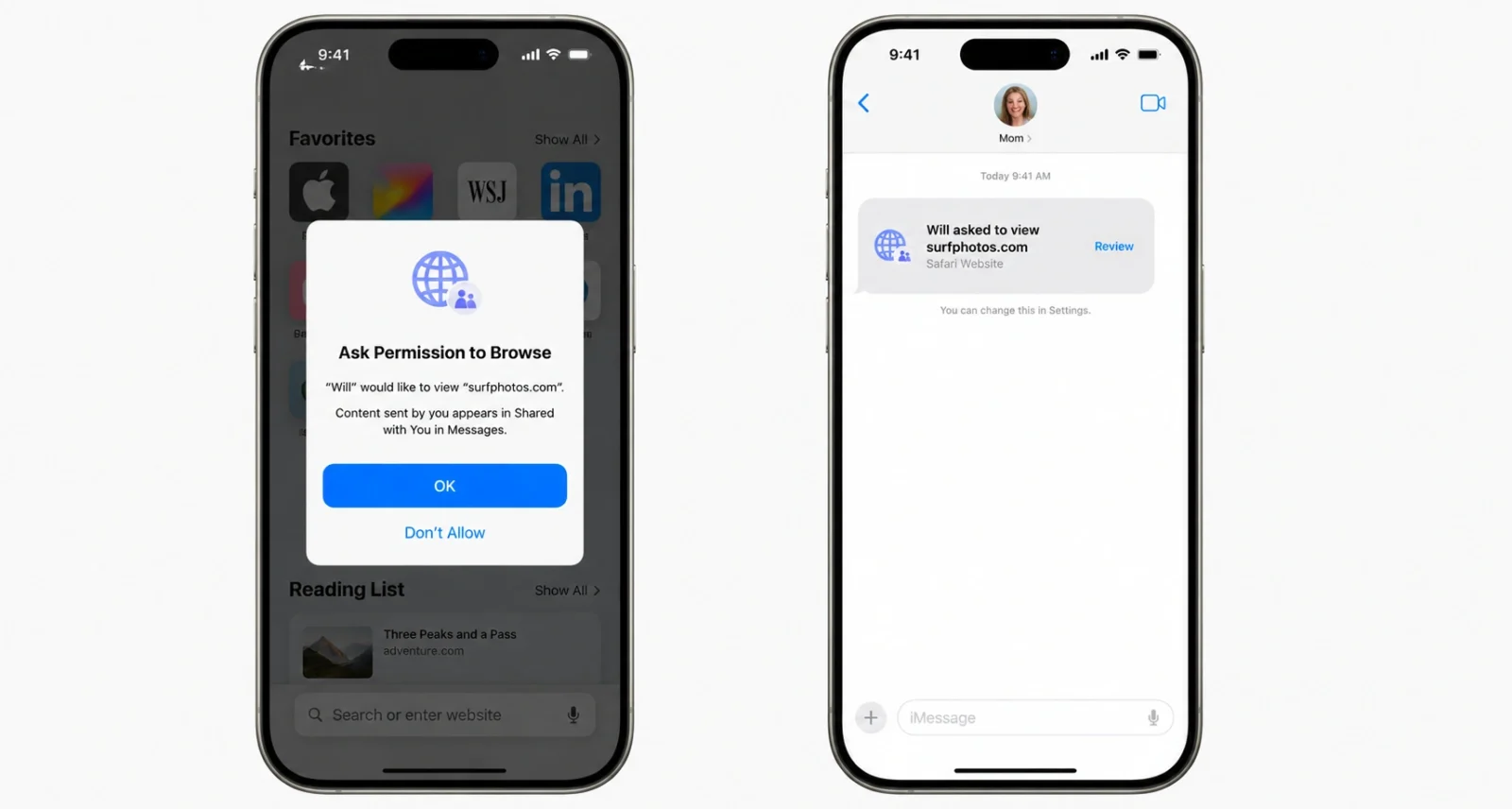
- Ask to Browse, which makes kids request permission before opening a new website in Safari.
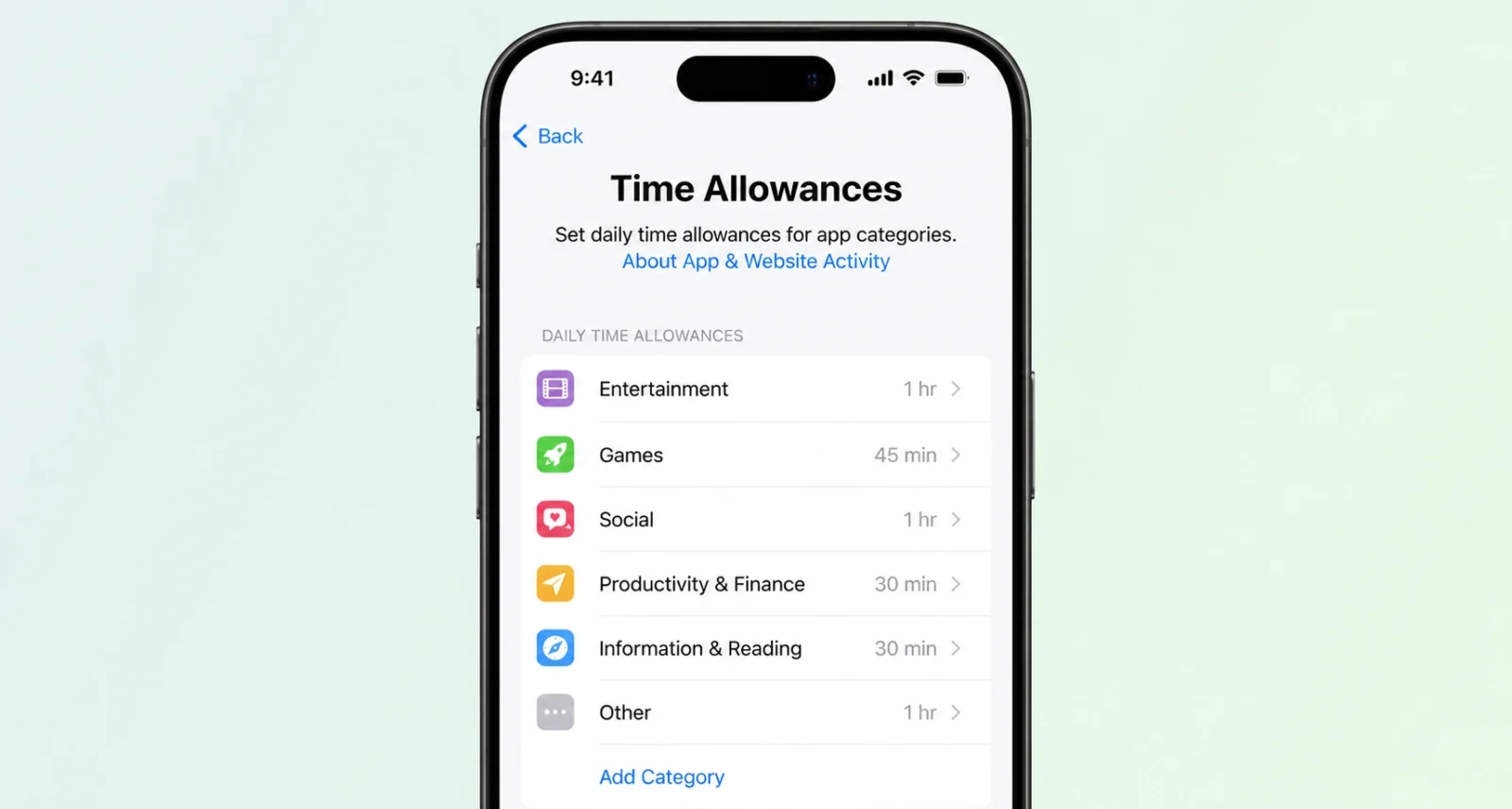
- Time Allowances, which set time limits by app category, like Games or Social Media, with age-based suggestions.
- A redesigned Screen Time, giving an at-a-glance view of usage that you can adjust with a tap.
- A simpler child-account setup that starts kids with just a few essential apps.
- Ask to Approve contacts, so kids need your okay before messaging someone new.
- Stronger Communication Safety, which now blocks gore and violent content, not just nudity.
Worth Knowing: These features arrive this fall in iOS 27, iPadOS 27, and macOS 27, after you install the Screen Time update. Apple notes the features are a preview and may change before release.
2. Start Here: Create a Child Account
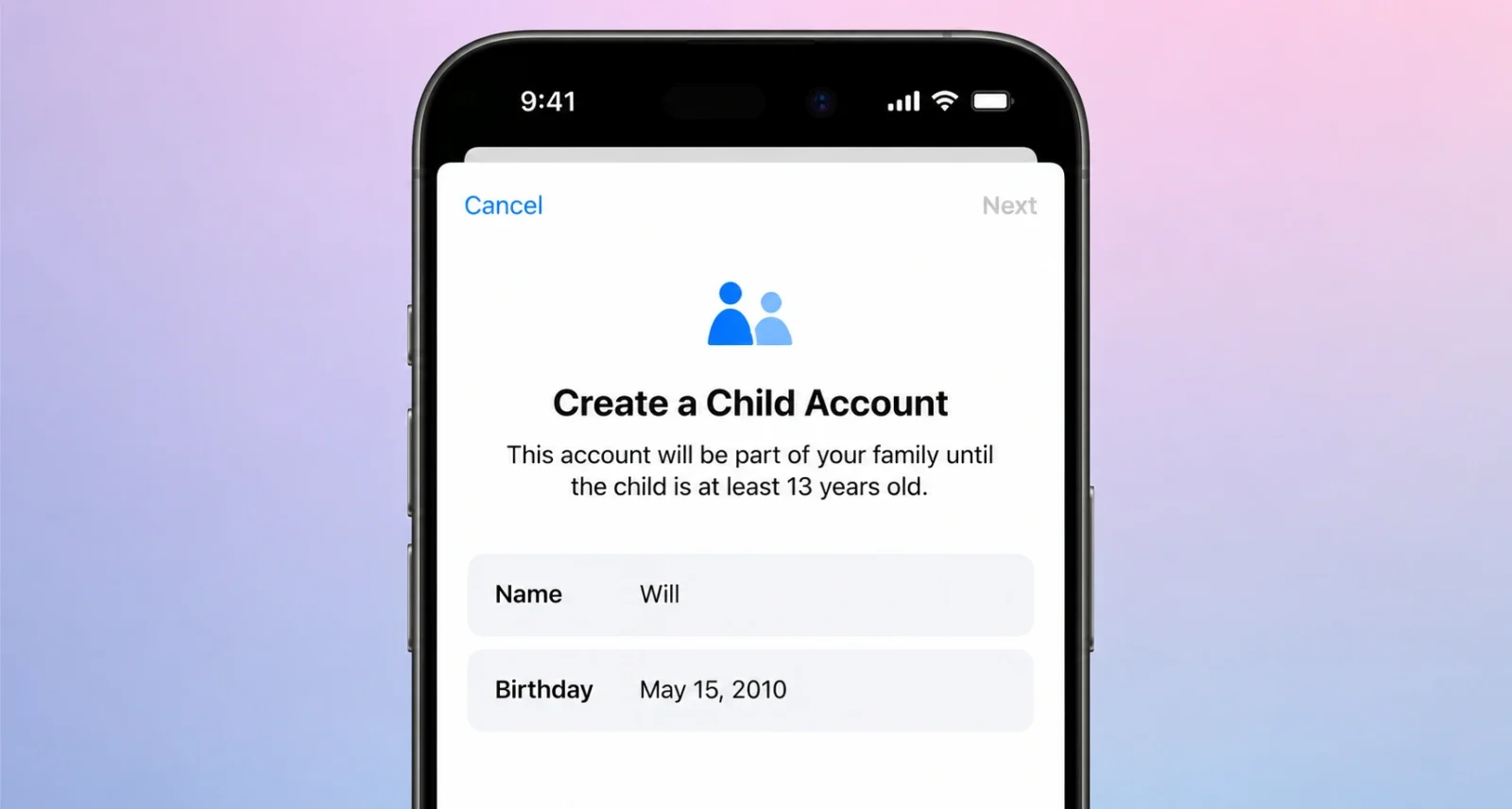
Everything begins with a child account. It is the single most important step, because it automatically switches on age-based protections, like limiting adult websites and age-rating the App Store.
Here is how to set one up.
- On the child’s device, open the Settings app.
- Tap your name at the top, then choose Family.
- Tap Add Member, then Create Child Account.
- Enter your child’s name and birthday, since the birthday sets the right age protections.
- Follow the prompts to finish, then sign in on your child’s device.
Quick Tip: A child account is required for children under 13 and available all the way up to 18. The birthday you enter is what tailors the safety settings, so enter it accurately.
3. Control What Your Child Can See and Download
Once the account exists, you decide which apps and websites your child can reach. You can start small and add more over time.
Choose Starter Apps During Setup
When you first set up the device, Setup Assistant lets you pick a small set of essential apps, or a recommended starter set. You stay in control and can add apps later.
Turn On Ask to Buy for Downloads
Ask to Buy makes your child request your approval before downloading any app, free or paid, or making an in-app purchase. To turn it on, follow these steps.
- On your own device, open Settings and tap your name, then Family.
- Tap your child’s name.
- Tap Ask to Buy and switch it on.
Now any download request will pop up on your device for a quick yes or no.
Turn On the New Ask to Browse
Ask to Browse is the fresh addition. It makes your child ask permission before visiting a new website in Safari, and it works across iPhone, iPad, and Mac. Look for it in your child’s Screen Time settings once the fall update lands.
Heads Up: Ask to Browse is part of the fall software update. So you will see it after you install the Screen Time update in iOS 27, iPadOS 27, or macOS 27. We will refresh this guide with the exact tap-by-tap path once it is live.
4. Manage Who Your Child Can Talk To
You can control who your child reaches over Messages, FaceTime, and Phone, and require approval before they add anyone new.
Set Up Contact Approval
- On your device, open Settings and tap your name, then Family.
- Tap your child’s name, then Communication Limits or Contacts.
- Turn on the option to require approval for new contacts.
- Approve or decline new contact requests when they reach your device.
Know About Communication Safety
Communication Safety is on by default for users under 18. It already blurs nudity in Messages and FaceTime. With this update, it will also step in to block gore or violent content in shared images and videos. There is nothing to switch on, but it is good to know it is working in the background.
5. Set Limits on When and How Long
Time Allowances and Schedules are how you manage screen time without a daily fight. Both come with age-based guidance as a starting point.
Set a Time Allowance by Category
- On your device, open Settings and tap your name, then Family.
- Tap your child’s name, then Screen Time.
- Choose Time Allowances, then pick a category like Entertainment, Games, or Social Media.
- Set the daily amount of time, using Apple’s age-based suggestion as a guide.
- Save, and adjust anytime as you see what works for your child.
Create a Daily Schedule
Schedules let you decide which apps are available at different times, like blocking games during school hours. To set one up, follow these steps.
- In your child’s Screen Time settings, choose Schedule.
- Pick the days and time windows, such as school hours or bedtime.
- Select which apps or categories to limit during that window.
- Save, and repeat for any other time blocks you want.
6. Use the Redesigned Screen Time Dashboard
The new Screen Time gives you a clean, at-a-glance view of your child’s average usage and most-used apps. Better still, the controls are right there to tap in the moment.
Here is how to use it day to day.
- On your device, open Settings, tap your name, then Family, then your child’s name.
- Tap Screen Time to see the new dashboard with daily averages and top apps.
- To pause the device for a meal or family time, tap the pause control.
- If your child needs a few more minutes to finish something, tap to extend access.
Quick Tip: Turn on Screen Time Passcode Notifications, which alert you if your Screen Time passcode is entered on your child's device. It is a simple way to know if a setting was changed.
7. Helpful Extras Worth Knowing About
Apple also pointed to a few more tools and resources that round out the picture.
- A dedicated parents website with the latest tools, resources, and answers to common questions.
- A partnership with the American Academy of Pediatrics to adapt its Family Media Plan for Apple devices.
- Apple Watch for Your Kids, which gives younger children calls, messages, location sharing, and a focused Schooltime mode without needing an iPhone.
- User Reporting Tools to report harmful content to Apple, expanding to more countries.
Frequently Asked Questions
When Will Apple’s New Child Safety Features Be Available
Apple previewed the features on June 8, 2026, and they arrive this fall. You will get them after installing the Screen Time update in iOS 27, iPadOS 27, and macOS 27. Apple notes the features are a preview and may change before the final release.
What Is Ask to Browse on iPhone
Ask to Browse is a new feature that makes your child request permission before opening a new website in Safari. When they try to visit a new site, an approval request goes to your device. It works across iPhone, iPad, and Mac for a consistent experience.
Do I Need a Child Account to Use These Features
Yes. A child account is the foundation that switches on age-based protections automatically. It is required for children under 13 and available for kids up to 18. Setting one up is the first step before using the other tools.
What Are Time Allowances
Time Allowances let you set daily time limits by app category, such as Entertainment, Games, or Social Media. Apple provides age-based suggestions as a starting point, which you can adjust. You can also set Schedules to limit certain apps during school or bedtime.
Does Communication Safety Need to Be Turned On
Communication Safety is on by default for users under 18, so there is nothing to enable. It blurs nudity in Messages and FaceTime, and with this update it will also block gore or violent content in shared images and videos automatically.
Which Devices Support the New Features
The new child safety features work on iPhone, iPad, and Mac. You will need the fall software updates, namely iOS 27, iPadOS 27, and macOS 27. After that, apply the Screen Time update to access the full set of tools.
Can My Child Change These Settings Themselves
The settings are protected by your Screen Time passcode. You can also turn on Screen Time Passcode Notifications. These alert you if that passcode is entered on your child’s device, so you know right away if someone tried to change a setting.
Is There an Apple Website for Parents
Yes. Apple launched a dedicated website for parents with the latest tools, helpful resources, and answers to common questions, including how to get started. Apple is also adapting the American Academy of Pediatrics Family Media Plan for its devices.

