
Your inbox is where good intentions go to die. A forty-message thread you have not read. Six replies you keep postponing. Gemini, the AI built into Gmail, can clear most of that in minutes, but only if you know where it lives and what it is genuinely good at. This guide covers how to use Gemini in Gmail without the hype. You get where to find it in 2026, the jobs that save real time, the prompts that work, and the messages you should still write yourself.
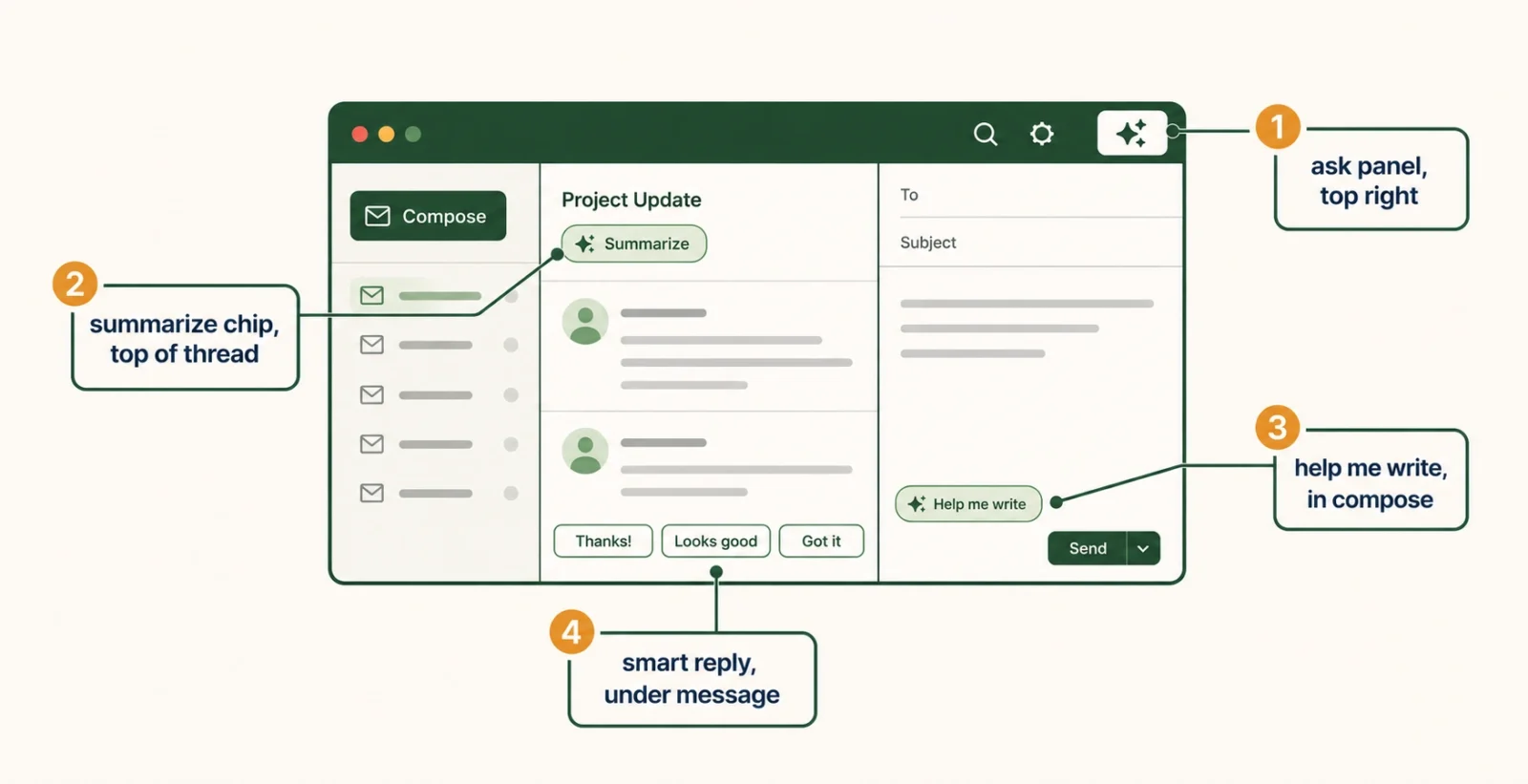
| The Short Answer Gemini in Gmail summarizes long threads, drafts and replies to emails, and digs answers out of your inbox, Drive, and Calendar. On desktop you open it with Ask Gemini at the top right, or use the summarize chip at the top of a thread and Help me write inside the compose window. One important change: Google says some subscribers in the US may no longer see the Ask Gemini side panel at all, because those features now sit directly inside Gmail instead. So think in features, not one button. The biggest time saver is thread summarization, and the best results come from narrow prompts that state the output you want. It needs an eligible Google Workspace or Google AI plan, though Smart Reply and Smart Compose stay free for everyone. |
How to Use Gemini in Gmail: Start by Finding It
Most guides tell you to look for one button. That advice is now out of date, and it is the reason so many people conclude they do not have Gemini when they do.
According to Google’s Gmail Help documentation, Google is moving its AI features directly into Gmail. Google AI Pro and Google AI Ultra subscribers in the US may no longer see Ask Gemini or be able to open the Gemini side panel. Capabilities such as AI Overviews and Help me write keep working inside the product. So the useful mental model in 2026 is feature-based rather than button-based. Here is where each job actually lives.
| What You Want to Do | Where to Find It |
| Summarize a thread | The summarize chip at the top of an open email, or the side panel |
| Draft a new email | Help me write inside the compose window |
| Reply to a thread | Suggest a reply in the side panel, or Help me write in the reply box |
| Ask about your inbox | The Ask Gemini side panel, where it is available |
| Quick short replies | Smart Reply and Smart Compose, free on every account |
Run through these steps once and you will know exactly what your account has.
- Open Gmail on a computer and look at the top right for Ask Gemini. If it is there, the side panel is available to you.
- Open any long email thread and look at the top for a summarize chip. That works whether or not you have the side panel.
- Click Compose and look for Help me write inside the draft window. This is the drafting entry point.
- Check your smart features settings. Summary cards and personalization need smart features turned on for Gmail, Chat, and Meet, and for Google Workspace.
- Update the Gmail app if you are on a phone. Mobile rollouts trail desktop, so an old app version can hide features you already have.
On phones there is one extra layer. Gemini shows summary cards on some emails in the Gmail app, and as the Google Workspace Updates blog explains, those cards need smart features and personalization switched on. Emails without a card still offer the summarize chip, so you lose nothing either way.
| Do This First If you cannot find any of it, you have almost certainly not broken anything. Gemini in Gmail needs an eligible Google Workspace or Google AI plan, and personal accounts can get access through Google Workspace Experiments, Google’s tester program. Work accounts add another layer, since an administrator can switch these features off for the whole organization. Check your plan before you spend an afternoon hunting for a button that is not there. |
What Gemini in Gmail Can Actually Do
Google lists seven capabilities in its official documentation. Seeing them together is useful, because most people only ever discover two or three.
| Capability | What It Means in Practice |
| Summarize an email thread | Turn a long back-and-forth into a few readable lines |
| Suggest responses | Get a reply drafted from the context of the thread |
| Draft an email | Write a first version from a one-line instruction |
| Find information in past emails | Pull up a flight, a booking, or a number you half remember |
| Find information in Drive files | Answer using your own documents without leaving Gmail |
| Get Calendar event details | Check what is on your schedule while you write |
| Create Calendar events | Turn an agreed time in a thread into an actual event |
Notice the pattern. The last four are the ones people miss, and they are the reason Gemini beats a general chatbot for email work. It can already see your inbox, your files, and your calendar, so you never paste context into another tab.
The Feature That Saves the Most Time: Thread Summaries
If you use only one thing from this guide, use this one. A long thread is the single most expensive object in your inbox, and summarizing it takes one click.
Open the thread and click the summarize chip at the top. If your side panel is open instead, ask what the email is about. Either route gives you the gist in seconds. The better move is to ask for the specific output you need, rather than a generic recap. Try asking Gemini to create a list of action items based on the email, which is one of Google’s own suggested prompts. Or ask it to separate the decisions already made from the questions still open.
| Worth Knowing Summaries get shakier on very long threads and on messages stuffed with attachments, where the recap tends to favor the newest and earliest messages. Two habits fix that. Ask targeted follow-ups such as what each person committed to, or what the timeline is. And skim the original thread before you act on anything that carries money, deadlines, or someone’s job. |
How to Use Gemini in Gmail for Faster Replies
Drafting is the second big win, and it works two ways. Inside a thread, open the side panel and choose Suggest a reply, which uses the conversation as context. For a brand new message, click Compose and use Help me write.
The quality depends entirely on what you ask for. A vague instruction gives you a bland, faintly robotic email that you then rewrite by hand, which saves nobody any time. Name the goal, the tone, and the length. Something like a short, warm reply that accepts the meeting and proposes Thursday morning as an alternative will land far closer than asking it to reply to this.
Then edit. Gemini gives you a first draft, and the last ten percent is where your voice goes in. That final pass is the difference between an email that sounds like you and one that sounds like everybody.
Using Your Inbox as a Search Engine
This is the underrated one. Gmail search is good at finding emails and bad at finding answers. Gemini flips that.
Ask it for the details of a booking, a flight time, or a package that you know arrived in your inbox somewhere. Ask for unread messages from a particular person in a particular month. It also reaches your Drive files and your Calendar, a cross-app trick Computerworld highlights across the whole Workspace side panel, so you can ask about a document or a meeting without opening either. One caution from Google’s own guidance: when it answers using your files or old emails, check the sources it lists rather than taking the summary on trust.
Prompts That Get Better Results
There is one rule behind every good result here. Narrow beats broad. Gemini responds well when your prompt defines the shape of the answer, and poorly when it has to guess what you want.
| Weak Prompt | Strong Prompt |
| Summarize this | Summarize this thread in five bullets and list every deadline |
| Reply to this | Write a short, friendly reply declining and offering next month |
| Write an email about the launch | Draft a 150-word launch update for my team in a confident tone |
| What did they say? | List what each person committed to and who owns each task |
The pattern is always the same: say the task, the format, the length, and the tone. It takes ten extra seconds and it removes an entire round of rewriting.
When Not to Use Gemini in Gmail
Knowing when to close the panel matters as much as knowing how to open it. A few situations call for your own words.
Skip it for emotionally delicate messages. Performance feedback, a layoff, a medical matter, a legal dispute, an apology that needs to land. These need human judgment, not competent generic empathy. Skip it for anything where a wrong detail is expensive, unless you verify every figure yourself. And be thoughtful about confidential material, since work accounts sit under organizational policy. Google states that Workspace data processed by Gemini is not used to train its AI models, with extra protections for business and enterprise accounts, though your own employer’s rules still apply.
| The Golden Rule Use Gemini for the emails you would happily delegate to a capable assistant, and write the rest yourself. Anything carrying money, a deadline, a relationship, or someone’s feelings deserves your own eyes before you press send. |
Is Gemini in Gmail Free?
Partly. Smart Reply and Smart Compose, the short suggestions that finish your sentences and offer one-line responses, are free on ordinary Gmail accounts. Smart Compose shows its guess in gray as you type, and you accept it with the Tab key.
The bigger features are the paid ones. Thread summaries, Help me write, and the Ask Gemini panel need an eligible Google Workspace or Google AI plan. Google also opens them to some personal accounts through its Workspace Experiments tester program. Plan names and inclusions change often, so check what your current plan covers rather than trusting a comparison article, including this one.
Learning how to use Gemini in Gmail comes down to three habits. Stop hunting for one button and think in features, since Google has been moving them straight into the product. Summarize long threads before you read them. And write prompts that name the format, length, and tone you want.
Frequently Asked Questions
How do I turn on Gemini in Gmail?
There is usually nothing to switch on. If your account qualifies, open Gmail and check three places. Look at the top right for Ask Gemini, the top of a thread for a summarize chip, and the compose window for Help me write. If none appear, the cause is normally your plan, your organization’s admin settings, or an out-of-date mobile app rather than a hidden toggle.
Why can I not see the Gemini side panel in Gmail?
You may not be missing anything. Google says some AI Pro and AI Ultra subscribers in the US no longer see Ask Gemini or the side panel, because those features moved directly into Gmail. Look for AI Overviews and Help me write instead. Access also depends on your plan and, on work accounts, your administrator’s settings.
Can Gemini summarize a long email thread?
Yes, and it is the best reason to use it. Open the thread and click the summarize chip, or ask the side panel what the email is about. Quality drops on very long threads and heavily attached messages, so ask follow-up questions such as what each person decided, and skim the original before acting on anything important.
Is Gemini in Gmail free?
Smart Reply and Smart Compose are free on standard Gmail accounts. The larger features require an eligible Google Workspace or Google AI plan. Those include thread summaries, Help me write, and the Ask Gemini panel, with some personal accounts reaching them through Google Workspace Experiments. Plan details change regularly, so check your own subscription.
Does Gemini read all of my emails?
Google states that Workspace data processed by Gemini is not used to train its AI models, and business and enterprise accounts carry additional protections. Even so, treat confidential material carefully and follow your organization’s policy. When Gemini answers using old emails or Drive files, review the sources it cites rather than accepting the summary at face value.
Does Gemini work in the Gmail mobile app?
Yes, on both Android and iOS, including summary cards on supported emails. Mobile has trailed desktop throughout the rollout, so update to the latest Gmail app version if you cannot find the features. Summary cards also require smart features and personalization to be enabled in your settings.

