
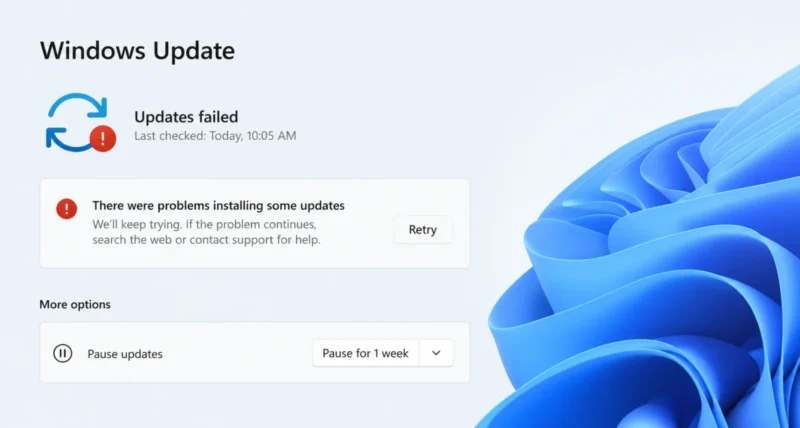
That spinning circle stuck at 35 percent. The error code you have never seen before. The update that downloads, fails, and rolls back again and again. Few things are as frustrating as a Windows Update that simply will not install.
The good news is that almost every case can be fixed, and you do not need to be a tech expert. This guide gives you 10 proven methods to fix Windows Update errors in Windows 11. Start at Method 1 and work down only as far as you need. Most people are sorted within the first three.
Start Here: Work through these methods in order, since they go from easiest and safest to more advanced. Most update errors are fixed by Method 1, 2, or 3. After each method, try installing the update again before moving on. There is no need to do all ten.
Quick Fix Finder
Not sure where to start? Match your symptom to the best first method, then jump in.
| Your Symptom | Try First |
| Update fails with an error code | Method 1, the troubleshooter |
| Update gets stuck downloading | Method 3, clear the update cache |
| Install stops near 35 percent then rolls back | Method 5, free up disk space |
| One specific update will not install | Method 8, install it manually |
| System files may be damaged | Method 4, run SFC and DISM |
Method 1: Run the Windows Update Troubleshooter
This is always the first thing to try. Windows has a built in tool that finds and fixes the most common update problems automatically. It is safe and takes a couple of minutes.
- Click Start, then open Settings. The shortcut is the Windows key plus I.
- Go to System, then Troubleshoot, then Other troubleshooters.
- Find Windows Update in the list and click Run next to it.
- Let it scan and apply any fixes, then restart your PC when it finishes.
- Go back to Settings, Windows Update, and click Check for updates to try again.
On Windows 11, the troubleshooter may open in the Get Help app, which is normal. This path is confirmed by Microsoft’s official support page.

Method 2: Restart and Check Your Internet
It sounds too simple, but a clean restart clears temporary glitches that block updates. A weak connection also causes failed downloads.
- Save your work and restart the PC fully, using Start, Power, Restart.
- Confirm your internet is stable, and switch from Wi-Fi to a cable if you can.
- If you use a VPN, turn it off for now, since it can interfere with update servers.
- Open Settings, Windows Update, and click Check for updates again.
Quick Tip: A full restart is different from shutting the lid or sleeping. Use Start, Power, Restart so Windows fully reloads, which clears more stuck processes than a sleep or fast shutdown.
Method 3: Clear the Windows Update Cache
Windows stores update files in a folder called SoftwareDistribution. If those files get corrupted, updates fail. Clearing them forces Windows to download fresh, healthy copies. This is one of the most reliable fixes.
- Click Start, type services, and open the Services app.
- Find Windows Update in the list, right click it, and choose Stop. Do the same for Background Intelligent Transfer Service.
- Open File Explorer and go to C, then Windows, then SoftwareDistribution, then Download.
- Select everything inside the Download folder and delete it. This is safe, since these are only temporary files.
- Go back to Services, right click both services you stopped, and choose Start.
- Restart your PC, then check for updates again.

Method 4: Run SFC and DISM Scans
If core Windows files are damaged, updates cannot apply. Two built in tools repair them. SFC fixes system files, and DISM repairs the deeper Windows image. Run them in order.
- Click Start, type command prompt, then choose Run as administrator and click Yes.
- Type this command, press Enter, and wait for it to finish:
sfc /scannow
- Then run these three DISM commands, one at a time, pressing Enter after each:
DISM /Online /Cleanup-Image /CheckHealth
DISM /Online /Cleanup-Image /ScanHealth
DISM /Online /Cleanup-Image /RestoreHealth
- Restart your PC and try the update again.
Worth Knowing: These scans can take 10 to 20 minutes and may look frozen at points, especially around 20 percent. That is normal. Let them run fully without closing the window.
Method 5: Free Up Disk Space
Updates need room to download and install. If your drive is nearly full, the install can stall near 35 percent and roll back. This is a very common cause in 2026, especially for big feature updates.
- Open Settings, then System, then Storage to see what is using space.
- Turn on Storage Sense, or click Temporary files and remove update leftovers and the recycle bin.
- Aim for at least 20 GB free before a major update, and more for feature updates.
- Restart and try the update again.
Worth Knowing: Microsoft confirmed some 2026 updates can fail when a small hidden recovery partition runs low on space. So if a big update keeps failing even after you free your main drive, this can be the cause. It may need Microsoft's official guidance to expand that partition.
Method 6: Pause Updates, Then Resume
Sometimes a stuck update queue just needs a reset. Pausing and resuming can clear a jammed download so it starts cleanly.
- Open Settings, then Windows Update.
- Click Pause updates and pause for one week.
- Restart your PC.
- Return to Windows Update, click Resume updates, and check for updates again.
Method 7: Temporarily Disable Third-Party Antivirus
Outside antivirus and security tools sometimes block update files by mistake. Turning them off briefly can let the update through.
- Open your third-party antivirus and turn off its real time protection for a short while.
- If you use a VPN, disconnect that too.
- Try the update again from Settings, Windows Update.
- Turn your protection back on as soon as the update finishes.
The Honest Caveat: Only disable security software briefly, and turn it back on right after. Windows Security, the built in protection, keeps you covered in the meantime, so you are not left exposed.
Method 8: Install the Update Manually
If one specific update keeps failing, you can grab it directly from Microsoft and install it yourself. You just need the update’s KB number, which appears next to the failed update in your update history.
- In Settings, Windows Update, click Update history and note the KB number of the failed update, such as KB5089549.
Open the Microsoft Update Catalog in your browser and search for that KB number.
- Download the version that matches your PC, which is almost always x64 based.
- Run the downloaded file, follow the prompts, and restart when asked.
Method 9: Update Your Drivers and Unplug Extra Devices
Old drivers and extra hardware can quietly block updates. Clearing both removes a hidden cause of failures.
- Unplug nonessential devices, such as external drives, docks, and extra USB gadgets.
- Click Start, type device manager, and open it.
- Look for any device with a yellow warning mark, right click it, and choose Update driver.
- Restart and try the update once more.

Method 10: Reset Windows Update With a Script
If nothing above works, this is the deep clean. It resets all the Windows Update parts at once. It is more advanced, so use it last, and only when the simpler methods have failed.
The safest route is Microsoft’s own guidance, which walks you through resetting the update services and components step by step.
- Open Command Prompt as administrator, as in Method 4.
- Follow Microsoft’s official reset steps, which stop the update services, rename the cache folders, and restart the services.
Use the steps on Microsoft’s troubleshoot updating Windows page so you run the exact current commands for your version.
- Restart your PC and check for updates a final time.
The Honest Caveat: If even this does not work, the issue may be a specific buggy update that Microsoft is still fixing on its end. In that case, waiting a few days for a server side fix, or contacting Microsoft Support, is the right move.
How to Avoid Update Errors in Future
A little upkeep prevents most of these headaches. Keep these habits and updates will mostly just work.
- Keep at least 20 GB of free space on your main drive.
- Restart your PC fully at least once a week.
- Sign in with a Microsoft account, so your BitLocker recovery key is backed up safely.
- Run Disk Cleanup once a month to clear update leftovers.
Frequently Asked Questions
What Is the Fastest Way to Fix a Windows Update Error
Run the built in Windows Update troubleshooter first. Open Settings, then System, then Troubleshoot, then Other troubleshooters, and run Windows Update. It fixes most common errors automatically, and you should restart and try the update again afterward.
Why Does My Windows 11 Update Keep Failing
Common causes are a corrupted update cache, low disk space, damaged system files, driver conflicts, or third party antivirus blocking the files. Working through the methods in this guide in order will address each of these causes one by one.
Is It Safe to Delete the SoftwareDistribution Folder
Yes, it is safe to clear the contents of the SoftwareDistribution Download folder. These are temporary update files, and Windows simply downloads fresh copies. Stop the Windows Update service first, as shown in Method 3, then restart it after.
What Does the SFC Scannow Command Do
The sfc scannow command scans your Windows system files and repairs any that are corrupted or missing. Damaged system files are a frequent reason updates fail, so running it, followed by the DISM commands, fixes many stubborn errors.
How Do I Install a Windows Update Manually
Find the failed update’s KB number in your update history, then search that number on the Microsoft Update Catalog. Download the version that matches your PC, usually x64 based, run the file, and restart. This bypasses a stuck automatic update.
My Update Gets Stuck at 35 Percent, What Do I Do
This usually means low disk space, often on a hidden recovery partition. First free up space on your main drive, as in Method 5. If a big update still fails, it may need Microsoft’s official guidance to expand the recovery partition.
Will These Fixes Delete My Files
No. The methods in this guide do not touch your personal files. They only reset update components, clear temporary caches, and repair system files. Your documents, photos, and apps stay exactly where they are.
What If None of These Methods Work
If all ten methods fail, the problem may be a specific buggy update that Microsoft is still fixing on its servers. Wait a few days for a server side fix, then try again, or contact Microsoft Support for advanced help.

