
Voice assistants trained us to speak in commands. You say the wake word, deliver one clean sentence, and wait. Gemini Live breaks that habit, because you can talk over it, change your mind halfway through, and point your camera at something instead of describing it.
This guide covers how to use Gemini Live properly. It covers the three stop buttons that confuse everyone, the quirk that makes people think camera sharing is broken, and how to talk to it so the answers are worth having.
What You Need First
The requirements are short, and one of them surprises people.
You need an Android phone or tablet, or an iPhone or iPad, with the Gemini mobile app installed and the Google app up to date. You also need to be signed in, and Google requires you to be 18 or over. A personal Google account works, as does a work or school account with access to Gemini Apps.
| The Catch Nobody Prints on the Box Gemini Live is a phone feature only. Google states plainly that it is not available in the Gemini web app, so sitting at a laptop will not get you there. This trips up a lot of people who assume anything Gemini can do on a phone must also work in a browser. If you want the voice conversation, you need the app. |
How to Use Gemini Live: Your First Conversation
Four steps, and the whole thing takes less time to do than to read.
Step 1: Open the Gemini app
Launch it from your home screen. You can skip straight past this by saying “Hey Google, let’s talk” or “Hey Google, let’s talk Live” instead, which opens the conversation directly.
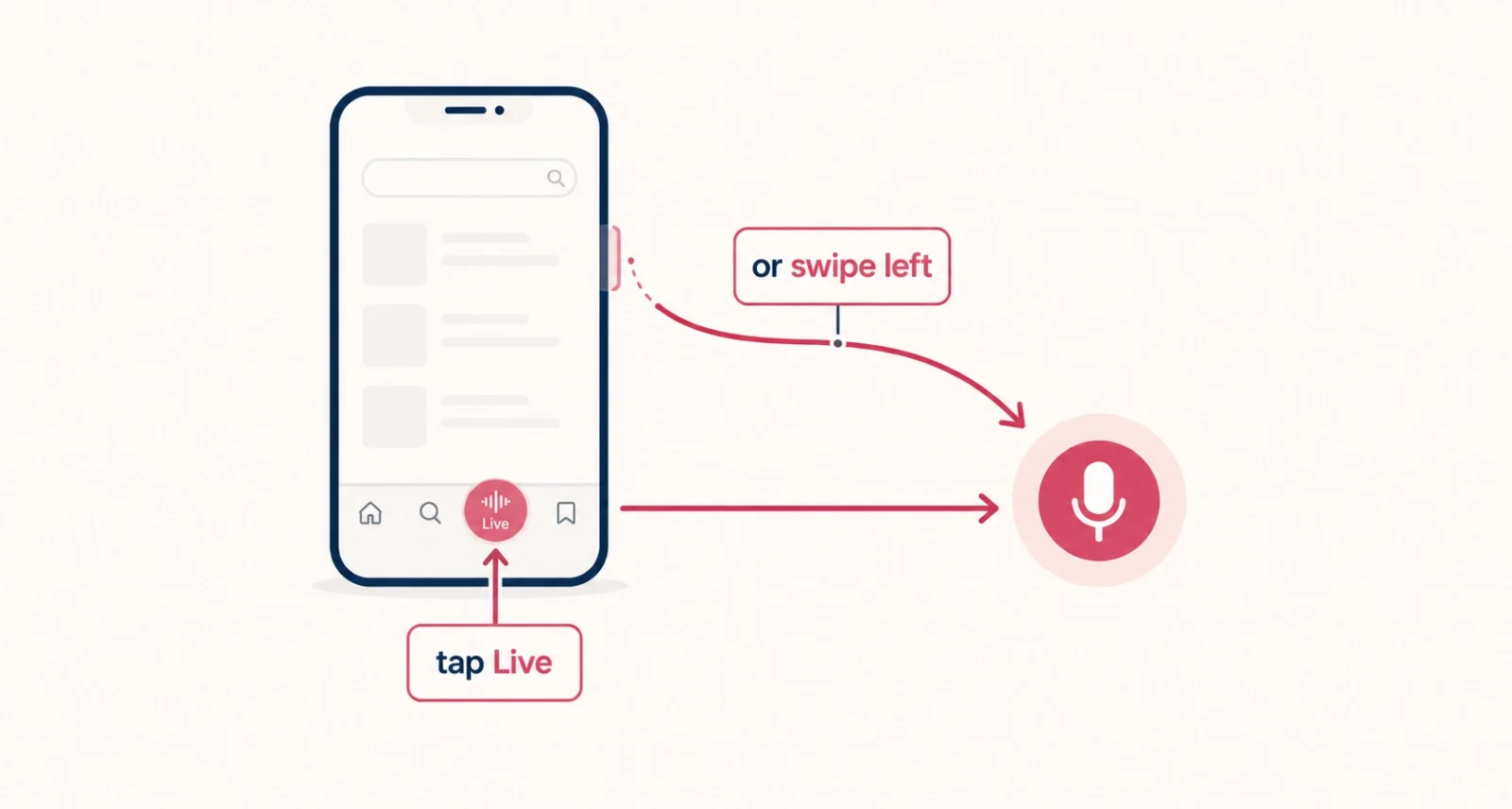
Step 2: Tap Live at the bottom
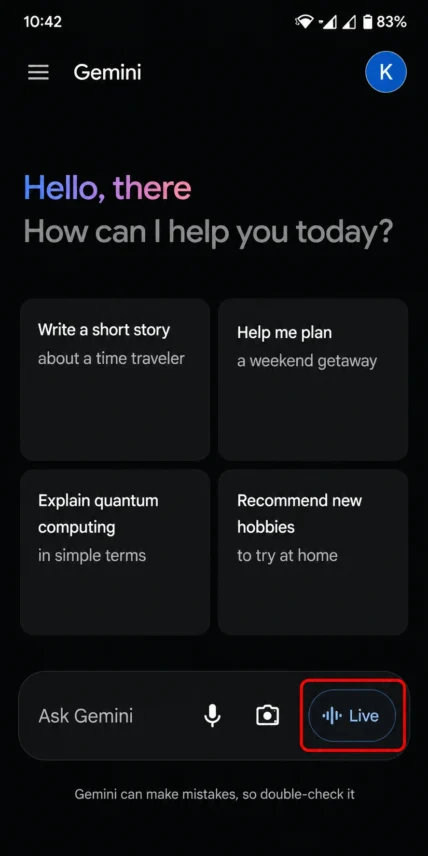
The Live button sits along the bottom of the screen. A faster alternative that almost nobody knows: swipe left anywhere in the chat and you land in the same place. Google’s own documentation lists both routes.
Step 3: Follow the first-run prompts
The first time through, you pick a voice and grant microphone access. Both can be changed later, so do not agonize over the voice now.
Step 4: Just start talking
No wake word, no pause, no waiting for a beep. Speak as you would to a person who is already listening, and interrupt whenever it goes somewhere you did not intend.
If you own Pixel Buds, saying “Hey Google, let’s talk” starts a Live chat through the earbuds. That is the most natural way to use the whole feature.
Hold, Mute, or End: The Three Buttons Everyone Confuses
This is where most people get stuck, because the three controls look similar and do genuinely different things. Learning the difference takes thirty seconds and saves a lot of lost conversations.
| The Button | What It Does | When to Use It |
| Hold | Turns your mic off and pauses the session | Someone walks into the room |
| Mute | Mutes your mic while Gemini keeps talking | You want to hear the rest without being heard |
| End | Closes the session and hands you a transcript | You are finished and want a record |
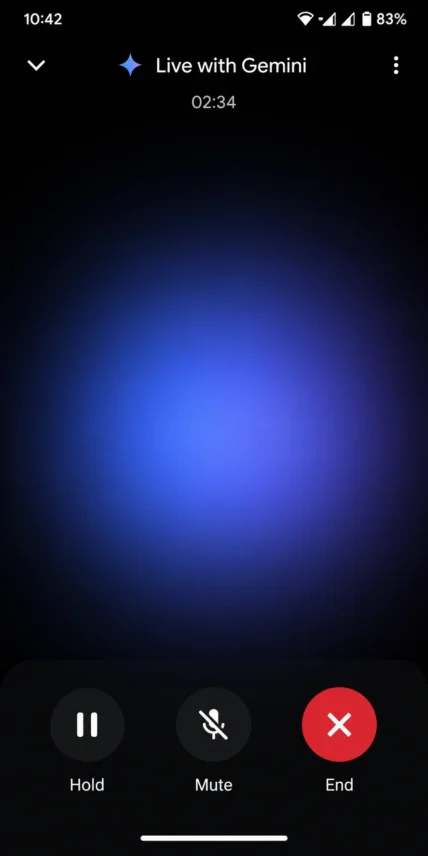
The distinction that matters is between Mute and End. Muting keeps the session alive along with everything you have discussed, so you can pick the thread back up. Ending closes it and produces the transcript. Choose wrong and you either lose the context or fail to get the record, which is exactly the frustration this table prevents.
How to Use Gemini Live With Your Camera
Describing a thing out loud is slow. Showing it is instant, and this is the feature that changes how you use the app.
Inside a Live chat, tap the camera icon to start streaming what your phone sees. Tap it again to stop, and use the switch control to flip between the front and rear cameras. Now you can point at a plant that looks unwell, a control panel you do not understand, or two paint samples, and simply talk about them. Google’s own tips post leans on exactly this kind of everyday use.
Google’s own examples on the Android site lean on comparison tasks, such as asking which of two products suits your situation. That is the sweet spot: questions where the answer depends on something visible that would take you a paragraph to describe.
How to Share Your Screen Instead
Screen sharing covers the cases where the thing you need help with is already on your phone rather than in front of you.
- Inside a Live chat, tap Turn on screen sharing and follow the prompts.
- Or from outside the app, bring up Gemini, then tap Share screen with Live.
- To stop, tap the same control in the app. You can also swipe down from the top of the screen and tap Stop sharing on the Screen Sharing card.
| Do This First Screen sharing will not work unless notifications for Gemini Live are switched on, and Google requires this explicitly. Open your device Settings, tap Notifications, then App notifications, then Google, and make sure both All Google Notifications and Live with Gemini are enabled. The same setting controls whether you can keep a conversation running in the background, so it is worth doing once regardless. |
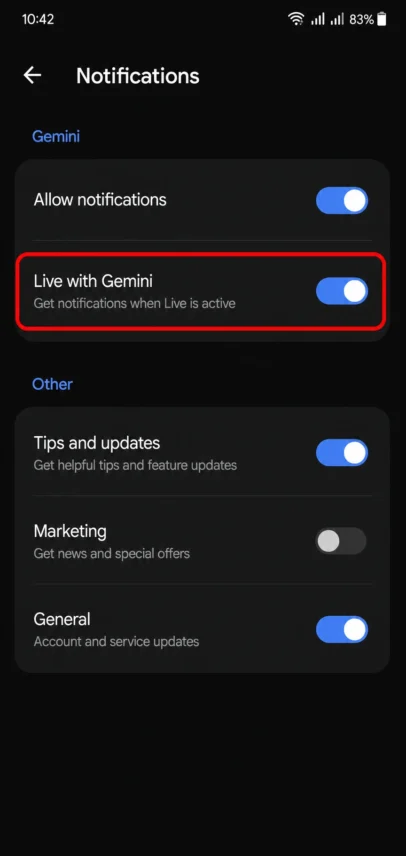
One thing to be aware of before you start: sharing your screen shares the whole of it, not a single app. Anything that appears while sharing is running, including a notification banner, goes to Gemini along with everything else.
The Quirk That Makes People Think It Is Broken
Here is the behavior that generates the most complaints, and it is documented rather than a bug.
| What You Did | Camera | Screen Sharing |
| Put Live on hold | Turns off, then comes back on | Stops and stays off |
| Left the Gemini app | Turns off and stays off | Stops and stays off |
| Locked your screen | Turns off and stays off | Stops and stays off |
Read the second column carefully. Only one situation restores your camera automatically, and screen sharing never restores itself. So if you switch to another app to check something and come back to find Gemini apparently blind, nothing has failed. You simply need to turn it on again, and knowing that in advance saves a lot of pointless troubleshooting.
Switching Between Talking and Typing
This feature is genuinely useful and barely mentioned anywhere. A conversation does not have to stay in voice mode.
Tap End inside a Live chat and you move to text with the conversation intact. Tap Live in a text chat, or swipe left, and you are back to voice in the same thread. Nothing is lost either way, which opens up a much better working pattern than either mode alone.
| The Golden Rule Talk while you are thinking, type when you need to keep something. Voice is excellent for exploring a problem and hopeless for exact figures, spellings, and long lists. When the conversation reaches something you actually want to save or check, switch to text and read it properly. |
How to Talk to It So the Answers Are Worth Having
The feature works, but the quality of what you get back depends almost entirely on how you speak to it. Six habits make the difference.
- Open with context rather than a question. Saying that you are standing in a hardware store looking at two sealants gives it far more to work with than asking which sealant is better.
- Interrupt early and without apology. The moment it heads somewhere unhelpful, cut in. Waiting politely for it to finish wastes the main advantage of the whole format.
- Ask follow-ups instead of starting over. The conversation holds its context, so refining beats restating.
- Point the camera, then pause briefly before asking. Giving it a moment to see the thing produces noticeably better answers than talking over the reveal.
- Say when an answer misses. Telling it that a suggestion will not work, and why, gets you somewhere useful faster than rephrasing the original question.
- Verify anything that matters. Voice answers arrive with a confidence that written ones do not, and they are equally capable of being wrong.
The Settings Worth Changing
Four settings do almost all the useful work. The rest can wait.
| The Setting | Where to Find It | Why Bother |
| Gemini’s Voice | Menu, profile, Settings, Gemini’s Voice | You will hear it constantly, so pick one you like |
| Interrupt Live responses | Menu, profile, Settings | Leave it on. Off means tapping the screen to interrupt |
| Captions | Top right during a Live chat | Useful in noisy places and for following along |
| Live with Gemini notifications | Device Settings, Notifications, Google | Required for screen sharing and background use |
What Gemini Live Cannot Do
Knowing the edges saves you from fighting the tool.
| The Limit | What It Means | ||
| No web version | Phone and tablet apps only, not the browser | ||
| Gems do not work here | Custom Gems stay in the regular text chat | ||
| Cannot start on a locked screen | You have to unlock the phone to begin a conversation | ||
| Work accounts are restricted | Only Calendar, Keep, and Tasks connect, unless an admin adds more | ||
| Age restricted | You need to be 18 or over to use it | ||
| Needs a connection | Everything is processed online, so no signal means no conversation | ||
| Worth Knowing Google asks users to respect other people’s privacy and to get permission before recording anyone or including them in a Live chat. That is easy to forget with the camera running in a room full of people, and it is a reasonable thing to honor regardless of what the guidance says. | |||
Gemini Live rewards a different habit from the one voice assistants taught. Stop composing the perfect sentence before you speak, start talking while you are still working out what you want, and interrupt the moment it drifts.
Frequently Asked Questions
How do I start Gemini Live?
Open the Gemini mobile app and tap Live at the bottom of the screen, or swipe left from the chat. You can also say “Hey Google, let’s talk” to jump straight in. The first time you use it, you choose a voice and grant microphone permission, then you simply start speaking.
Is Gemini Live free to use?
Yes. Gemini Live, including camera and screen sharing, comes at no extra charge for Gemini app users. It moved from paid tiers to general availability during 2025. You need the app, a Google account, and an internet connection, since everything is processed on Google’s servers rather than on your phone.
Can I use Gemini Live on a computer?
No. Google states that Gemini Live is not available in the Gemini web app, so it works on phones and tablets only. You can use the regular text version of Gemini in a browser. The flowing voice conversation, camera sharing, and screen sharing all require the mobile app.
Why does my camera keep switching off in Gemini Live?
That is expected behavior rather than a fault. Your camera turns off if you put Live on hold, leave the Gemini app, or lock your screen. It only comes back automatically in the first of those cases. Screen sharing never resumes on its own, so you have to switch it back on manually.
Can I interrupt Gemini while it is speaking?
Yes, and you should. Interrupting by voice is switched on by default, so you can simply talk over it when it heads in the wrong direction. If you turn that setting off, you can still interrupt by tapping the screen. This is the feature that makes it feel like a conversation rather than a query.
Does Gemini Live save my conversations?
Ending a session gives you a transcript, and your Live chats appear in your Gemini activity, where you can review them. How that data is handled depends on your Gemini Apps activity settings, which are worth reading through once. Google also asks that you get permission before including other people in a Live chat.

