
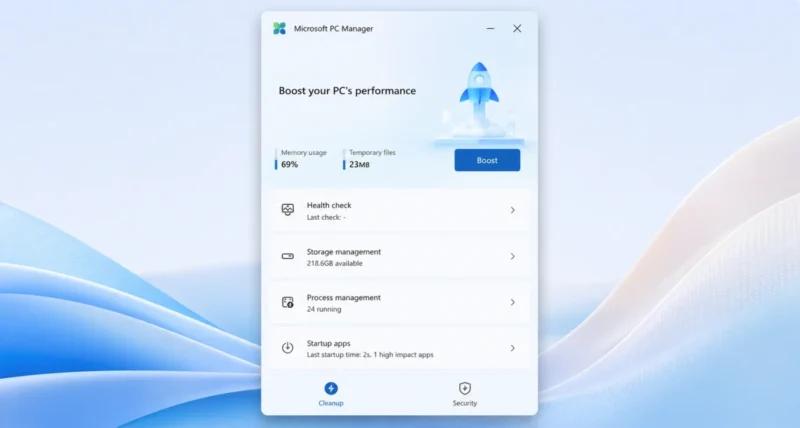
Is your Windows PC feeling slow, cluttered, or full of pop-ups? Microsoft makes a free little app that fixes all three, and most people have never heard of it. It is called Microsoft PC Manager, and it cleans, speeds up, and protects your computer with a single click.
This easy guide shows you, step by step, how to download Microsoft PC Manager safely and use its best tools. No tech skills needed. Let us get your PC running like new.
The Quick Version
Just want the key facts? Here they are.
| Detail | What to Know |
| What it is | A free, official Microsoft app that cleans and speeds up your PC |
| Price | Completely free, with no paid version |
| Works on | Windows 11, and Windows 10 version 19042.0 or newer |
| Best place to get it | The Microsoft Store, or the official site at pcmanager.microsoft.com |
| Top features | Boost, cleanup, storage manager, pop-up blocker, health check, virus scan |
| Download size | Tiny, about 1 to 30 MB depending on the installer |
1. What Is Microsoft PC Manager
Microsoft PC Manager is a free maintenance app made by Microsoft itself. It brings many handy Windows tools together in one simple window. That means you can clean junk files, free up space, and boost speed without digging through settings. You can read about it on the official Microsoft PC Manager site.
Here is what makes it worth trying.
- It is genuinely free, with no Pro upsells or hidden costs.
- Being official, it is safe and updates through the Microsoft Store.
- The app is light, using very little space, and easy for total beginners.
Why This Matters: Many PC cleaner apps online are pushy or unsafe, bundling extra software you never wanted. Because this one is made by Microsoft, you get the cleanup benefits without the usual risks.
2. How to Download Microsoft PC Manager Safely
Always get it from an official source. We will use the Microsoft Store, which is the safest and easiest way, and it keeps the app updated for you.
Method 1: From the Microsoft Store (Recommended)
- Click the Start button and type Microsoft Store, then open it.
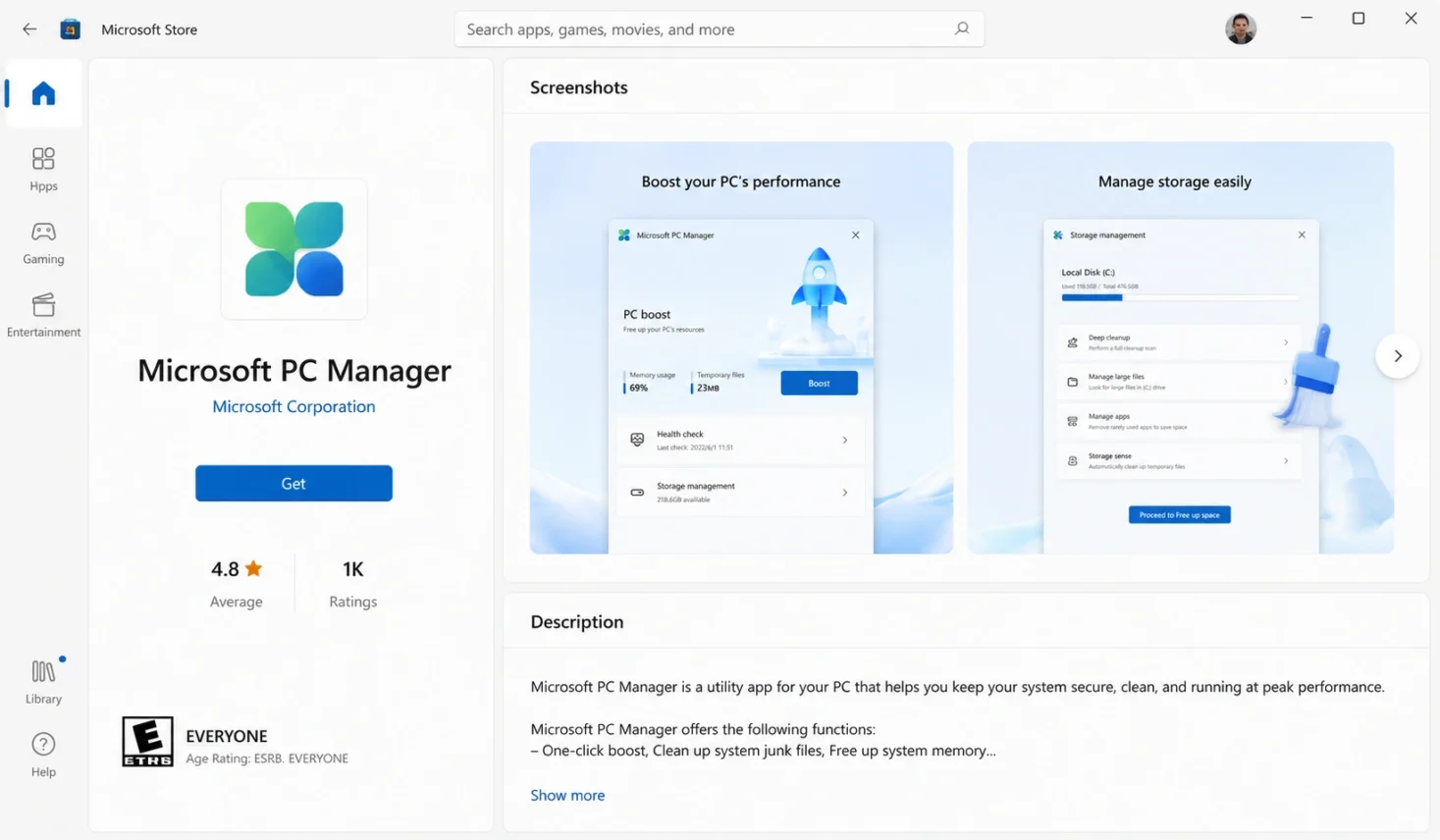
- In the Store search bar at the top, type PC Manager.
- Find Microsoft PC Manager, made by Microsoft, in the results.
- Click the Get or Install button and wait a few seconds for it to install.
- Click Open to launch it, you are ready to go.
Quick Tip: Always check that the maker shown is Microsoft. That one check is how you make sure you have the real, safe app and not a copycat.
Method 2: From the Official Website
Prefer the website? You can download it straight from Microsoft instead.
- Open your web browser and go to the official site.
https://pcmanager.microsoft.com/en-us
- Click the Download button on the page.
- Once the file finishes downloading, double-click it to start the installer.
- Follow the simple on-screen prompts to finish installing.
Heads Up: Avoid random download sites that show heavy ads or extra Download buttons. Stick to the Microsoft Store or pcmanager.microsoft.com, and you will always get the clean, official version.
3. How to Speed Up Your PC With One Click
This is the feature most people open first. The Boost button frees up memory and clears temporary files in seconds.
- Open Microsoft PC Manager from your Start menu.
- On the home screen, find the big Boost button.
- Click Boost once.
- Watch as it clears temporary files and frees up memory, your PC should feel snappier right away.
Quick Tip: Use Boost whenever your PC starts feeling sluggish, like after many browser tabs or a long work session. It is safe to click as often as you like.
4. How to Run a Health Check and Cleanup
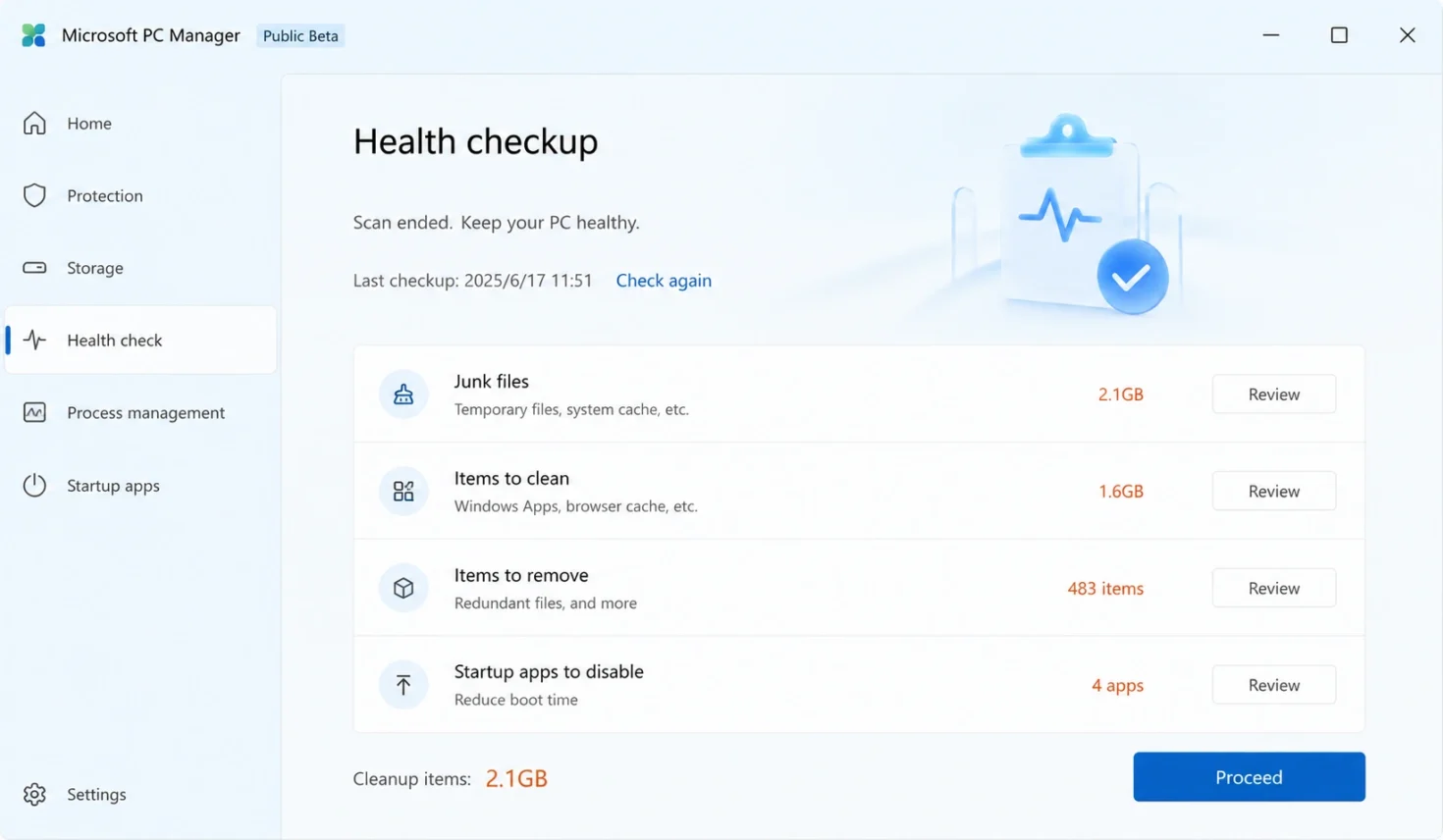
The Health Check is like a quick doctor’s visit for your PC. It scans for junk, risky items, and startup apps slowing you down, then fixes them in one go.
- In PC Manager, click Health Checkup, sometimes shown as Health Check.
- Let it scan, this takes only a few seconds.
- Review the list it finds, like junk files, potential threats, and heavy startup apps.
- Tick the items you want to clear, the safe defaults are already selected.
- Click Proceed to clean everything in one step.
5. How to Free Up Storage Space
Running low on disk space? The Storage tools help you find and remove what is eating it up.
- In PC Manager, open the Storage section.
- Run Deep Cleanup to remove large piles of temporary and leftover files.
- Open Manage Large Files to spot big files you may no longer need.
- Pick Manage Apps to uninstall programs you do not use.
- Turn on Storage Sense if offered, so Windows clears junk for you automatically.
Worth Knowing: Deep Cleanup is great for reclaiming space on a full C drive. Review the list before you confirm, so you only remove what you truly do not need.
6. How to Block Pop-Ups and Stay Protected
Tired of pop-up ads and random app windows? PC Manager can quiet them down, and it can scan for threats too.
Block Annoying Pop-Ups
- Open the Pop-up Management or Protection section in PC Manager.
- Turn on pop-up blocking to reduce ads and app interruptions.
- Adjust which apps are allowed to show pop-ups, if you wish.
Scan for Viruses
PC Manager works alongside Windows Security to check for threats.
- Open the Protection or Health area.
- Click Scan to check your PC for viruses and threats.
- Follow any prompts to remove anything it finds.
7. Explore the Toolbox and Mini Toolbar
Once you are comfortable, the Toolbox is where the handy extras live. It gathers common Windows tools in one spot.
- Toolbox gives quick access to tools for cleaning, files, and system tasks.
- The Mini Toolbar floats on your screen for fast access to Boost and more.
- Startup Apps lets you turn off programs that launch at boot and slow startup.
- Process Management shows what is using your memory right now.
Think of the Toolbox as a drawer of useful PC tools, all in one place. You do not have to hunt through Windows settings to find them.
Frequently Asked Questions
Is Microsoft PC Manager Free
Yes, Microsoft PC Manager is completely free. There is no paid or Pro version, and no hidden charges. It is an official app made by Microsoft, designed to help you clean, speed up, and protect your Windows PC at no cost.
Is Microsoft PC Manager Safe to Download
Yes, as long as you get it from an official source. Download it from the Microsoft Store or the official site at pcmanager.microsoft.com. Avoid random third-party download sites, which can bundle unwanted extras. The Microsoft Store version updates automatically.
What Windows Versions Does PC Manager Support
Microsoft PC Manager works on Windows 11, and on Windows 10 version 19042.0 or newer. It does not run on older Windows versions like Windows 8 or 7. If you are on a supported version, you can install it for free.
What Does Microsoft PC Manager Do
It cleans junk files, frees up storage, and boosts performance with one click. It also manages startup apps, blocks pop-ups, and scans for viruses. On top of that, it checks for Windows updates and helps you uninstall apps, all from one simple window.
How Do I Speed Up My PC With PC Manager
Open the app and click the Boost button on the home screen. It instantly clears temporary files and frees up memory. For a deeper tune-up, run Health Checkup to remove junk and turn off heavy startup apps, then use Deep Cleanup for storage.
Does PC Manager Replace My Antivirus
Not exactly. PC Manager works alongside Windows Security to scan for threats, rather than replacing your main antivirus. It adds convenient one-click scanning and cleanup, but Windows Security remains your core built-in protection on Windows 10 and 11.
Will Microsoft PC Manager Slow Down My Computer
No, it is a light app that uses very little space and memory. It is designed to make your PC faster, not slower. You only run its tools when you choose to, so it does not constantly drain your system in the background.
How Do I Uninstall Microsoft PC Manager
Open Windows Settings, go to Apps, then Installed apps. Find Microsoft PC Manager in the list, click the three dots next to it, and choose Uninstall. Confirm the prompt, and Windows will remove the app completely from your PC.

