
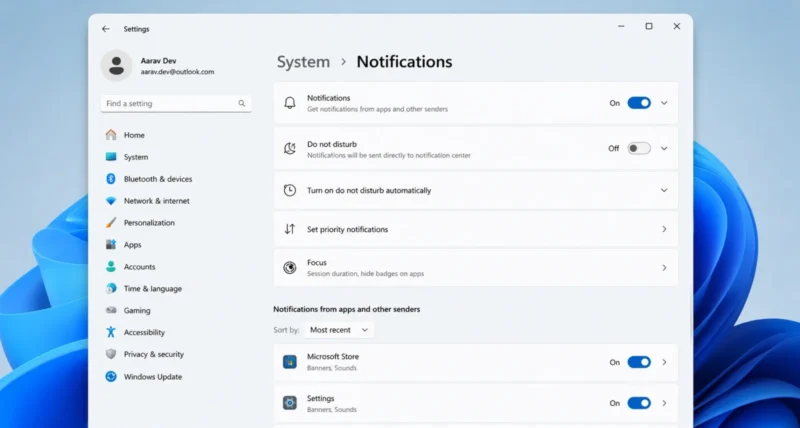
You are halfway through an important task. A banner slides in from the corner, then a chime, then another banner. Windows 11 means well, but the constant pings pull your focus away every few minutes.
The good news is that you can turn off Windows notifications in under a minute. You can do it as gently or as completely as you like. This guide shows every method, from a single master switch to silencing one noisy app. Each one comes with the exact clicks.
Quick Answer: To turn off all notifications, go to Start, then Settings, then System, then Notifications, and switch Notifications to Off. For a temporary break, open the notification center and click the bell icon with zZ to start Do Not Disturb. If you only want to quiet one app, open the same Notifications page and toggle that app off. Each method is fully explained below with screenshots.
Pick the Method That Fits You
There is no single right way to do this. The best method depends on whether you want total silence, a temporary break, or control over just a few apps. Use this quick guide, then jump to the matching method below.
| Your Goal | Best Method |
| Silence everything, all the time | Method 1: the master switch |
| Quiet alerts for a few hours | Method 2: Do Not Disturb |
| Keep some apps, mute others | Method 3: per app control |
| Auto silence during games or meetings | Method 4: automatic rules |
| Stop tips, ads, and welcome screens | Method 5: kill the promo nudges |
Method 1: Turn Off All Windows Notifications at Once
This is the master switch. Flip it and Windows stops showing app and system banners and sounds. It is the right choice when you want complete quiet.
- Click the Start button, then click Settings. You can also press the Windows key plus I to open Settings instantly.
- In the left menu, click System, then click Notifications.
- At the top of the page, find the Notifications switch and toggle it to Off.
That is it. Windows will stop showing banners and playing notification sounds right away. To turn them back on later, return to the same page and flip the switch on.

Quick Tip: Press the Windows key plus I to jump straight to Settings. Then type Notifications in the search box at the top. It is the fastest route on any Windows 11 PC.
Method 2: Use Do Not Disturb for a Temporary Break
Sometimes you do not want to switch everything off forever. You just need quiet for a meeting or a focus session. Do Not Disturb hides banners while still collecting notifications in the notification center, so you can read them later.
Turn Do Not Disturb On in One Click
- Open the notification center by clicking the clock or bell icon at the far right of the taskbar. The shortcut is the Windows key plus N.
- Click the bell icon with a small zZ on it. Do Not Disturb is now on, and banners are silenced.
- To switch it off, open the notification center again and click the same bell icon. Your missed notifications will be waiting for you.
With Do Not Disturb on, you still see banners for alarms, reminders, and any apps you choose to allow. Everything else goes quietly to the notification center.

Method 3: Turn Off Notifications for Specific Apps
This is the smart middle ground. Keep the alerts you care about, like your calendar or messages. Silence the noisy ones, like a game or a chatty app. Microsoft gives you fine control here.
- Open Start, then Settings, then System, then Notifications. The shortcut Windows key plus I gets you there fast.
- Scroll down to the section called Notifications from apps and other senders. You will see a list of every app that can alert you.
- Click the app you want to change. To silence it completely, toggle its switch to Off.
If you want to keep an app but make it less intrusive, click into it and adjust these options instead of switching it off entirely:
- Show notification banners: turn this off to stop pop ups, while still keeping the alert in the notification center.
- Show notifications in notification center: turn this off to keep the app out of your notification list.
- Hide content when notifications are on lock screen: a privacy option that hides details on your lock screen.
- Play a sound: turn this off for silent, on screen only alerts.
- Priority of notifications: set an app to Top, High, or Normal. Only one app can be Top, and it always appears at the very top of your list.

Worth Knowing: There is an even faster shortcut for one app. When a banner from that app appears, click the three dot more button next to the app name. Then choose Turn off all notifications. No trip to Settings needed.
Method 4: Make Do Not Disturb Turn On Automatically
You can tell Windows to silence itself during the moments that matter. That way you never have to remember to flip a switch. This is perfect for gamers, presenters, and anyone who works in focused blocks.
- Open Start, then Settings, then System, then Notifications.
- Click to expand the setting called Turn on do not disturb automatically.
- Tick the conditions you want. Windows can switch on quiet mode automatically in these cases:
- During a certain time of day, such as your work hours or overnight.
- While you are duplicating your display, which usually means you are presenting.
- Whenever you are playing a game.
- As you use an app in full screen mode, like a film or a video call.
- For the first hour after a Windows feature update.
Set the ones that match your routine, and Windows handles the rest in the background.
Method 5: Stop the Tips, Ads, and Welcome Screens
Some of the most annoying pings are not from your apps at all. They are Microsoft’s own suggestions, tips, and welcome screens. These have their own switches, and turning them off makes Windows noticeably calmer.
Turn Off Tips and Welcome Screens
- Open Start, then Settings, then System, then Notifications, and scroll to the very bottom.
- Uncheck Get tips and suggestions when using Windows.
- Uncheck Show the Windows welcome experience after updates, which stops the full screen page that appears after some updates.
Turn Off Promotional Suggestions in Settings
Windows 11 sometimes shows recommendation banners inside the Settings app. Microsoft’s own guidance and reputable how to sources confirm the fix. Open Settings, then Privacy and security, then Recommendations and offers, and turn the suggestions off.
Why This Matters: Turning off these promotional nudges does not affect important alerts like security warnings or low battery. You are only switching off the marketing style suggestions. So your PC stays just as safe and a lot less noisy.
Bonus: Hide Notifications on the Lock Screen
If you mainly want privacy, you have an option. You can stop notifications from showing on your lock screen while keeping them on your desktop. Inside any app’s notification options in Method 3, turn on Hide content when notifications are on lock screen. That way a message arrives, but its contents stay hidden until you sign in.
Still Getting Notifications? Quick Fixes
If something still slips through after you change these settings, run down this short list.
| Problem | Fix |
| One app still pings you | Check Method 3, the app may have its own in app notification setting too |
| Browser pop ups keep appearing | These are website push alerts, turn them off inside your browser settings, not Windows |
| Update reminders persist | Some update prompts are by design, but tips and welcome screens can be switched off in Method 5 |
| Changes did not stick | Restart your PC so the settings apply fully, then check again |
Frequently Asked Questions
How Do I Turn Off All Notifications on Windows 11
Open Start, then Settings, then System, then Notifications, and switch the main Notifications toggle to Off. This stops all app and system banners and sounds at once. You can turn them back on any time from the same page.
What Is the Fastest Way to Silence Notifications
Open the notification center with the Windows key plus N. Then click the bell icon with zZ to start Do Not Disturb. It hides banners instantly while saving them in the notification center for you to read later.
Can I Turn Off Notifications for Just One App
Yes. Go to Settings, then System, then Notifications. Find the app under Notifications from apps and other senders, and toggle it off. You can also click the three dot button on a banner and choose Turn off all notifications.
How Do I Stop Windows 11 Tips and Ads
Open Settings, then System, then Notifications, and scroll to the bottom. Uncheck Get tips and suggestions and the Windows welcome experience. For Settings app suggestions, go to Privacy and security, then Recommendations and offers.
Will Turning Off Notifications Affect Security Alerts
Turning off tips and promotional suggestions does not affect important system warnings. The master switch does disable all notifications, so you may miss some alerts. Per app control is safer if you want to keep security messages.
What Does Do Not Disturb Do on Windows 11
Do Not Disturb hides notification banners while still collecting them in the notification center. With it on, you only see alarms, reminders, and apps you choose to allow. That makes it ideal for meetings, games, or focused work.

