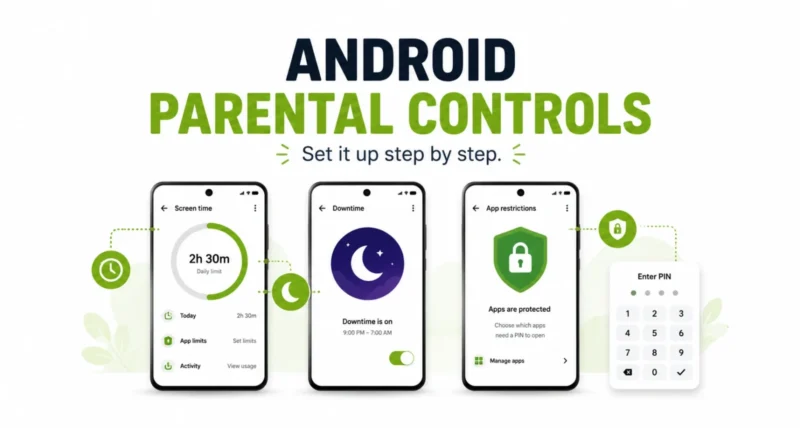
Every parent knows the ‘five more minutes’ standoff. You ask your child to put the phone down, they negotiate, and you end up being the bad guy again. What if the phone simply handled the rule for you? That is exactly what Android Parental Controls do, and Google just rolled them out to far more devices. As Google announced, they are now built into every phone on Android 17. Here is how to set them up, step by step.
| Quick Answer Android Parental Controls are now built into all devices running Android 17, found inside Settings and protected by a PIN. In a few minutes you can set daily screen time limits, schedule downtime so the device locks at night, filter the Play Store by content rating, and limit or block individual apps. You can also link to Google Family Link for extra features. |
What Android Parental Controls Actually Do
Before the how-to, it helps to know what you are turning on. Android Parental Controls are a single, built-in home for managing your child’s device, no extra app required for the basics. Until recently they lived only on Pixel phones, but they now reach every device that updates to Android 17.
The idea is simple and kind: let the device hold the boundary so you do not have to argue it. Once set, the rules run quietly in the background, and your child learns the limits are just how the phone works, not a fight with mum or dad.
| Why It Matters When the phone enforces the rule, you stop being the enforcer. That small shift takes the daily conflict out of screen time and turns it into a calm, predictable routine your whole family can rely on. |
Before You Start: What You Will Need
Setup takes about five minutes. Here is your quick checklist before you begin.
- An Android 17 device. The controls are built into any phone or tablet updated to Android 17.
- Access to your child’s device. Most of these settings live on the device your child uses.
- A PIN only you know. You will set a PIN that locks the controls, so pick one your child cannot guess.
- A few minutes of quiet. Do this when you are not rushed, so you can think through the limits that suit your family.
Step 1: Open Android Parental Controls in Settings
There is no app to download for the core controls. Everything starts inside the device’s own settings.
- Open the Settings app on your child’s Android device.
- Look for the Parental Controls or Digital Wellbeing section and tap to open it.
- Follow the prompt to set up parental controls if this is your first time.
Step 2: Set a PIN to Lock the Controls
This is the most important step. The PIN is what stops your child from simply switching the limits off.
- Create a PIN when prompted, choosing numbers your child will not easily guess.
- Confirm the PIN and keep it private. You will need it to change any setting later.
| Quick Tip Avoid obvious PINs like a birthday or 1234. Kids are clever, and a guessable PIN undoes all your good work in seconds. |
Step 3: Set a Daily Screen Time Limit
Now the part everyone wants: capping how long the device can be used each day. This builds healthy habits without you watching the clock.
- Find the screen time or daily limit option inside the parental controls menu.
- Choose how many hours or minutes your child can use the device each day.
- Save the limit. The device will now track usage and lock when the time is up.
Step 4: Schedule Downtime for Better Sleep
Downtime automatically locks the device during set hours, perfect for protecting sleep and family meals.
- Open the downtime or schedule setting within parental controls.
- Set a start and end time, for example 8pm to 7am, so the device locks overnight.
- Confirm the schedule. The phone will lock itself during those hours, every day.
| Worth Knowing A consistent downtime schedule does more than block the screen. It signals the brain that the day is winding down, which genuinely helps kids fall asleep faster. |
Step 5: Filter the Play Store by Content Rating
This stops your child downloading apps and games above the age rating you are comfortable with.
- Find the app store filters or Google Play controls in the menu.
- Choose the highest content rating you want your child to be able to download.
- Save your choice. Anything above that rating will now be blocked from download.
Step 6: Limit or Block Specific Apps
Finally, you can fine-tune individual apps, capping the time-wasters and blocking anything unsuitable.
- Open the app limits or app usage section. You will see a list of installed apps.
- Set a daily time limit on a specific app, such as a game or social app.
- Block any app entirely if you would rather your child not use it at all.
Optional: Connect Google Family Link for More
The built-in controls cover the essentials, but you can go further. From the same menu, you can set up Google Family Link on your own phone. It adds extras like School Time, app purchase approvals for Google Play, and location alerts, so you can manage things remotely from your device.
A Quick Look at Each Control
| Control | What It Does for You |
| Screen time limit | Caps total daily use and locks the device when time runs out |
| Downtime schedule | Locks the device during set hours, like bedtime |
| Play Store filter | Blocks app downloads above a chosen content rating |
| App limits | Caps or blocks time on specific apps |
| Family Link | Adds remote tools like School Time, purchase approvals, and location |
Setting up Android Parental Controls takes about five minutes, and it changes the whole tone of screen time at home. Instead of policing the clock, you set fair limits once and let the phone do the rest. Start with a PIN, add a daily limit and a downtime schedule, then fine-tune apps and the Play Store. It is a small setup for a lot more calm. For the official details, see Google’s announcement.
Frequently Asked Questions
Are Android Parental Controls Free
Yes. They are built directly into Android at no cost, available on any device that updates to Android 17. Google Family Link is also free to add.
Which Devices Have Android Parental Controls
They are available on all devices running Android 17. They first launched on Pixel phones and have now expanded to every Android 17 device.
Can My Child Turn Off the Controls
Not without your PIN. The controls are locked behind a PIN you set, so choose one your child cannot guess and keep it private.
Do I Need the Family Link App
No, the core controls work directly from Settings without any app. Family Link is optional and adds extra features like School Time and location alerts.
How Do I Change a Limit Later
Open the parental controls in Settings, enter your PIN, and adjust any limit or schedule. Changes take effect right away.
Will This Work on a Tablet
Yes. Android Parental Controls work on phones and tablets, as long as the device runs Android 17.