
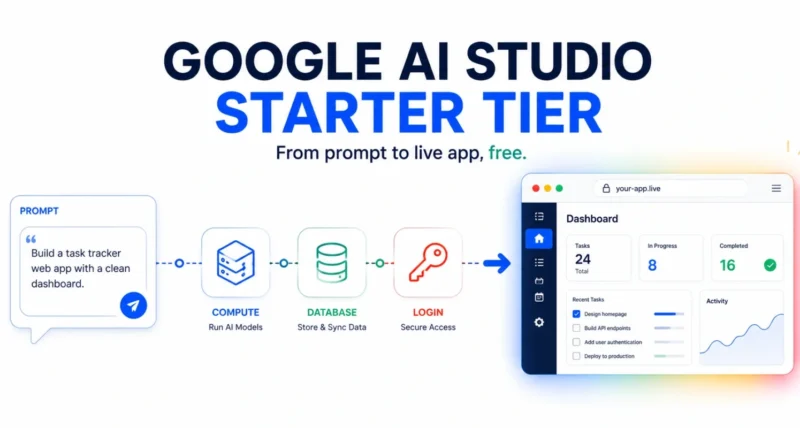
You built something cool in Google AI Studio, and now you want a real link to share with friends, your team, or the world. Until now, that meant wrestling with cloud setup, billing accounts, and a credit card. Not anymore. Google’s new Starter Tier lets you take an app from a simple prompt to a live web address in minutes, completely free and with no payment method required. As Google explained on its Cloud blog, this is the easiest way yet to put an AI app online. Here is everything you need to know, in plain language.
| The Short Version The Google AI Studio Starter Tier lets you publish your AI Studio prototype to a live URL for free, using only your Google Account. No credit card, no billing setup, no complicated cloud configuration. It bundles four ready-to-go building blocks (compute, two databases, and login) and hands you a shareable .run.app link in about ten minutes. When your app grows, you upgrade in place with zero downtime. |
What Is the Google AI Studio Starter Tier?
Let us keep this simple. Google AI Studio is a tool where you can describe an app in everyday words and watch the AI build it for you. The catch used to be the last step: actually putting that app online so other people could use it. That normally meant setting up a cloud project, turning on services, and adding a credit card.
The Starter Tier removes all of that friction. With just your Google Account, you get a live, shareable web link for your app. Behind the scenes, Google quietly sets up and manages everything for you: the servers, the database, the security. You never touch the technical plumbing. You focus on your idea; Google handles the rest.
| Quick Take Think of it as a free launchpad for AI app ideas. You prompt, you publish, you share a link. There is no bill, no setup wizard, and no risk of a surprise charge, because you never even enter a payment method. |
Who Is This For?
The honest answer: almost anyone who wants to turn an idea into a working app without becoming a cloud expert. It is especially great for these people.
- Beginners and learners: if you are new to coding or cloud platforms, this skips the scary parts entirely.
- Developers and makers: perfect for quickly testing an idea or sharing a prototype before investing in full infrastructure.
- Students and hobbyists: build a project, get a real link to show off, and pay nothing to do it.
- Small teams and startups: test a concept with real users fast, then scale up only when it takes off.
| Heads Up The Starter Tier is currently available for individual Google Accounts. If you sign in with a work or school (Google Workspace) account, your organization’s admin settings might block it, and availability depends on where Google AI Studio is offered in your region. |
What You Get: The Four Building Blocks
The Starter Tier does not hand you all of Google Cloud. Instead, it gives you a neat, pre-connected set of four tools, and it only switches each one on when your app actually needs it. Here is what each one does, in plain terms.
| Building Block | What It Does for Your App |
| Cloud Run | Runs your app and serves it to visitors. Scales to zero when idle, so it uses nothing when no one is using it |
| Cloud Firestore | A flexible database for storing app data, like to-do items, posts, or user content |
| Cloud SQL (PostgreSQL) | A traditional database for when you need structured data with proper relationships, plus AI search features |
| Firebase Authentication | Ready-made user login with Google Sign-In, so people can securely log in to your app |
The clever part is that the AI does the wiring for you. If you ask it to build a shared to-do list, it recognizes that you need a database and user logins, and it sets up Firestore and Firebase Authentication automatically. You do not have to know what any of these tools are to benefit from them.
How to Deploy Your App: 5 Easy Steps
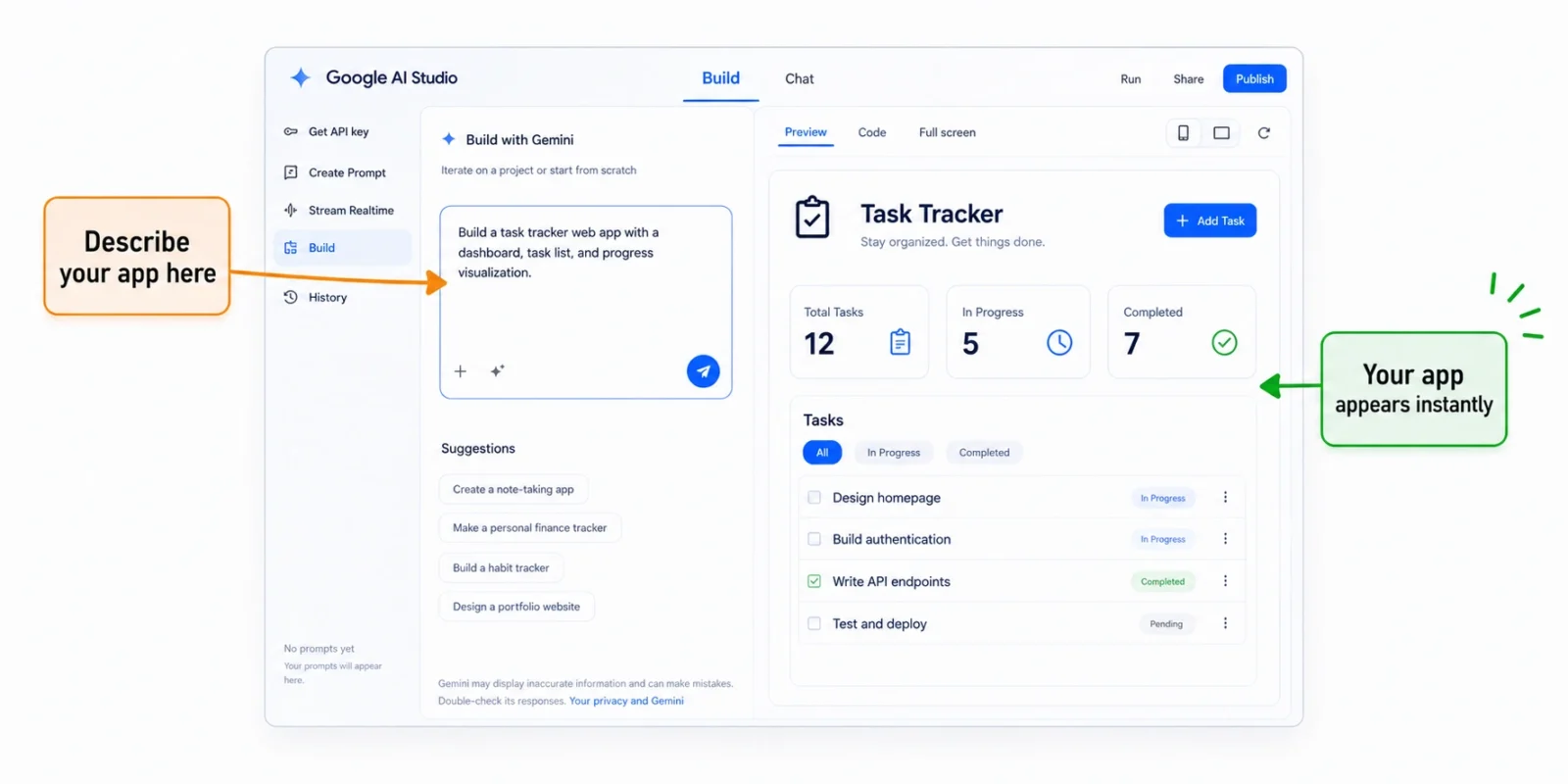
This is the heart of it, and it really is this simple. Here is how you go from an idea to a live, shareable link, one step at a time. No technical jargon required.
| 1 | Open Google AI Studio and switch to Build Mode |
Head to Google AI Studio and switch to Build Mode. There is no payment method to add and no project to set up. Your Google Account is all you need to begin.
| 2 | Describe the app you want |
Type what you want in everyday words, for example, “Build a shared to-do list app using Firebase as a backend.” The AI builds a working app and shows you a live preview on the right side of the screen as it goes.
| 3 | Enable Firebase if it asks |
If your app involves user accounts or saved data, the AI shows a small card asking to turn on Firebase. Click the Settings icon to choose your region, which also locks in where your app runs, then confirm. That is the only setup decision you will make.
Quick Tip: Pick your region carefully, because it is permanent for this project. Choose one close to where most of your users will be. For a mostly American audience, for example, pick a US region for the best speed.
| 4 | Click Publish |
Click Publish, then Get Started, then Publish App. Google packages up your app and sets up everything it needs in the background. There is no Dockerfile, no command line, and no configuration files to deal with.
| 5 | Grab your live link |
Within seconds, you get a live web address ending in .run.app. That is your shareable link, send it to anyone. You can watch how your app is doing from a simplified dashboard that shows basic logs and stats.
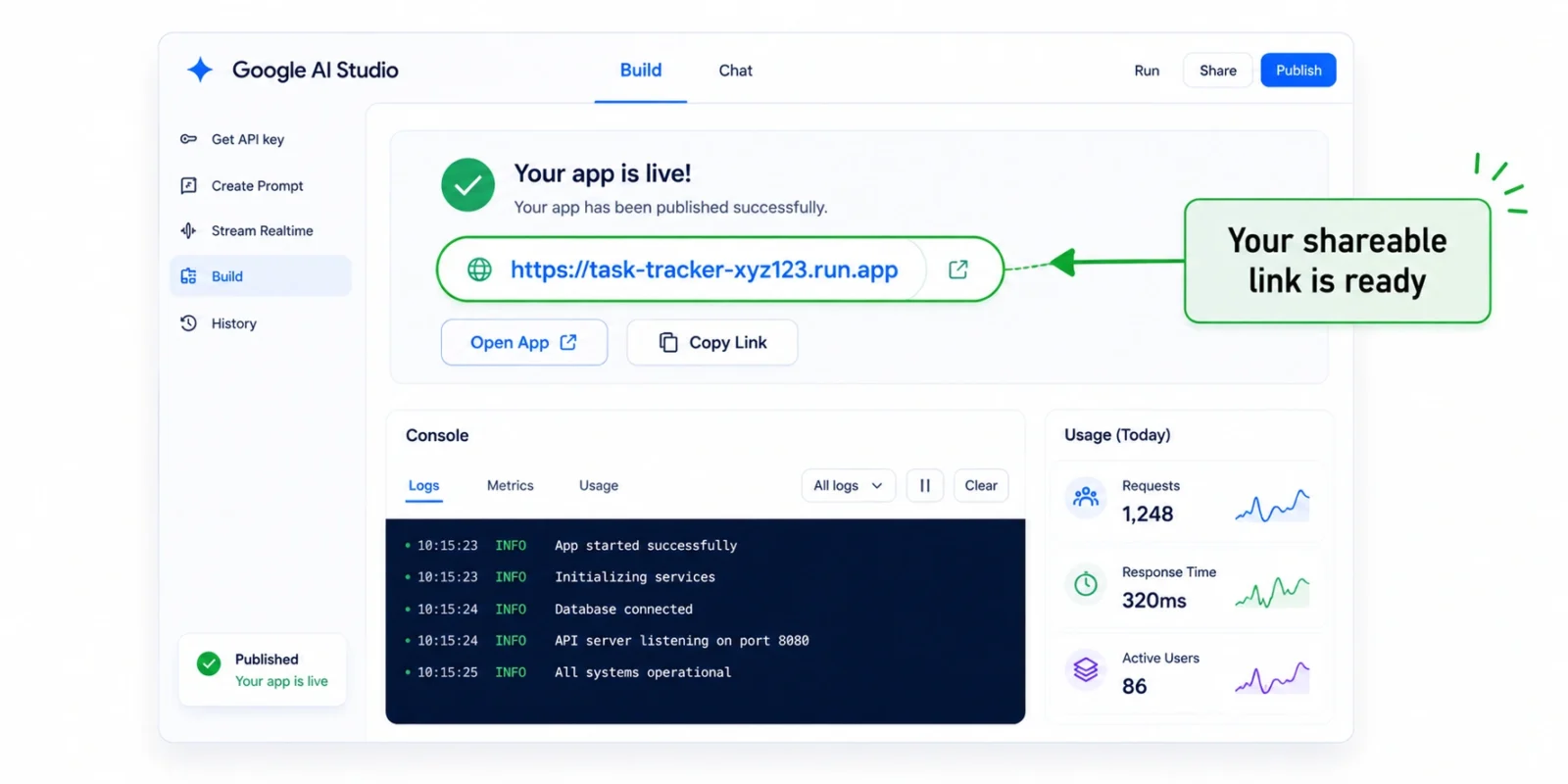
| The Cool Part That is the whole process. No servers to manage, no cloud knowledge needed, and no money spent. You described an app and got a real website other people can visit, all from a single browser tab. |
Starter Tier vs Free Trial: Which Should You Pick?
Google offers a couple of free ways to get started, and it helps to know the difference. The two main options are the Starter Tier and the classic Free Trial. Here is a simple comparison.
| Feature | Starter Tier | Free Trial |
| What you need | Just a Google Account | Account + a payment method |
| Credit card? | Not required | Required (for anti-fraud) |
| Time limit | None | 90 days |
| Free credit | None upfront | $300 welcome credit |
| Setup | Google-managed, simple | You control everything |
| Best for | Publishing AI Studio prototypes | Exploring all of Google Cloud |
In short: choose the Starter Tier if you just want to publish and share an app from Google AI Studio with zero hassle and zero credit card. Choose the Free Trial if you want to explore the full Google Cloud platform, with its $300 credit, and do not mind adding a card. Either way, you can upgrade later without losing your work.
Good to Know: The Free Limits
The Starter Tier is generous for prototypes, but it does have some sensible limits to keep it free and prevent abuse. Knowing them upfront saves you from surprises.
- Two apps at once: you can have up to two live apps at a time. To replace one, publish over the existing slot rather than deleting it manually.
- One region: all your resources live in a single region, chosen the first time you set things up. It cannot be changed later.
- Limited services: you cannot turn on advanced Google Cloud tools (like BigQuery) here. If you need them, you upgrade.
- Temporary file storage: any files your app writes directly to disk can disappear when it restarts, so save important data in the databases (Firestore or Cloud SQL) instead.
There is also a shared usage quota for the free Firestore databases. The daily and total caps are clear and easy to track.
| Free Database Limit | Starter Tier Maximum |
| Total stored data | 1 GiB total |
| Network egress (data out) | 10 GiB per month |
| Write operations | 40,000 writes per day |
| Read operations | 50,000 reads per day |
| Real-time updates | 50,000 updates per day |
If a database hits its daily limit, it simply pauses until around midnight Pacific Time, then resets. Logins are counted separately, so a rush of sign-ins will not eat into your database limits.
Growing Up: Upgrading When You’re Ready
Here is one of the best parts. When your prototype takes off and you need more power, you do not have to rebuild or move anything. You upgrade right where you are, and your app keeps running without a hiccup.
From the Projects page in Google AI Studio, you click Set up billing, add a payment method, and accept the standard terms. The upgrade happens with zero downtime: your app stays live, your data stays put, and your link does not change. New Google Cloud customers even get the $300 welcome credit to offset early costs.
| Quick Tip Once you upgrade and start paying for usage, protect yourself from surprise bills. Set a budget alert in the Google Cloud billing console (say, at $10) so you get notified early, and cap how many app instances can run at once to avoid runaway charges from a traffic spike. |
The Google AI Studio Starter Tier knocks down the last big wall between a cool idea and a real, shareable app. By letting anyone publish to a live link with nothing but a Google Account, no credit card, no cloud setup, no surprise bills, it makes building AI apps genuinely accessible to everyone. That includes total beginners and seasoned developers alike. You get four ready-to-use building blocks, a five-step path to a live URL, and a smooth upgrade whenever you are ready for more. If you have ever wanted to turn a prompt into something the world can actually use, there has never been an easier moment to try. Read the full details on the official Google Cloud blog.
You may also like: our guide to building apps and pages with AI, plus more in our Technology section.
Frequently Asked Questions
What Is the Google AI Studio Starter Tier
It is a free way to publish apps you build in Google AI Studio to a live, shareable web link, using only your Google Account. Google manages all the cloud infrastructure for you, so there is no setup, no billing account, and no credit card required.
Do I Need a Credit Card to Use It
No. That is the whole point. The Starter Tier requires only a Google Account, with no payment method and no billing setup. You only add a card later if you choose to upgrade for more power.
Is the Google AI Studio Starter Tier Really Free
Yes. There is no time limit and no upfront cost. It does have usage limits, like two apps at a time and daily database caps, to keep it free. You will not be billed unless you decide to upgrade to a paid account.
What Can I Build With It
Web apps with a frontend, a backend, a database, and user logins, all generated from your prompts. Common examples include to-do lists, simple internal tools, content apps, and prototypes that connect to Gmail or Sheets after a user signs in.
How Many Apps Can I Deploy
Up to two live apps at a time per Google Account. If you want to publish a new one beyond that, you replace an existing app by publishing over its slot, or you upgrade for more capacity.
What Happens When I Outgrow It
You upgrade in place with zero downtime. Your app keeps running, your data stays, and your URL does not change. New Google Cloud users also receive a $300 welcome credit to help cover early usage.
What’s the Difference Between the Starter Tier and the Free Trial
The Starter Tier needs only a Google Account (no card) and is built for publishing AI Studio apps with no time limit. The Free Trial requires a payment method, gives a $300 credit, and lasts 90 days. It is meant for exploring the entire Google Cloud platform.

