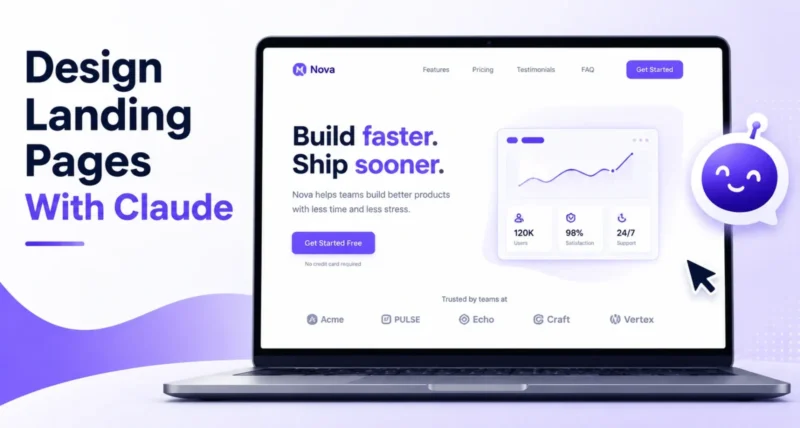
You need a landing page. Maybe it is for a product, a newsletter, an event, or a side project. You can picture the design clearly in your head, yet turning that picture into a real web page feels like the hard part.
In the past, that meant learning to code, wrestling with a page builder, or paying a developer. Not anymore.
This guide explains how to design landing pages with Claude, the AI assistant from Anthropic. You describe the page in plain English, and Claude builds a real, working web page you can see instantly. You do not need to write a single line of code to follow along.
Here is the short version. You open Claude, describe the landing page you want, and Claude builds it live in a side panel called an Artifact. You preview it, ask for changes in plain words until it looks right, then download the page or publish it with a link. Now, let us walk through each step.
1. What Is Claude, and How Can It Build Web Pages?
Claude is an AI assistant built by Anthropic. Most people use it as a smart chatbot for writing and answering questions. However, Claude can do something many beginners miss. It can build.
When you ask Claude for a web page, it does not just describe one. It writes the actual HTML, CSS, and JavaScript, the three languages that make up a web page, and then shows you the finished result.
Even better, that result is not a wall of code you have to understand. Claude renders it as a live, clickable page right next to your chat. You see the page, not the code.
This live preview feature is called Artifacts, and it is the heart of this guide. According to the official Claude Artifacts help page, Artifacts work on the free plan as well as the paid plans, so you can start without spending anything.
If you also want to write and edit code with Claude, our guide on how to use Claude Code covers that side of the tool. This guide stays focused on building pages with plain language.

2. What You Need Before You Start
The good news is that the list is short. You do not need design skills, coding knowledge, or any software to install.
- A free Claude account. You can sign up at the Claude website in a couple of minutes, and the free plan is enough to build and preview pages.
- A web browser. Claude runs in the browser, so Chrome, Edge, Safari, or Firefox all work fine.
- A clear idea of your page. Know the goal, the audience, and the main action you want a visitor to take.
The free plan has daily usage limits. If you plan to build pages often or iterate a lot, a paid plan gives you more room. You can compare the options on the Claude pricing page.
Tip: Spend two minutes before you start and write down your page goal in one sentence. A clear goal leads to a clear prompt, and a clear prompt leads to a far better page.
3. Meet Artifacts: Where Your Page Comes to Life
Before you build anything, it helps to know where your page will actually appear.
When Claude creates something substantial, like a web page, it does not dump it into the chat. Instead, it opens a separate panel beside the conversation. That panel is the Artifact.

You can scroll the preview, click its buttons, and check how it looks, exactly as a visitor would. Most of the time, Claude opens the Artifact panel on its own. If it does not, simply add the words build this as an artifact to your request.
4. How to Design Your First Landing Page
Now for the fun part. Let us build a real landing page together, step by step.
4.1 Open Claude and Start a New Chat
Go to the Claude website and sign in. Click the button to start a new chat. A blank message box appears at the bottom, ready for your request. That box is where everything begins.
4.2 Describe the Page You Want
This step matters most. The clearer your description, the better the page. Tell Claude the purpose, the sections, the style, and the main action you want a visitor to take.
Here is a prompt you can copy and adjust for your own page:
Build a landing page for a productivity app called FocusFlow. Include a hero section with a headline and a Start Free Trial button, a section with three key features, a short customer testimonial, and a simple footer. Use a clean, modern style with blue accents. Make it work well on mobile.
Notice how the prompt names each section and the style. A vague request like make me a website gives a vague result, while a specific brief gives Claude a clear target to hit.

4.3 Watch Claude Build It Live
Send the prompt and watch the Artifact panel. Claude writes the page, and the preview fills in as it works. Within a short time, you have a complete landing page on screen.
You did not touch any code, yet a real web page now exists. That is the moment most beginners find genuinely surprising.
4.4 Preview Your Landing Page
Take a moment to explore the result. Scroll through the page, hover over the button, and read every section carefully.
Resize the panel or switch to the mobile view to see how the page adapts to a smaller screen. This quick review tells you exactly what to improve next.

5. How to Refine and Improve Your Page
Your first version is a starting point, not the finish line. Refining the page is simply a conversation.
To change anything, describe the change in plain words in the same chat. Claude updates the page, and the preview refreshes. Here are a few examples you could ask for:
- Make the headline shorter and more punchy.
- Change the blue accents to dark green.
- Add a frequently asked questions section above the footer.
- Make the button larger and move it to the center.
Change one or two things at a time. Small, clear requests are easier to review than a long list, and you can always stack several rounds of edits.

Insight: If a change goes wrong, you do not lose your work. Claude keeps the earlier versions of the Artifact, so you can step back to a version you liked and continue from there.
6. Write Better Prompts for Better Pages
The difference between an average page and a great one usually comes down to the prompt. A strong prompt answers five simple questions.
- What is the page for, and who is it for?
- Which blocks should it include, such as hero, features, pricing, or testimonials?
- What single thing should a visitor do, such as sign up or buy?
- What look do you want, such as minimal, bold, or corporate, and which colors?
- Any real text, a brand name, or a must-have element?

Put those answers into one clear paragraph, and Claude has everything it needs. You can keep a simple prompt template and reuse it for every new page you build.
Tip: Give Claude a reference point it already understands. A line like make it feel like a clean software startup page guides the style faster than a long list of design terms.
7. Add Your Real Content, Images, and Sections
A first draft often uses placeholder text and sample sections. Replacing that with your real content is what turns a demo into a usable page.
First, give Claude your real words. Paste your actual headline, your feature descriptions, and your real call to action, then ask Claude to put them in place.
Second, handle the images. Claude can add image placeholders and simple shapes, and it can style them neatly. You then swap in your own photos after you download the page.
A solid landing page usually includes a familiar set of sections. The table below shows the common ones and what each is for.
| Section | What It Does |
| Hero | Grabs attention with a headline and the main button |
| Features | Explains what you offer in three or four short points |
| Social proof | Builds trust with a testimonial, a logo, or a review |
| Call to action | Repeats the main action so visitors do not scroll back |
| Footer | Holds contact details, links, and small print |

Note: One limit is worth knowing. Each Artifact is a single page. For a site with several pages, ask Claude to build each page as its own Artifact, then link them together after you download them.
8. How to Publish Your Landing Page
Once the page looks right, you have two simple ways to share it with the world.
The quick way is the Publish button. Claude creates a public link, and for a standard page anyone can open that link in a browser without a Claude account. This is perfect for a fast preview or for collecting feedback.
The proper way, for a real business page, is to put it on your own website. Use the download icon on the Artifact panel to save the page as an HTML file. You then upload that file to your web host, or paste the code into a custom HTML block in a site builder such as WordPress.

Anthropic’s guide to publishing and sharing artifacts covers the public link, how to embed the page, and how to unpublish it later.
Note: The Publish link lives on the Claude website, not on your own domain. For a landing page that represents your brand, downloading the HTML and hosting it on your own site is the better choice.
9. Claude vs Other Ways to Build a Landing Page
Claude is not the only way to build a landing page. Each option suits a different need, as the table below shows.
| Approach | Best For | Trade-off |
| Claude | Fast, custom pages from a description | Each page is a single file |
| Website builders | Drag and drop editing with templates | Less unique, and can get pricey |
| Hiring a developer | Large or complex websites | Slower and more expensive |
In short, a website builder gives you templates, a developer gives you a full custom build, and Claude gives you a fast, custom starting point in minutes.
10. Common Mistakes to Avoid
Even with an easy tool, beginners tend to hit the same few bumps. Luckily, each one is simple to avoid.
- Writing a vague prompt. Make me a nice page gives a generic result. Name the sections, the style, and the action.
- Changing too much at once. A long list of edits is hard to review. Change one or two things per request.
- Forgetting the mobile view. Most visitors are on phones, so always ask Claude to check the page on a small screen.
- Leaving placeholder text in place. Sample copy looks unfinished. Swap in your real words before you publish.
- Treating the Publish link as your website. For a brand page, download the HTML and host it on your own domain.
11. Which Approach Should a Beginner Use?
Designing a landing page with Claude is far simpler than most beginners expect. To summarize the whole process:
- Open Claude and describe the page you want in clear, specific words.
- Let Claude build it live in the Artifact panel, then preview the result.
- Refine it through plain conversation, one or two changes at a time.
- Add your real content, then download the page or publish it with a link.
The best way to learn is to build one. Open Claude today, describe a simple page, and watch it appear. Each page you make sharpens both your eye and your prompts.
If you enjoyed this walkthrough, you may also like our how to use Google AI Mode beginner guide, which follows the same simple step by step style for another powerful AI tool.
Frequently Asked Questions
Is Claude free for building landing pages?
Yes. The Artifacts feature works on the free Claude plan, so you can build and preview pages at no cost. The free plan has daily usage limits, so a paid plan helps if you build pages often or make many edits.
Do I need to know how to code?
No. You describe the page in plain English, and Claude writes the HTML, CSS, and JavaScript for you. You only read the live preview, not the code, so no coding knowledge is needed to follow this guide.
Can I use the landing page on my own website?
Yes. Use the download icon on the Artifact panel to save the page as an HTML file. You can then upload it to your web host or paste the code into a custom HTML block in a builder such as WordPress.
Can Claude build a website with multiple pages?
Each Artifact is a single page. To build a site with several pages, ask Claude to create each page as its own Artifact, then link the pages together after you download them. It works, but it takes a few steps.
Can Claude add my own images?
Claude can add image placeholders and simple shapes and style them neatly. It cannot upload your photos for you, so the usual approach is to download the page and swap in your real images afterward.
Will visitors need a Claude account to see my page?
No. A page you download and host on your own site is fully public. A page shared through the Claude Publish link also opens for anyone in a browser, as long as it is a standard web page.
What if Claude does not show the live preview?
Sometimes Claude replies in the chat instead of opening the panel. If that happens, add the words build this as an artifact to your request, and the live preview panel will open.