
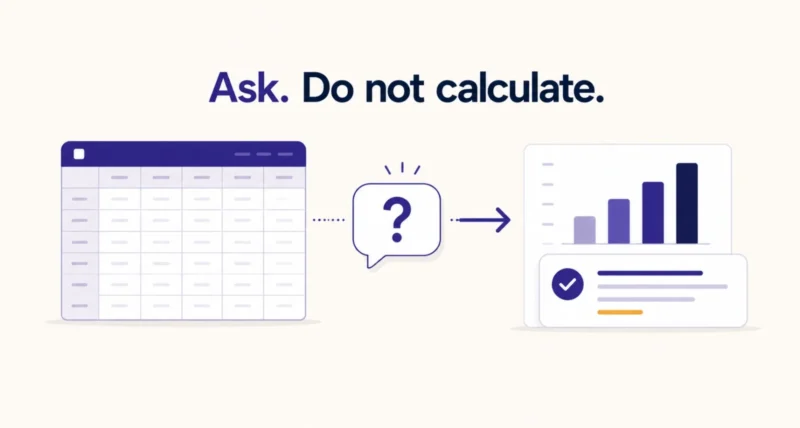
Most people use maybe five percent of Excel. They know the numbers hold an answer. Finding it means remembering which function to nest inside which other function, and that is where the afternoon goes.
This guide covers how to use Copilot in Excel to get those answers by asking in ordinary English. You will learn the setup and the prompts that produce useful results. You will also learn the one formatting step that decides everything, and where the tool still needs checking.
What You Need Before You Start
Two things decide whether the Copilot button even appears, and a lot of guides online are out of date on the first one.
You need an eligible subscription. Microsoft made Copilot part of Microsoft 365 Personal and Family rather than an expensive add-on, so many home users already have it without realizing. Older tutorials still tell readers to buy Copilot Pro separately.
| Your Subscription | Copilot in Excel? |
| Microsoft 365 Personal or Family with AI credits | Yes |
| Microsoft 365 Premium | Yes |
| Commercial Microsoft 365 Copilot | Yes |
| Copilot Chat eligible business or enterprise plan | Yes |
| Free web Excel, or a one-time Office purchase | No |
The second requirement catches almost everyone. Copilot in Excel needs AutoSave switched on, which means the file has to live in OneDrive. Microsoft states plainly that it does not work with unsaved files. Save your workbook to the cloud first, or the button stays grayed out no matter what else you try.
| The Catch Nobody Prints on the Box On Family and Premium plans, the AI features belong to the subscription owner alone. Nobody else on the plan can use them. If you are on a family subscription somebody else pays for, you may have every app and none of the AI. Worth checking before you spend an hour troubleshooting. |
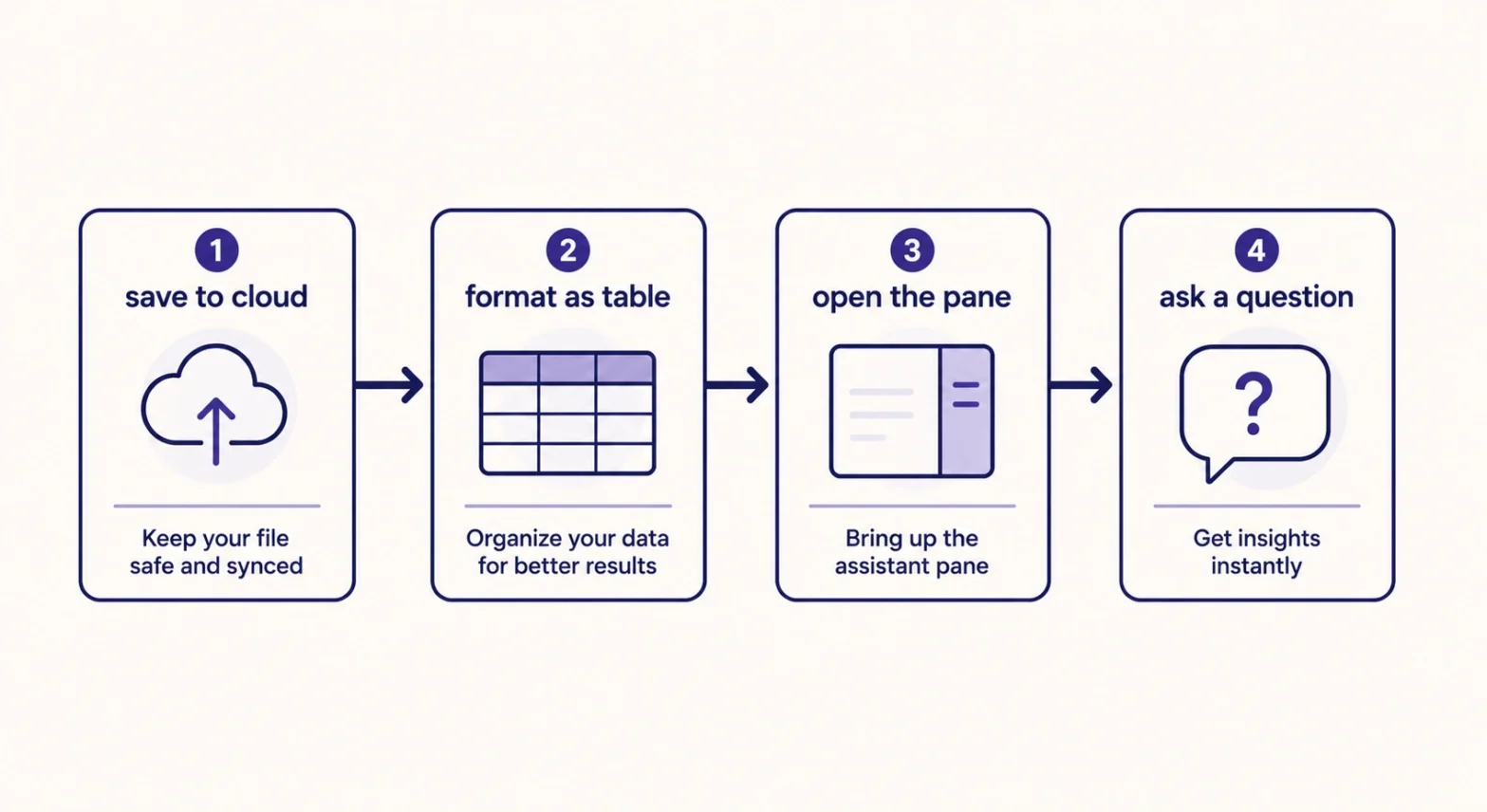
How to Use Copilot in Excel: The Three-Minute Setup
Once the subscription is sorted, getting going takes a few clicks.
Step 1: Save the file to OneDrive
Choose File, then Save a copy, then OneDrive, and pick a folder. Check that AutoSave shows as on in the top left corner of the window. If it stays off, look in File, then Options, then Save, and enable the setting that stores cloud files automatically.
Step 2: Format your data
Select any cell inside your data and press Control and T together. Confirm that the header row box is ticked, then click OK. Your range becomes a proper table, which is the format Copilot reads most reliably.
Step 3: Open the Copilot pane
The Copilot icon sits on the ribbon in the Home tab. Clicking it opens a panel with conversation starters, which are suggested prompts covering formulas, formatting, and summaries. Microsoft’s own guide confirms this is the main entry point.
Step 4: Or start from a single cell
Select one cell and a small sparkle icon appears beside it. That opens Copilot already focused on the thing you clicked, which is faster when you have a specific question about a specific number.
Format Your Data First, or Nothing Else Works
This is the difference between Copilot being useful and Copilot telling you it cannot help. Microsoft’s guidance on formatting data is to use a table or a supported range so Copilot can read it. Plenty of guides overstate this by claiming a table is the only option. A table is simply the most reliable route.
Beyond the table itself, four habits matter. Give every column a clear, unique header, because Copilot works from those names. Unmerge any merged cells, since they destroy the grid structure it relies on. Delete blank rows sitting inside your data. And keep each column to one data type, so numbers stay numbers rather than text that happens to look numeric.
| Do This First If Copilot says it cannot work with your data, do not rewrite your prompt. Nine times out of ten the problem is the sheet rather than the question. Check the table formatting, the headers, and the merged cells before changing a single word of what you asked. |
Prompts That Actually Get You Answers
Copilot rewards specificity. Naming the column, the operation, and the output format turns a vague reply into the thing you wanted.
| Summarize and find the story Summarize this data and highlight the three most important trends. Which region grew fastest between January and June, and by how much? Show me any rows where Revenue looks unusually high or low compared to the rest. |
| Build columns and calculations Add a column that calculates profit margin as Profit divided by Revenue, formatted as a percentage. Add a column showing the month name based on the Order Date column. Rank the products by total sales and add the rank as a new column. |
| Charts, PivotTables, and formatting Create a bar chart of total revenue by month, sorted highest to lowest. Create a PivotTable showing total sales by Region and Product Category. Highlight the top 10 percent of values in the Sales column in green. |
The difference between a weak prompt and a strong one is usually four extra words.
| Weak Prompt | Strong Prompt |
| Analyze my data | Summarize total sales by region and name the weakest performer |
| Make a chart | Create a line chart of monthly revenue for 2026, with months on the x axis |
| Fix this column | Find inconsistent spellings in the City column and suggest corrections |
Ask Questions Without Letting It Touch Your Workbook
This setting deserves more attention than it gets. Copilot offers a chat only mode that analyzes your data and answers questions without changing anything in the file.
Use it whenever you are exploring rather than building, or when the workbook matters too much to risk an unwanted edit. You still get summaries, trends, and outliers, and your columns stay exactly where you left them. Once you know what you want, switch back and let Copilot make the change.
Copilot Explains Formulas, Not Just Writes Them
Most coverage stops at formula generation, which misses the more valuable half.
Paste in a formula somebody else built, or select a cell containing one, and ask what it does. Copilot walks through the logic step by step, in ordinary words. Anyone who has inherited a spreadsheet full of nested lookups written by a colleague who left two years ago will recognize how useful that is. It also makes the tool a genuine way to learn Excel rather than a way to avoid learning it.
| Understand what you inherited Explain what the formula in cell H2 does, step by step, in simple terms. Why is this formula returning an error, and how do I fix it? |
You Can Choose Which AI Model Runs It
Here is something almost no guide mentions. Copilot in Excel is not powered by a single fixed model.
Microsoft’s official FAQ for Copilot in Excel confirms it supports Claude models from Anthropic and GPT models from OpenAI for editing workbooks. You can switch between them or pick Auto and let Copilot decide. Two caveats apply. The choice lasts only for that session and resets when you close Excel, and the switcher needs a commercial Microsoft 365 Copilot subscription or Microsoft 365 Premium.
| Worth Knowing If one model gives you a result that looks wrong, switching to the other and asking the same question is a quick sanity check. Different models make different mistakes, so agreement between them is a reasonable signal that the answer holds up. |
What Copilot in Excel Cannot Do
Knowing the edges saves you from fighting the tool.
| The Limit | What It Means for You |
| No VBA or macros | It will not write or run automation code for you |
| Local files are out | Files outside OneDrive stay off limits |
| Messy sheets confuse it | Merged cells and mixed data types produce poor answers |
| Single table works best | Complex multi-sheet models still need a human |
| Judgment is not included | It reports what the numbers say, not what they mean |
Always Check What Copilot Tells You
Treat every answer as a draft from a fast, confident assistant who occasionally misreads a column. That framing keeps you out of trouble.
- Spot check one number by hand. If Copilot reports total sales of 48,200, filter the column and confirm it.
- Read any formula it writes rather than accepting it blindly, and ask Copilot to explain the parts you do not follow.
- Check that it used the column you meant. Similar headers such as Cost and Total Cost are a common source of quiet errors.
- Ask the same question a second way. Consistent answers are a good sign, and contradictory ones tell you the data needs cleaning.
None of this takes long, and it turns Copilot from something you hope is right into something you can put in front of your manager.
When the Copilot Button Is Missing
Four causes account for nearly every case, and they are quick to rule out in order.
| The Symptom | The Likely Cause |
| No Copilot icon anywhere | Your subscription does not include it, or an admin has blocked it |
| Icon visible but grayed out | The file is saved locally rather than to OneDrive |
| It refuses to read your data | The range is not formatted as a table, or headers are merged |
| It works for a colleague, not you | On Family plans the AI belongs only to the subscription owner |
Check which licence you hold in your Microsoft 365 account settings. That single page settles the first and fourth rows faster than any amount of clicking around inside Excel. In a workplace, the block often sits higher up, since administrators control Copilot through the Microsoft 365 Copilot admin documentation, so a quick message to your IT team beats troubleshooting your own machine.
The barrier was never your intelligence. It was syntax. Copilot removes the requirement to remember function names. The useful skill becomes asking precise questions about your data rather than memorizing how to phrase them as formulas.
Frequently Asked Questions
How do I use Copilot in Excel for the first time?
Save your workbook to OneDrive so AutoSave turns on. Select a cell in your data and press Control and T to format it as a table. Then click the Copilot icon on the Home tab of the ribbon. Type a question in the panel that opens, naming the columns you care about and the output you want.
Is Copilot in Excel free?
No, though it may already be included in what you pay. Microsoft added Copilot to Microsoft 365 Personal and Family subscriptions with AI credits, and it also comes with Microsoft 365 Premium and commercial Copilot plans. Free web Excel and one-time Office purchases do not include it.
Why is the Copilot button grayed out in Excel?
Almost always because the file is not in the cloud. Copilot in Excel requires AutoSave, which means the workbook must be saved to OneDrive, and it does not function with unsaved files. Use File, then Save a copy, then OneDrive, and confirm AutoSave shows as on in the top left of the window.
Does my data have to be an Excel table?
Microsoft asks you to format data in a table or a supported range. In practice a table gives far more reliable results, so pressing Control and T is the fastest fix when Copilot says it cannot work with your data. Also remove merged cells, blank rows inside the data, and duplicate column headers.
Can Copilot in Excel write macros or VBA?
No. It handles formulas, columns, charts, PivotTables, formatting, and analysis, but it does not generate or run VBA code. For automation you still need the macro recorder, Power Query, or Office Scripts depending on which version of Excel you use.
Can I trust the numbers Copilot gives me?
Verify before you rely on them. Copilot calculates from the data you give it, so a poorly structured sheet produces confident but wrong answers. Spot check one figure manually, confirm it used the column you intended, and read any formula it writes. Treat its output as a fast draft rather than a finished result.

