
A blank page is the slowest part of writing, and Gemini, the AI built right into Google Docs, exists to get you past it. Whether you need a first draft, a quick rewrite, or a summary of a twenty-page report, it does the grunt work in seconds. That frees you to focus on the thinking. This guide shows you exactly how to use Gemini in Google Docs to write faster. You get prompts you can copy, the fastest editing shortcuts, and an honest look at what it does well and where it falls short. No fluff, just what actually saves you time.
| The Short Answer Gemini is Google’s AI assistant built into Google Docs, and you use it two ways. Click Ask Gemini, the sparkle icon in the top right, to open the side panel, where you can generate text, summarize your document, or research a topic. Or use Help me write and the quick actions to draft and edit right in the page, selecting text and choosing Rephrase, Shorten, Elaborate, or a new tone. The trick to real speed is a specific prompt: say what you want, the format, the audience, and any limits. Treat the result as a strong first draft, review it, then refine it. Used this way, Gemini clears the slow parts of writing so you move much faster. |
How to Use Gemini in Google Docs: The Two Ways to Open It
Before the prompts, know your two entry points, because each one is built for a different job. Get these straight and everything else is easy.
| Entry Point | Where to Find It | Best For |
| The Gemini side panel | Click Ask Gemini, the sparkle icon, top right | Summaries, research, and asking about your whole doc |
| Help me write and quick actions | The prompt box in the page, or select text for the floating bar | Drafting new text and fast edits in place |
As Google’s own guide explains, the side panel can read your entire document and even pull from your Drive files and Gmail when you reference them. Help me write, by contrast, focuses on drafting and refining the text right where your cursor sits. You will use both, often in the same document.
The Prompt Formula That Makes Gemini Twice as Fast
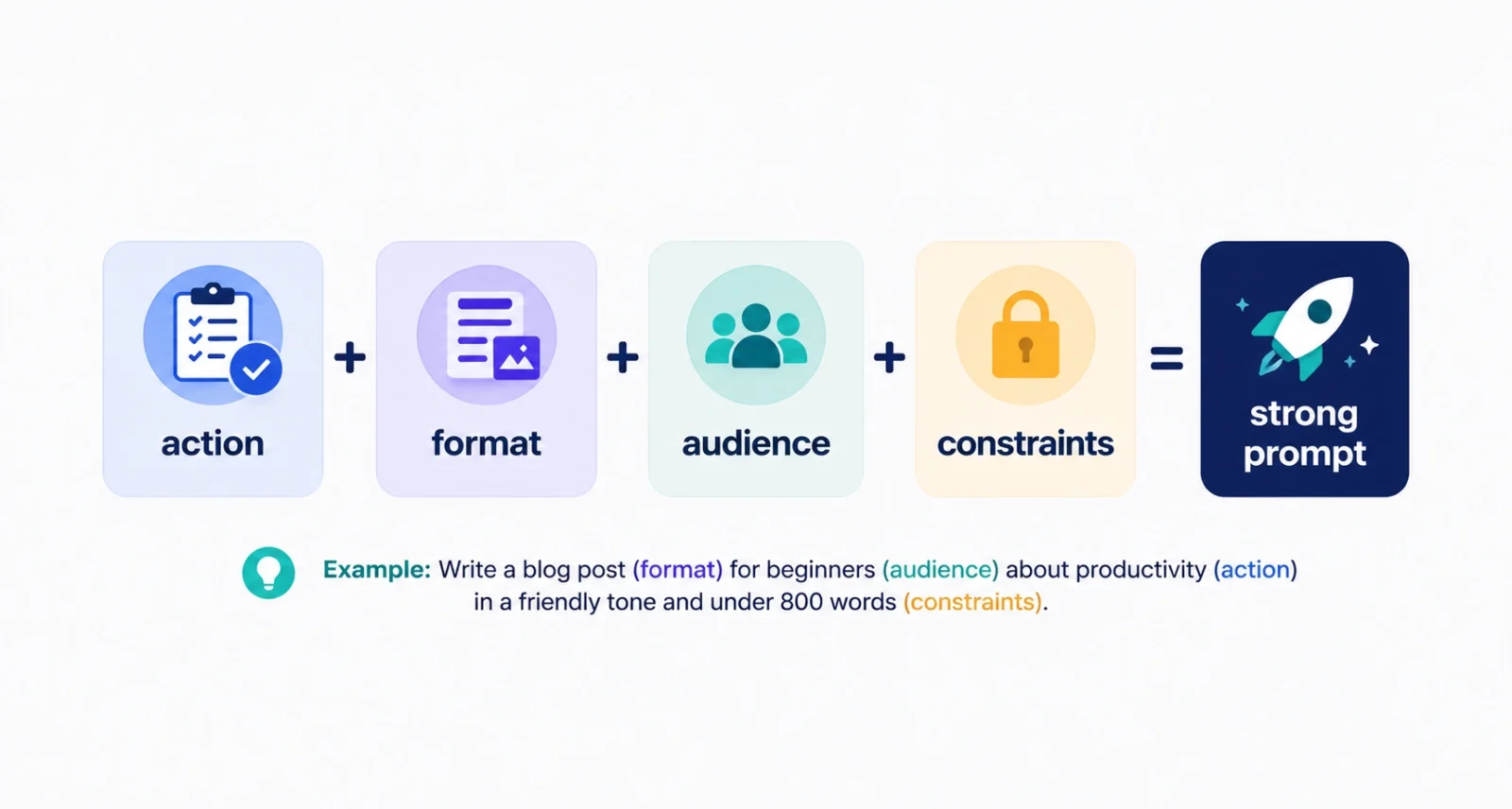
The single biggest reason Gemini feels slow or gives flat results is a lazy prompt. “Write about our new feature” gives you mush. A good prompt has four parts, and it takes ten seconds to build.
- Tell it what to do, such as write, summarize, rewrite, or outline.
- Name the shape you want, like an email, five bullet points, or a table.
- Say who it is for, such as customers, your manager, or total beginners.
- Add the limits, like the tone, a word count, or facts it must include.
Put together, a weak prompt becomes a strong one. Compare two prompts. “Write about our new feature” gives mush. “Write a 150-word announcement email in a friendly tone for existing customers about our new dark mode feature” gives you something usable, for the same effort. Keep this pattern in mind for every prompt below.
Draft a First Version in Seconds
This is the classic blank-page killer. Open a new document, and in the Help me write prompt box or the bottom bar, describe what you want, then click Submit. Gemini writes a full draft. From there, click Insert to drop it in, or Retry for a different take.
| TRY THIS PROMPT “Draft a professional project update email summarizing our progress, current blockers, and next steps, addressed to my manager.” |
You now have a structured starting point in seconds, instead of staring at an empty screen. Tidy it up, and you are done.
Edit and Fix Tone Without Retyping
Rewriting by hand is slow. Instead, highlight any sentence or paragraph, and on the floating bar click Refine, or right-click and choose Help me write. Gemini gives you instant options through quick actions, so you never retype a clunky line again. Here is the cheat sheet.
| Quick Action | What It Does |
| Rephrase | Rewrites the text a different way while keeping the meaning |
| Shorten | Cuts the length and tightens wordy passages |
| Elaborate | Expands a short note or bullet into fuller writing |
| Bulletize | Turns a block of text into a clean bullet list |
| Summarize | Condenses a long selection into its key points |
| More formal | Raises the tone for reports, clients, or leadership |
| More casual | Relaxes the tone for social posts or friendly notes |
You can also edit with a plain instruction. Highlight a rough paragraph and type something like “make this more concise and professional,” then accept the changes you like. It is the fastest editing pass you will ever run.
Summarize a Long Document Instantly
This is where Gemini genuinely shines. As Computerworld notes, its real strength is taking away drudge work like digesting a long report. Open the side panel and ask it to summarize, either the whole document or a section you paste in. For very long files, summarize section by section, then ask it to combine those into one overview.
| TRY THIS PROMPT “Summarize this document in five bullet points, then list any action items with the person responsible for each.” |
In one step you turn a wall of text into something a busy reader, or a busy you, can act on.
Turn Messy Notes into Clean Structure
Rough notes are perfect raw material. Paste your shorthand, select it, and use Elaborate to expand it, or ask the side panel to reorganize it into something usable. It handles the formatting that normally eats your time.
| TRY THIS PROMPT “Turn these rough notes into a structured meeting summary with clear headings, key decisions, and an action-item table listing owners and due dates.” |
Gemini reads your notes and returns clean sections and a tidy table, ready to share. What used to take twenty minutes of tidying takes one.
Research a Topic Without Leaving the Page
Jumping between tabs breaks your flow. The side panel can pull recent, sourced information right inside your document. It can also reference your own files when you point to them with the @ symbol. Ask for what you need, then keep writing.
| TRY THIS PROMPT “Give me three recent developments in electric vehicle battery technology, each with a one-sentence explanation and a source link.” |
Gemini returns a quick briefing, usually with links you can click to verify. Always check those sources, since AI can get details wrong, but as a fast first pass it is a real time-saver.
Make Gemini Sound Like You
Generic tone is the most common complaint about AI writing, and Gemini has a fix. You can point it at an existing document, one you wrote, and ask it to match that writing style. It studies your phrasing and mirrors it, so new text reads more like you and less like a robot.
When you paste text into a doc and want it to blend in, select it and choose Match writing style. Gemini even shows you the style it detected, such as “formal, objective, and direct,” so you can confirm it before applying. It is a small step that makes AI drafts feel far more human.
What Gemini in Google Docs Is Not Good At
Speed is only useful if you know the limits, so here is the honest side. Gemini’s first output is often generic and a little flat, which makes it a strong starting point rather than a finished piece. Always read it before you trust it.
It also struggles with a few things. Highly technical content, documents that need exact data or citations unless you feed it your own files, and creative writing that depends on a distinctive voice all trip it up. On privacy, Google states that Workspace data processed by Gemini is not used to train its AI models, and business and enterprise accounts carry extra data protections. For anything sensitive, it is still worth checking your organization’s own rules before you paste confidential text.
| The Golden Rule Let Gemini handle the first draft and the drudgery, and keep the final judgment for yourself. It is a fast writing partner, not a replacement for your own eyes. Every draft it produces should get a quick human review before it goes anywhere that matters. |
Who Can Use Gemini in Google Docs, and Is It Free?
Gemini comes built into many paid Google Workspace plans, with the side panel available on Business Standard plans and above. People with personal Google accounts can also try these AI features, currently through Google’s Workspace Experiments program. Its wider rollout means availability keeps expanding. If you open a recent Google Doc and see the Ask Gemini sparkle in the top right, you already have it. If not, it is likely tied to your plan or account type.
Draft a First Version in Seconds
This is the classic blank-page killer. Open a new document, and in the Help me write prompt box or the bottom bar, describe what you want, then click Submit. Gemini writes a full draft. From there, click Insert to drop it in, or Retry for a different take.
| TRY THIS PROMPT “Draft a professional project update email summarizing our progress, current blockers, and next steps, addressed to my manager.” |
You now have a structured starting point in seconds, instead of staring at an empty screen. Tidy it up, and you are done.
Edit and Fix Tone Without Retyping
Rewriting by hand is slow. Instead, highlight any sentence or paragraph, and on the floating bar click Refine, or right-click and choose Help me write. Gemini gives you instant options through quick actions, so you never retype a clunky line again. Here is the cheat sheet.
| Quick Action | What It Does |
| Rephrase | Rewrites the text a different way while keeping the meaning |
| Shorten | Cuts the length and tightens wordy passages |
| Elaborate | Expands a short note or bullet into fuller writing |
| Bulletize | Turns a block of text into a clean bullet list |
| Summarize | Condenses a long selection into its key points |
| More formal | Raises the tone for reports, clients, or leadership |
| More casual | Relaxes the tone for social posts or friendly notes |
You can also edit with a plain instruction. Highlight a rough paragraph and type something like “make this more concise and professional,” then accept the changes you like. It is the fastest editing pass you will ever run.
Summarize a Long Document Instantly
This is where Gemini genuinely shines. As Computerworld notes, its real strength is taking away drudge work like digesting a long report. Open the side panel and ask it to summarize, either the whole document or a section you paste in. For very long files, summarize section by section, then ask it to combine those into one overview.
| TRY THIS PROMPT “Summarize this document in five bullet points, then list any action items with the person responsible for each.” |
In one step you turn a wall of text into something a busy reader, or a busy you, can act on.
Turn Messy Notes into Clean Structure
Rough notes are perfect raw material. Paste your shorthand, select it, and use Elaborate to expand it, or ask the side panel to reorganize it into something usable. It handles the formatting that normally eats your time.
| TRY THIS PROMPT “Turn these rough notes into a structured meeting summary with clear headings, key decisions, and an action-item table listing owners and due dates.” |
Gemini reads your notes and returns clean sections and a tidy table, ready to share. What used to take twenty minutes of tidying takes one.
Research a Topic Without Leaving the Page
Jumping between tabs breaks your flow. The side panel can pull recent, sourced information right inside your document. It can also reference your own files when you point to them with the @ symbol. Ask for what you need, then keep writing.
| TRY THIS PROMPT “Give me three recent developments in electric vehicle battery technology, each with a one-sentence explanation and a source link.” |
Gemini returns a quick briefing, usually with links you can click to verify. Always check those sources, since AI can get details wrong, but as a fast first pass it is a real time-saver.
Make Gemini Sound Like You
Generic tone is the most common complaint about AI writing, and Gemini has a fix. You can point it at an existing document, one you wrote, and ask it to match that writing style. It studies your phrasing and mirrors it, so new text reads more like you and less like a robot.
When you paste text into a doc and want it to blend in, select it and choose Match writing style. Gemini even shows you the style it detected, such as “formal, objective, and direct,” so you can confirm it before applying. It is a small step that makes AI drafts feel far more human.
What Gemini in Google Docs Is Not Good At
Speed is only useful if you know the limits, so here is the honest side. Gemini’s first output is often generic and a little flat, which makes it a strong starting point rather than a finished piece. Always read it before you trust it.
It also struggles with a few things. Highly technical content, documents that need exact data or citations unless you feed it your own files, and creative writing that depends on a distinctive voice all trip it up. On privacy, Google states that Workspace data processed by Gemini is not used to train its AI models, and business and enterprise accounts carry extra data protections. For anything sensitive, it is still worth checking your organization’s own rules before you paste confidential text.
| The Golden Rule Let Gemini handle the first draft and the drudgery, and keep the final judgment for yourself. It is a fast writing partner, not a replacement for your own eyes. Every draft it produces should get a quick human review before it goes anywhere that matters. |
Who Can Use Gemini in Google Docs, and Is It Free?
Gemini comes built into many paid Google Workspace plans, with the side panel available on Business Standard plans and above. People with personal Google accounts can also try these AI features, currently through Google’s Workspace Experiments program. Its wider rollout means availability keeps expanding. If you open a recent Google Doc and see the Ask Gemini sparkle in the top right, you already have it. If not, it is likely tied to your plan or account type.
Learning how to use Gemini in Google Docs is really about learning to delegate the slow parts of writing. Open the side panel for summaries and research, and use Help me write and the quick actions for drafting and edits. Lean on a specific, four-part prompt every time. Do that, and a first draft, a rewrite, or a summary that used to take half an hour takes a couple of minutes.
Frequently Asked Questions
How do I turn on Gemini in Google Docs?
In most cases you do not turn it on, it is already there if your account qualifies. Open a Google Doc and look for the Ask Gemini sparkle icon in the top-right corner, or the Help me write prompt in a new document. If you do not see it, access depends on your Google Workspace plan or personal account type, since the features are still rolling out.
Is Gemini in Google Docs free?
It is included with many paid Google Workspace plans, with the side panel on Business Standard and higher. People with personal Google accounts can try the AI writing features too, currently through Google’s Workspace Experiments program. The exact free access changes as Google expands the rollout.
What is the difference between the side panel and Help me write?
The side panel, opened with the Ask Gemini sparkle, can read your whole document and reference your Drive and Gmail files. That makes it best for summaries, research, and questions. Help me write and the quick actions work directly in the page for drafting new text and editing what you select. Most people use both together.
Can Gemini summarize a Google Doc?
Yes, and it is one of its best uses. Open the side panel and ask it to summarize the document, or a section you specify. For very long documents, summarize part by part and then ask Gemini to combine those summaries into one overview. You can also request action items or key decisions in the same prompt.
Does Gemini use my documents to train Google’s AI?
Google states that Workspace data processed by Gemini is not used to train its AI models, and business and enterprise accounts have additional data protections. Even so, for confidential material it is wise to follow your own organization’s policies and avoid pasting sensitive information you are not cleared to share.
Why does Gemini’s writing sound generic?
Because a vague prompt produces a vague result. Use a specific prompt that names the action, format, audience, and constraints, and ask Gemini to match the writing style of a document you wrote. Then edit the draft yourself. The tool gives you a fast starting point, but your revisions are what make it sound polished and human.

