
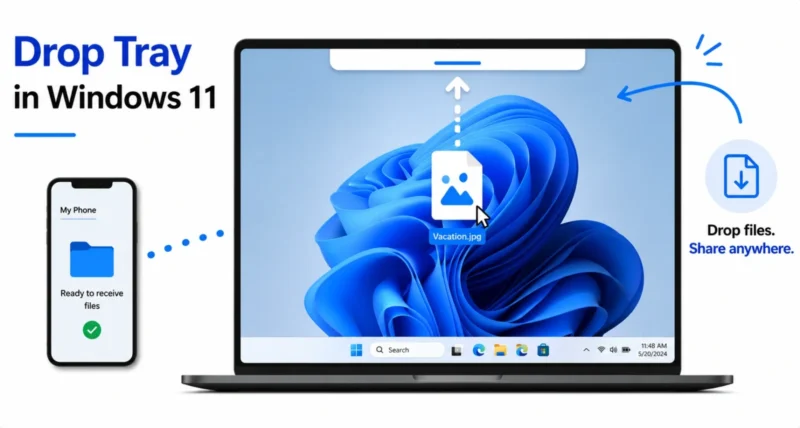
You have dragged files across your screen thousands of times without really thinking about it. Lately, though, you may have noticed something new. The moment you start dragging a file, a small bar slides down from the top of the screen.
That bar is the Drop Tray. It is a Windows 11 feature built to make sharing files quick and simple. Some people love it right away, while others are not quite sure what it is for.
This guide explains how to use the Drop Tray in Windows 11 in plain, easy steps. We will turn it on, share a file with it, and even turn it off if it is not your thing. You do not need any technical skill to follow along.
Here is the short version. You start dragging a file, a tray appears at the top of the screen, and you drop the file onto an app to share it. That is the whole idea, and the rest of this guide simply shows you how to get the most from it.
1. What Is the Drop Tray in Windows 11?
The Drop Tray is a small file sharing panel built into Windows 11. It stays hidden until the moment you need it.
As soon as you pick up a file and start dragging it, the tray slides down from the top of your screen. Inside it, you see a row of apps. Drop your file onto one of them, and Windows shares the file through that app.
Think of it as a shortcut. Instead of opening an app first and then hunting for an attach or upload button, you simply drag the file up and let go.
It works with a mouse and with touch, so it suits both regular laptops and touchscreen devices. As Windows Latest notes, Microsoft designed it especially for tablets and convertibles, where dragging toward the edge of the screen feels like a natural gesture.

2. What Changed: From Drag Tray to Drop Tray
If this feature feels a little familiar, that is because it is not brand new. It used to be called the Drag Tray.
With the Windows 11 May 2026 update, Microsoft renamed it to Drop Tray and gave it a cleaner look. As Windows Central reports, the update also moved its setting to a more sensible place in the system menu.
The old Drag Tray had a common complaint. It popped up too easily, even when you were simply moving a file into a folder near the top of the screen. The new Drop Tray is smaller and more subtle, and it appears only when your drag feels intentional.
| Then: Drag Tray | Now: Drop Tray |
| A larger bar with instruction labels | A smaller, cleaner peek view |
| Popped up very easily | Appears only on a clear, intentional drag |
| Setting under Nearby sharing | Setting under System, then Multitasking |
In short, it is the same helpful idea, now polished to stay out of your way.
3. How to Turn On the Drop Tray
On most updated Windows 11 PCs, the Drop Tray is already on. If it is not, switching it on takes only a few seconds.
- Open Settings. You can press the Windows key and I together to open it quickly.
- Click System in the left menu.
- Click Multitasking.
- Find the Drop Tray toggle and switch it on.

The Drop Tray is part of Windows 11. If you are still on Windows 10, you will need to upgrade first, and our Windows 10 end of support migration guide walks through that step by step.
Note: On some PCs the setting may still sit under System, then Nearby sharing instead of Multitasking. Microsoft moved it with the May 2026 update, so a fully updated PC will show it under Multitasking.
4. How to Use the Drop Tray to Share a File
Here is the part you will use every day. Sharing a file with the Drop Tray takes three simple steps.
4.1 Start Dragging Your File
Find the file you want to share, either in File Explorer or on your desktop. Click and hold it, then start moving it. On a touchscreen, press and hold the file with your finger and begin to drag.
4.2 Drag It to the Top of the Screen
Move the file toward the top edge of the screen. As you get close, the Drop Tray slides down. Inside it, you see a row of apps you can share with.

4.3 Drop It on an App
Move the file over the app you want to use, then let go. Windows hands the file to that app and opens the next step for you.
For example, drop a file on Outlook and it attaches to a new email. Drop a photo on your phone and Windows sends it across.

Want more choices? Drop the file on the More options area instead. This opens the full Windows share window, with extra actions depending on the file type. Pureinfotech has a closer look at this part of the feature.
5. Useful Things You Can Do With the Drop Tray
Once the basic move feels natural, the Drop Tray becomes a real time saver. Here are the most useful ways to use it.
| Drop the File On | What Happens |
| My Phone | Windows sends the file to your phone using Phone Link |
| Outlook or your email app | The file attaches to a brand new email |
| A messaging app such as WhatsApp | The app opens, ready to send the file to a contact |
| More options | The full share window opens with extra actions |
A favorite trick is dropping a file on My Phone. In one move, a document or photo travels from your PC to your phone, with no cable and no uploading.

Tip: If an app in the tray has a small down arrow on its icon, that app is not installed yet. Click the arrow to install it, and then it will be ready in the tray.
6. How to Turn Off the Drop Tray
The Drop Tray is handy, but it is not for everyone. If you often drag files into folders near the top of your screen, you may prefer to switch it off.
- Open Settings by pressing the Windows key and I together.
- Go to System, then click Multitasking.
- Switch the Drop Tray toggle off.

That is all it takes. The tray will no longer appear when you drag files, and you can turn it back on the same way whenever you change your mind.
7. Good to Know: Limits of the Drop Tray
The Drop Tray is useful, but it helps to know what it cannot do yet.
- You cannot choose which apps appear. The list is set by Windows, so you cannot add your own sharing tools.
- It still appears on every drag. The new version is smaller and calmer, but it does still show up each time you drag a file.
- It needs Windows 11. The feature is not available on Windows 10.
None of these are dealbreakers. They are simply worth knowing so the feature does not surprise you.
8. Should You Use the Drop Tray?
The Drop Tray is a small feature that can save real time once it becomes a habit. To sum it up:
- Turn it on in Settings, under System, then Multitasking.
- Drag a file to the top of the screen to open the tray.
- Drop the file on an app to share it, or on More options for the full share window.
- Turn it off in the same place if it ever gets in your way.
If you share files often, especially between your PC and your phone, the Drop Tray is well worth keeping on. If you mostly drag files into folders, you may be happier with it off, and that is a perfectly fine choice too.
If you enjoyed this walkthrough, you may also like our how to use Xbox mode on Windows 11 guide, which explains another handy Windows 11 feature in the same simple style.
Frequently Asked Questions
What is the Drop Tray in Windows 11?
The Drop Tray is a file sharing panel that slides down from the top of the screen when you drag a file. You drop the file onto an app in the tray, and Windows shares it through that app for you.
Is the Drop Tray the same as the Drag Tray?
Yes. The Drop Tray is the renamed and redesigned version of the older Drag Tray. Microsoft changed the name and made it smaller and less intrusive with the Windows 11 May 2026 update.
Where is the Drop Tray setting?
The setting sits in Settings, under System, then Multitasking. On some PCs that have not fully updated, it may still appear under System, then Nearby sharing instead.
How do I stop the Drop Tray from popping up?
Open Settings, go to System, then Multitasking, and switch the Drop Tray toggle off. The tray will no longer appear when you drag files, and you can turn it back on at any time.
Can I add my own apps to the Drop Tray?
No. The list of apps in the Drop Tray is set by Windows, so you cannot add your own sharing tools yet. You can only use the apps that Windows shows in the tray.
Does the Drop Tray work with touch?
Yes. The Drop Tray works with both a mouse and touch. It works especially well on touchscreen laptops and tablets, where dragging a file toward the top feels like a natural gesture.

