
You sit down to play a game on your PC. First, though, you face a desktop full of icons, a taskbar, a few notifications, and maybe a couple of windows you forgot to close. It works, but it does not feel like settling in to play.
An Xbox console is different. You turn it on, and you are seconds away from a game. Windows 11 can now do the same thing.
This guide explains how to use Xbox mode on Windows 11, a console style gaming layout built right into the operating system. We will turn it on together, switch in and out of it, and cover the tips that keep it running smoothly. You do not need any technical skill to follow along.
Here is the short version. You update Windows 11, open Settings, go to Gaming, turn on Xbox mode, and choose the Xbox app as your home app. After that, you can drop into a full screen, controller friendly gaming layout whenever you want, and return to the desktop just as easily. Now let us walk through each step.
1. What Is Xbox Mode on Windows 11?
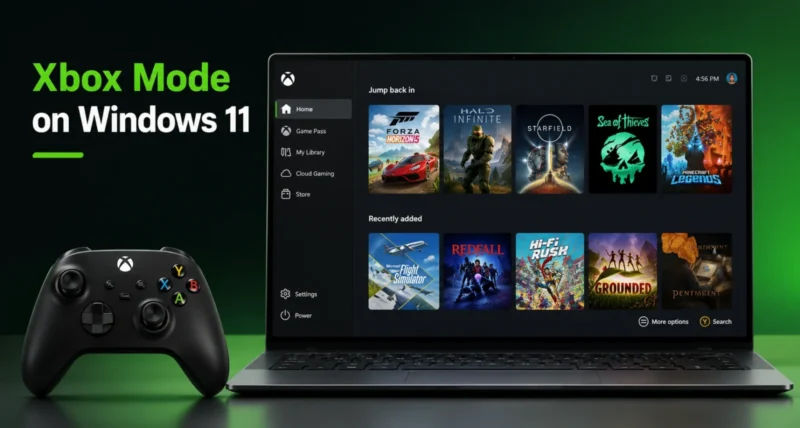
Xbox mode is a console style gaming layout built into Windows 11. When you switch it on, your PC stops looking like a desktop and starts looking like an Xbox.
Instead of the usual taskbar, Start menu, and scattered windows, you get a full screen view with large game tiles and simple menus. You can move through all of it with a controller, so a keyboard and mouse are no longer required.
Microsoft started rolling Xbox mode out to Windows 11 PCs, including laptops, desktops, and tablets, on April 30, 2026. According to the official Xbox announcement, it brings the console inspired experience that began on Windows handhelds to every kind of PC.
There is also a real performance benefit. While you are in Xbox mode, Windows runs one app at a time and holds back background tasks, which leaves more power for your game.
In short, Xbox mode turns a normal Windows 11 PC into something that feels like a games console, while the full desktop stays one button away.
2. What You Need Before You Start
The checklist is short, and you probably have most of it already.
- A Windows 11 PC. Xbox mode runs on laptops, desktops, tablets, and gaming handhelds.
- Windows 11 version 24H2 or newer. Xbox mode does not work on older versions, and it is not available on Windows 10.
- The Xbox app installed. This free app acts as the home screen for Xbox mode and is already on most Windows 11 PCs.
- A game controller. Xbox mode works without one, but it is built for controller play.
If you are still on Windows 10, you will need to move up first. Our Windows 10 end of support migration guide walks through that step by step.
Note: Xbox mode is rolling out in stages and only in supported markets, so it may not appear on every PC on the same day. Section 6 covers exactly what to do if you do not see it yet.

3. How to Turn On Xbox Mode
Turning on Xbox mode takes only a few minutes. Follow these steps in order.
3.1 Update Windows 11 First
Xbox mode arrives through Windows Update, so an up to date PC is the first requirement. Open Settings, go to Windows Update, and click Check for updates.
Also turn on the switch named Get the latest updates as soon as they are available. This tells Windows to deliver new features like Xbox mode as early as possible. Install anything it finds, then restart your PC.

3.2 Open the Xbox Mode Settings
Once Windows is updated, open Settings again. Click Gaming in the left menu, then click Xbox mode.
Note: on some PCs this page is still labelled Full screen experience. That is the same feature. Microsoft renamed it to Xbox mode, and the new name appears after the May 2026 update.

3.3 Turn On Xbox Mode and Pick Your Home App
On the Xbox mode page, turn on the main toggle to enable the feature. Then find the setting named Choose home app and select the Xbox app.
The home app is the screen Xbox mode opens to. The Xbox app works best, because it gathers your games into one library, including titles from other stores.
That is the core setup done. Xbox mode is now ready to use.
3.4 Start in Xbox Mode Automatically (Optional)
If you want your PC to boot straight into the console style layout, turn on the setting named Enter Xbox mode on startup.
This suits a gaming handheld or a PC connected to a television, where you rarely need the desktop. On a regular work and play PC, you can leave it off and switch in only when you want to game.

4. How to Enter and Exit Xbox Mode
Xbox mode is not all or nothing. You can move between it and the normal desktop whenever you like. The table below shows the easiest ways.
| Action | How to Do It |
| Quick toggle | Press the Windows key and F11 together |
| From Task View | Open Task View and select the Xbox mode tile |
| From the Xbox app | Open the Xbox app, go to Home, and click the Xbox mode button |
| Exit to the desktop | Press the Windows key and F11 again, or choose Exit Xbox mode |
Whichever method you use, Windows shows a short Continue prompt to confirm the switch. The change takes only a moment, and any open games keep running while you switch.

5. How to Navigate and Play Games in Xbox Mode
Once you are in, Xbox mode is built to be simple. The layout uses large tiles and clear rows, much like an Xbox console.
Your library sits front and center. You will see recently played games first, then your full collection. Move the highlight with the controller stick or the arrow keys, and press the main button to open a game.
A useful detail is that the Xbox app pulls in games from other stores too. Titles from Steam, the Epic Games Store, and similar platforms can appear alongside your Xbox and Game Pass games, so you launch everything from one place.
While a game runs, press the Windows key and G together to open Game Bar. This overlay lets you check performance, adjust the sound, and see friends without leaving the game.

6. What to Do If You Do Not See the Xbox Mode Option
Xbox mode is rolling out in waves, so not every PC receives it at the same time. If the Xbox mode page is missing, here is what to do.
- Update again. Open Windows Update, install everything it offers, and confirm you are on Windows 11 version 24H2 or later.
- Turn on early updates. The Get the latest updates as soon as they are available switch helps the feature reach you sooner.
- Update your graphics drivers. Visit the site for your graphics card, from Nvidia, AMD, or Intel, and install the latest driver.
- Check your region. Xbox mode is only available in supported markets at the moment.
- Wait a little. A staged rollout simply takes time, so the option may appear after a future update.
Note: You may see unofficial tools and registry tricks that force Xbox mode onto an unsupported PC. These are not supported by Microsoft and can cause crashes or other problems, so beginners should avoid them and stay with the official steps above.
7. Xbox Mode vs Game Mode: What Is the Difference
Windows 11 already had a feature called Game Mode, so it is fair to ask how Xbox mode is different. They do separate jobs, as the table shows.
| Feature | Xbox Mode | Game Mode |
| What it changes | Replaces the desktop with a console style layout | Runs quietly in the background |
| Main purpose | A controller friendly way to browse and launch games | A performance boost while a game runs |
| How you see it | A full screen interface you switch into | No visible interface, just a setting |
| Best for | Couch gaming, handhelds, and a console feel | Getting more speed out of any game |
In short, Game Mode tunes performance behind the scenes, while Xbox mode changes how the whole PC looks and feels for gaming. You can have both turned on at the same time.
8. Tips for a Smooth Xbox Mode Experience
A few small habits make Xbox mode much nicer to live with.
- Use a controller. Xbox mode is designed for it, and navigation feels far more natural than with a mouse.
- Keep drivers current. Updated graphics drivers prevent many display and performance issues before they start.
- Try it on a television. Connect your PC to a TV, switch into Xbox mode, and you have an instant console for the living room.
- Leave startup off on a work PC. If you also use the PC for everyday tasks, keep Enter Xbox mode on startup turned off and switch in only to play.
- Remember the desktop is close. The Windows key and F11 always brings you back, so you never feel locked in.

9. Should You Use Xbox Mode?
Xbox mode is one of the most useful gaming additions Windows 11 has had in a while. To summarize the whole process:
- Update Windows 11, then turn on Xbox mode in Settings under Gaming.
- Choose the Xbox app as your home app so all your games sit in one library.
- Switch in with the Windows key and F11, and switch back the same way.
- Turn on startup mode only if the PC is mainly for gaming.
If you play with a controller, game on a handheld, or connect your PC to a television, Xbox mode is well worth turning on. If you only ever play with a mouse and keyboard at a desk, the normal desktop may still suit you better, and that is perfectly fine too.
If you enjoyed this walkthrough, you may also like our how to use Google AI Mode beginner guide, which follows the same simple step by step style for another powerful tool.
Frequently Asked Questions
Is Xbox mode free to use?
Yes. Xbox mode is a free feature built into Windows 11, and it needs no subscription. Xbox Game Pass is a separate paid service for games, but you do not need it to turn on or use Xbox mode itself.
Does Xbox mode work without a game controller?
Yes. You can still use a mouse and keyboard in Xbox mode. However, the layout is designed for a controller, so navigation feels smoother and more natural when you connect one.
Will turning on Xbox mode delete my files or apps?
No. Xbox mode only changes the interface you see. Your files, apps, and the normal desktop stay exactly as they were, and the desktop is always one shortcut away.
Does Xbox mode improve gaming performance?
It can help. While Xbox mode is active, Windows runs one app at a time and limits background tasks, which frees up system resources for the game you are playing.
Why do I not see Xbox mode on my PC?
Xbox mode is rolling out in stages and only in supported markets. Update Windows 11 to version 24H2 or later, turn on early updates, and check the Gaming settings again after a future update.
What is the difference between Xbox mode and Game Mode?
Game Mode quietly boosts performance in the background. Xbox mode replaces the desktop with a console style layout you switch into. They do different jobs, and you can run both at the same time.
Can I still use the Windows desktop with Xbox mode on?
Yes. Press the Windows key and F11 to return to the standard desktop at any time, then switch back to Xbox mode the same way when you want to game again.

