
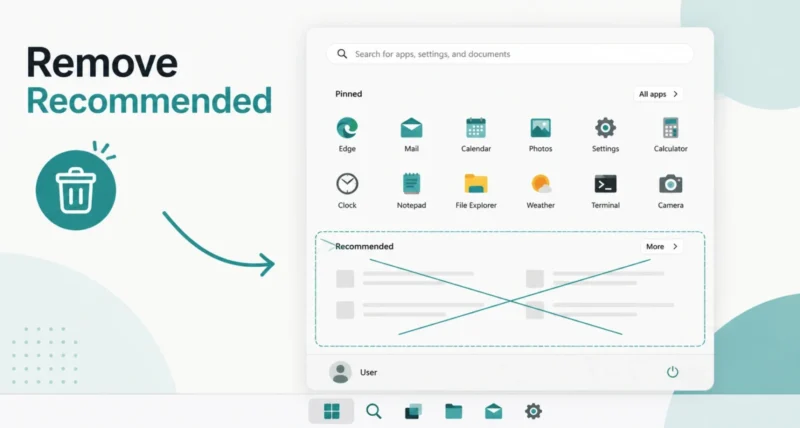
Open the Windows 11 Start menu and you will see a strip labelled Recommended, filled with recently used files and apps. For some people it is handy. For many others, it just takes up space.
Microsoft does not give you one single switch to make it disappear, but there are a few clean ways to clean it up. Some are simple settings, and one is a small registry tweak that removes it for good.
This guide shows you how to remove the Recommended section from the Windows 11 Start menu, step by step. In short, you can hide what shows inside it through Settings, shrink the section with a layout change, or remove it completely with a quick registry edit. Here is how to do each.
1. What Is the Recommended Section?
The Recommended section sits just below the Pinned apps in the Start menu. It shows recently added apps, recently opened files, and sometimes app suggestions. The list is curated by Windows, with very limited say from you.
Some people find it handy for picking up where they left off. Others want their Start menu calm and pinned-only. If you are in the second group, the rest of this guide is for you.
2. Method 1: Hide and Shrink It in Settings (Easiest)
This is the simplest path. It is built into Windows, fully reversible, and needs no extra tools.
First, turn off the items that appear inside the Recommended section.
- Press the Windows key and I together to open Settings.
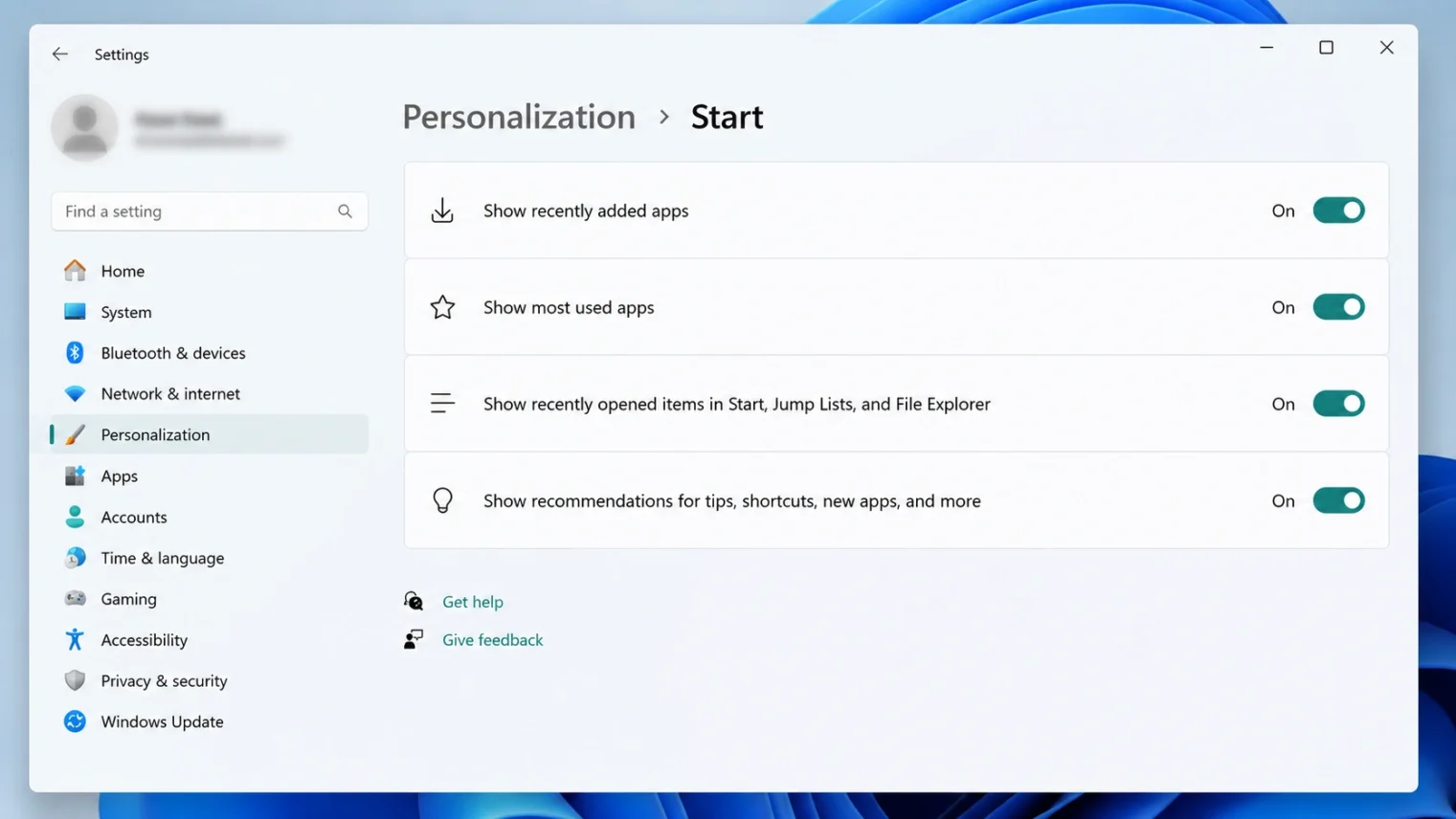
- Go to Personalization, then Start.
- Turn off the switches for Show recently added apps, Show most used apps, Show recently opened items in Start, Jump Lists, and File Explorer, and Show recommendations for tips, app promotions, and more.
That empties the section. To shrink the bar itself, change the layout on the same screen.
- Still in Personalization, then Start, click Layout and choose More pins.
Your Pinned area now grows and the Recommended bar shrinks to a thin strip. For many people, this is enough. The downside is that a small placeholder may still remain. If you want it gone completely, use the next method.
3. Method 2: Remove It Fully With a Registry Tweak
This removes the Recommended section entirely. It needs a quick registry edit, which is safe when done carefully.
Heads up: Only edit the Registry if you are comfortable. A wrong change can cause issues. Create a system restore point first if you are new to this.
- Press the Windows key and R together, type regedit, and press Enter.
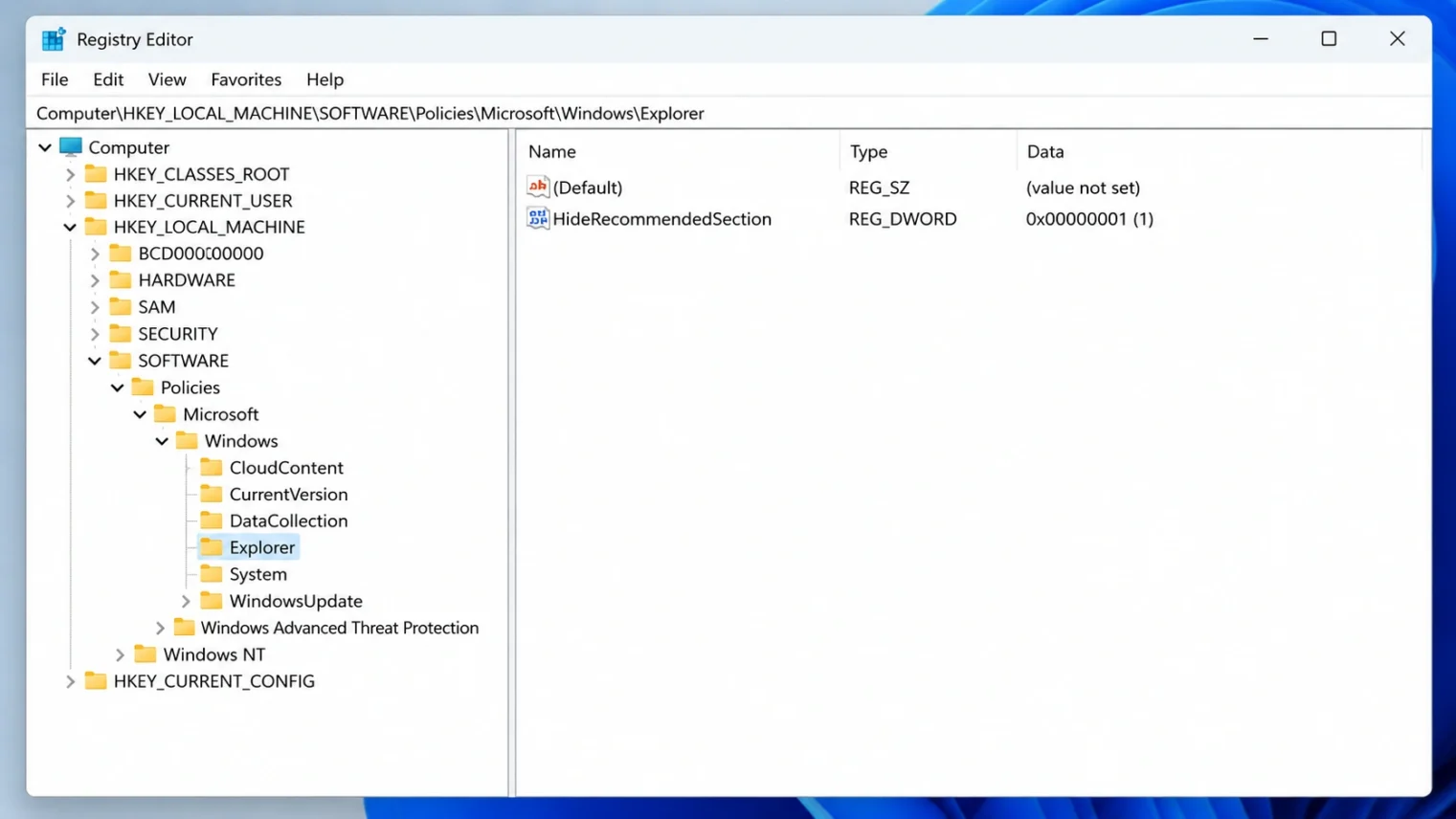
- In the Registry Editor address bar at the top, paste the path below and press Enter.
HKEY_LOCAL_MACHINE\SOFTWARE\Policies\Microsoft\Windows\Explorer
If the Explorer key is missing, right-click Windows, choose New, then Key, and name it Explorer.
- In the right pane, right-click an empty area, choose New, then DWORD (32-bit) Value.
- Name the new value HideRecommendedSection.
- Double-click it, set the Value data to 1, and click OK.
- Restart your PC, or sign out and back in, to apply the change.
The Recommended section is now gone from your Start menu. To bring it back later, delete the HideRecommendedSection value and restart.
4. A Cleaner Option Is on the Way
Microsoft is updating the Start menu, and the upcoming version finally includes a proper toggle. According to Microsoft’s own Q&A, the new Start menu adds a Show Recommended switch under Settings, Personalization, then Start, which hides the section completely without any tweaks.
If your PC already has the redesigned Start menu, just flip that switch and you are done. If not, expect it to arrive in a Windows 11 update through 2026. Until then, the two methods above do the job.
Frequently Asked Questions
Can I hide the Recommended section without using the Registry?
Yes, partially. Go to Settings, Personalization, then Start, turn off the toggles for the items that appear inside it, and choose the More pins layout to shrink the section. A small placeholder may still remain, but the content is hidden.
How do I completely remove the Recommended section?
Use the registry tweak. Add a DWORD value called HideRecommendedSection with the data set to 1 under HKEY_LOCAL_MACHINE, then SOFTWARE, then Policies, then Microsoft, then Windows, then Explorer, and restart your PC.
Why does Windows 11 not have a simple switch for this?
Microsoft has kept the option limited so far, with only partial Settings controls. The good news is that the upcoming redesigned Start menu adds a proper Show Recommended toggle, which finally fixes it.
Will hiding the Recommended section affect anything else?
No. It only changes what appears in the Start menu. Your installed apps, files, and other settings continue to work exactly the same way they did before.
How do I bring the Recommended section back?
In Settings, turn the items back on or change the Start menu layout to Default or More recommendations. If you used the registry tweak, delete the HideRecommendedSection value and restart your PC.
If you found this useful, you may also like our how to use the Drop Tray in Windows 11 guide, another simple Windows 11 trick most people miss.

