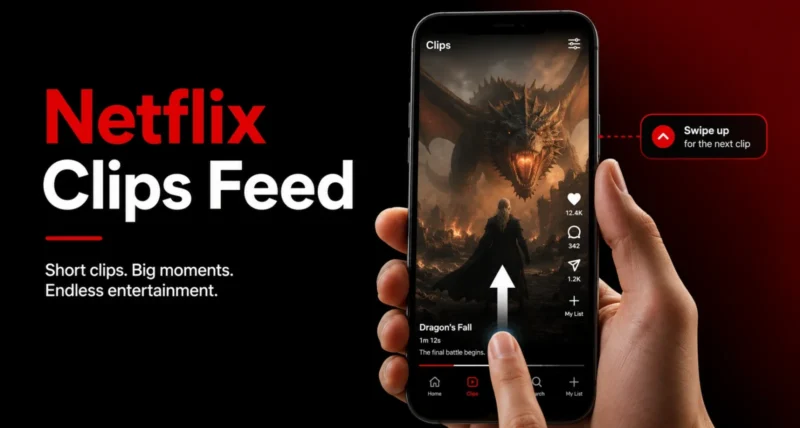
Open the Netflix app lately and you may notice something new along the bottom of the screen. It is called Clips, and it works a lot like TikTok.
Clips is a vertical video feed that shows short snippets from Netflix shows and movies, so you can decide what to watch without endless scrolling.
This short guide shows you how to use the new Netflix Clips feed, step by step. In short, you tap the Clips tab at the bottom of the app, swipe through the videos, and tap to watch or save anything you like. Here is how to do it.
1. What Is the Netflix Clips Feed?
Clips is a full-screen, swipeable feed of short videos inside the Netflix mobile app. Each clip is a snippet from a series, film, or special, usually under a minute long.
The clips are picked for you based on what you watch, so the feed acts like a personal highlight reel. The idea is simple. Watch a quick taste, then jump straight into anything that grabs you.
Netflix launched the feature on April 30, 2026, in nine countries, including the United States, United Kingdom, India, Canada, and Australia, with more regions to follow. As Variety reported, it is mobile only, so you will not see it on a TV or a computer.
2. How to Open the Clips Feed
First, make sure your Netflix app is updated to the latest version, then open it.
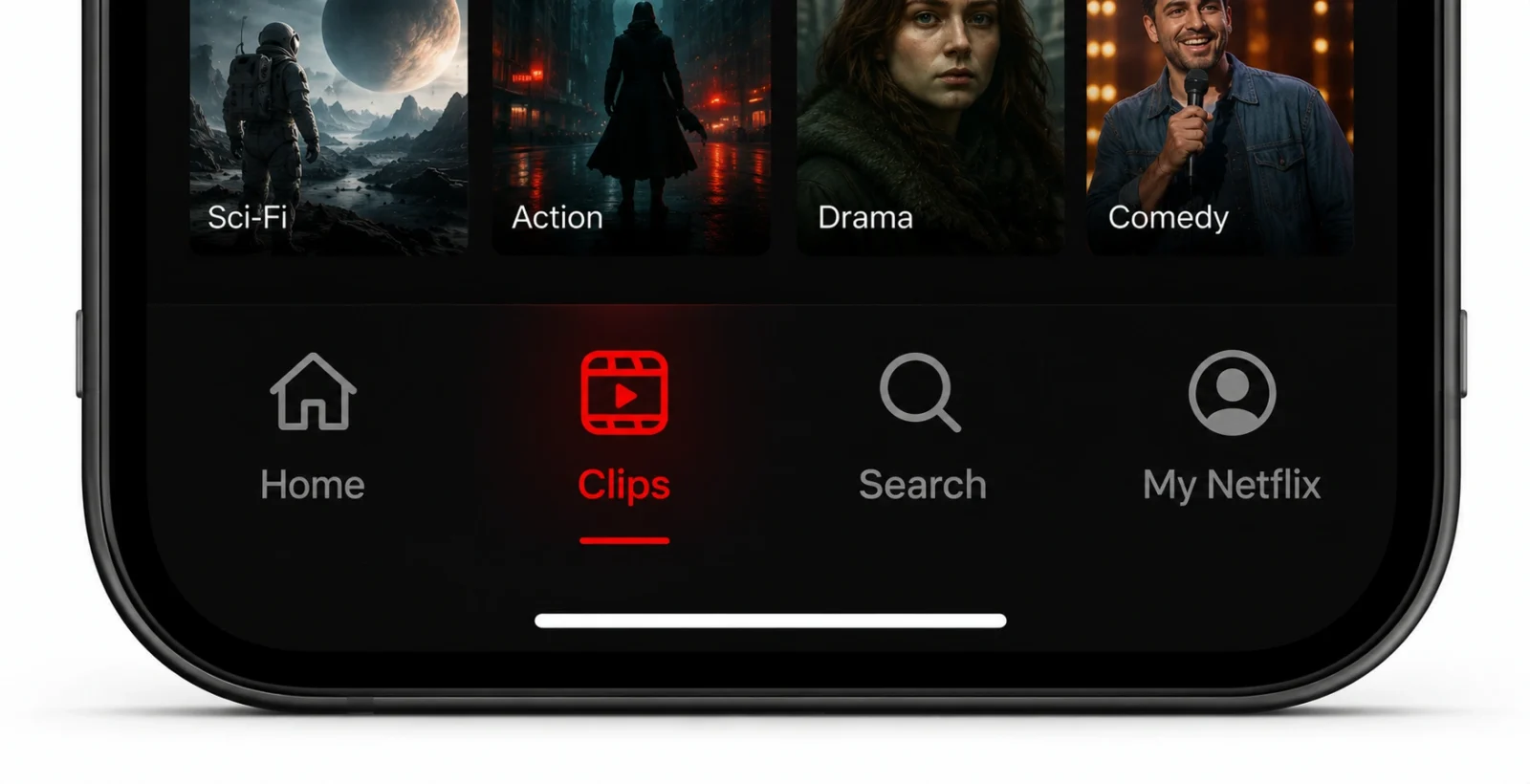
Look at the row of icons along the bottom of the screen. You will see four tabs: Home, Clips, Search, and My Netflix. Tap Clips.
The feed opens straight away, full screen and ready to swipe. For a closer look at the redesigned app, Tom’s Guide has a full hands-on walkthrough.
3. How to Browse the Clips
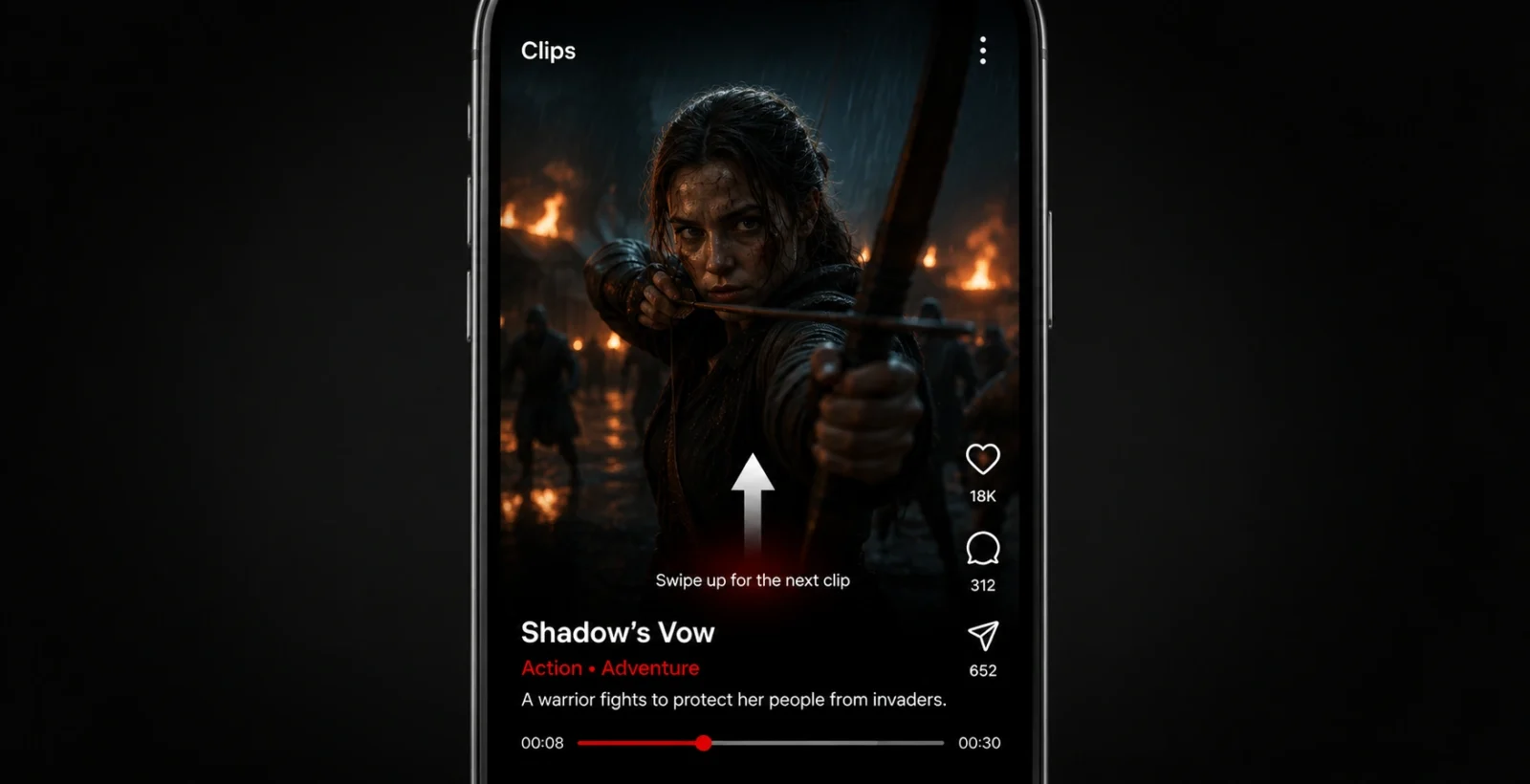
Swipe up to move to the next clip, and swipe down to go back, exactly like TikTok or Instagram Reels.
Each clip plays automatically and shows a few helpful details: the title, its genre, a short synopsis, and a progress bar. Keep swiping until something catches your eye.
4. How to Watch, Save, or Share a Title
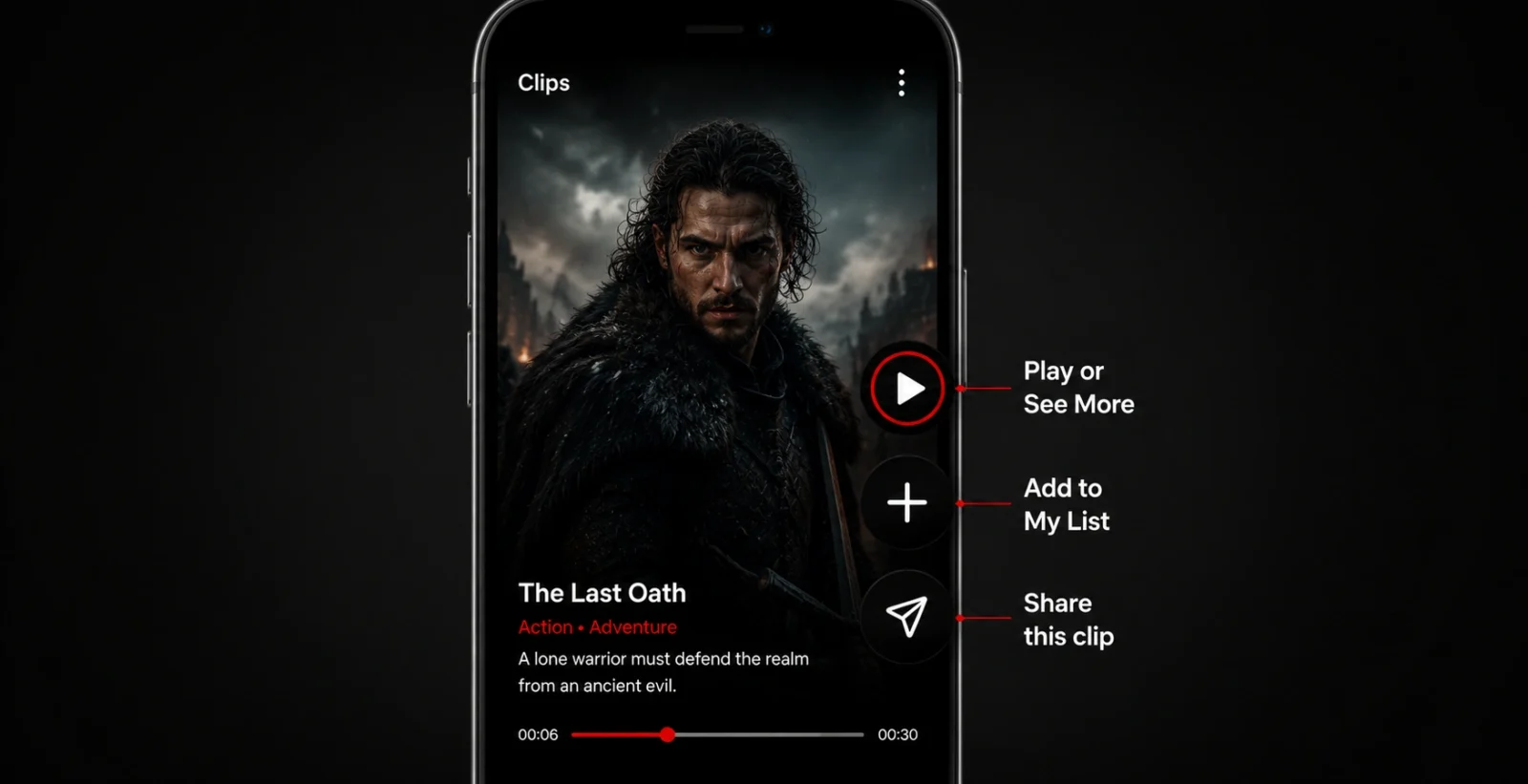
When a clip interests you, you have three easy choices, shown as buttons on the screen.
- Watch now. Tap the play or See More button to open the full show or movie and start watching.
- Save for later. Tap the add button to send the title to your My List, so you can find it again easily.
- Share it. Tap the share button to send the clip to a friend through apps like WhatsApp or Instagram.
That is the whole feature. Swipe, watch, save, or share.
Note: One thing to know. The Clips feed is vertical, but full shows and movies still play in the normal landscape view once you start watching them.
Frequently Asked Questions
What is the Netflix Clips feed?
It is a vertical, TikTok-style video feed in the Netflix mobile app. It shows short snippets from shows and movies so you can quickly decide what to watch, then jump in or save it for later.
Where is the Clips tab?
It is in the bottom menu of the Netflix mobile app, between Home and Search. Just tap the Clips tab and the feed opens full screen.
Is the Clips feed on TV or computer?
No. The Clips feed is mobile only for now. You will find it on the Netflix phone app, not on a TV or a web browser.
Why do I not see Clips in my app?
It rolled out in select countries first and is still expanding. Update your Netflix app to the latest version, and if it is not there yet, it should arrive in a future update.