
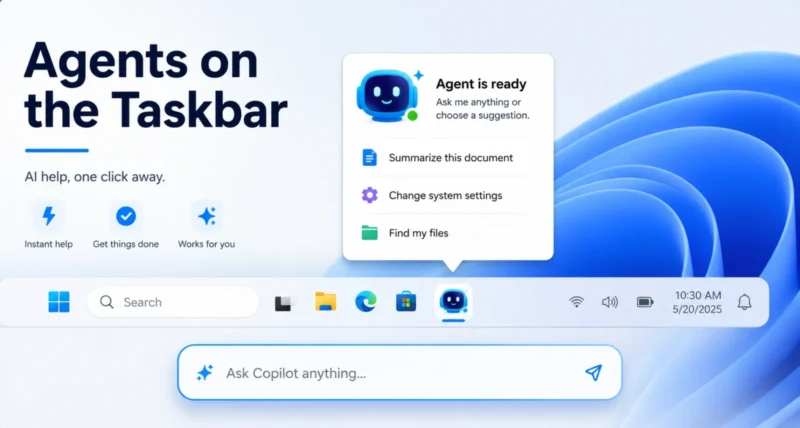
Windows 11 is slowly turning into something new. Instead of only answering questions, it is starting to do tasks for you on its own. Microsoft calls this an agentic system.
The clearest sign is a feature called Agents on the Taskbar. These are AI agents that sit on your taskbar like apps and carry out jobs while you keep working.
This short guide shows you how to use Agents on the Taskbar in Windows 11. In short, you turn on Ask Copilot in Settings, type the @ symbol to call an agent, give it a task, then watch its progress on the taskbar. Here is how it works.
1. What Are Agents on the Taskbar?
An AI agent is more than a chatbot. It can understand a goal, plan the steps, and use your apps and files to get it done, all while you carry on with something else.
When you start an agent, it appears on your taskbar just like an open app. Hover over its icon and a small window shows what it is doing, how far along it is, and whether it needs anything from you. A badge appears when it wants your input or has finished.
If the idea of AI agents is new to you, our guide to agentic AI explains the concept in plain language first.
Whichever agent you use, the results gather in one place, the Microsoft 365 Copilot app, so you are not hunting across different windows.
2. What You Need to Know First
This feature is new and still rolling out, so a few things are worth knowing before you start.
- It is in preview. Microsoft is releasing it gradually, so it may not appear on every PC yet.
- It leans toward work accounts. Much of it is built for people with a Microsoft 365 Copilot license, often on a business or work PC.
- It is optional. Agents are opt-in, and you can leave them turned off.
- Some parts need an administrator. The deeper agent features must be switched on by an admin account.
For background on the rollout and a first look at the agents in action, Windows Latest has a clear walkthrough.
3. How to Turn On Ask Copilot and Agents
Agents are summoned through a taskbar box called Ask Copilot, so turn that on first.
- Open Settings by pressing the Windows key and I together.
- Go to Personalization, then Taskbar.
- Find Ask Copilot and switch it on.
That adds the Ask Copilot box to your taskbar, which is how you call agents. To unlock the full agent features, an administrator also needs to enable them. On an admin account, go to Settings, then System, then AI Components, and turn on Experimental Agentic Features, as How-To Geek explains.

Important: Take this one seriously. Microsoft warns that the experimental agentic features carry real security risks, because an agent could be tricked by hidden instructions into doing something harmful. Only turn them on if you understand the risk and it is allowed on your PC.
4. How to Run an Agent From the Taskbar
With Ask Copilot switched on, running an agent is simple.
- Click the Ask Copilot box on the taskbar.
- Type the @ symbol, or use the tools button, to see the list of available agents.
- Pick an agent, then tell it the outcome you want in plain words.
The agent starts working and appears on your taskbar like an app. Hover over its icon to watch the progress, or simply get on with your own work while it runs. A badge lets you know when it needs input or is finished.
For example, the Microsoft 365 Researcher agent can run a multi-step research task across your files and the web, then drop a finished report into the Copilot app for you to read.

Frequently Asked Questions
What are Agents on the Taskbar in Windows 11?
They are AI agents that sit on your taskbar like apps and complete tasks for you, such as research, document work, or repetitive jobs, while you keep using your PC. You start them from the Ask Copilot box on the taskbar.
How do I turn on Agents on the Taskbar?
Turn on Ask Copilot in Settings, under Personalization, then Taskbar. For the full agent features, an administrator enables Experimental Agentic Features in Settings, under System, then AI Components.
Do I need a Microsoft 365 Copilot subscription?
Much of the agent experience is built for Microsoft 365 Copilot users, often on work accounts. The basic Ask Copilot box is more widely available, but the deeper agents lean toward licensed and business users for now.
Is it safe to use AI agents on the taskbar?
Microsoft keeps each agent in a separate, limited workspace, but it also warns that the experimental features carry risks. Only enable them if you understand the risk and it is allowed on your PC.
Why do I not see Agents on my taskbar?
The feature is in a gradual preview rollout. Update Windows, and note that some parts need a work account or an administrator. If it is not there yet, it may arrive in a later update.
If you found this useful, you may also like our how to use the Drop Tray in Windows 11 guide, which covers another handy Windows 11 feature in the same simple style.

