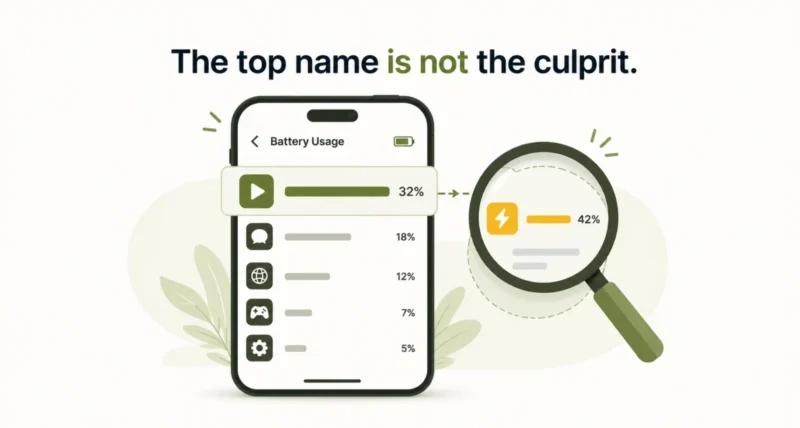
Open your phone’s battery settings and one name usually sits at the top: Google Play Services. It looks like the obvious battery thief, so force-stopping it feels like the obvious fix. It is not. That number tells you which service did the work, not which app asked for it. Play Services is taking the blame for something else on your phone. Here is what it actually does, why switching it off backfires, and the three settings that won one writer nearly two extra hours per charge.
| The Short Answer Google Play Services is Android’s background support system. It handles push notifications, location requests, account syncing, and security checks for Google apps and most other apps on your phone. It tops your battery list because it does the work that other apps request, so the figure points at the messenger rather than the sender. Disabling or force-stopping it breaks notifications, the Play Store, Maps, and sign-ins, which makes it a bad fix. The better move is to find the app driving those requests, usually one using location, voice, or background sync, then limit that app instead. Google tightened its Play Store battery rules in March 2026, and it also changed how Android backups count against your storage in July 2026. |
What Google Play Services Actually Does
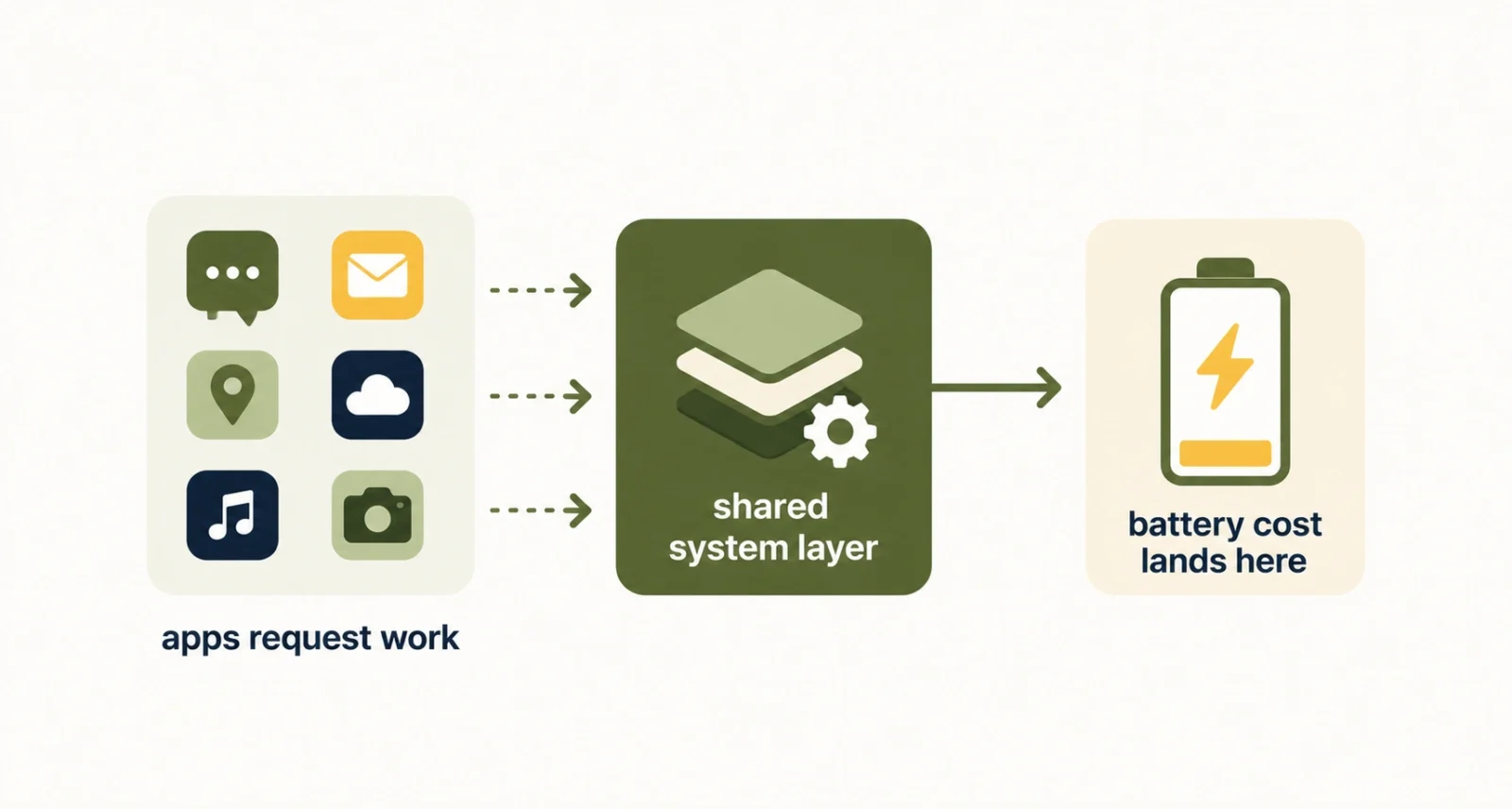
Google Play Services is not an app you open. It is a system layer sitting underneath your other apps, doing the shared work on their behalf. Think of it as your phone’s engine room.
Its jobs include delivering push notifications, answering location requests, syncing your Google account, running security checks, and updating parts of Android without a full system update. Almost every app leans on it. That includes plenty of apps with no connection to Google at all.
That last point explains everything that follows. Because so much runs through this one layer, Play Services is busy by design.
Why Google Play Services Tops Your Battery List
Your battery screen is honest but incomplete. It shows which service burned the power. It does not show which app asked for that power in the first place.
Say a weather app checks your location, a chat app waits for a message, or a Google app syncs in the background. Play Services does the actual work each time. The cost lands on its line in the battery report, while the app that triggered it can look almost innocent further down the list.
| What You See | What It Actually Means |
| Google Play Services near the top | The shared layer did work that other apps requested |
| A familiar app far down the list | It can still be the thing triggering that activity |
| High background time on an app | A stronger clue than the raw battery percentage |
Writing for MakeUseOf, Digvijay Kumar traced this pattern on his own phone. The real driver was the Google app. Its location access, voice features, and background syncing kept calling on Play Services through wake locks, which stop the processor going to sleep. Play Services took the visible hit. The Google app was pulling the strings.
What Breaks If You Disable Google Play Services
Force-stopping or heavily restricting this layer is the most common bad advice on the topic. It does cut some background activity. It also breaks things you use every hour of the day.
| What You Lose | Why It Breaks | ||
| Push notifications | Most apps route their alerts through this layer | ||
| The Play Store | App installs and updates depend on it | ||
| Maps and location features | Location requests travel through the same service | ||
| Google sign-ins | Account authentication runs through it | ||
| Many third-party apps | Banking, messaging, and ride-hailing apps often rely on it | ||
| The Catch Nobody Prints on the Box You cannot uninstall Google Play Services on a standard Android phone, and you should not want to. Restricting it is a blunt instrument. You trade a small battery gain for missed messages, failed sign-ins, and an app store that stops working properly. Treat it as the last thing you touch, not the first. | |||
How to Find the App That Is Really Draining Your Battery
Before you change a single setting, spend one minute gathering evidence. Open Settings, then Battery, then Battery usage.
Ignore the headline percentages for a moment and look at background time instead. That column is the useful one. Scan for apps that racked up background hours on a day you barely opened them. Those are your suspects, and one of them is almost certainly feeding work to Play Services.
Three Settings That Won Back Nearly Two Hours
Here is the fix that worked at MakeUseOf, and none of it involves touching Play Services. All three changes target the Google app, the thing actually making the requests.
- Turn off the Discover feed. Open the Google app, tap your profile picture, go to Settings, then Other settings, and switch off Discover. The feed preloads articles and images in the background, which keeps your data connection awake.
- Turn off the wake word. Open the Gemini app, tap Menu, then your profile picture, then Settings. Under the hands-free option, switch off “Hey Google.” Your microphone stops listening around the clock, and you can still open Gemini yourself.
- Restrict the Google app in the background. Go to Settings, then Apps, then Google, then Battery, and choose Restricted. That limits its background jobs, scheduled tasks, and network activity.
Those three changes added close to two hours of battery life on a single charge. Give it a full day of normal use, then reopen Battery usage and compare the background time for the Google app. If the number dropped, the fix is working. If you miss a feature, switch that setting back.
| A Quick Note Menu paths shift between manufacturers and Android versions, so yours may sit one tap away from the route above. Some phones put the Discover toggle on the home-screen settings instead, and on certain devices switching off the wake word disables more of the hands-free assistant than you expect. Change one setting at a time and you will always know what to undo. |
Google’s New Battery Rules for Android Apps
Google is attacking the same problem from the other end. The culprit here is the partial wake lock, which lets an app keep the processor running after your screen goes dark. Wake locks are legitimate, and apps need them to finish downloads or handle urgent tasks. Android already has Doze mode and App Standby, but neither one penalized apps for holding wake locks far too long.
Google and Samsung closed that gap. As the Android Developers Blog set out in late 2025, excessive wake lock use is now a core quality standard on the Play Store. Here is the rule in full.
| The Rule | The Detail |
| What counts as excessive | Non-exempt partial wake locks held over two cumulative hours in a day |
| When it applies | Only with the screen off and the app running in the background |
| What is exempt | Audio playback, location services, and user-initiated background tasks |
| The threshold | More than 5% of an app’s sessions across 28 days |
| The penalty | Dropped from recommendations, plus a battery warning on its store listing |
| Enforcement began | March 1, 2026 |
This matters for you even though you will never see it happen. Badly behaved apps now face a real cost, so the worst offenders on your phone should slowly get better on their own.
The Other Big Change: Your Android Backup Now Counts Against Storage
A second change landed in July 2026, and it touches the same invisible half of your phone. This one costs storage rather than battery.
Until now, only photos and videos in Google Photos, plus MMS picture and video data, counted toward your Google Account storage. As 9to5Google reported, everything in your Android backup settings now counts too. That means the text of your SMS messages, your call history, and your device settings. Google puts the average increase at about 40 MB.
| Backup Data | Counted Before | Counts Now |
| Photos and videos in Google Photos | Yes | Yes |
| MMS photos and videos | Yes | Yes |
| SMS message text | No | Yes |
| Call history | No | Yes |
| Device and app settings | No | Yes |
When the Change Reaches Your Account
The rollout is staggered. New backup users moved over from July 7, and existing accounts get an email giving them 45 days’ notice, which MyBroadband reports lands from September 2026. That email also estimates how much your own backup will grow.
How to Keep Your Backup Lean
Google is handing over more control at the same time. Here is how to trim what you store.
Check your headroom first. The Google One storage manager shows how much space your device backups already use.
Open your backup settings. Search for “backup” in the Settings app, or go to Settings, then Accounts and backup, then Google Backup, then Other device data on Pixel phones.
Switch off what you do not need. New toggles cover SMS and MMS messages, call history, and device settings on Android 9 and higher.
Trim the app list. Per-app controls let you back up the apps that matter and skip the rest.
Watch for the notice. Google is emailing users directly with an estimate of the increase, so do not delete that message unread.
One Backup That May Already Be Your Biggest
One more thing worth knowing if you use WhatsApp. Its chat and media backups have counted toward your Google Drive limit since early 2024, so they may already be the biggest item in your account.
Google Play Services is the most misunderstood name on your phone. It sits at the top of your battery list because it works for everything else, not because it is broken or greedy. Chase the app behind it, look at background time rather than percentages, and leave the shared layer alone.
Frequently Asked Questions
What is Google Play Services?
Google Play Services is a background system layer on Android that does shared work for your apps. It delivers push notifications, answers location requests, syncs your Google account, runs security checks, and updates parts of Android without a full system update. You never open it directly, but most apps on your phone depend on it.
Why is Google Play Services using so much battery?
Usually because other apps are asking it to work. The battery screen credits the service that burned the power, not the app that requested it. When a Google app or a third-party app syncs, checks your location, or waits on notifications, Play Services does the job and takes the blame on your battery report.
Can I disable or uninstall Google Play Services?
You cannot uninstall it on a standard Android phone, and disabling it causes more problems than it solves. You would lose push notifications, the Play Store, Maps and location features, Google sign-ins, and the smooth running of many third-party apps. Restrict the app driving the activity instead.
How do I fix Google Play Services battery drain?
Find the app feeding it work, then limit that app. Open Settings, Battery, then Battery usage, and look at background time rather than percentages. On many phones the Google app is the driver. Switching off the Discover feed and the “Hey Google” wake word makes a real difference, as does setting that app’s battery use to Restricted.
Does Android backup now count against my Google storage?
Yes. From July 2026, all data in your Android backup settings counts toward your Google Account storage, including SMS text, call history, and device settings. Previously only Google Photos uploads and MMS picture and video data counted. Google estimates the average increase at roughly 40 MB, and it is emailing users a personal estimate.
What happens if my Google storage fills up?
Your automatic Android backups pause until you free up room or add more. You can clean up your Google storage, switch off backup types you do not need, trim per-app backups, or move to a paid Google One plan. Checking your storage now is smarter than finding out after you lose a phone.