
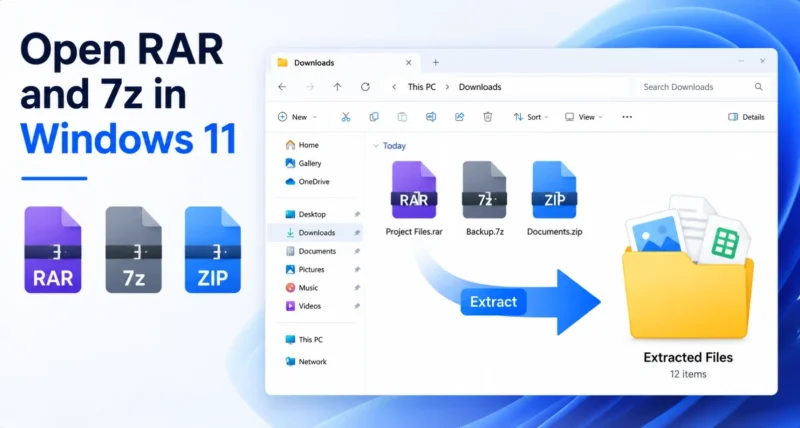
You download a file, and it ends in .rar or .7z instead of the usual .zip. For years, that meant stopping to install WinRAR or 7-Zip before you could even open it.
Not anymore. Windows 11 can now open and extract these archives on its own, with no extra software at all.
This short guide shows you how to open RAR files in Windows 11, along with 7z, TAR, and more, without extra software. In short, you right-click the file and choose Extract All, or double-click it to peek inside. Here is how it works.
1. Which Archive Files Can Windows 11 Open?
Windows 11 has built-in support for most common archive formats, using an open-source engine called libarchive. It has been part of Windows 11 since the 24H2 update, so most PCs already have it, with nothing to install.
You can open and extract all of these straight from File Explorer:
- ZIP, the long-time standard
- RAR
- 7z, the 7-Zip format
- TAR and its variants, such as .tar.gz, .tgz, and .tar.xz
- GZ, plus several more formats added in 2026
As BleepingComputer reported when the feature arrived, Windows handles all of these through the same File Explorer you already use every day.
2. How to Open and Extract an Archive in Windows 11
There are two simple ways to use an archive, depending on what you need.
To peek inside without unpacking, just double-click the archive. File Explorer opens it like a normal folder, so you can see the files and even drag one or two out.
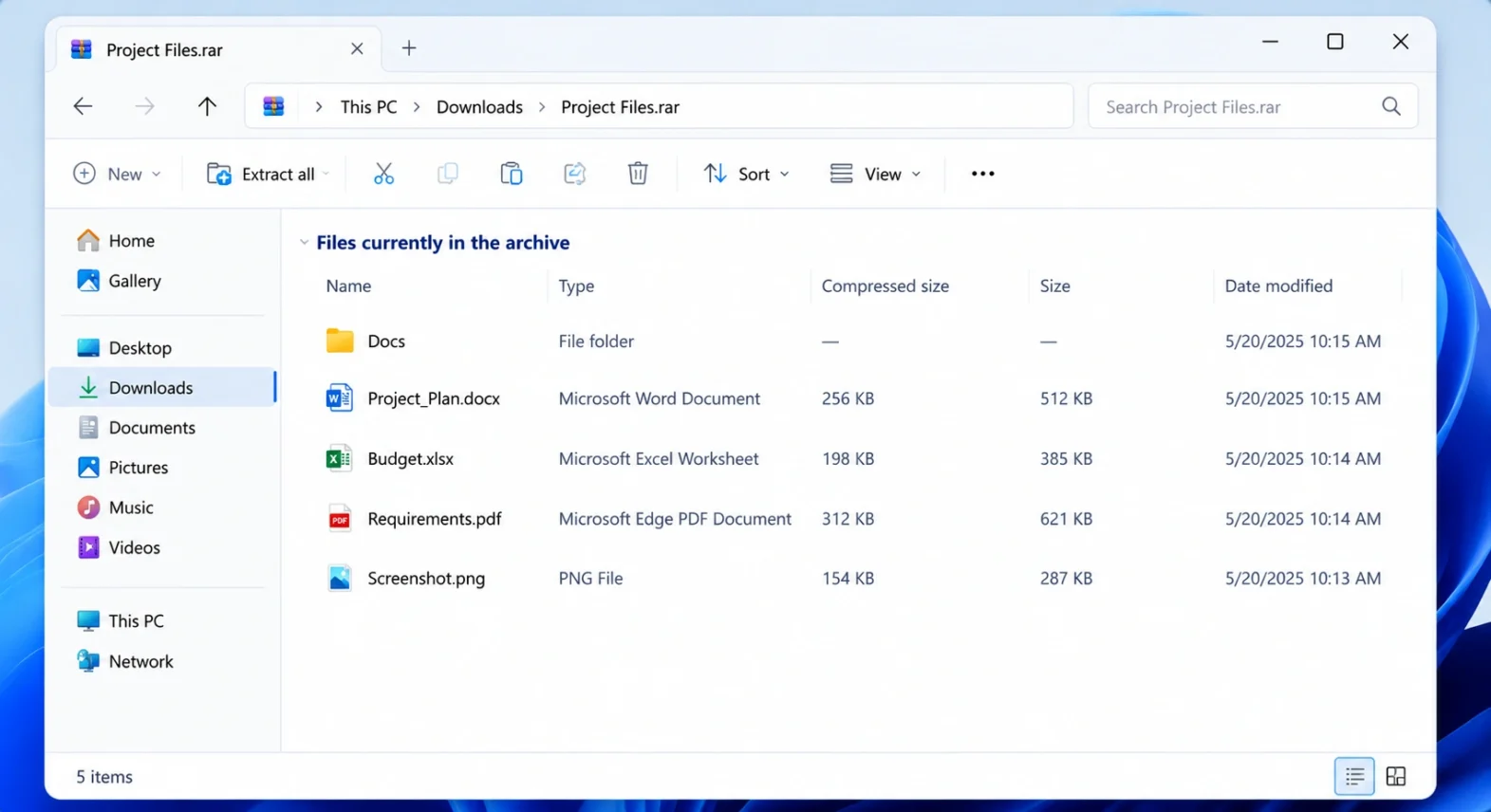
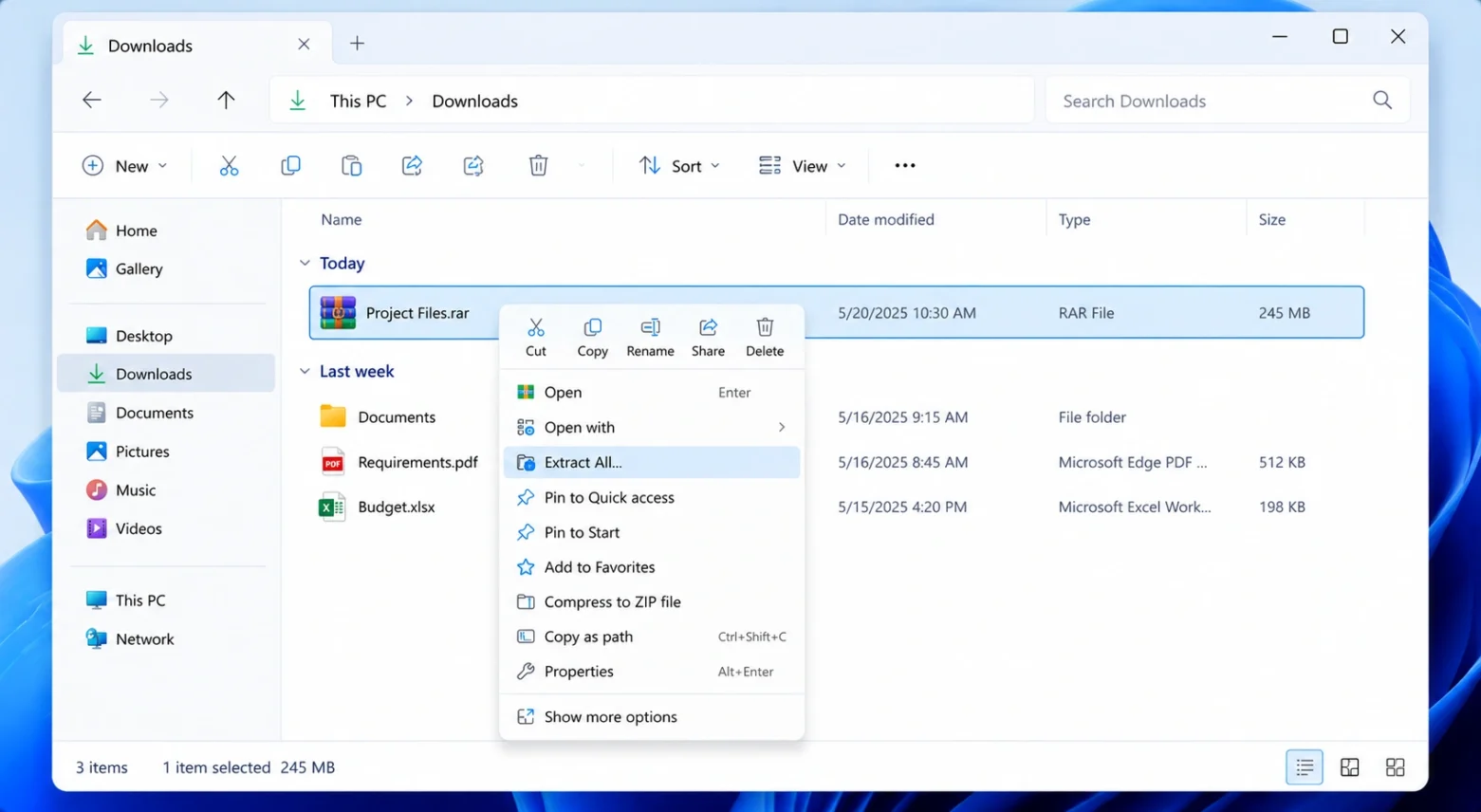
To extract everything, right-click the archive and choose Extract All. Pick where you want the files to go, then click Extract. When it finishes, the new folder opens on its own.
Tip: You can also select the archive and click Extract all on the bar at the top of File Explorer. It does exactly the same thing.
3. What to Know Before You Rely on It
The built-in support is great for everyday use, but it has a few limits worth knowing.
- It opens, but does not create. You can extract a RAR or 7z file, but you cannot make one. Windows can still create ZIP files, and for RAR or 7z you would need a tool like 7-Zip or WinRAR.
- It can be slower. For very large RAR or 7z files, the built-in tool is noticeably slower than dedicated apps.
- Password and split archives may not work. Protected or multi-part archives can still need a separate tool.
- It is Windows 11 only. Windows 10 has no built-in RAR or 7z support.
And if you are still on Windows 10, this is one more reason to move up. Our Windows 10 end of support migration guide walks through it.
Frequently Asked Questions
Can Windows 11 open RAR files without software?
Yes. Since the 24H2 update, File Explorer can open and extract RAR, 7z, TAR, and more on its own. Just right-click the file and choose Extract All, with no WinRAR or 7-Zip needed.
How do I extract a 7z file in Windows 11?
Right-click the .7z file, choose Extract All, pick a folder for the files, and click Extract. Windows unpacks it for you and opens the new folder, with no extra software required.
Can Windows 11 create RAR or 7z files?
No. Windows 11 can extract RAR and 7z files and create ZIP files, but it cannot make RAR or 7z archives. For that you still need a tool such as WinRAR or 7-Zip.
Why is extracting slow in Windows 11?
The built-in tool is convenient but slower than dedicated apps for large RAR or 7z files. If you work with big archives often, a tool like 7-Zip will be noticeably faster.
Does this work on Windows 10?
No. Windows 10 has no native RAR or 7z support, so you still need third-party software there. The built-in support is a Windows 11 feature.
If you found this useful, you may also like our how to use the Drop Tray in Windows 11 guide, which covers another handy built-in Windows 11 feature in the same simple style.

