
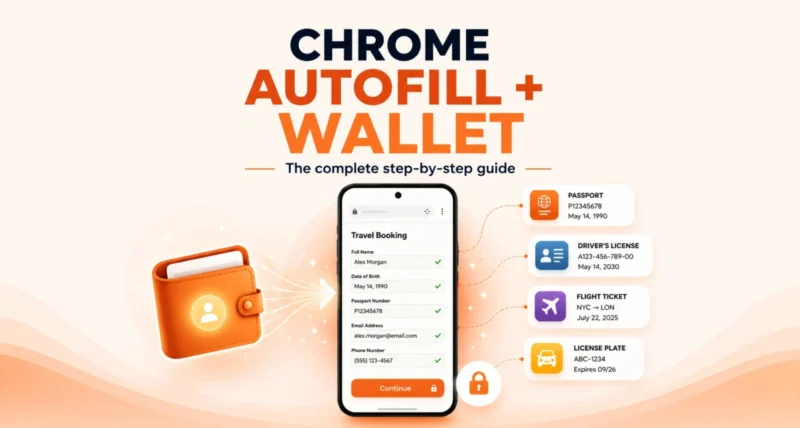
Filling out forms on your phone is tedious. Typing your passport number, card details, or flight info on a tiny screen is nobody’s idea of fun. Good news: Chrome just made it far easier. A new update brings advanced autofill to iOS and Android. It also connects directly to your Google Wallet, so it can fill in even sensitive details for you. This guide explains exactly what is new and, step by step, how to set it up and use it safely.
| The Short Version Chrome is bringing advanced autofill to iPhone and Android phones, with deeper Google Wallet integration. It can now fill complex details like flight info, license plates, and vehicle VINs, and it can pull your driver’s license, passport, and Known Traveler Number straight from Google Wallet. Chrome only saves or fills data with your permission, and sensitive information is always encrypted. You can manage everything in your Wallet or Chrome settings at any time. |
What Is New in Chrome Autofill?
Autofill is not new. Chrome has long filled in your name, address, and saved cards. What changed is how much it can handle and where it works. Two big upgrades just landed.
First, Chrome can now autofill more complex types of information, not just the basics. Second, and most importantly, it now connects deeply with Google Wallet. This lets it securely fill in sensitive documents you have stored there. Both upgrades are now reaching iPhone and Android users, after previously being more limited.
| Quick Take The headline change is that your phone’s Chrome browser can now talk to your Google Wallet. That means details like your passport number or driver’s license, which you would normally dig out and type by hand, can be filled in with a tap, and kept encrypted the whole time. |
What Can Chrome Autofill Now?
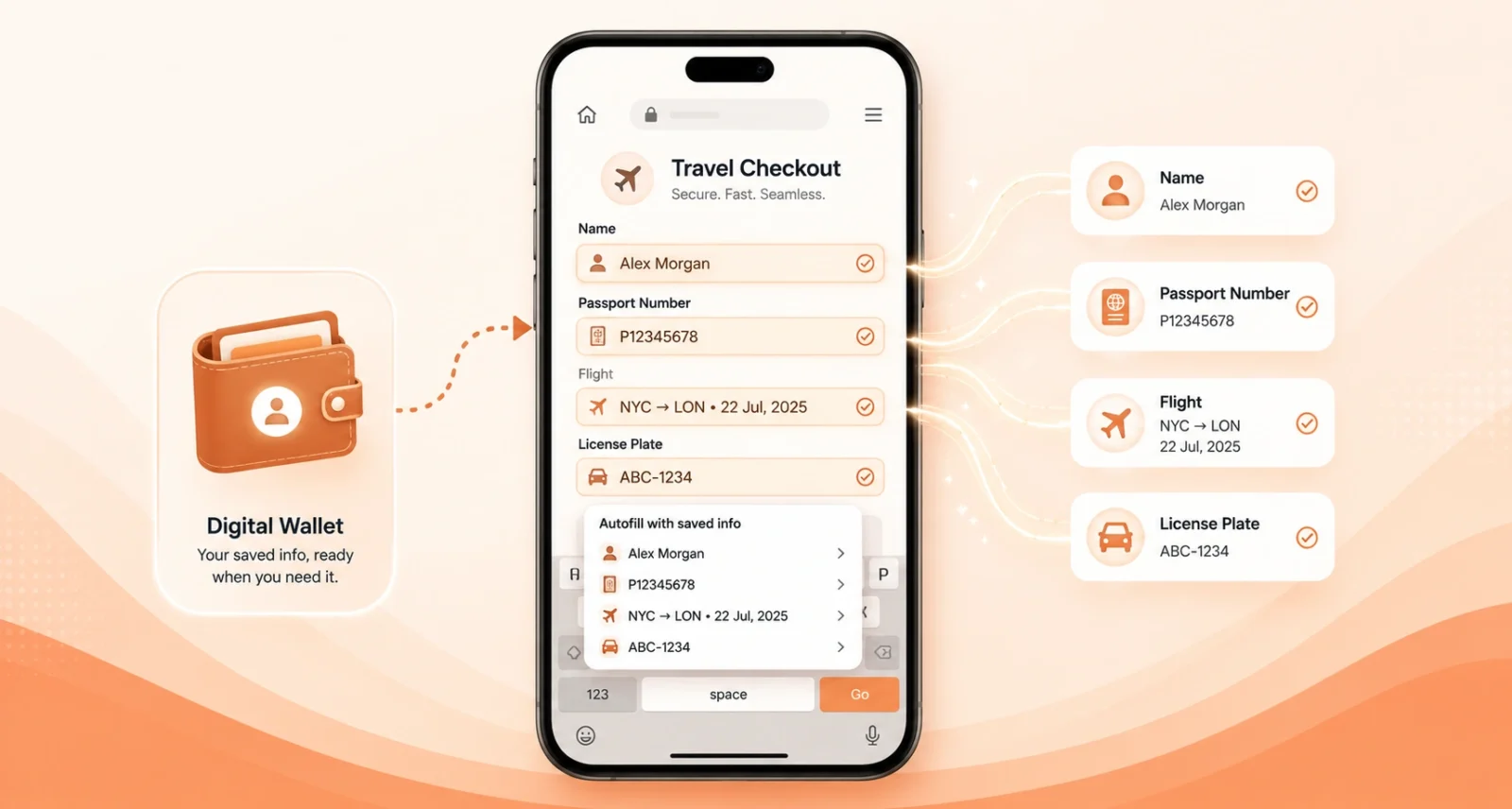
Here is a clear look at the kinds of information Chrome can fill for you. This includes the new advanced data types and the documents it can pull from Google Wallet.
| Type of Info | Examples |
| Everyday details | Your name, address, email, phone number, and saved payment cards |
| Travel details (new) | Flight information for quicker check-ins and bookings |
| Vehicle details (new) | Your license plate number and vehicle VIN |
| From Google Wallet (new) | Driver’s license details, passport information, and your Known Traveler Number |
| Good to Know A Known Traveler Number, or KTN, is the ID given to people enrolled in trusted traveler programs like TSA PreCheck in the US. Having Chrome fill it automatically is a real time-saver when booking flights. |
How to Set Up and Use Chrome Autofill: Step by Step
Ready to use it? Follow these steps to get autofill working with Google Wallet on your iPhone or Android phone. The flow is very similar on both.
Update Chrome and Google Wallet
| 1 | Make sure both apps are up to date Open the App Store on iPhone or the Google Play Store on Android, then update both Chrome and Google Wallet to the latest version. New features like this only appear once your apps are current. |
Add Your Details to Google Wallet
| 2 | Store your documents in Wallet (or add them later) Open Google Wallet and add the items you want to autofill, such as your driver’s license or passport, where supported. Do not worry if you skip this; you can also save a detail to Wallet the first time you type it into Chrome. |
Turn On Autofill in Chrome
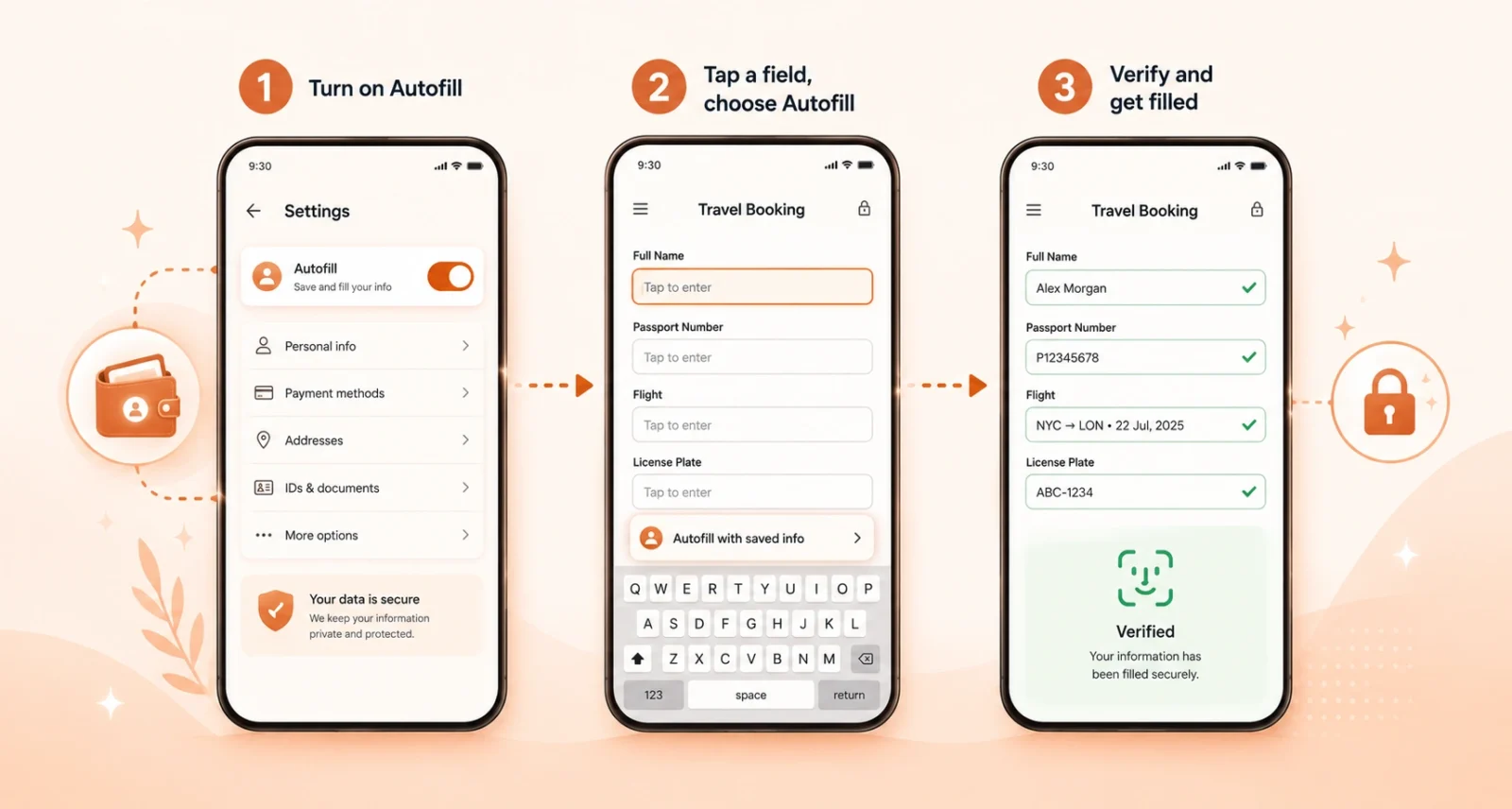
| 3 | Check that autofill is enabled in Chrome settings In Chrome, tap the three-dot menu, go to Settings, then open the Autofill and passwords page. Make sure autofill is switched on so Chrome can offer to fill your saved information. |
Autofill a Form
| 4 | Tap a field and choose your saved info Open any website with a form, then tap a field like passport number or flight details. Chrome shows a suggestion above your keyboard. Tap it, confirm with your screen lock or fingerprint if asked, and Chrome fills the details for you. |
Save New Details for Next Time
| 5 | Let Chrome remember new info securely If you type in a new detail that is not saved yet, Chrome may offer to save it to your Google Wallet for next time. Approve it, and the information is stored encrypted, ready to autofill on your next form. |
How to Manage or Delete Your Saved Data
You are always in control of what Chrome stores. If you ever want to review, edit, or remove your saved information, you have two simple places to look.
| Where to Go | What You Can Do There |
| Google Wallet settings | Manage or update the documents and details stored in your Wallet |
| Chrome settings | Open the Autofill and passwords page to review and edit saved autofill info |
| Private passes controls | Manage sensitive items like IDs through their own dedicated controls |
You can manage your stored items any time in your Google Wallet settings, and Google notes that private passes like IDs have their own separate controls for extra peace of mind.
Is Chrome Autofill Safe? Your Privacy and Security
Letting a browser handle your passport number sounds risky, so it is worth being clear about the safeguards. Google has built this around permission and encryption.
Two principles matter most. First, Chrome only saves or fills your information when you give it permission, so nothing happens automatically behind your back. Second, your sensitive data is always encrypted, which means it is scrambled and protected, not stored as plain readable text. Combined with the screen-lock check when you fill sensitive details, that keeps your most private information guarded.
| Why It Matters Convenience should never cost you control. Because autofill needs your explicit go-ahead and keeps everything encrypted, you get the time savings without simply handing over your private details. If you ever change your mind, you can edit or delete the data in seconds. |
This Chrome update is a small change that saves real time. By bringing advanced autofill to iPhone and Android and linking it to Google Wallet, Google has made one of the most boring parts of using your phone, filling out forms, faster and less painful. You can now breeze through flight check-ins, parking payments, and travel forms, while your sensitive details stay encrypted and under your control. Just update your apps, turn on autofill, and let your phone do the typing. Check our coverage of the latest Google and Chrome updates.
Frequently Asked Questions
What Is the New Chrome Autofill Feature?
Chrome is extending advanced autofill to iOS and Android, with deeper Google Wallet integration. It can now automatically fill complex details like flight information, license plates, and vehicle VINs. It can also pull sensitive documents such as your driver’s license, passport, and Known Traveler Number directly from Google Wallet.
Does Chrome Autofill Work on iPhone and Android?
Yes. Google announced that it is extending these advanced autofill capabilities to both iOS and Android users, in addition to desktop. The Google Wallet integration also works across mobile and desktop, so you can use it on your phone and computer.
Can Chrome Autofill My Passport and Driver’s License?
Yes. With the new Google Wallet integration, Chrome can autofill several documents. These include your driver’s license details, passport information, and Known Traveler Number from data stored in your Wallet. If those details are not saved yet, you can store them when you first enter them in Chrome.
Is It Safe to Store My Information in Chrome and Google Wallet?
Google says sensitive data is always encrypted, and Chrome only saves or fills your information with your permission. You also confirm with your device’s screen lock when filling sensitive details. You can review or delete your data any time in Chrome or Google Wallet settings.
How Do I Turn On Autofill in Chrome?
Open Chrome, tap the three-dot menu, go to Settings, then open the Autofill and passwords page and make sure autofill is enabled. From there, Chrome will offer to fill your saved details whenever you tap a matching form field.
How Do I Delete or Edit My Saved Autofill Data?
You can manage your details in two places: your Google Wallet settings, and the Autofill and passwords page in Chrome settings. You can manage sensitive items like IDs, known as private passes, through their own separate controls.

