
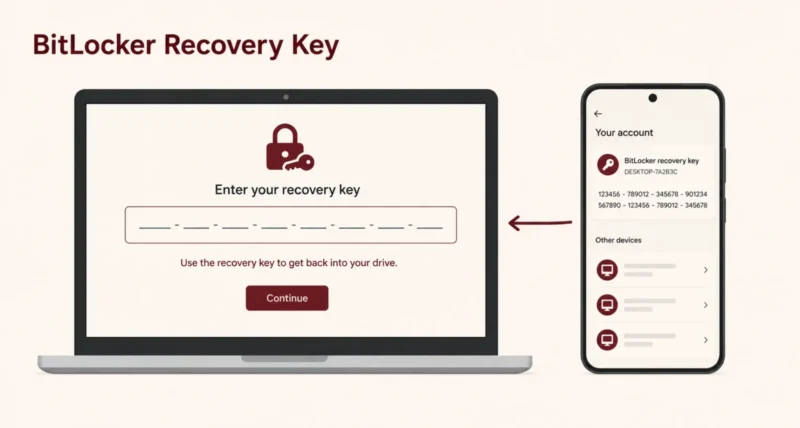
Your Windows 11 PC just booted into a blue screen asking for a 48-digit BitLocker recovery key, and you have no idea where it is. Take a breath. The key almost certainly exists, and there are only five places it can be hiding. This guide gets you to it in under five minutes.
If you are reading this on another device, you are already most of the way there. Most BitLocker recovery keys are stored in your Microsoft account, which you can open from any phone or browser. Even if it is not there, this post covers every other location too: work or school accounts, USB drives, printed copies, and the matching trick that tells you which key you actually need.
Here is the short version. Go to account.microsoft.com on another device, sign in with the Microsoft account you used on your Windows 11 PC, open Devices, and your BitLocker recovery keys are listed there. Match the eight-digit Key ID shown on your locked PC screen with the right key in the list. Type the 48 digits exactly. You are back in. Below is the full guide for every other scenario.
1. What Is the BitLocker Recovery Key?
The BitLocker recovery key is a 48-digit numerical password (eight groups of six digits, separated by hyphens) that unlocks a BitLocker-encrypted Windows drive when something has changed in the boot environment. It is your emergency key, generated automatically when BitLocker (or its consumer cousin, Device Encryption) first encrypts your drive.
Per Microsoft’s official BitLocker overview, the key is created during initial setup and is supposed to be backed up to wherever you signed in: a Microsoft account, a work or school account, or a place you chose manually. You usually do not need it for years. Then one day Windows asks for it.
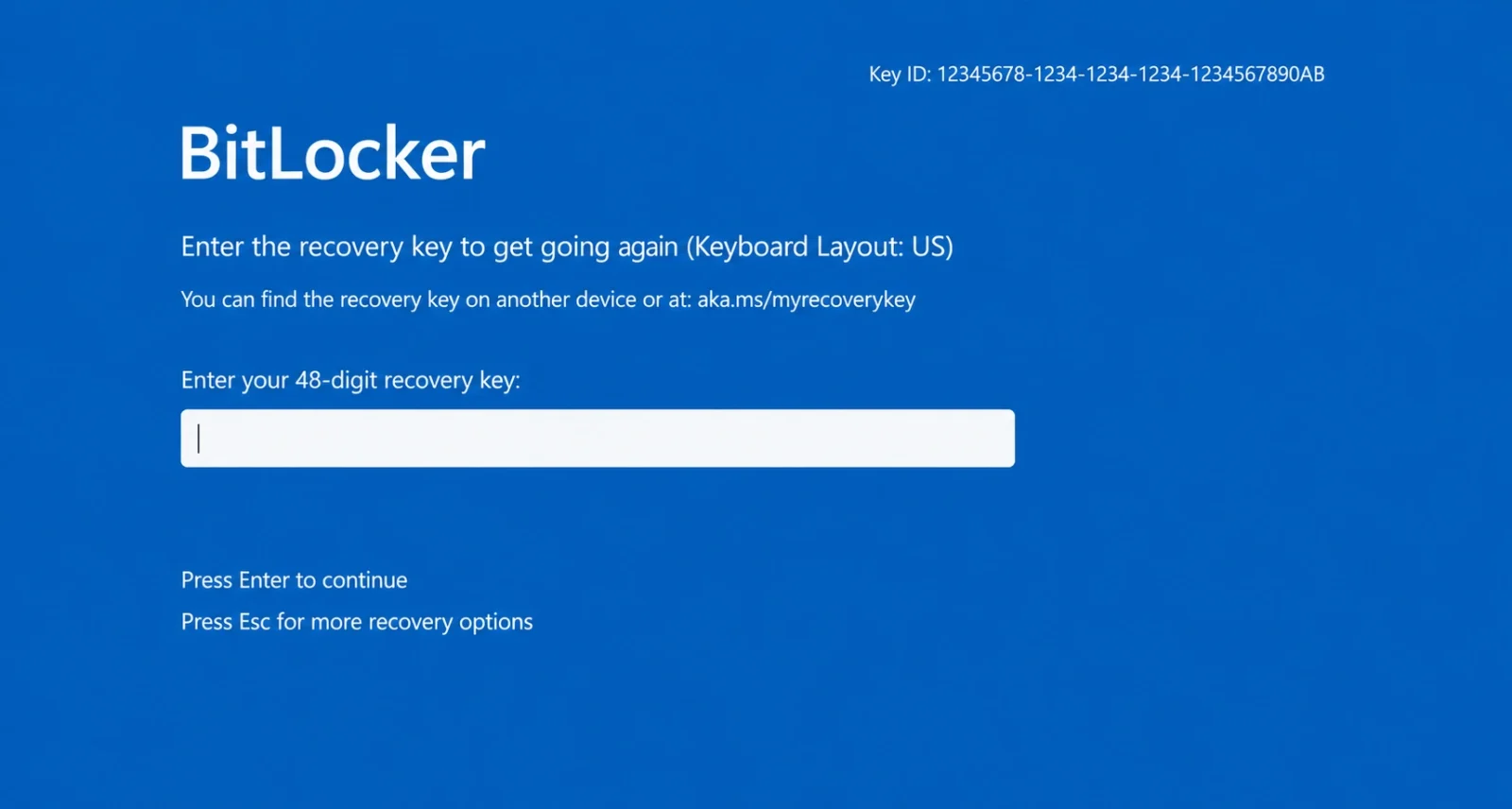
2. Why Is Windows Asking for the Recovery Key Right Now?
This is the part most guides skip. Knowing why the recovery screen appeared often tells you whether the issue will repeat. Five common triggers in 2026:
Windows 11 24H2 enabled BitLocker by default
Starting with Windows 11 version 24H2 (and continuing into 25H2), Microsoft turned on automatic Device Encryption for clean installs that sign in with a Microsoft account during setup. Many users do not realise their drive is encrypted at all until the recovery screen surfaces. If you bought your PC in 2025 or later, this is the most likely reason.
A Windows Update changed something
Microsoft service alerts confirm that updates have triggered BitLocker recovery screens on a meaningful percentage of devices: the October 2025 security update on 24H2 and 25H2 (mostly Intel PCs with Modern Standby support), and the April 2026 KB5083769 update on HP and Dell systems. Both events were widespread enough that Microsoft acknowledged them.
Firmware, BIOS, or UEFI update
Updating motherboard firmware or changing UEFI settings (for example, toggling Secure Boot or changing the boot order) invalidates the TPM-stored key and forces BitLocker to fall back to the recovery key.
Hardware change
Moving the drive to a different PC, replacing the motherboard, or swapping major components triggers a recovery prompt. Adding RAM or a second drive usually does not.
Too many wrong PIN or password attempts
If your drive uses a startup PIN, multiple failures lock the TPM and force the recovery key. The key is not punishment; it is the fallback.
Important: Starting in Windows 11 version 24H2, the BitLocker recovery screen also shows a hint of the Microsoft account email associated with the key. If you see something like j****@outlook.com, that is the exact account you need to sign in with to find the key.
3. Method 1: Find Your Recovery Key in Your Microsoft Account
This works for 90 percent of personal Windows 11 users. The key was almost certainly auto-saved to the Microsoft account you signed in with during setup.
- On a second device (phone, tablet, or another computer), open a browser.
- Go to microsoft.com/devices/recoverykey (or the shorter aka.ms/myrecoverykey).
- Sign in with the Microsoft account associated with your PC. If the recovery screen showed an email hint, use that exact account.
- You should now see a page titled BitLocker recovery keys, listing one or more devices and their keys. Each entry includes a Device name, a Key ID, and the 48-digit Recovery Key.
- Match the first eight characters of the Key ID on the web page with the Key ID shown on your locked PC. The eight characters confirm you have the right key.
- Type the 48-digit recovery key into your locked PC exactly as shown, including the hyphens. Hit Enter. Windows unlocks.
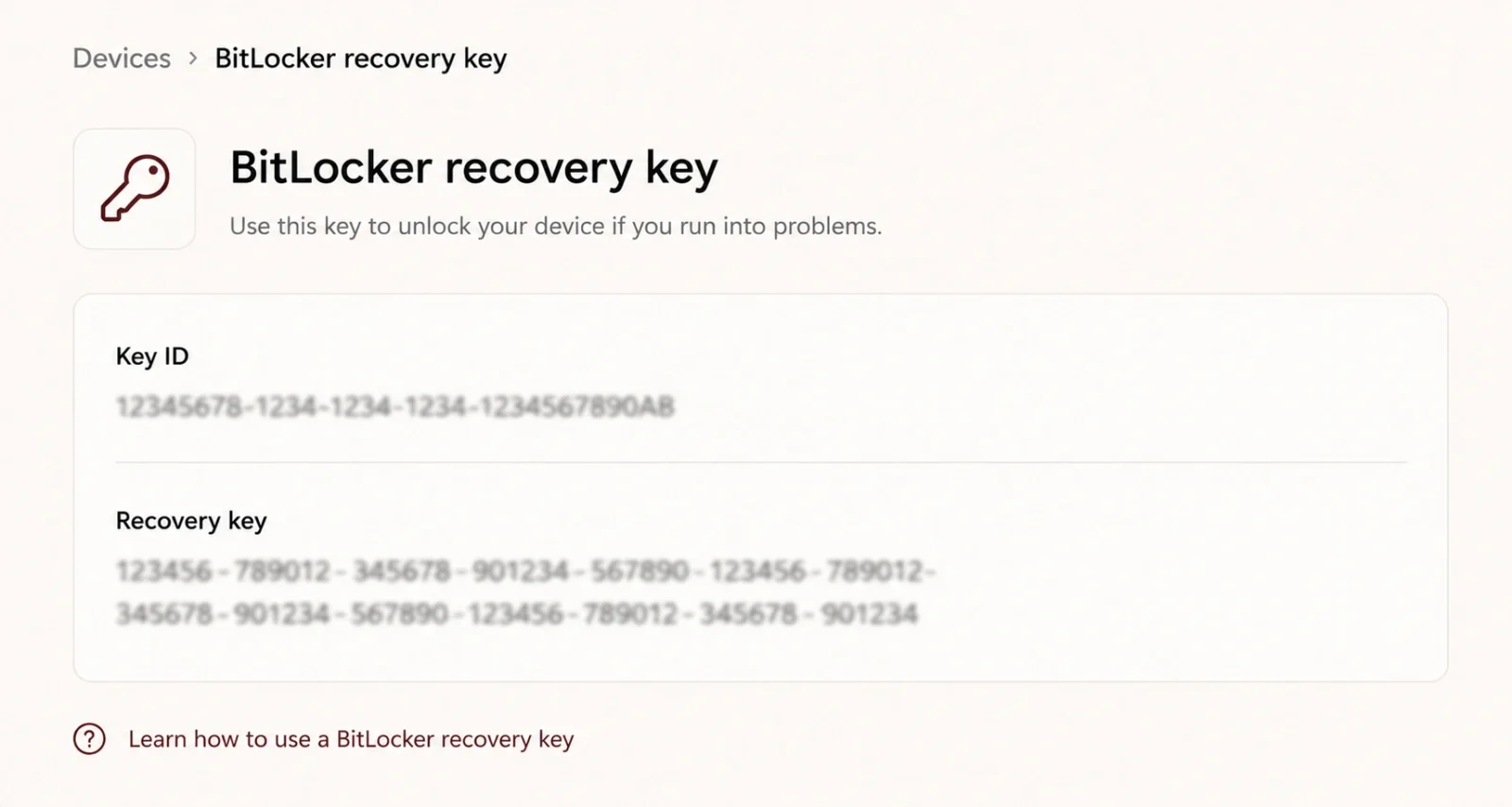
Heads up: If you see multiple keys listed, that is normal. Every time BitLocker re-keys (after a major Windows update or hardware change), it stores a new entry. Use the Key ID match to pick the right one.
4. Method 2: Work or School Devices (Microsoft Entra ID / Azure AD)
If your PC is a work or school laptop, the recovery key is usually stored in your organisation’s Microsoft Entra ID (formerly Azure Active Directory). The personal Microsoft account page will not show it.
- On another device, open a browser.
- Go to ms/aadrecoverykey.
- Sign in with your work or school account (the one you use for email, Microsoft 365, or Teams at your job).
- You will see a list of devices registered to your work account, with their BitLocker recovery keys.
- Match the Key ID on your locked PC with the entry online, then type the 48-digit key into your PC.
If your IT department locks this page down: Many organisations restrict end-user access to recovery keys. If aka.ms/aadrecoverykey does not show your device, the key still exists, but only your IT helpdesk can release it to you. Contact them with your device name and Key ID.
5. Method 3: USB Drive, Text File, or Printed Copy
If you set up BitLocker manually (rather than letting Windows auto-encrypt during setup), you were given the option to save the recovery key in three other places. Check each one.
USB flash drive
Plug in any USB sticks you commonly use. Look for a file named BitLocker Recovery Key followed by a long ID and a .BEK extension (for example, BitLocker Recovery Key 7F3A1E2D-1234-…BEK). Open it in Notepad to reveal the 48-digit key. You can also let your locked PC read it directly: on the recovery screen, press Esc to see more options, then follow the USB recovery prompts.
Text file on another PC
Search any older computers, OneDrive, Google Drive, or Dropbox accounts for files named BitLocker Recovery Key (often followed by a long alphanumeric ID, with a .txt extension). The first 8 characters of the filename usually match the Key ID.
Printed paper copy
Some users print the recovery key during setup. Check folders where you keep PC paperwork, your email inbox (if you emailed it to yourself), or the box your PC came in. A printed BitLocker key looks like a single page with a Microsoft logo, your device name, an Identifier, and the 48-digit key in eight groups of six numbers.
6. How to Match the Right Key Using the Key ID
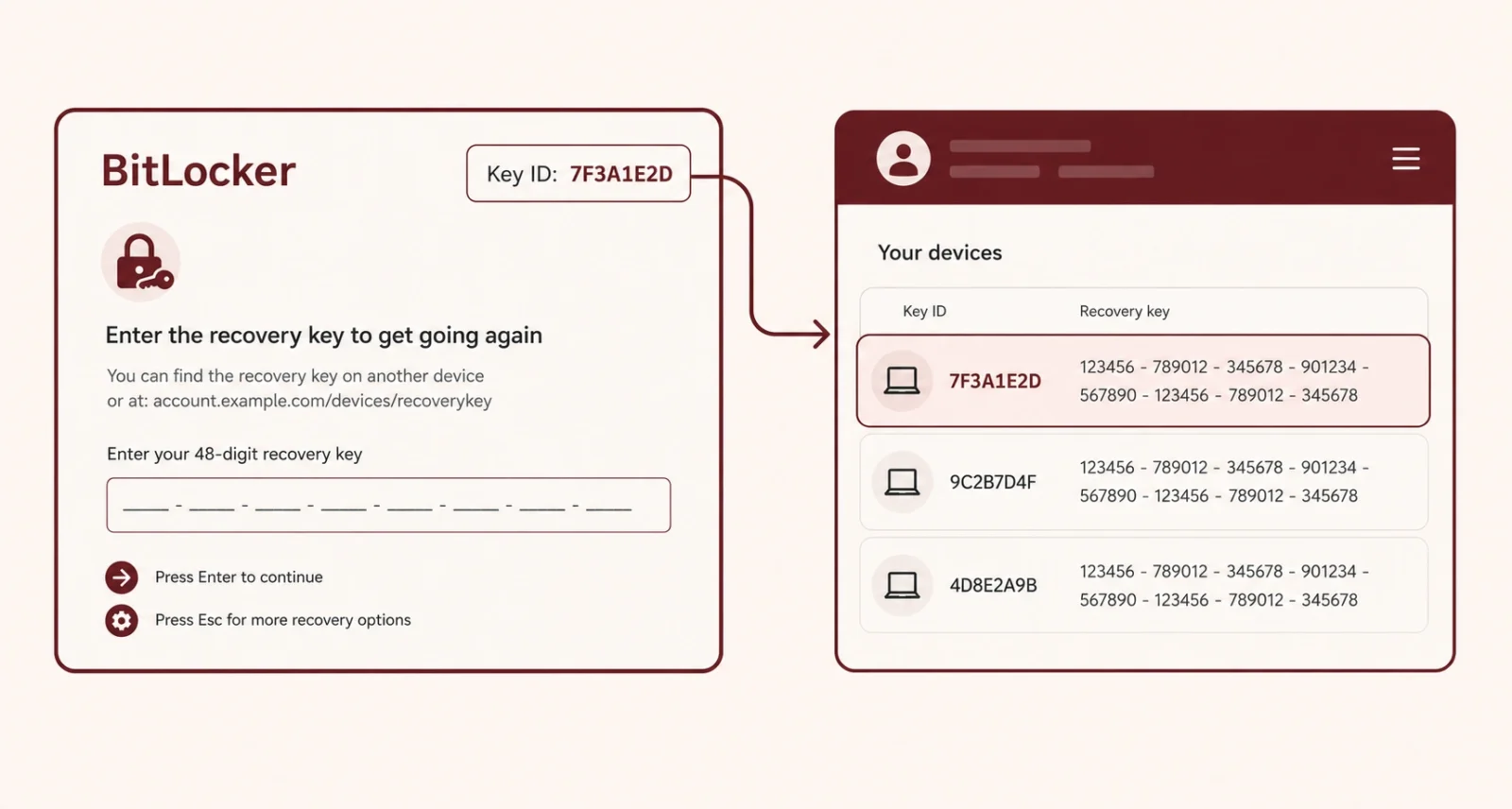
If you have multiple recovery keys stored (which is common after years of Windows updates), this is the step that saves you. Each BitLocker recovery key has a unique Key ID, and Windows shows you a short version of that ID on the locked recovery screen.
- Look at the top of the locked PC’s blue BitLocker screen. You will see a line like Recovery Key ID: 7F3A1E2D (or longer in some Windows versions).
- Note the first 8 characters of that Key ID. That is your matching string.
- Go back to your Microsoft account recovery key page (or your text file or printed copy) and find the entry where the Key ID starts with those same 8 characters.
- Use that key, not the others. Each key only unlocks the specific drive state it was generated for.
7. What If You Still Cannot Find Your Recovery Key?
If you have checked every Microsoft account, every USB drive, every text file, every printout, and your IT department, and the key is genuinely lost, the honest answer is unpleasant: there is no Microsoft-supported way to bypass BitLocker.
BitLocker is doing exactly what it is designed to do, which is prevent unauthorised access to your encrypted data. Without the recovery key (or a backup of the data made before encryption), the drive cannot be unlocked.
At that point, your two realistic options are:
- Reinstall Windows. You will lose every file on the encrypted drive. Use a second computer to download the official Windows 11 Media Creation Tool, create a USB installer, boot from it, and choose Custom Install. Format the locked drive and start fresh.
- Professional data recovery. A handful of forensic data recovery firms claim to recover BitLocker-encrypted data under specific circumstances. Costs run into thousands of dollars and success is not guaranteed. Use only as a last resort for genuinely irreplaceable data.
Honest caveat: If a website, YouTube tutorial, or piece of software promises to bypass BitLocker without the recovery key in a normal scenario, treat it as a scam. The encryption is mathematically strong enough that there is no shortcut.
8. How to Find and Save Your Key BEFORE You Are Locked Out
Once you are back in (or if you are reading this proactively, which is smart), spend two minutes saving the key somewhere you can find it next time. There is a good chance there will be a next time.
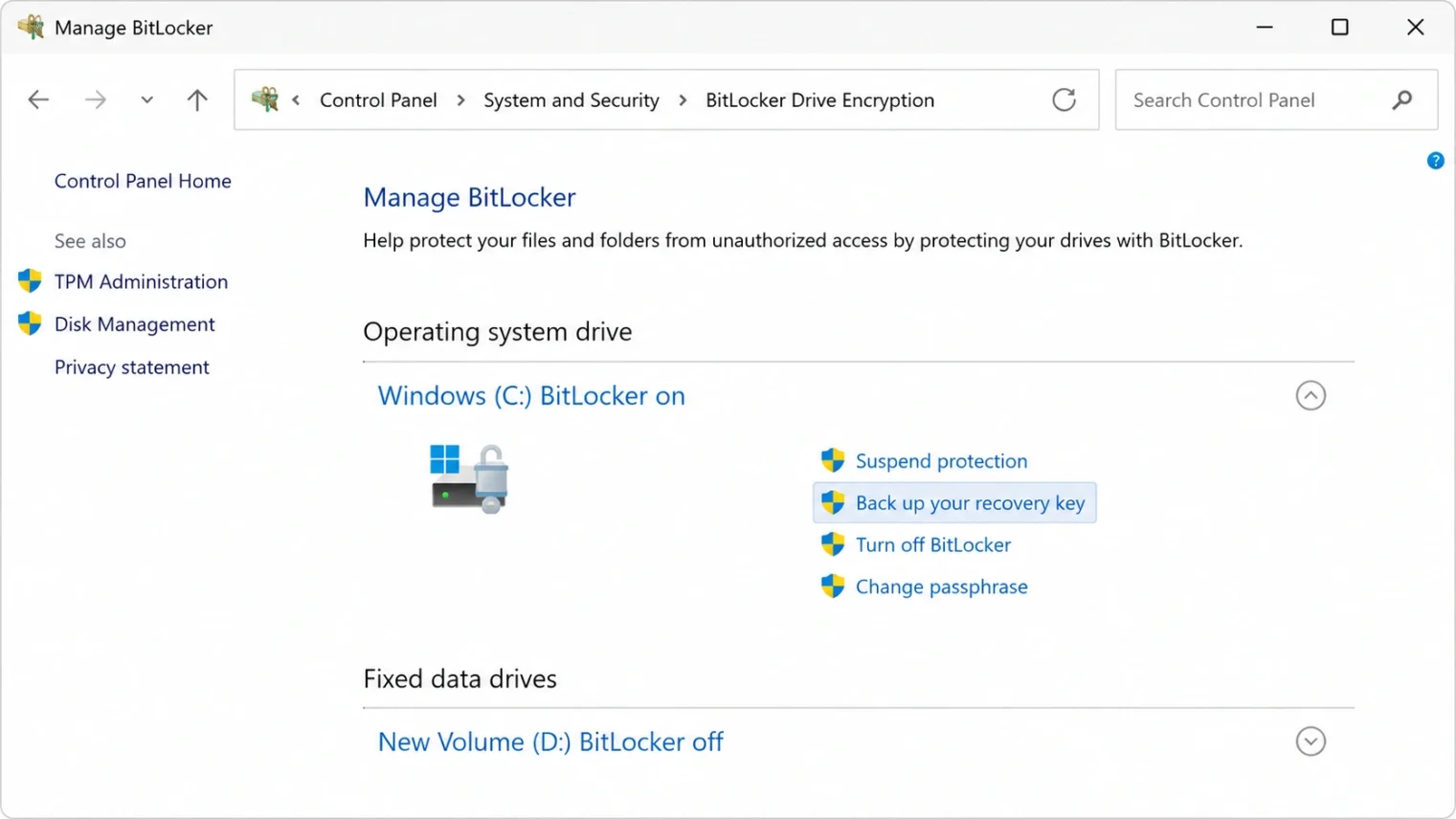
- On your unlocked Windows 11 PC, press the Windows key, type manage BitLocker, and open the Manage BitLocker control panel.
- Next to your encrypted drive, click Back up your recovery key.
- Choose one or more of the four options: Save to your Microsoft account, Save to a USB flash drive, Save to a file, or Print the recovery key.
- Save it in at least two places: your Microsoft account (already automatic in most cases) plus a text file on OneDrive or Google Drive, named clearly with your PC’s name.
9. Bonus: How to Turn Off BitLocker if You Do Not Want It
If the recurring recovery screens have made you decide BitLocker is more trouble than it is worth, you can turn it off entirely. You will lose the encryption protection, so weigh that against the convenience.
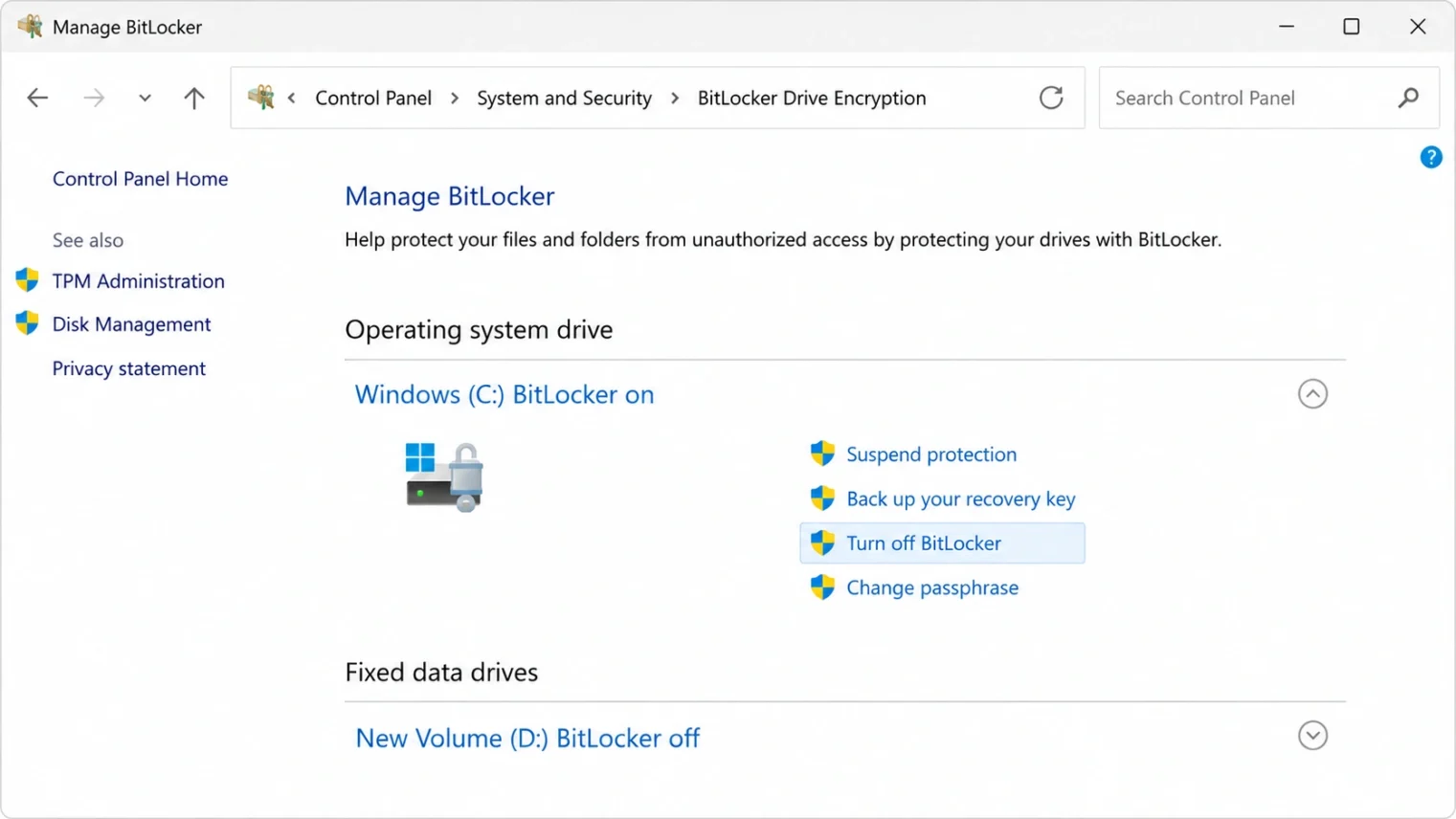
- Press Windows key, type manage BitLocker, and open the result.
- Next to your encrypted drive, click Turn off BitLocker.
- Decryption takes between 15 minutes and several hours depending on drive size, but you can keep using the PC during it.
- Once decryption completes, BitLocker is off. You will not see the recovery screen again unless you turn it back on.
Important to know: On Windows 11 Home, the feature is called Device Encryption (a simpler form of BitLocker). The toggle lives in Settings > Privacy and Security > Device Encryption. Switch it off there. Pro and Enterprise editions use the full BitLocker control panel as described above.
Frequently Asked Questions
What does the BitLocker recovery key look like?
It is a 48-digit numerical password divided into eight groups of six numbers each, separated by hyphens. Example format: 123456-123456-123456-123456-123456-123456-123456-123456. It is generated automatically when BitLocker encrypts your drive.
Why does Windows 11 keep asking for my BitLocker recovery key?
Common causes include Windows updates (especially the October 2025 and April 2026 KB releases), firmware or BIOS updates, Secure Boot changes, hardware changes, or too many wrong PIN attempts. Windows 11 24H2 also enabled automatic BitLocker on more devices, which is why many users encounter the recovery screen for the first time in 2025 or 2026.
Where is the BitLocker recovery key stored by default?
For most personal Windows 11 users, the key is automatically saved in the Microsoft account used during setup. You can find it at account.microsoft.com/devices/recoverykey. For work or school devices, the key is stored in Microsoft Entra ID (Azure AD) and accessible at aka.ms/aadrecoverykey.
Can I find my BitLocker recovery key without a Microsoft account?
Only if you saved it manually during setup, to a USB drive, a text file, or a printout. If BitLocker was enabled automatically during a Microsoft-account-based Windows install, there is no copy outside that Microsoft account.
Why are multiple BitLocker recovery keys listed for one device?
Every time BitLocker re-keys (after a major Windows update, a firmware update, or a TPM reset), a new recovery key is generated and stored. The 8-character Key ID shown on your locked PC screen tells you which entry to use.
Can someone else find my recovery key without me?
Only if they have access to the Microsoft account or work account where the key is stored, or to any physical USB drive, text file, or printout where you saved it. The key never leaves those locations unless you share it.
Is there a way to bypass BitLocker without the recovery key?
No supported way exists. BitLocker uses AES encryption that cannot be brute-forced in practical time. If a tutorial or piece of software claims otherwise, treat it as a scam. Your only options without the key are reinstalling Windows (losing the data) or attempting professional data recovery (expensive and not guaranteed).
Does Windows 11 Home have BitLocker?
Windows 11 Home does not have the full BitLocker control panel, but it does include Device Encryption, which is essentially a simpler version of BitLocker. The recovery key process is the same; the management tools just live in Settings rather than Control Panel.
If you found this useful, our guides on Google AI Mode and agentic AI cover the broader tech you should know about in 2026.

