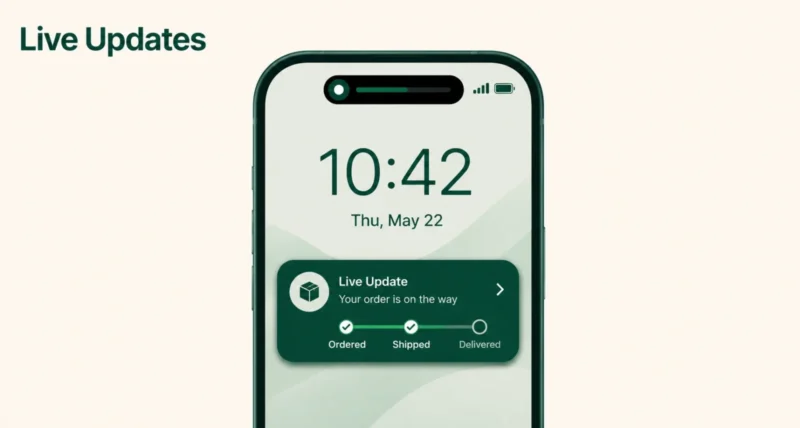
If you have ordered food on Uber Eats or used Google Maps on a Pixel running Android 16 lately, you may have noticed a small chip appearing in your status bar. It shows the order status or the distance to your next turn, and it updates on its own. That is Android 16 Live Updates.
Live Updates is Google’s answer to iOS Live Activities. It turns ongoing notifications into persistent, glanceable progress trackers that live on the status bar, lock screen, and Always-On Display. You no longer have to keep opening apps to check progress.
Here is the short version. Live Updates run on Android 16 phones (Pixel first, others following), got full support in Android 16 QPR1, and currently work with Google Maps, Uber, Uber Eats, Google Wallet, and Waymo. The per-app toggle sits in Settings under each app’s info page. Below is the full step-by-step guide.
1. What Are Live Updates in Android 16?
Live Updates is a new notification class in Android 16 designed for activities that are ongoing, user-initiated, and time-sensitive. The Android Developers documentation calls them progress-centric notifications, because they show progress through a journey: where your ride is, when your food arrives, how far to the next turn.
Think of them as upgraded notifications. Instead of getting a one-time ping, Live Updates stay visible at the top of your notification panel, show a small chip in your status bar, expand to full size on your lock screen and Always-On Display, and update on their own as the activity progresses. You can glance at your phone and know exactly what is happening, without unlocking anything.
If iOS Live Activities sound familiar, that is because the feature is the direct equivalent. Apple shipped Live Activities in 2022 alongside the iPhone 14 Pro. Google officially introduced Live Updates in Android 16 at I/O 2025 and rolled out full support in Android 16 QPR1 in late 2025.
2. Which Phones Get Live Updates First?
Live Updates require Android 16 or higher. The rollout has been gradual, so here is where things stand in 2026.
Pixel phones
Pixel devices were the first to receive Android 16 in mid-2025 and the first to get full Live Updates support in Android 16 QPR1 at the end of 2025. If you own a Pixel 9, Pixel 10, Pixel Fold 2, or newer, you have Live Updates today, fully working.
Samsung Galaxy
Samsung has rolled out Android 16 with One UI 8 to Galaxy S25, S24, Z Fold, and Z Flip series, with older devices following. It also offers its own equivalent called Now Bar on the lock screen, which works alongside (and sometimes in place of) standard Android 16 Live Updates.
OPPO, OnePlus, and Xiaomi
OPPO and OnePlus have implemented Android 16 Live Updates under the name Live Alerts. Xiaomi HyperOS 3, built on Android 16, supports Live Updates on Xiaomi 15 and Redmi Note 15 series phones. Other brands such as Motorola, Nothing, and ASUS are rolling out Android 16 through 2026.
Tip: If you are unsure whether your phone supports Live Updates, open Settings, go to About phone, and check the Android version. Anything labelled Android 16 or higher is eligible. For full Live Updates support including status bar chips, you also need Android 16 QPR1 or later.
3. Where Live Updates Show Up on Your Phone
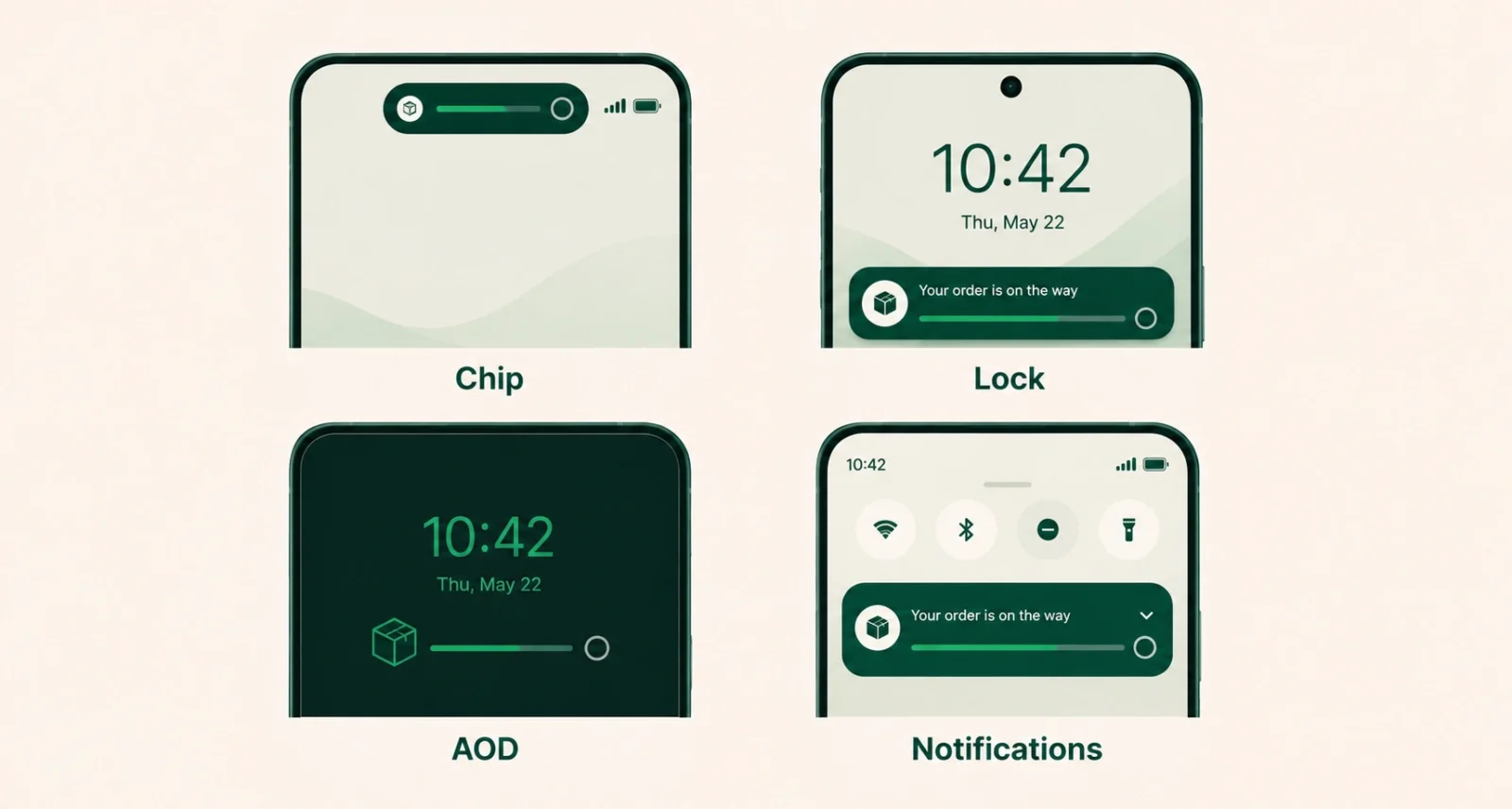
Live Updates appear in four different places on your Android phone, all designed to keep you informed without opening the app.
Status bar chip
A small pill-shaped chip appears at the top of your screen, usually showing a single key piece of info (such as 8 minutes or 0.4 km). Tap it and a heads-up pop-up expands with more detail. This is the most useful one in day-to-day use because it stays visible while you use other apps.
Lock screen
When you wake your phone, the Live Update appears front and centre on the lock screen with full detail: progress bar, current step, ETA, and any action buttons such as Pay or Call driver. You do not need to unlock the phone to see it.
Always-On Display
If your phone has an Always-On Display, the Live Update shows there too, fully expanded. You can glance at your phone on a desk and see your delivery status without lifting it.
Notification panel
Inside the notification shade, Live Updates pin to the top, above almost every other notification (only the media player can sit higher). They cannot be swiped away while the activity is active, which is intentional.
4. How to Use Live Updates (Step by Step)
There is no separate Live Updates app to download. The feature is built into Android 16 and is enabled by default for any app that supports it. Here is the full flow from your perspective.
- Update your phone to Android 16 or higher (Settings → System → Software updates).
- Update your supported app (Google Maps, Uber Eats, Uber, Google Wallet, or Waymo) to the latest version from the Play Store. Most updates from late 2025 onwards include Live Updates support.
- Start an activity in the app. Begin navigation in Maps, place a food order in Uber Eats, book a Waymo ride, or hail an Uber. You do not have to do anything special; Live Updates engage automatically.
- Exit the app or lock your phone. Once you leave the app, the Live Update takes over. Look at your status bar and you should see a small chip.
- Tap the chip to get a heads-up pop-up with more detail, or check your lock screen and Always-On Display for the full view.
- Let the activity finish. When the trip ends, the order arrives, or the navigation completes, the Live Update closes automatically.
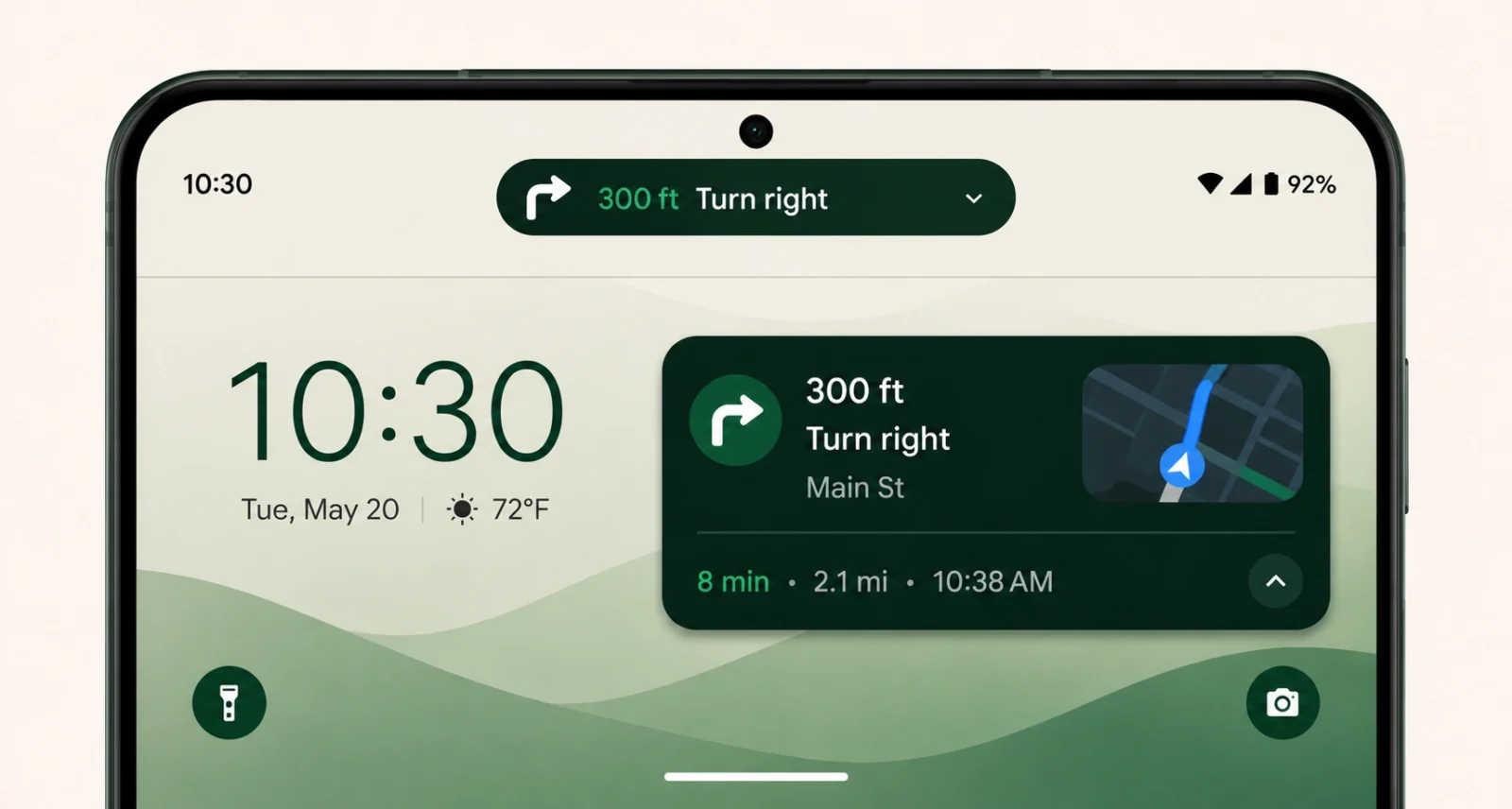
Quick tip: In Google Maps, the Live Update chip only appears in your status bar after you leave the Maps app or close the picture-in-picture window. While Maps is in the foreground, you see the regular navigation UI instead.
5. Which Apps Support Live Updates Right Now
As of mid-2026, the app list is still small but growing fast. These are the ones confirmed to work.
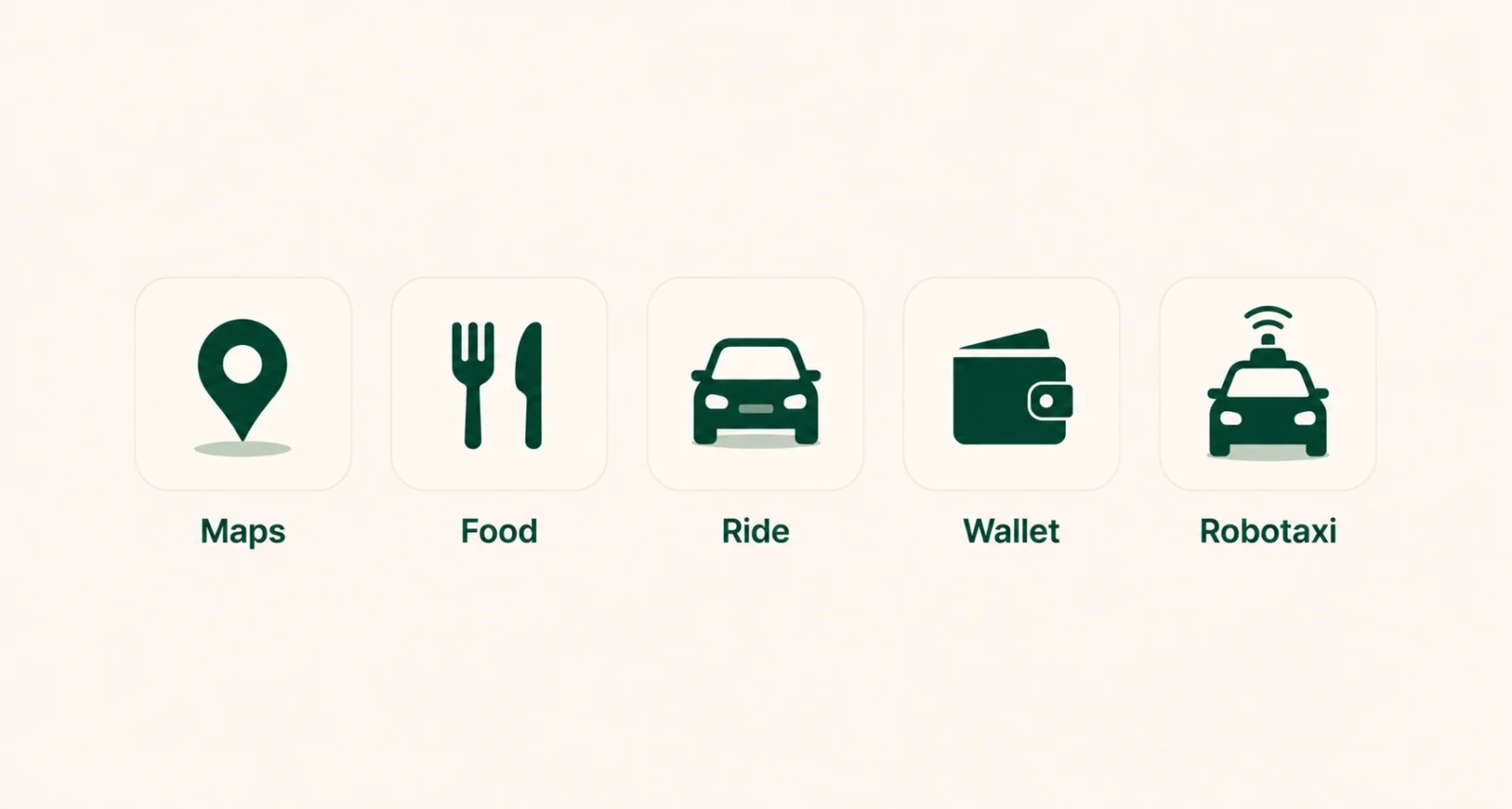
Google Maps
The flagship example. Maps shows your next turn time and distance, plus ETA, as a status bar chip. Tap it for a fuller heads-up view with the upcoming step. The chip appears once you leave the Maps app or dismiss the picture-in-picture floating window.
Uber Eats
Uber Eats added Live Updates in February 2026. Once you place an order, the status bar chip shows your current stage (Order placed, Preparing, Out for delivery, Arriving). The lock screen card shows full details, including ETA and your courier’s name.
Uber (rideshare)
Uber’s main rideshare app uses Live Updates to track your driver: distance away, ETA, vehicle, and licence plate. The lock screen version shows a live map preview and the driver’s photo.
Google Wallet
Wallet uses Live Updates for travel itineraries, especially boarding passes and event tickets. As your flight time approaches, the lock screen card surfaces gate, seat, and any delays.
Waymo One
Waymo’s autonomous ride app shows the robotaxi’s progress to your pickup, then the ride itself, with the same persistent-chip style.
Other compatible apps coming
Google has said more food delivery apps (DoorDash, Grubhub), more rideshare apps (Lyft), flight trackers, and even live sports score apps are working on adding Live Updates. Expect the list to roughly double through the second half of 2026.
6. How to Manage Live Updates Per App
Live Updates are enabled by default for any app that supports them. If you do not want a particular app’s Live Updates pinning to your lock screen or status bar, you can turn them off per app.
- Open Settings on your Android 16 phone.
- Go to Apps (or Apps & notifications, depending on your phone).
- Find the app you want to manage (for example, Uber Eats or Google Maps) and tap it.
- Tap Notifications.
- Look for the Show Live Info toggle (some manufacturers label it Live Updates or Live Notifications). Turn it off to stop that app from creating Live Updates.
- Repeat for any other app you want to silence. The change applies immediately; no restart needed.
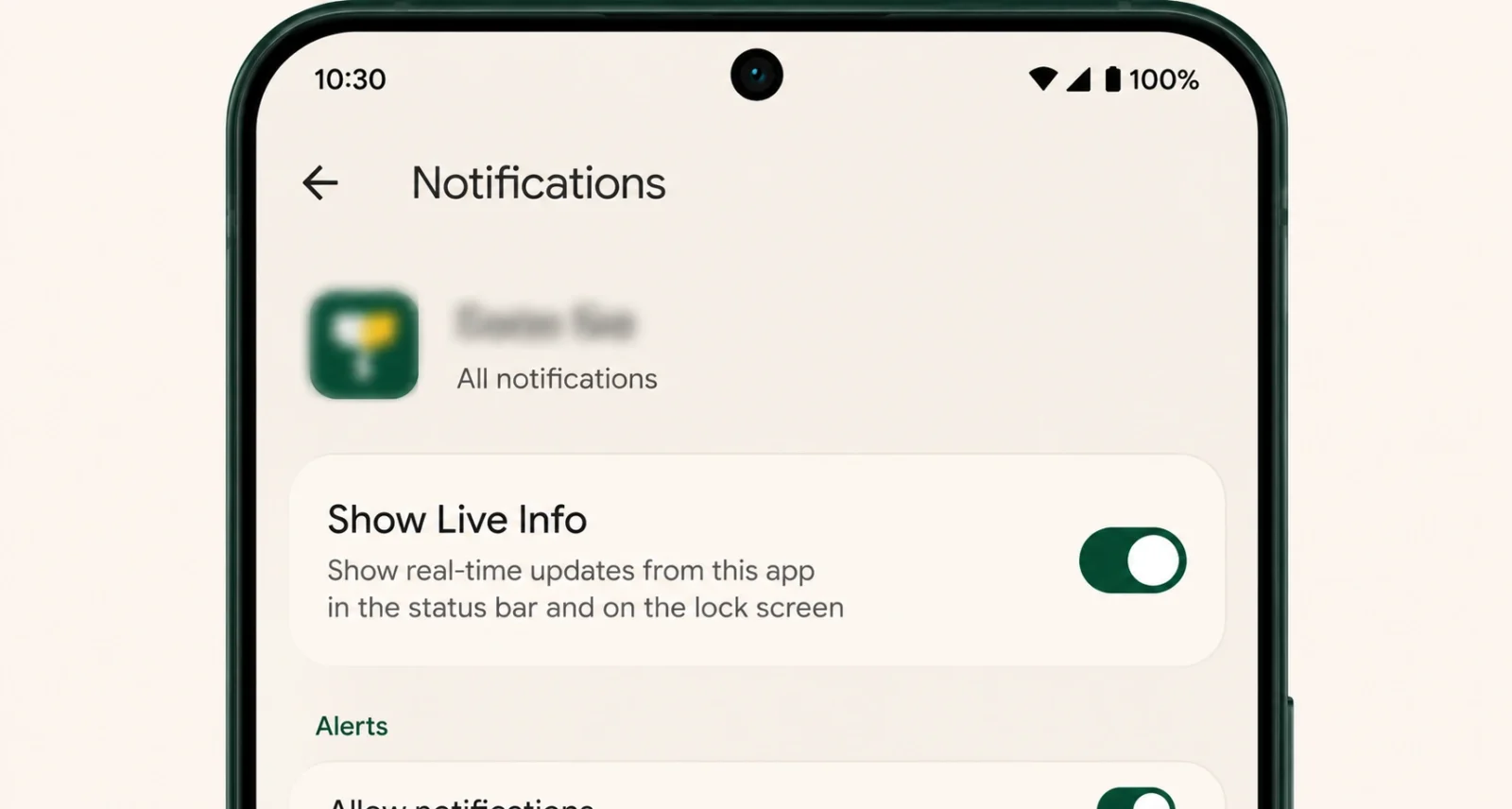
Worth knowing: Turning off Show Live Info does not silence the app’s regular notifications. You will still get standard notifications for the same order or trip; you just lose the persistent chip, the expanded lock-screen card, and the AOD view.
7. Live Updates vs Samsung Now Bar vs OPPO/OnePlus Live Alerts
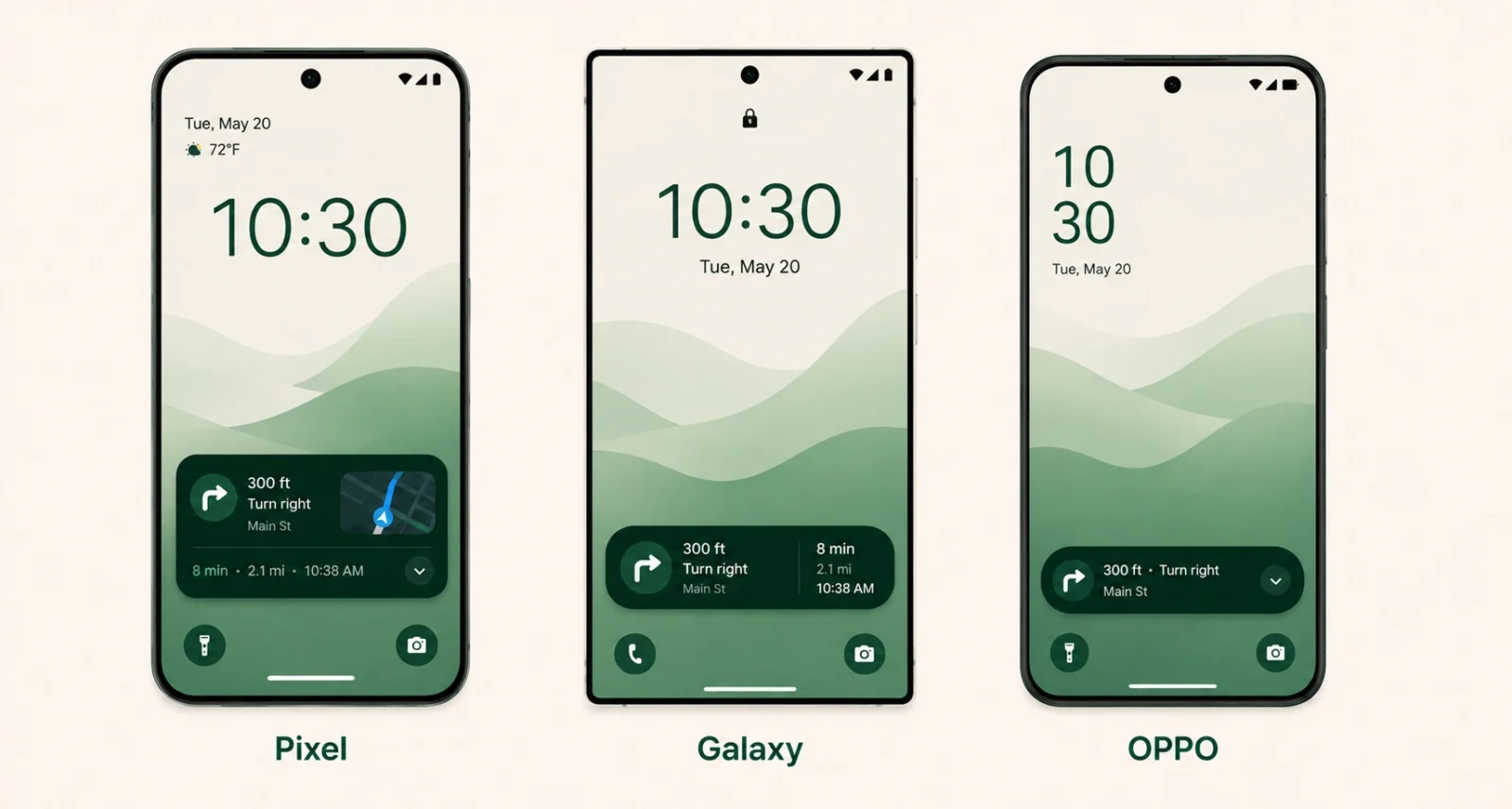
Different Android manufacturers ship slightly different versions of the same idea. They all use the underlying Android 16 progress-centric notification system, then layer their own UI on top.
| Feature | Stock Android 16 | Samsung Now Bar | OPPO / OnePlus Live Alerts |
| Status bar chip | Yes | Yes | Yes |
| Lock screen card | Centred, full width | Compact pill at the bottom | Centred, full width |
| Always-On Display | Yes | Yes | Yes |
| Visual style | Material 3 Expressive | One UI styled | ColorOS / OxygenOS styled |
| Per-app toggle | Show Live Info | Show Live Info plus Now Bar control | Show Live Info |
| Apps supported | Same Android 16 list | Same plus extra Samsung apps | Same plus extra OPPO apps |
The short version: under the hood, they all use Live Updates. The branding and visual presentation differ. If a Pixel user and a Galaxy user both order food on Uber Eats, they will both see the same information, just framed slightly differently on the lock screen.
8. What Live Updates Will Not Do
Live Updates are powerful, but Google has been deliberate about what they cannot be used for. Some of these limits are by design, others are technical.
- No music apps. Spotify and YouTube Music cannot use Live Updates, because music playback does not fit the progress-centric template. Music players use the separate, long-standing media notification system instead.
- No chat messages. WhatsApp and Messages cannot turn incoming messages into Live Updates. Conversations are not progress-style activities.
- No ads or promotions. Google has explicitly prohibited apps from using Live Updates for marketing or upsell content. Apps that try will be policed.
- No calendar event reminders. Upcoming meeting in 10 minutes is a notification, not a Live Update. The Live Update is reserved for active, in-progress activities only.
- Not yet on Wear OS. Wear OS support for Live Updates is on Google’s roadmap for late 2026, matching what Apple Watch already does with Live Activities. Your Pixel Watch will get it; you do not have it yet.
- Cannot be swiped away mid-activity. This is intentional. The pinned-to-top behaviour is part of the design. The Live Update closes automatically when the activity finishes.
Frequently Asked Questions
What are Live Updates in Android 16?
Live Updates are progress-centric notifications introduced in Android 16. They pin to the top of your notification panel, show a small chip in your status bar, expand on the lock screen and Always-On Display, and update automatically as an activity progresses. They are designed for ongoing, user-initiated, time-sensitive activities like navigation, ride-sharing, and food delivery.
How do I enable Live Updates on Android 16?
You do not have to enable Live Updates manually. They are on by default for any app that supports them. You just need to be on Android 16 (preferably QPR1 or later) and use a supported app such as Google Maps, Uber Eats, Uber, Google Wallet, or Waymo One. The chip and lock-screen card appear automatically.
Which Android apps support Live Updates right now?
As of mid-2026: Google Maps for navigation, Uber Eats for food delivery, Uber for rideshare, Google Wallet for travel itineraries, and Waymo One for robotaxi rides. More apps including DoorDash, Lyft, and flight trackers are expected through the rest of 2026.
Why don’t I see Live Updates on my phone?
Common reasons: your phone is not yet on Android 16 (or is on Android 16 stable but not QPR1), the supported app is out of date, or the app does not yet ship Live Updates support in your region. Update Android in Settings → System → Software updates, and update the app in the Play Store.
Can I turn off Live Updates for a specific app?
Yes. Go to Settings → Apps → the specific app → Notifications, and toggle off Show Live Info (sometimes called Live Updates or Live Notifications, depending on the manufacturer). The app’s regular notifications still work, but the pinned Live Update will not appear.
Is Android Live Updates the same as iOS Live Activities?
Functionally, very similar. Both show progress-style notifications on the lock screen, status bar area, and AOD. iOS Live Activities also feed into the Dynamic Island, which Android does not have. Android Live Updates use the standard status bar chip instead. Both are designed for the same set of use cases: ride-sharing, delivery, navigation, sports scores, and timers.
Do Live Updates work on Samsung Galaxy?
Yes. Samsung Galaxy phones running One UI 8 on Android 16 support Live Updates, surfaced through Samsung’s Now Bar UI on the lock screen alongside the standard status bar chip. The same Android 16 apps that work on Pixel work on Galaxy.
When will Live Updates come to Wear OS smartwatches?
Google has indicated Wear OS support for Live Updates is coming in 2026, with Pixel Watch and other Wear OS 6 devices expected to be the first to receive it. Apple Watch already supports the iOS equivalent via Live Activities.
If you found this useful, you may also like our guide to Google AI Mode, another Android-side improvement worth knowing about in 2026, and our explainer on agentic AI, which is the broader trend that features like Live Updates are part of.