

Your smart speaker just got a serious brain upgrade. With Gemini for Home now live on Google Home speakers, you can talk to your house the way you would talk to a helpful person, in plain language, mid-sentence corrections and all. Google just shared 100 new things you can ask it, organized around your day. Here are the smartest ones, grouped by morning, midday, evening, and weekend, so you can actually put them to use today.
| Quick Answer Gemini for Home is Google’s upgraded voice assistant, now available on Google Home speakers and the new Google Home Speaker. It uses Gemini AI to handle natural, conversational commands across your day, from controlling smart lights and thermostats to cooking help, reminders, news, homework questions, and home security checks. Most features are free. Advanced ones, like asking what your cameras saw or going live with Gemini, need Google Home Premium, which starts at $10 a month. |
Key Takeaways
- Gemini for Home brings conversational AI to Google Home speakers and the new Google Home Speaker.
- You can speak naturally, chain several commands together, and even correct yourself mid-sentence.
- It helps across the whole day: smart home control, cooking, reminders, news, and homework.
- Camera history and live features need Google Home Premium from $10 a month.
- Just say “Hey Google, what can you do?” to start exploring it hands-free.
What Is Gemini for Home?
Gemini for Home is the upgraded version of Google’s voice assistant, now powered by Gemini AI and rolling out on Google Home speakers. It also anchors the new Google Home Speaker, which is officially on sale. The idea is simple: instead of memorizing rigid commands, you just talk naturally, and it figures out what you mean.
To mark the launch, Google shared a fresh batch of 100 things you can ask it across a typical day. As Google explained on its blog, the goal is to make ordinary routines, mornings, meals, chores, and bedtime, a little easier with your voice. Below are the most useful, grouped so you can find them fast.
| Worth Knowing Not sure where to begin? Just say “Hey Google, what can you do?” and it will suggest ideas out loud. It is the easiest way to discover features without reading a single list. |
What Makes It Different
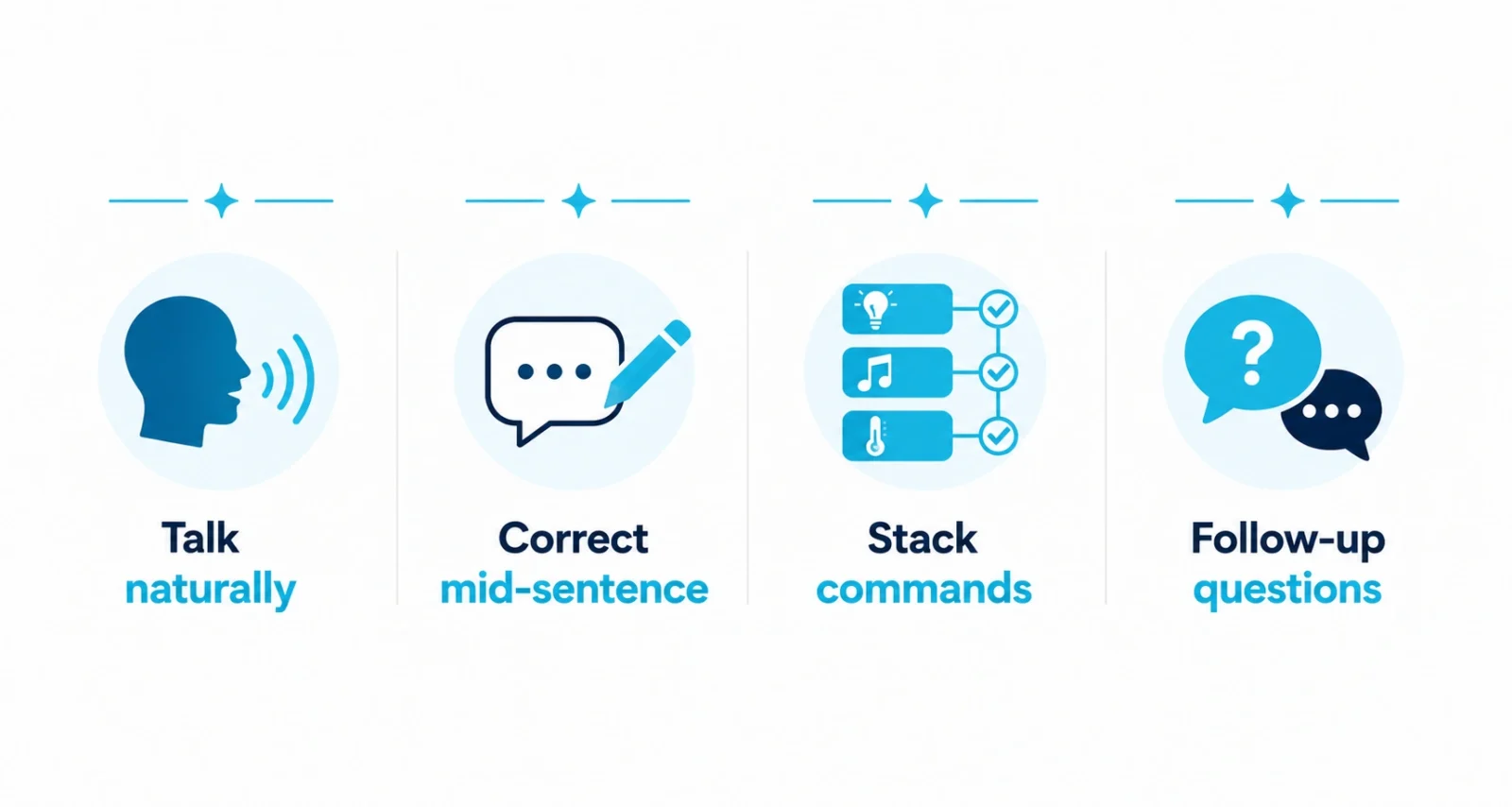
The old assistant was great at single, exact commands. Gemini for Home is built for the messier way people actually talk. A few upgrades stand out.
- Natural language. Describe what you want in your own words, like setting the lights to the color of the ocean, and it understands.
- Mid-sentence corrections. Change your mind as you speak. Tell it to turn the coffee maker off, then say actually on, and it adjusts.
- Stacked commands. Bundle several actions into one breath, such as starting a timer, the vacuum, and some music together.
- Follow-up questions. Ask a question, then keep going. It remembers the context, so you can simply ask how about now.
If this sounds familiar, it is the same conversational shift happening across Google. Our guide to how to use Google AI Mode covers the same plain-language approach inside Search.
Morning: Start the Day
Mornings are all about getting out the door. Gemini for Home can run your wake-up, your breakfast, and your prep in a few quick asks.
- Wake the house. Turn on all the lights except the bedrooms, or nudge the heat up because it feels chilly.
- Cook smarter. Ask for a high-fiber smoothie that keeps you full, or how to cook eggs over easy without breaking the yolk.
- Catch the news. Get a conversational rundown of today’s headlines, then say tell me more about the second story.
- Plan the day. Check if you need a jacket, the traffic to work, and what is on your calendar this week.
Midday: Stay on Top of Everything
During the day, it shines at chores, lists, and your calendar, often several at once.
- Multitask in one breath. Set a timer for the chicken, start the vacuum, and play relaxing music with a single command.
- Manage lists by description. Add every ingredient for a recipe to your grocery list, or remove all the vegetables at once.
- Master your calendar. Ask which Saturday afternoons are free this month, then drop a plan into the next open one.
- Stay focused. Ask it to explain the Pomodoro technique or suggest quick ways to relieve eye strain on a break.
Evening: The Dinner Rush
The dinner stretch is where a voice assistant earns its keep. Hands busy, questions flying, this is its moment.
- Get dinner ideas. Ask for a 20-minute recipe using ground turkey, or what to make from a can of black beans and dry pasta.
- Improvise as you cook. Out of pine nuts for pesto? Ask for a swap. Juggle several timers and pause all the baking ones at once.
- Run family routines. Assign a chore to a family member, or broadcast that dinner is ready to every room except the baby’s.
- Help with homework. Explain black holes to a kindergartener, or settle whether time really moves slower when you go faster.
| The Cool Part You can describe a vibe, not just a setting. Ask it to set the living room lights to the color of the ocean, and it picks the shade for you. Natural language turns your home into something you can simply talk to. |
Nighttime and Weekends
After dark, it helps you wind down. On weekends, it helps you get out and do more.
- Wind down. Set a 45-minute sleep timer, dim the house, or ask for a made-up bedtime story about a dragon afraid of fire.
- Rest easy. Get a documentary recommendation, or a comedy series with 30-minute episodes for an easy night in.
- Plan outings. Ask whether Saturday or Sunday is better for a hike, or what farmers markets are happening nearby this weekend.
- Pick up a hobby. Learn the basic guitar chords, get smartphone photography tips, or start an easy beginner knitting project.
Many of these tie into your wider Google setup. If you want your phone to keep pace with your smart home, our roundup of the biggest new Android 17 features is a useful companion read.
What Needs Google Home Premium
Most of what you have read so far is free. A few advanced features sit behind Google Home Premium, which starts at $10 a month. Here is the simple split.
| Feature | Free or Premium |
| Smart home control, timers, reminders | Free |
| Cooking help, news, homework answers | Free |
| Calendar and list management | Free |
| Searching what your cameras saw | Premium |
| Going live with Gemini | Premium |
| Live, real-time camera questions | Premium |
Some camera and live features also need compatible smart devices and the right Premium plan tier. Check Google’s plan details before subscribing.
| Buyer Tip If you do not own security cameras, the free tier covers nearly everything in this guide. Only add Premium if you specifically want camera history, live monitoring, or the most advanced Gemini features. |
How Do You Start Using Gemini for Home?
To start using Gemini for Home, make sure your Google Home speaker has the latest update, then simply talk to it naturally starting with “Hey Google.” You do not need to learn exact phrases. Speak the way you normally would, chain requests together, and ask follow-up questions. To hear what it can do, say “Hey Google, what can you do?” and it will suggest ideas out loud.
- Update your speaker. Confirm your Google Home device has the latest software so Gemini features are active.
- Start simple. Try one everyday command, like turning on the lights or setting a timer.
- Talk naturally. Describe what you want in plain words, and correct yourself mid-sentence if needed.
- Stack and follow up. Combine a few actions in one command, then ask follow-up questions in the same breath.
- Decide on Premium. Add Google Home Premium only if you want camera history or live features.
Gemini for Home turns your speaker from a command box into something closer to a helpful housemate. It understands plain language, handles several requests at once, and keeps up as you change your mind, which makes it genuinely useful from morning to night.
The best way to learn it is to use it. Pick one routine, a morning wake-up or a dinner prep, and let your voice do the work. Most of it is free, so start talking and see how much of your day it can quietly take off your plate.
| Your Move Want more clear guides on Google’s latest AI tools? Browse our Technology section for practical, easy-to-follow reads. |
Frequently Asked Questions
What is Gemini for Home?
Gemini for Home is Google’s upgraded, Gemini-powered voice assistant for Google Home speakers and the new Google Home Speaker. It handles natural, conversational commands for smart home control, cooking, reminders, news, homework, and more across your day.
Is Gemini for Home free?
Mostly, yes. Smart home control, timers, reminders, cooking help, news, and homework answers are free. Advanced features like searching what your cameras saw or going live with Gemini require Google Home Premium, starting at $10 a month.
What devices support Gemini for Home?
It runs on Google Home speakers and the new Google Home Speaker, which is now on sale. Make sure your device has the latest software update so the Gemini features are active, then start commands with Hey Google.
Can Gemini for Home control my smart home?
Yes. You can control compatible lights, thermostats, vacuums, and more using natural language, including stacking several actions into one command and correcting yourself mid-sentence. Some actions require compatible smart devices.
How much is Google Home Premium?
Google Home Premium starts at $10 a month. It unlocks advanced features such as asking what your cameras saw, live real-time camera questions, and going live with Gemini, on top of the free everyday assistant features.
How do I see everything Gemini for Home can do?
Just say Hey Google, what can you do? and it will suggest ideas out loud. Google also publishes lists of example commands organized by time of day, which are a handy starting point for new users.

