
You cannot listen properly and type properly at the same time. Everyone knows this, and everyone keeps trying. Google Meet automatic notes solve it by handing the job to Gemini. It writes a tidy summary, lists the decisions, and pulls out the follow-ups while you take part in the conversation. This guide shows you how to switch it on in about twenty seconds. It also covers how to make it run for every meeting without touching a button. One change arriving in September will turn it on for some people whether they ask or not.
| The Short Answer Join a meeting on your computer, click the pencil icon labeled take notes for me at the top right, then click Start taking notes. Gemini writes a Google Doc containing a summary, decisions, and suggested next steps, saves it to the organizer’s Drive, attaches it to the Calendar event, and emails a link once the meeting ends. To make it happen every time, tick the box for future instances of the meeting, or switch it on inside the Calendar invite under Video call options and Meeting records. You need an eligible Google Workspace plan or a Google AI Pro or Ultra subscription, and one important catch applies: the meeting organizer needs that plan, not you. |
First, Check That You Actually Have It
Skip this and you may spend ten minutes hunting for a button that was never going to appear. The feature needs an eligible Google Workspace subscription or a Google AI plan. Free Google accounts do not have it.
Google expanded access in late June 2026, and as 9to5Google reported, the feature reached Google AI Pro and Ultra subscribers. That brought it to individuals rather than only to companies. On the work side it comes with several business and education editions.
| The Catch Nobody Prints on the Box The plan that matters is the meeting organizer’s, not yours. Google states plainly that the organizer must have the edition that includes take notes for me. So if your team meets on a recurring link created by a colleague on a basic plan, nobody in that meeting gets notes, no matter what everyone else pays for. Before you troubleshoot anything else, check who created the invite. |
How to Turn On Google Meet Automatic Notes in a Call
This is the fastest route and the one you will use most. It works on a computer, and you can start it at any point during a meeting. Every step below follows Google’s own Meet documentation.
Step 1: Join the meeting
Go to meet.google.com and enter the call as you normally would. You can start notes at any moment, though the next tip explains why the first moment is best.
Step 2: Find the pencil icon
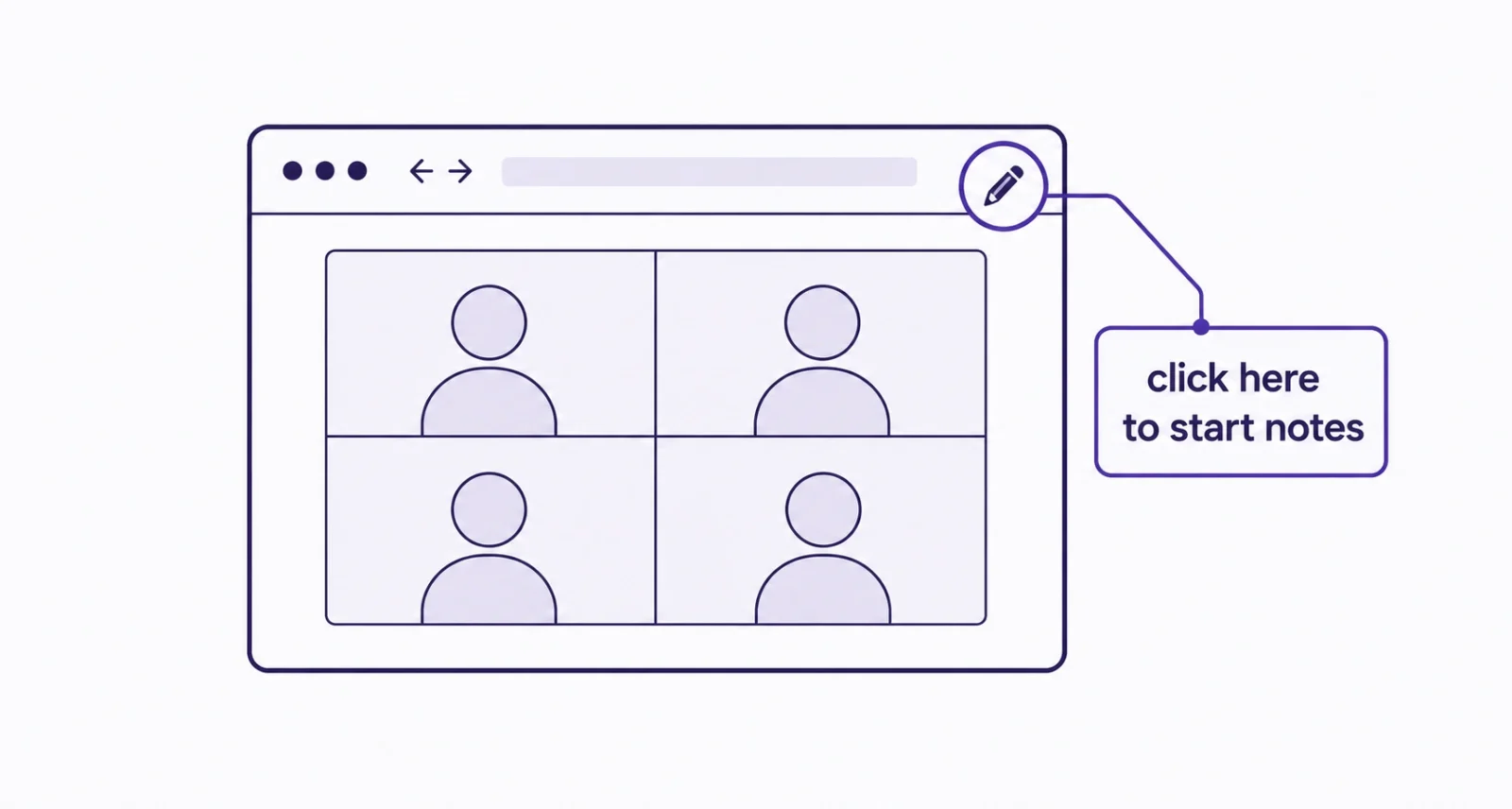
Look at the top right corner of your screen. The button is labeled take notes for me and carries a small pencil. If it is missing entirely, jump to the troubleshooting section, because the cause is almost always the plan rather than anything you did.
Step 3: Open Settings before you start
Click Settings inside that panel rather than starting straight away. Thirty seconds here decides who receives the notes, how detailed they are, and which language Gemini listens for. Guests from outside your company make this step worth doing every time.
Step 4: Click Start taking notes
A notice appears for everybody in the call and the pencil icon shows on every screen. Gemini begins listening from this moment, and the document builds quietly in the background while you talk.
Step 5: Stop it when the sensitive part arrives
You are not locked in. Anyone from inside the host organization can stop notes at any point, which keeps a frank five minutes out of the record, then start them again afterwards.
On Android or iPhone the path differs slightly. Tap the screen, open the Menu, choose Take notes with Gemini, then tap Start. One limitation applies to both: the live Summary so far feature works only on a computer, so late joiners on a phone cannot catch up mid-meeting.
| Do This First Notes are not retroactive. Gemini only captures what happens after you press start, so turning it on ten minutes into a call means the first ten minutes never make it into the document. Make it the first thing you do after joining, not something you remember halfway through. |
How to Make Google Meet Automatic Notes Run Every Time
Clicking a button every meeting is not really automatic. Three settings remove that step entirely, and most people never find them.
The easiest one hides in plain sight. When you start note-taking as the host, the settings panel includes a checkbox to also turn it on for future instances of this meeting. Google pre-selects that box, so you can handle a recurring meeting once and then forget it.
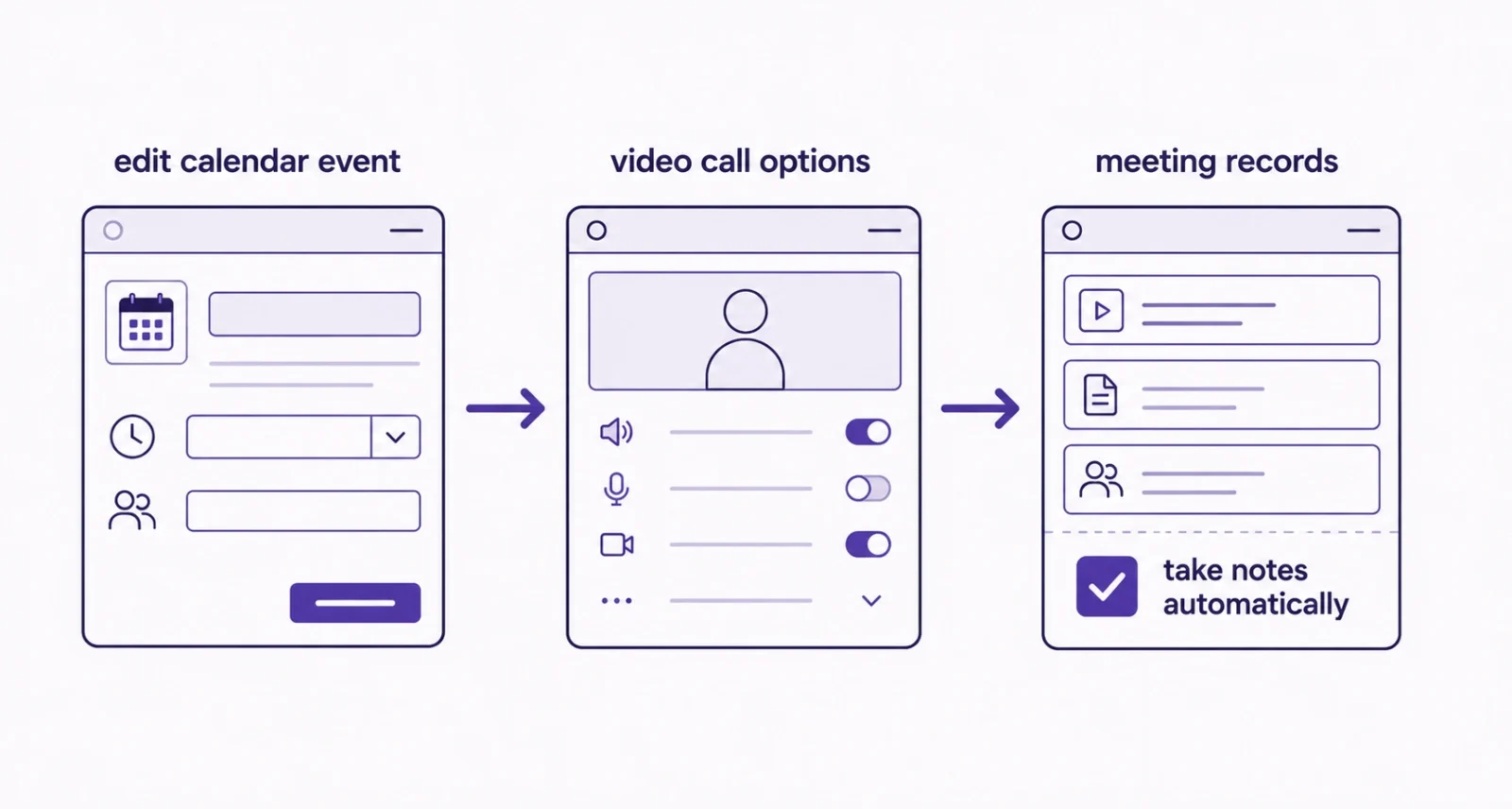
The second route sets it up before anyone joins, straight from the calendar invite.
- Open Google Calendar on your computer and select the event.
- Click Edit event, and check that the event already has Google Meet video conferencing.
- Select Video call options, which sits beside the meeting link.
- In the left column, click Meeting records.
- Tick the box next to Take notes with Gemini, then save. Notes now start on their own when the meeting begins.
The third route is a personal default that covers everything you host. Open your settings using the gear icon at the top right of Google Meet, choose Meeting Records, and set note-taking to your preference there. Google is also rolling out the ability to switch notes off from the green room, the preview screen before you join. That helps when one particular call should stay off the record.
What the Notes Document Actually Contains
Knowing the shape of the output changes how you run the meeting, because you can feed each section deliberately. Gemini organizes the document into four parts.
| The Section | What Lands There |
| Summary | A short overview of the main topics discussed |
| Decisions | Outcomes, each tagged Aligned, Needs Further Discussion, Disagreed, or Shelved |
| Next steps | Action items, with owners where the meeting named them |
| Details | Fuller notes running through each discussion point |
The Decisions section currently works in English only. If your meeting also had recording or transcription switched on, links to those appear inside the same document, which makes it a single place to return to. Choosing which sections appear at all remains limited to Google’s Alpha testers for now.
How to Get Notes That Are Actually Useful
This is the part no other guide covers, and it matters more than any setting. Gemini writes down what it hears, so small changes in how you run a meeting produce dramatically better documents.
- Start notes before the small talk ends. Nothing said beforehand is captured, and useful context often arrives in the first two minutes.
- Say names out loud when work gets assigned. Priya will draft the deck by Thursday lands in Next steps with an owner attached. Someone should do that does not.
- State decisions as complete sentences. Saying we have agreed to move launch to October gives the Decisions section something concrete to record.
- Open with a spoken agenda. Naming the three things you plan to cover gives the Summary a structure to follow rather than a stream of topics.
- Recap in the final two minutes. Restating decisions and owners aloud is the single highest-value habit, because it hands Gemini a clean version of everything that matters.
- Choose Longer for technical meetings. Standard notes suit a status call, while detailed discussions lose too much at that length.
| The Golden Rule Speak as though the notes will be read by someone who missed the meeting, because they will be. Avoid talking over each other, keep to one language, and resist pronouns when assigning work. Gemini cannot tell who they refers to, and a document full of unattributed action items helps nobody. |
How to Catch Up If You Join a Meeting Late
Walking in twenty minutes after the start no longer means whispered questions in the chat. When notes are running, you can ask for a Summary so far and read what has happened while the meeting continues around you.
It appears alongside the note-taking controls, and it reflects everything captured up to that moment. One catch worth repeating: this works on a computer only. Joining from a phone means waiting for the full document after the meeting ends.
How to Use It for In-Person Meetings
This is the newest capability and the least known. Since Google announced it at Cloud Next in April 2026, the same feature listens to conversations happening in a physical room, with no video call involved at all. As Tom’s Guide reported, you trigger it straight from the Meet home screen.
- Open the Google Meet app on your phone or tablet.
- Tap Take Notes for Me from the home screen. You do not need to invite anyone or start a video call.
- Place the device on the table near whoever is speaking, with nothing covering the microphone.
- Tap Start taking notes, then pause or stop whenever the conversation needs to stay private.
It suits impromptu conversations as much as scheduled ones, so a corridor discussion that turns important can still produce a record. One difference from video calls: the document saves to the Drive of whoever switched the feature on, rather than to a meeting organizer.
The Change Arriving on September 21, 2026
Here is the part worth reading even if you already know the feature. Google is rolling out a new admin setting that switches note-taking on automatically for meetings with three or more people, and the defaults differ sharply by plan.
| Your Plan | New Automatic Setting | What That Means |
| Business Standard and Business Plus | ON by default | Notes may start on their own unless someone changes it |
| Enterprise Standard and Enterprise Plus | OFF by default | Nothing changes unless your admin turns it on |
| Frontline Plus, AI Pro for Education | OFF by default | Nothing changes unless your admin turns it on |
According to Google Workspace Updates, the admin control is rolling out now and nothing changes for ordinary users before September 21, 2026. From that date, users get their own matching option covering all meetings they host with three or more guests, and anyone can override whatever their admin chose.
| Worth Knowing If you administer a Business Standard or Business Plus organization and you would rather notes stayed off by default, adjust the setting before September 21, 2026. After that date the default takes effect for everyone in your organization. If you are simply a user, the practical takeaway is to check your Meet settings in late September, because a meeting that never recorded anything before may quietly start producing documents. |
The Settings Worth Changing Before You Press Start
The default settings suit a routine internal call. For anything else, thirty seconds in the Settings panel saves an awkward conversation later.
| The Setting | What to Consider |
| Send notes to | Choose all invited guests, only your organization, or hosts and co-hosts alone |
| Notes length | Standard gives a concise summary. Longer roughly doubles it for detailed sessions |
| Meeting language | Pick the spoken language, since only one is captured per meeting |
| Future instances | Leave ticked for recurring meetings, untick for a one-off |
Two points about sharing catch people out. Invited guests means everyone on the calendar invite, not the people who actually turned up, so a colleague who skipped the call still receives the notes. And if you added guests through a group email address, each of them has to request access to the document individually.
Google restricts a few newer options to its Alpha testers for now, including the choice of which sections appear and the option to include screenshots of presented slides. If you do not see them, your account is simply not in that group yet.
Everyone Sees It, and Anyone Can Stop It
There is no quiet mode, by design. The moment notes begin, everybody in the meeting gets a notification and a pencil icon appears on every screen. You cannot capture a conversation without the room knowing.
Control goes further than that. Any participant from the host’s organization can stop note-taking at any moment. That is exactly what you want before a sensitive five minutes about salaries or a client problem. Stop it, talk freely, then start it again. If the meeting uses host management, that power narrows to the host and co-hosts only.
Administrators can go further still and require everyone to consent before notes, recording, or transcription begin. That setting is off unless your organization turns it on. Where it applies, you click Start to begin and consent. Join enters a meeting that is already capturing, and Continue keeps you in one that just started. Leave is always available if you would rather not take part.
Where Your Notes End Up, and How to Find Them
The document appears shortly after the meeting ends rather than instantly, so give it a few minutes. Google saves it to the meeting organizer’s Drive folder and attaches it to the Calendar event automatically.
Whoever your sharing settings cover receives an email containing the summary, the suggested next steps, and a link to the full document. Those next steps are genuinely useful. Gemini identifies follow-ups discussed in the call, and you can edit them or assign them to someone once the document exists. Since the notes land in a Google Doc, everything you already know about editing there applies. Our guide to using Gemini in Google Docs covers tidying the draft further.
Four places hold that same document, and knowing all four saves hunting. The email arrives first. Your Calendar event carries it as an attachment, which is usually fastest for recurring meetings. The organizer’s Drive folder stores the original. And Drive search by meeting name or date finds it when the others fail, with the Recent view surfacing anything created in the last few hours.
| Do This First Open the document the same day and read it before anyone else does. Gemini mishears names, acronyms, and product terms more often than you would expect, so a two-minute correction pass turns a rough record into something colleagues can trust. Renaming the file while you are there makes it far easier to find in six months. |
| Good to Know Seeing the attachment on a calendar event is not the same as being able to open it. External guests and invitees can all see that a notes document is attached, but access depends entirely on the sharing setting chosen when notes started. Check that setting rather than assuming the attachment speaks for itself. |
When the Button Is Missing or the Notes Never Arrive
People confuse two different problems constantly, so treat them separately.
| The Problem | The Likely Cause |
| No pencil icon at all | The organizer lacks an eligible edition, or your admin has not enabled it |
| Still no icon after checking both | Smart feature control is switched off in your account settings |
| Notes never generated | The meeting ran under the recommended 15 minutes |
| Summary looks thin or wrong | Connectivity dropped, or the content fell outside Meet usage policies |
| Document will not open in Docs | Reload your browser, which resolves most generation errors |
Google recommends meetings between 15 minutes and 8 hours. Very short calls often produce nothing at all, and very long ones can split the output. If someone speaks a different language for about half a minute, Meet offers to switch. Accepting changes the language for the notes and for Ask Gemini in that meeting.
Frequently Asked Questions
How do I turn on Google Meet automatic notes?
Join the meeting on a computer, click the pencil icon labeled take notes for me at the top right of the screen, then click Start taking notes. On Android or iPhone, tap the screen, open the Menu, choose Take notes with Gemini, and tap Start. Everyone in the call sees a notice as soon as it begins.
Is Google Meet automatic notes free?
No. It requires an eligible Google Workspace subscription or a Google AI plan, and it reached Google AI Pro and Ultra subscribers in June 2026. Free personal Google accounts cannot use it. Remember that eligibility depends on the meeting organizer’s plan rather than yours, so an ineligible organizer blocks the feature for the whole meeting.
Where are Google Meet notes saved?
Gemini creates a Google Doc shortly after the meeting ends and saves it in the meeting organizer’s Drive folder. Google attaches the document to the Calendar event automatically. Anyone covered by the sharing settings receives an email containing a summary, the suggested next steps, and a link to the full document.
Which languages does the feature support?
Eight languages: English, French, German, Italian, Japanese, Korean, Portuguese, and Spanish. Gemini captures only one language per meeting, so bilingual calls do not work well. If another language is spoken for roughly thirty seconds, Meet offers to switch, though that change applies to the current meeting rather than future ones.
Can other people tell that Gemini is taking notes?
Yes, always. Google notifies every participant when note-taking starts and shows a pencil icon on all screens for the duration. There is no hidden mode. Anyone from the host organization can stop the notes at any point, and administrators can require explicit consent from everyone before notes, recording, or transcription start.
Can Gemini take notes for an in-person meeting?
Yes, since April 2026. Open the Google Meet app on your phone or tablet, tap Take Notes for Me from the home screen, and place the device near the people talking. No video call or invitation is needed, and it works for impromptu conversations as well as scheduled ones. The document saves to the Drive of whoever turned the feature on.
Why did my meeting notes not generate?
The most common reason is length, because Google recommends at least 15 minutes and very short calls often produce nothing. Connectivity problems during the call and content falling outside Meet usage policies can also prevent generation. If the document exists but will not open properly in Google Docs, reloading your browser usually fixes it.

