
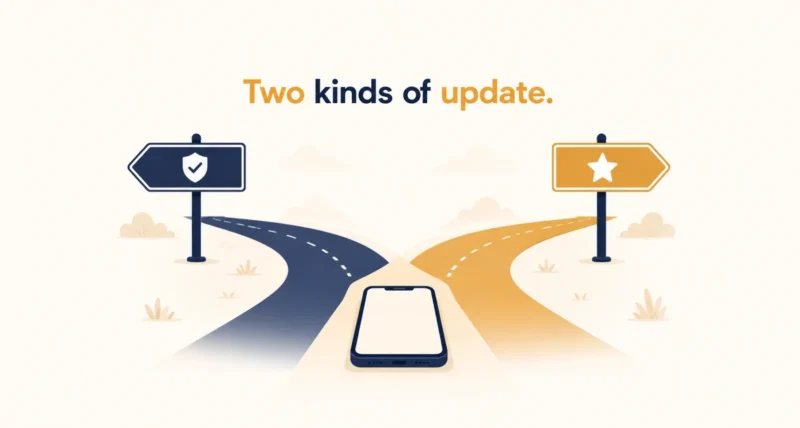
The badge appears, the nagging starts, and somebody in the group chat says wait a week because updates always break something. So should I update my iPhone today or leave it alone? The honest answer depends on one thing, and it is not your phone model or how much free time you have. It is what kind of update Apple just released, because the two kinds carry completely different risks.
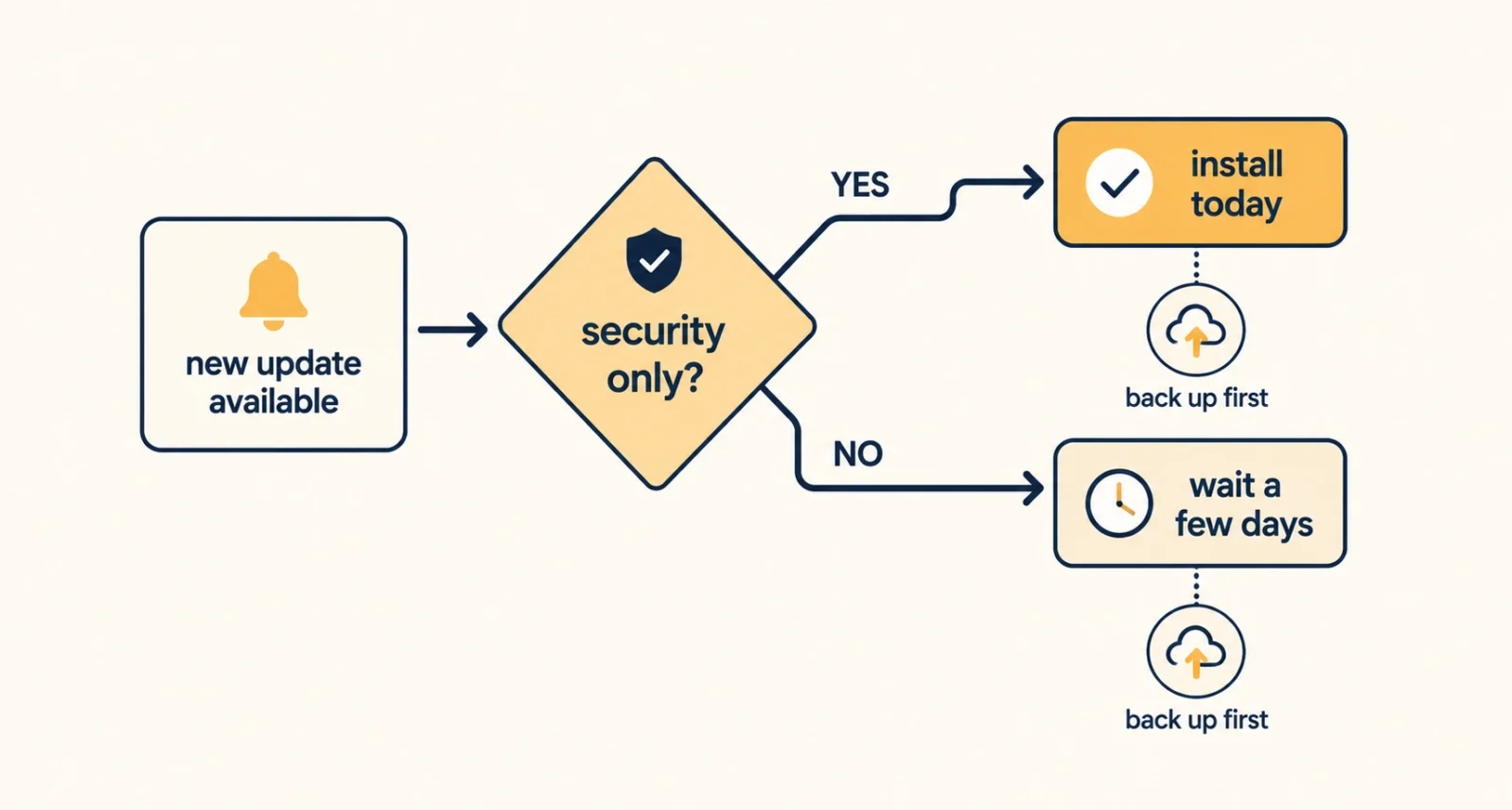
| The Short Answer If the release notes mention security fixes and nothing else, install it today. Security-only updates add no new features, which means almost nothing new can break, and the whole point is closing a hole attackers already know about. If the update brings visible new features, waiting three or four days costs you very little and lets early problems surface. Never install a beta on the phone you rely on. And whatever you choose, back up first, because Apple does not let you go back to an older version once an update is installed. |
Should I Update My iPhone Right Now? Start Here
Every update Apple ships falls into one of a few buckets, and the bucket tells you what to do. Find your row and you have your answer.
| Kind of Update | What to Do | Why |
| Security fixes only | Install today | No new features means very little can break |
| Small point update with features | Wait three or four days | Minor bugs usually surface fast and get patched |
| Major version, such as iOS 27 | Wait a few weeks | Biggest changes carry the most teething problems |
| Public or developer beta | Do not install on your main phone | Unfinished software on the device you depend on |
That first row is the one people get wrong. A security-only release is the safest update Apple ever ships and the most urgent, which feels backwards until you think about what is actually inside it.
How to Tell Which Kind of Update You Have
Thirty seconds of reading saves the guesswork.
Step 1: Read the note on the update screen
Open Settings, then General, then Software Update. Apple writes a short description there. Wording about security fixes with no mention of features tells you almost everything.
Step 2: Check Apple’s security page for the detail
Apple publishes exactly what each release fixes on its security releases page. You do not need to understand the entries. Simply seeing dozens of them tells you the update matters.
Step 3: Look for the word WebKit
WebKit powers Safari and, in most of the world, every other browser on your iPhone. As Macworld points out, WebKit flaws affect everybody all the time, because everyone browses the web and anyone can be tricked into opening a bad link. WebKit fixes move an update to the front of the queue.
Why the Old Wait a Week Advice Is Fading
That advice made sense for years. Something changed recently, and Apple’s own behavior is the evidence.
In late June 2026, Apple released iOS 26.5.2 ahead of schedule. The fixes were already sitting in the next update and would normally have waited for it. Apple shipped them early instead, and as Forbes reported, the company told Reuters it was bringing patches forward in response to AI-driven security concerns.
The reasoning is uncomfortable but simple. Attackers now use AI to find weaknesses in code faster than before, so the gap between a flaw becoming known and someone exploiting it keeps shrinking. When the company writing the software decides it can no longer wait, sitting on the patch for a week is a harder position to defend.
| Worth Knowing Notice what this does not say. It is not an argument for rushing into every major redesign the moment it lands. Feature updates and security updates are different products with different risks, and the case for speed applies only to the second kind. |
Should I Update My iPhone If It Is Old?
This is where the worry about phones slowing down lives. Two things are worth separating.
Point updates rarely hurt older hardware. The updates that occasionally make an older iPhone feel sluggish are the big annual releases, which add features designed with newer chips in mind. A security patch changes almost nothing about how your phone runs.
The better news is that Apple does not abandon older devices as quickly as people assume. Its guidance on protecting older iPhones confirms that Apple backports security protections to earlier versions of iOS. A phone that cannot run the newest release still receives the fixes that matter. If your iPhone offers an update on an older version of iOS, that is exactly what it is, so take it.
What About the Battery Drain Everyone Mentions?
The complaint is real, and so is the explanation. It is usually temporary.
After a sizable update your iPhone quietly rebuilds things in the background. It reindexes search, reprocesses photos, and refreshes caches, all of which burns power for a day or two before settling. The upcoming iOS 26.6 makes this concrete. 9to5Mac reports that the release prepares the search index Siri will draw on in iOS 27, which is exactly the background work that shows up as a battery dip.
| Quick Take Give it three days before blaming the update. Charge normally, use the phone normally, and let the background work finish. If the drain is still obvious after that, check Settings, then Battery, to see which app is responsible. In most cases the culprit turns out to be an app that needs its own update rather than iOS itself. |
Do This Before You Tap Install
Four minutes of preparation removes nearly every way this goes wrong.
- Back up your phone. Open Settings, tap your name, then iCloud, then iCloud Backup, and run one now. A computer backup works equally well.
- Check your free space. Updates need room to unpack, and a phone with almost nothing free will stall partway through.
- Plug in or charge past fifty percent. Interrupting an install because the battery died is the one genuinely bad outcome.
- Give it time. Starting an update ten minutes before a call is how people end up stuck watching a progress bar.
- Skim the release notes so you know whether you are getting security fixes, features, or both.
The One Thing You Cannot Undo
Here is the fact that makes the whole question worth asking. Apple states on its own security page that once an update installs on an iPhone, you cannot go back to the previous version.
No rollback exists. If a release genuinely does not suit you, you can wait for the next patch or restore an old backup onto the phone. Both routes are slow and imperfect. That single constraint is the honest reason to pause before major releases, and the reason a backup is not optional.
Should You Install the iOS 27 Beta?
Apple previewed iOS 27 in June, the public beta is circulating now, and the finished version arrives in September alongside the new iPhones. The temptation is understandable.
Do not put it on the phone you depend on. Beta software crashes, drains batteries, breaks banking and work apps without warning, and cannot be removed without wiping the device and restoring a backup. If you want to try it, use a spare iPhone. If you only own one, wait for September, which is close enough now that patience costs very little. Our guide to the iPhone 18 Pro release date explains how Apple’s September timetable works and when the finished release should land.
How to Decide Once and Stop Thinking About It
For most people the best setting is not manual. Open Settings, then General, then Software Update, then Automatic Updates.
Leave the option covering security responses and system files switched on, always. That one delivers urgent fixes quickly and quietly, and it is the closest thing to free protection your iPhone offers. Automatic downloading is also worth enabling, since it prepares the update without installing it. Whether you let iOS install feature updates on its own comes down to how much you dislike surprises. Turning that one off while keeping the security option on gives you the best of both.
| The Golden Rule Security updates should be automatic. Feature updates should be a choice. Set it up that way once and the question stops needing an answer every few weeks. |
Stop treating every update as the same decision. Read one line of release notes and the answer appears. Security fixes go on today. New features can wait a few days, major versions a few weeks, and betas stay off the phone in your pocket.
Frequently Asked Questions
Should I update my iPhone as soon as an update appears?
For security-only updates, yes. They contain no new features, so very little can break, and they close flaws that attackers may already be using. For updates that add visible features, waiting three or four days is sensible, since early problems tend to surface quickly. Major annual releases deserve a few weeks of patience.
Will updating slow down my old iPhone?
Point updates and security patches rarely change performance in any noticeable way. The releases that can make an older iPhone feel slower are the big annual versions, which add features built around newer chips. If your phone is several years old, take the small updates without worry and think harder about the large ones.
Can I go back if I do not like the update?
No. Apple states that once an update is installed, an iPhone cannot be downgraded to the previous version. Your only routes are waiting for the next patch or restoring an older backup, which is slow and loses recent data. This is precisely why backing up before you install matters so much.
Why does my battery drain after an iOS update?
Your iPhone rebuilds things in the background after an update, reindexing search, reprocessing photos, and refreshing caches. That work uses power and usually settles within two or three days. If drain continues beyond that, open Settings and then Battery to identify the app responsible, since an out-of-date app is a common cause.
Is it safe to install the iOS 27 public beta?
Not on a phone you rely on. Beta software crashes more often, harms battery life, and can break banking or workplace apps with no warning. Removing it requires erasing the device and restoring a backup. Use a spare iPhone if you have one, otherwise wait for the finished release in September.
What if my iPhone is too old for the latest iOS?
You are not necessarily unprotected. Apple backports security fixes to older versions of iOS so that devices unable to run the newest release still receive important protections. If your phone offers an update while running an older version, install it. Checking Apple’s security releases page confirms which versions currently receive fixes.

