
Locked out of your Google account with no phone, no recovery email, and no idea what the password was. It is a genuinely awful situation, and Google just added another way out of it.
The new Google selfie video sign in option lets you record a short video of your face now, and use it later to prove who you are. Setup takes about two minutes. Below are the exact steps, who cannot use it, and the privacy trade-off worth thinking about before you record anything.
| The Short Answer Go to your Google Account, open Security, find How you sign in to Google, and select Selfie video. Record a short clip while following the on-screen head movements. If you are ever locked out, Google asks for a fresh video and compares it against the saved one. It is a backup method rather than a replacement for your password, it does not work on Workspace accounts, children’s accounts, or accounts in the Advanced Protection Program, and you can delete the saved video at any time. |
What This Is, and What It Is Not
Plenty of headlines today suggest you can now unlock Google with your face instead of a password. That is not quite right, and the difference matters.
This is a recovery method. It sits alongside passkeys and recovery contacts as a way back in when your usual routes fail. That covers losing your phone or forgetting which email you used. It does not replace your existing sign-in, and you cannot use it as your day-to-day login. Think spare key rather than front door.
As MacRumors reports, Google had already tested the feature in Brazil before this wider release. It arrives with real-world use behind it rather than straight from a lab.
First, Check Whether You Can Use It
Google excludes three groups, and checking now saves you hunting for a menu item that will never appear.
| Account Type | Can You Use Selfie Sign-In? |
| Personal Google Account | Yes, if your account is eligible |
| Google Workspace, work or school | No |
| Children’s accounts | No |
| Advanced Protection Program enrolled | No |
The quickest way to check eligibility is Google’s own shortcut. Open g.co/signin-selfie and it will tell you directly whether your account qualifies and take you into setup if it does.
| Worth Knowing The Advanced Protection Program exclusion is deliberate rather than an oversight. That programme protects people at elevated risk, such as journalists and campaign staff. It intentionally removes easier recovery routes, because easier recovery is also easier to attack. If you are enrolled, this feature not being available to you is the system working as intended. |
Google Selfie Video Sign In: The Four-Step Setup
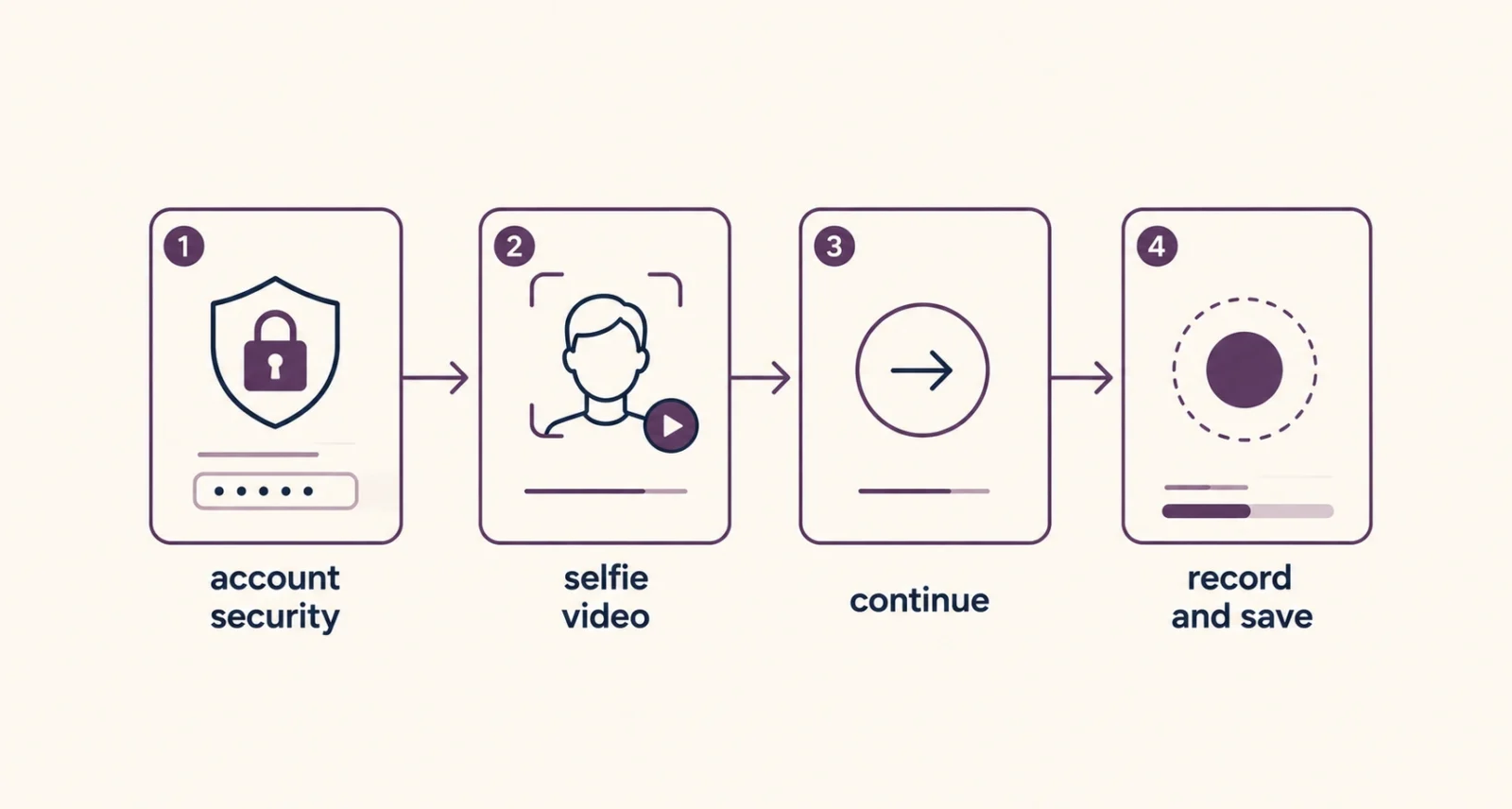
The whole process takes about two minutes on a phone or a computer with a camera.
Step 1: Open your Google Account security settings
Go to your Google Account page and select Security. On a computer you can go straight there from your profile picture in any Google service.
Step 2: Find Selfie video under sign-in options
Look for the section headed How you sign in to Google. Select Selfie video from the list of methods, which sits alongside entries like passkeys and recovery phone.
Step 3: Continue to the recording screen
Select Continue on the Add selfie for sign-in page. If you are on a computer with a webcam, you can record right there. A phone works equally well and usually has the better camera.
Step 4: Record while following the prompts
Look into the camera and complete the short guided head movements Google asks for. These capture your face from several angles rather than a single flat image. Google then saves the video to your account, and it works across your devices.
| Do This First Record somewhere reasonably bright, with your face unobstructed and nothing covering it. A rushed video taken in poor light is one you will regret at the exact moment you are locked out and stressed. That is the only moment it ever matters. |
What Happens When You Actually Use It
The recovery flow mirrors the setup. If you cannot sign in normally, Google may offer the selfie option, and you record a fresh short video performing the same style of head movements.
Google then compares the new video against the one saved on your account. A match confirms your identity and lets you back in. One expectation to set now. Recovery is not always instant, because Google can place unusual recovery attempts on a security hold while it carries out additional checks. That delay is a feature protecting your account, not a fault.
How Google Says It Blocks Deepfakes
The obvious worry is whether someone could sign in using a photo of you, or an AI-generated video. Google addressed this directly.
| The Defence | What It Does |
| Match against your saved video | Confirms the face belongs to the account holder |
| Required live head movements | Proves a real person is present, not a static photo or clip |
| Standard sign-in security checks | Detects suspicious attempts using Google’s existing systems |
Those guided movements are the part doing the real work. As Engadget notes, Google asks you to turn your head in specific ways when you set the feature up and every time you use it. That is far harder to fake convincingly than a still image.
The Privacy Trade-Off, Stated Plainly
You are handing Google a video of your face and asking it to keep it. That deserves a straight assessment rather than either panic or a shrug.
What Google commits to: the video stays encrypted, it serves only to help you sign in, and you can delete it whenever you want. What is worth noticing: Google also mentions that you can choose to share the video for additional purposes, including helping develop its technology. That is presented as optional, so read the setup screens rather than tapping through them.
| The Catch Nobody Prints on the Box Biometrics differ from passwords in one permanent way. If a password leaks you change it in a minute. Your face is not replaceable. That does not make this feature unsafe, and Google’s protections are reasonable, but it does mean the decision deserves thirty seconds of thought rather than a reflex tap. If losing account access would be catastrophic for you, the extra recovery route is probably worth it. If you already have passkeys and a recovery contact working reliably, you may simply not need this one. |
How to Delete Your Selfie Video
Removing it is straightforward, and worth knowing before you set it up rather than after.
- Open the Video Verification page in your Google Account settings.
- Find the saved selfie you want to remove.
- Select Delete beside it and confirm.
One practical note that has nothing to do with privacy. If your appearance changes significantly, Google advises updating the saved video, as The Hacker News highlighted. Faces change with time, weight, facial hair and glasses, and an old reference clip may not match the person trying to get back in.
Selfie Video or Passkey? Use Both
These are not competing options, and treating them as alternatives is the most common misunderstanding around this launch.
| Method | Best Used As | Main Weakness |
| Passkey | Your everyday sign-in, replacing the password | Tied to a device you could lose |
| Recovery contact | A trusted person who can vouch for you | Depends on someone else being reachable |
| Selfie video | A last-resort route when everything else fails | Biometric data you cannot change later |
Google’s own advice is to have several sign-in methods configured, which is sensible regardless of what you think about face data. The failure mode this feature exists to solve is having exactly one route in and losing it. For more on the strongest everyday option, read our explainer on what a passkey is.
Two minutes of setup buys you a route back into your account on the day everything else fails. For most people with a personal Google account, that is a reasonable trade, particularly if your current recovery options are one old phone number and a vague memory.
Frequently Asked Questions
How do I set up Google selfie video sign in?
Open your Google Account, select Security, and find the section headed How you sign in to Google. Choose Selfie video, select Continue on the Add selfie for sign-in page, then record a short clip while following the guided head movements. Google’s shortcut at g.co/signin-selfie takes you straight there and confirms eligibility.
Can I use a selfie instead of my password?
No. This is a recovery method, not a replacement for your normal sign-in. It exists for situations where you cannot use your usual password, device or recovery email, and it sits alongside passkeys and recovery contacts rather than replacing them. Your day-to-day login stays exactly as it was.
Who cannot use selfie video sign-in?
Three groups are excluded. Google Workspace accounts, meaning most work and school accounts, cannot use it. Neither can children’s accounts. Accounts enrolled in the Advanced Protection Program are also excluded, which is intentional, since that programme deliberately limits easier recovery routes for people at elevated risk.
Can someone use a photo or deepfake to get into my account?
Google built several defences against exactly that. Google matches your new video against the saved one. You must also perform live head movements that prove a real person is present rather than a static image. Google’s standard systems for spotting suspicious sign-in attempts still apply on top. No system is perfect, but a still photo alone should not work.
How do I delete my saved selfie video?
Go to the Video Verification page in your Google Account settings, find the saved selfie, and select Delete beside it. Google states the video stays encrypted and serves only to help you sign in, unless you specifically opt to share it for other purposes. You can remove it at any point.
What if my appearance changes?
Update the saved video. Google advises re-recording if your facial appearance changes significantly, since the comparison relies on the stored clip matching the person in front of the camera. Ageing, weight change, facial hair and glasses can all affect it. Treat the saved video as something to refresh occasionally rather than set once.

