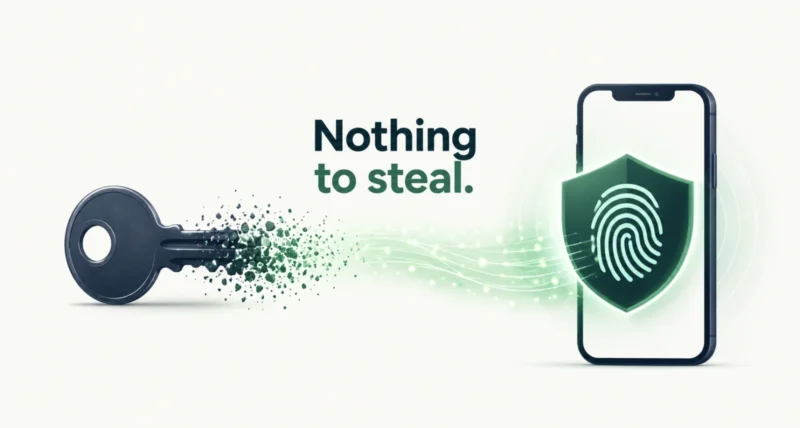
If a website has ever asked you to sign in with your face or your fingerprint instead of a password, you have already met one. So what is a passkey, and why is every major company suddenly pushing you towards it? The short version: a passkey replaces your password with a pair of cryptographic keys, one of which never leaves your device. You cannot forget it, nobody can steal it in a data breach, and here is the part that really matters, it cannot be phished. There are now five billion of them in use. This guide explains how they work and walks you through setting one up.
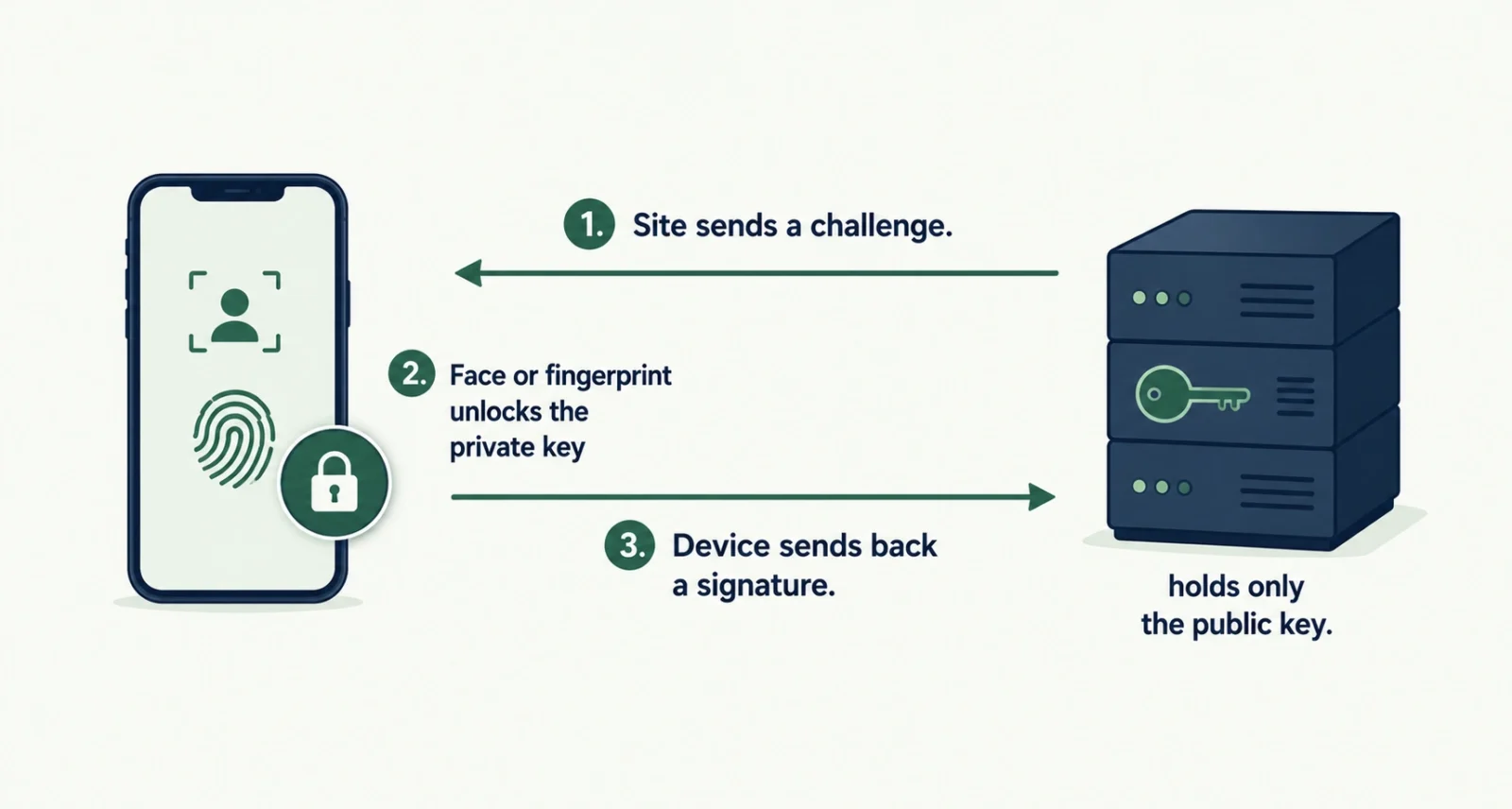
| The Short Answer A passkey is a digital credential that replaces your password. When you create one, your device generates two matched keys. The public key goes to the website, and the private key stays locked on your device, protected by your face, fingerprint or PIN. To sign in, the site sends a challenge, your device signs it with the private key, and the site checks the signature against the public key. No secret is ever typed or transmitted, so there is nothing for a hacker to steal and nothing for a fake site to capture. |
What Is a Passkey, Exactly?
A password is a shared secret. You know it, the website knows it, and that is precisely the problem. Anything two parties both know can be stolen from either of them, guessed, reused, or tricked out of you.
A passkey works on a completely different principle. When you create one, your phone or laptop generates two mathematically linked keys. Think of the public key as a padlock and the private key as the only thing that opens it.
| The Two Halves | Where It Lives | What It Does |
| The public key | On the website’s server | Checks your signature. Useless to a thief on its own |
| The private key | Locked on your device, in secure hardware | Signs the login. Never leaves, never gets sent anywhere |
Signing in works like a challenge and response. The site sends your device a puzzle. Your device asks for your face, fingerprint or PIN to unlock the private key, signs the puzzle, and sends back the signature. The site checks it against the public key it holds. As Apple’s security documentation puts it, “no shared secret is transmitted.” That single sentence is the whole idea.
Good to Know
Your fingerprint and your face never go anywhere. The biometric check happens entirely on your device, and its only job is to unlock the private key sitting in your phone’s secure hardware. The website never sees it, never stores it, and could not get it if it tried.
Passwords vs Passkeys: What Actually Changes
| Password | Passkey | |
| What the site stores | A secret that unlocks your account | A public key that unlocks nothing |
| If the site gets breached | Your credential leaks | Attackers get a useless public key |
| Can it be phished | Yes, easily | No, it is bound to the real site |
| Can it be reused or guessed | Yes, and most people do reuse | Never, every passkey is unique |
| What you do to sign in | Remember and type it | Look at your phone, or touch a sensor |
| Average sign-in time | About 27.5 seconds | About 13.6 seconds |
That breach row deserves a second look. When a company you use gets hacked, a leaked password is a genuine emergency. A leaked public key is a shrug. Nothing there is worth taking. That is also why credential stuffing, the automated attack that fires leaked passwords at every login form on the internet, cannot touch a passkey. There is no password to stuff.
The Real Superpower: Phishing Stops Working
Every other benefit is a bonus. This is the one that changes the maths, and most explainers bury it under paragraphs about convenience.
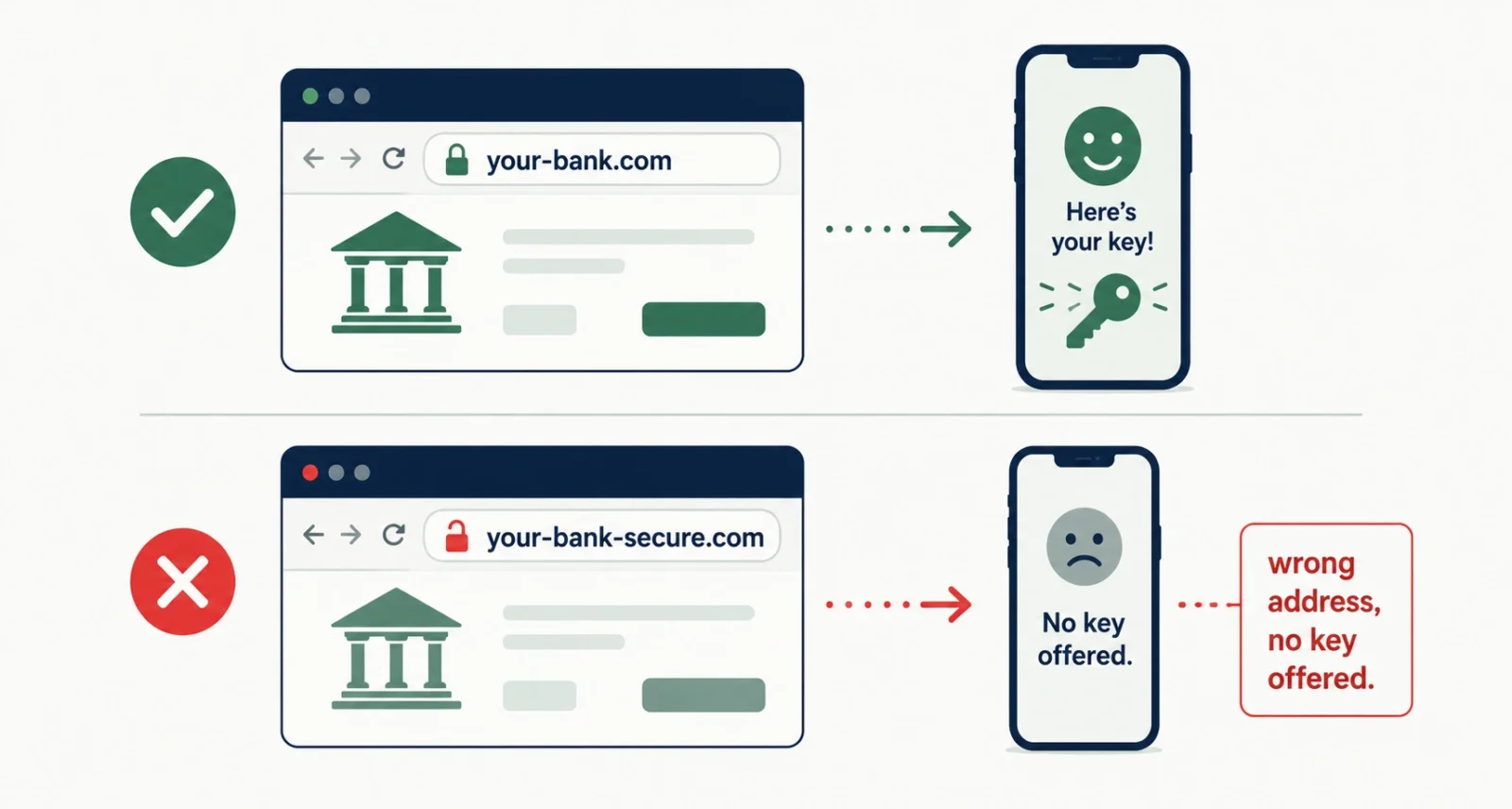
A passkey is cryptographically tied to the exact web address it was made for. Your device checks the domain before it offers the key. So if you click a link in a convincing scam email and land on a pixel-perfect fake of your bank, your phone will simply not offer the passkey. Not because you were clever. Because the fake site is not your bank, and your device can tell. Apple’s developer documentation describes passkeys as intrinsically linked to the site they were created for, so people cannot be tricked into using one on a fraudulent site.
| The Cool Part Compare that with a password plus an SMS code. A good fake site captures both and replays them to the real bank within seconds, and your second factor has done nothing. A passkey cannot be replayed, because the signature it produces only works for the genuine domain. When Google moved its own staff to passkeys, successful phishing attacks against employee accounts fell to zero. Human error was not reduced. It was designed out. |
Regulators have noticed. The US standards body NIST updated its digital identity guidelines in 2025. They now require a phishing-resistant option at the standard assurance level, and they recognise synced passkeys as meeting that bar. Passkeys are no longer a consumer convenience. They are becoming the baseline.
How to Set Up a Passkey in Under Two Minutes
The exact wording varies by site, but the shape of it is always the same.
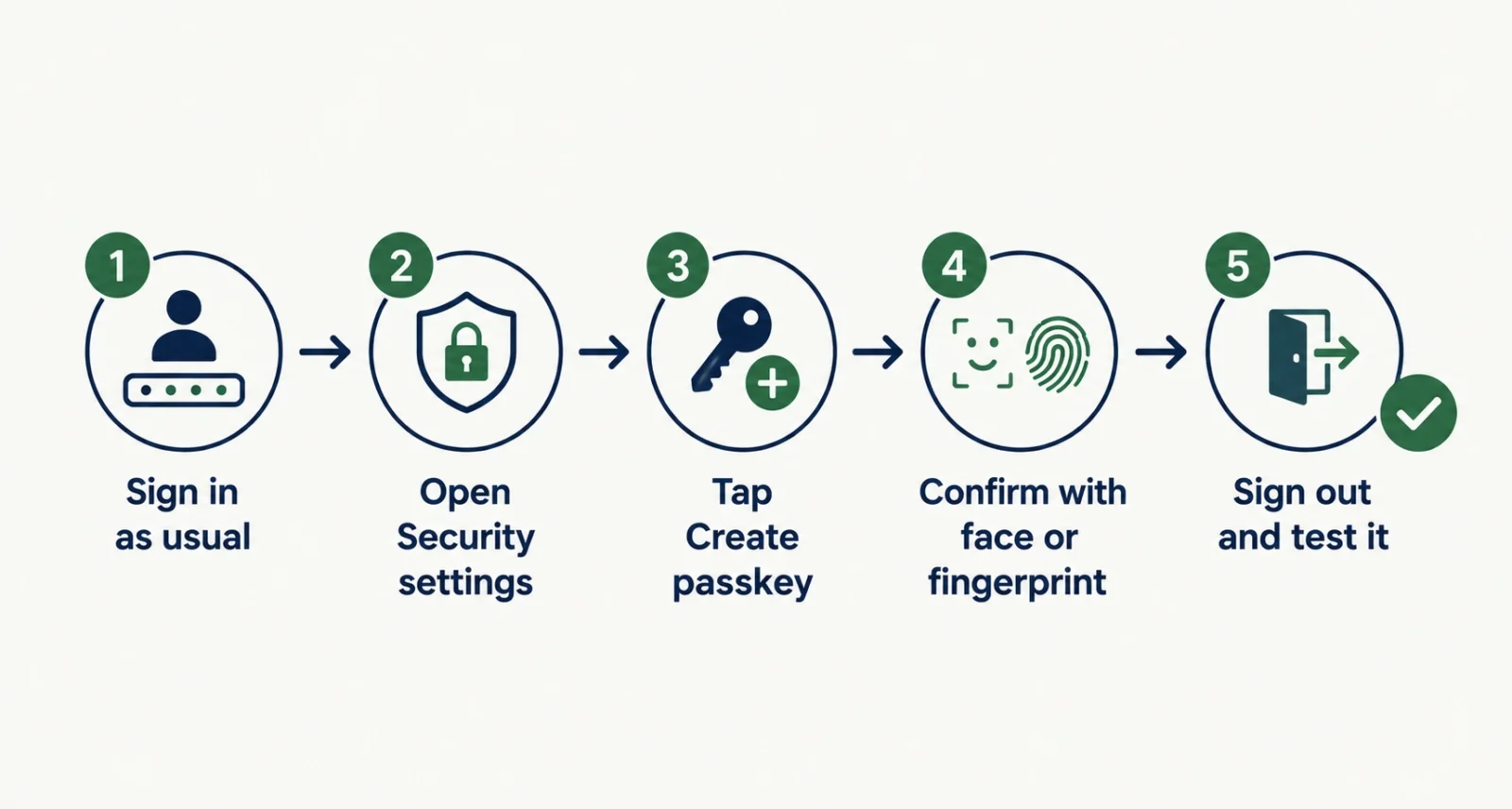
- Sign in to the account as you normally would, with your existing password.
- Open the account’s Security or Sign-in settings.
- Look for Passkeys, or a phrase like “Sign in without a password.” Tap Create or Add.
- Confirm with your face, fingerprint or device PIN when your phone or laptop asks.
- Sign out and back in once to confirm it works before you change anything else.
Two things need switching on first, and this is where most people get stuck. Your device needs a screen lock. Your cloud keychain needs to be active too, so the passkey syncs instead of stranding itself on one device.
| Your Device | Turn This On First | Where Passkeys Are Saved |
| iPhone, iPad, Mac | iCloud Keychain, plus two-factor authentication | iCloud Keychain, end-to-end encrypted |
| Android | Screen lock, and sign in to your Google Account | Google Password Manager |
| Windows PC | Windows Hello (face, fingerprint or PIN) | Windows, or your password manager |
| Any device | A password manager that supports passkeys | 1Password, Bitwarden, Dashlane and others |
One flow surprises people: signing in on a computer using a passkey that lives on your phone. Choose the passkey option, a QR code appears on screen, you scan it with your phone camera, and confirm with your fingerprint. Bluetooth needs to be on, because the two devices do a quick proximity check. That check is deliberate. It means someone on the other side of the world cannot trigger your passkey. Both Google’s help pages and Apple’s cover the exact taps for their platforms.
Which Accounts to Set Up First
Do not try to convert everything in one sitting. Start where the damage would be worst, and that is almost certainly your email. Every other account you own has a password reset link pointing at it, which makes your inbox the master key to your entire life. Secure that first.
| Priority | Account Type | Why It Comes First |
| 1 | Your main email | Every password reset in your life lands here |
| 2 | Your Apple, Google or Microsoft account | It now holds your synced passkeys, so it is the keyring |
| 3 | Banking and payment apps | Where the money actually is |
| 4 | Shopping accounts with saved cards | Stored payment details, and a favourite phishing target |
| 5 | Social media and messaging | Identity theft, and a springboard to scam your contacts |
Roughly half of the world’s top hundred websites now support passkeys. You will not be able to convert everything, but you can cover the accounts that matter in an afternoon.
What Happens If You Lose Your Phone?
This is the question that stops most people, and the answer is genuinely reassuring. Your passkeys are almost certainly not trapped on that phone.
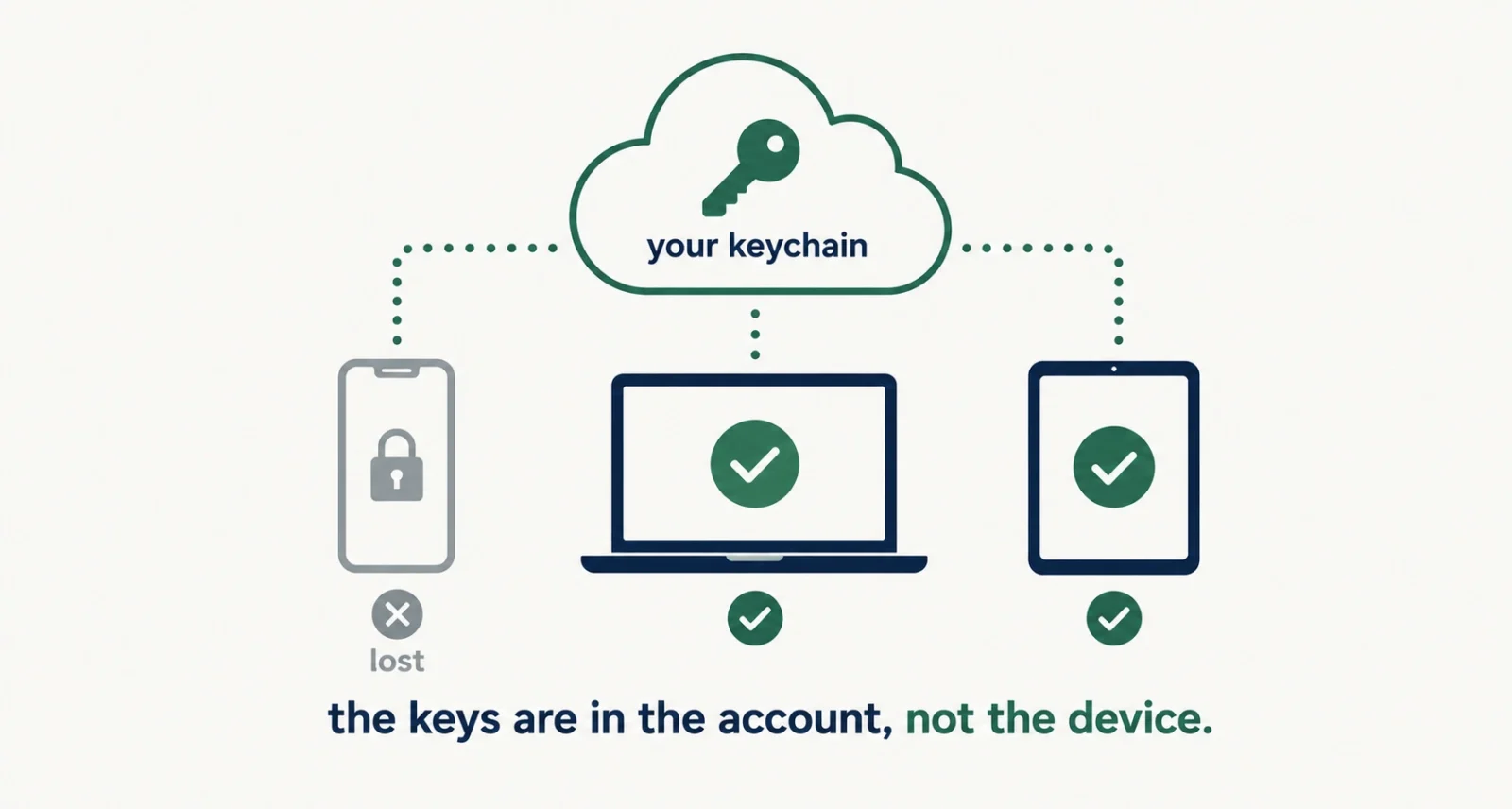
Passkeys sync to your cloud keychain, whether that is iCloud Keychain, Google Password Manager or a password manager like 1Password or Bitwarden. They live in your account, not in the handset. Lose the phone, buy a new one, sign in to the same account, and your passkeys come back. If you also own a laptop or tablet, they are already there right now.
Apple goes further and lets you recover your keychain even if every one of your devices is lost, using an escrow system protected against brute-force attacks. You authenticate with your Apple Account, respond to a code sent to a trusted phone number, and enter your device passcode. You get ten attempts before you have to call Apple Support, which is strict by design.
| Worth Knowing There is one genuine trap. Some passkeys are device-bound rather than synced, meaning they live on that hardware alone. If the only passkey for an account was device-bound and that device is gone, you will need the account’s recovery route instead. So before you go passwordless anywhere important, check where the passkey is being saved, and make sure your recovery path does not depend on the very phone you might lose. |
If your phone does go missing, work in this order:
- Use Find My iPhone or Find My Device to lock or erase the handset.
- Sign in on a trusted computer and check that your synced passkeys are there.
- Confirm another sign-in method works before you delete anything.
- Only then remove the lost device from your accounts.
- Add a fresh passkey on the replacement phone, and a second one on your laptop.
The Catch Nobody Mentions
Here is the part the marketing skips, and it is the most useful thing in this article. Adding a passkey does not automatically remove your password. On most sites, the old password sits there quietly, still working.
Which means an attacker who cannot phish your passkey does not have to. They can phish the password you left behind, or trigger the SMS reset you never turned off. You have fitted a vault door to a tent. The passkey protects the front door you now use, while the back door stands open. Roughly 57 percent of organisations still lean on phishable sign-in methods as their main route in.
| Your Move Once your passkey works, go back into the account settings and close the back door. Delete the password if the service allows it, or switch on a passwordless option such as Google’s “skip password when possible” setting. Turn off SMS as a recovery method wherever a stronger option exists. And put two-factor authentication on the cloud account that now stores your passkeys, because that account has quietly become your keyring. Apple insists on this already. Everyone else should too. |