
Open File Explorer in Windows 11 dark mode and there is a good chance you have been hit by a brief but jarring white flash. It strikes when you open a new tab, switch folders, or even resize a pane. On some PCs it happens almost every time.
It is not your monitor and it is not your eyes. It is a real Microsoft bug, one the company has been chasing on and off since 2023. It came back hard with the KB5070311 update in December 2025, and Microsoft finally shipped a proper fix in the May 2026 Patch Tuesday update.
Below is what is actually going on and the steps to stop the flashing, starting with the cleanest fix and working down to the workarounds that help when you cannot update.
Here is the short version. Install the latest Windows update. If you cannot, set File Explorer to open to Home instead of This PC, and restart the Explorer process from Task Manager. One of those will almost certainly stop the flashing.
1. What Is Actually Causing the Flash
The flash is a dark-mode painting bug. When File Explorer opens a new window, tab, or pane, Windows briefly draws the surface in light mode before it switches to dark. That short, bright frame is the white flash you see.
It gets worse when File Explorer is set to open to This PC. Microsoft fixed the Home path earlier, but the This PC path kept flashing for months. According to BleepingComputer, the May 12, 2026 Patch Tuesday update finally patches both the This PC flash and the panel-resize flash.
If you want to know exactly when it shows up, it is most likely when you:
- Open File Explorer, especially when it is set to This PC.
- Create a new tab or switch between Home, Gallery, and folders.
- Toggle the Details pane on or off.
- Resize the preview pane or any Explorer panel.
2. Update Windows First, This Is the Proper Fix
If you can update, this is the one step that actually solves the problem rather than masking it. Take five minutes and do this first.
- Press Windows + I to open Settings.
- Click Windows Update in the left sidebar, then Check for updates.
- Install whatever is pending, especially KB5083631 (the April 2026 preview) or the May 12, 2026 Patch Tuesday update.
- Restart your PC when prompted.
After the restart, open File Explorer a few times. The white flash should be gone for good. As Windows Latest pointed out, this same update also lowered RAM usage and tidied up Explorer crashes, so it is worth doing for those reasons alone.
If you are on a managed work PC and updates are blocked by IT, jump to the next section.
3. The Open-to-Home Trick
This is the workaround almost everyone settles on when they cannot update right away. The flash is far less common when File Explorer opens to Home rather than This PC, because Microsoft fixed the Home path months earlier. Switching it takes ten seconds.
- Open File Explorer with Windows + E.
- Click the three-dot menu at the top of the toolbar, then choose Options.
- In the Folder Options window, on the General tab, find the dropdown labelled Open File Explorer to.
- Change it from This PC to Home.
- Click OK.
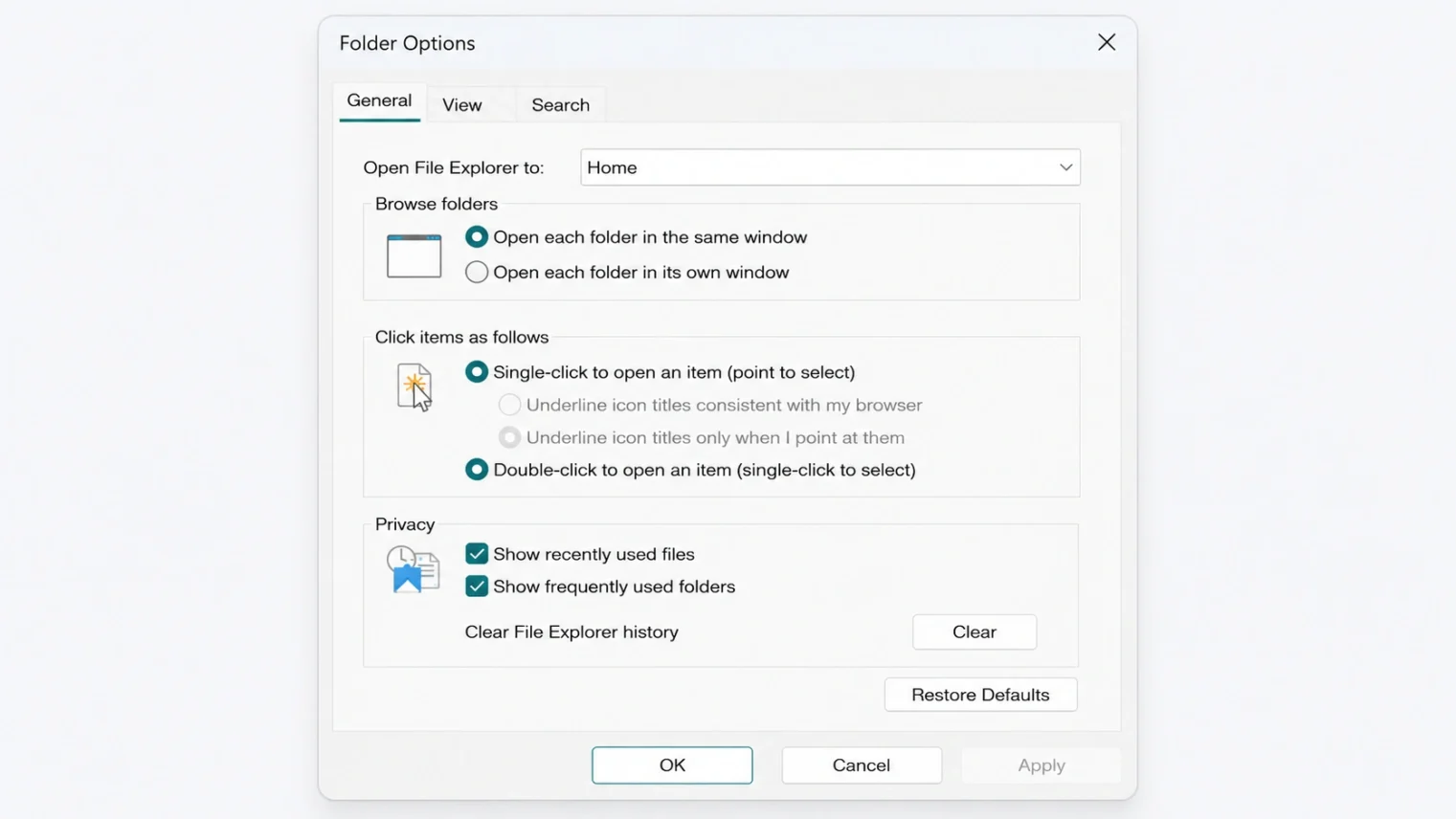
You may still see the occasional flash if you navigate into This PC manually, but for daily use, opening Explorer or popping a new tab, it almost disappears.
4. Restart Explorer in Three Clicks
Sometimes the flash starts mid-session, especially after a long uptime. Restarting the Explorer process clears it instantly without a full reboot, and you can do it in three clicks.
- Press Ctrl + Shift + Esc to open Task Manager.
- In the Processes tab, scroll to find Windows Explorer.
- Right-click it and choose Restart.
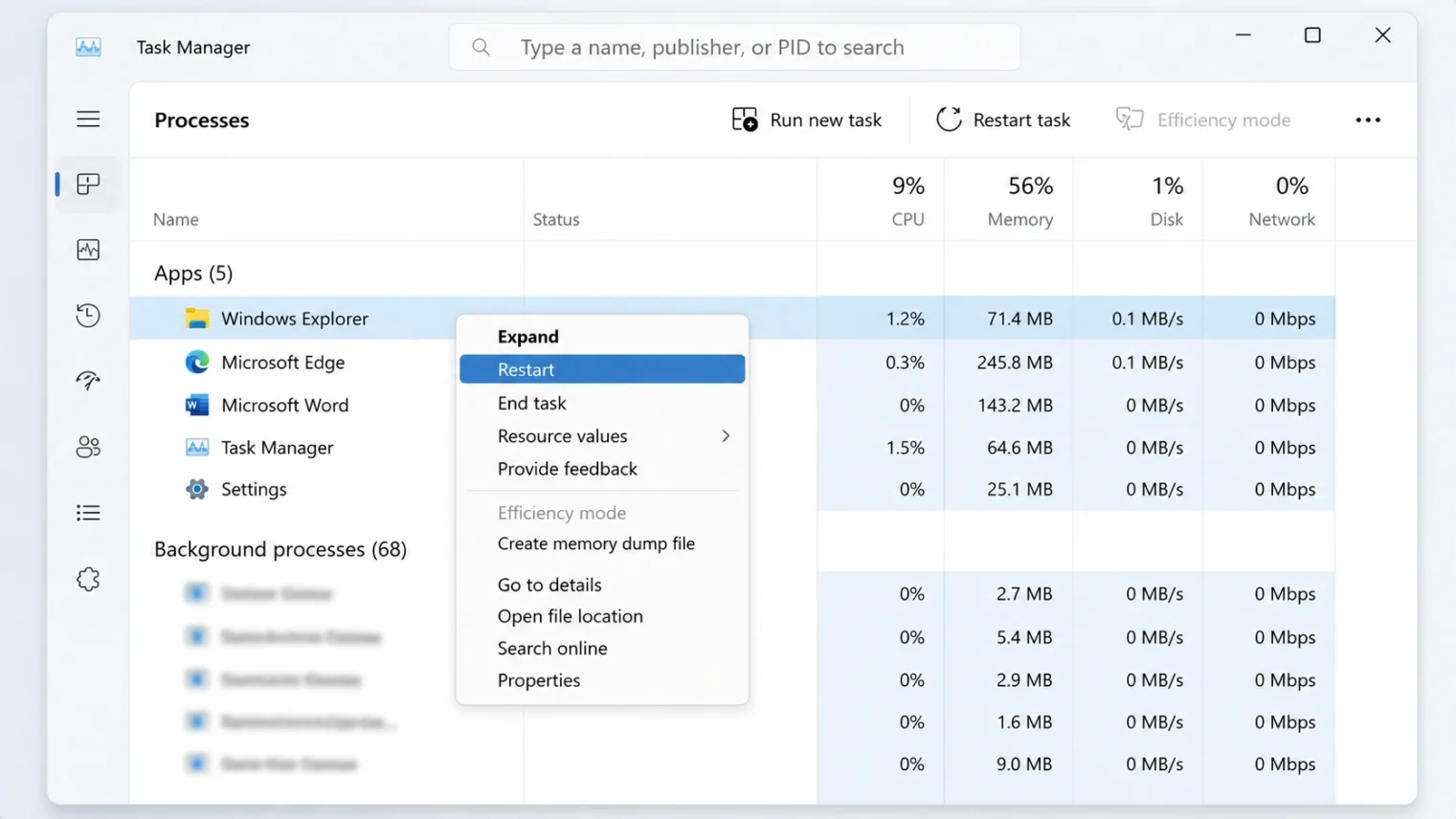
Your taskbar will blink for a second and File Explorer will come back fresh. This is not a permanent fix on its own, but combined with the open-to-Home tweak it keeps the flash away on most PCs.
5. A Few Smaller Things Worth Trying
If the flash is still hanging around, three smaller tweaks usually finish the job.
Hide the Details pane. In File Explorer, click View, then Show, then Details pane to toggle it off. Some users report the flash is tied to that pane redrawing every time, and hiding it shuts that down.
Uninstall a recent preview update. If the flashing started right after a Windows preview update, especially KB5070311, you can roll it back. Go to Settings, Windows Update, Update history, Uninstall updates, find the offending entry, and remove it. Then pause optional updates for a couple of weeks until Microsoft’s full fix reaches your channel.
Switch to Light mode for the night. Settings, Personalization, Colors, Choose your mode, Light. Not ideal if you live in dark mode, but it stops the flashing instantly and is a useful one for a late-night work session you need to finish without getting flashbanged.
One last thing. Steer clear of third-party patcher tools and registry hacks for this bug. The combination of the May 2026 update, open-to-Home, and the Explorer restart handles it for nearly everyone, and a wrong registry edit can cause far bigger problems than a brief white flash.
Frequently Asked Questions
Why does my File Explorer keep flashing white in Windows 11?
It is a dark-mode bug. Windows briefly paints File Explorer in light mode before switching to dark, and the bright frame is the flash. It got worse with the KB5070311 update in December 2025 and was patched again in the May 12, 2026 Patch Tuesday update.
Does the May 2026 Windows update fix the white flash?
Yes. The fix was tested in the April 2026 optional preview KB5083631 and then rolled out to all Windows 11 users in the Patch Tuesday update on May 12, 2026.
Why is the flash worse when File Explorer opens to This PC?
Microsoft fixed the flash for the Home view earlier but missed the This PC view for months. Setting Explorer to open to Home reduces or removes the flash for most users while you wait for the full fix.
Can I stop File Explorer flashing white without updating Windows?
Yes. Set Explorer to open to Home, restart Windows Explorer from Task Manager, or switch to Light mode for the time being. None of these fully replace the official update, but combined they help in most cases.
Is there a permanent fix?
Yes. Install the May 12, 2026 Patch Tuesday update or any newer Windows 11 update. That is the official Microsoft fix and the most reliable solution.
If this helped, you might also enjoy our guide on how to remove the Recommended section in Windows 11, another quick Windows 11 tweak most people never find.

