Making short AI videos has become surprisingly easy in 2026. You can now go from a one-sentence text prompt to a downloaded MP4 in about 90 seconds, without paying a dollar, without a credit card, and without watching a single YouTube tutorial. Two years ago this was science fiction. Today it works in your browser.
This guide shows you exactly how. No marketing fluff, no “sign up for our newsletter,” no “download our PDF.” Just three free tools that actually work in 2026, with the steps to make your first video in each of them. By the end of this post you will have generated at least one AI video clip yourself.
Here is the short version. Use Kling AI for the best overall free output (66 free credits every day, refreshes every 24 hours). Pika Labs is the simplest mobile-friendly alternative (80 credits per month, easy interface, iOS app). Luma Dream Machine works well if you want clean cinematic motion from a single short clip per day. All three are genuinely free. All three work in any web browser. None of them require a credit card.
1. What You Need Before You Start
Almost nothing. The whole process happens in your web browser. You need:
- A web browser. Chrome, Edge, Safari, Firefox, all work. Mobile browsers work too.
- An email address. To create a free account on the tool you choose. A Google account is enough.
- A clear idea of the clip you want. One sentence is enough. “A golden retriever puppy running through a sunlit field of yellow tulips, slow motion, cinematic.”
- Patience for one generation cycle. Each clip takes 60 to 180 seconds to render. The first time you do this it feels slow. By the third clip you stop noticing.
Set expectations: Free AI video clips in 2026 are typically 5 to 8 seconds long, 720p resolution, and include a small watermark from the tool. You cannot make a full 30-second commercial on a free plan. You can absolutely make compelling 5 to 8 second clips for social media, presentations, blog headers, or just for fun.
2. Method 1: Kling AI (Best Free Option Overall)
Kling AI from Chinese tech company Kuaishou gives you 66 free credits every 24 hours, refreshed daily. That is enough for roughly 3 to 6 short video clips per day in Standard mode (1 to 2 clips in Professional mode). The output quality is genuinely good (it competes with Google Veo and Sora at the basic tier), and the daily refresh is the most generous in the industry. Free clips are 5 seconds long, 720p, and include a watermark. Note that free-tier output is for personal experimentation only and cannot be used commercially per Kling’s free plan terms. This is my top recommendation if you want a real free tool, not a one-time trial.
Step-by-Step: Generate Your First Kling Video
First, open klingai.com in your browser. You will see a sign-in button in the top right that says “Sign in for free credits.” Click it. Sign up using your email address or a Google account. Verify your email (Kling sends you a code), then log in.

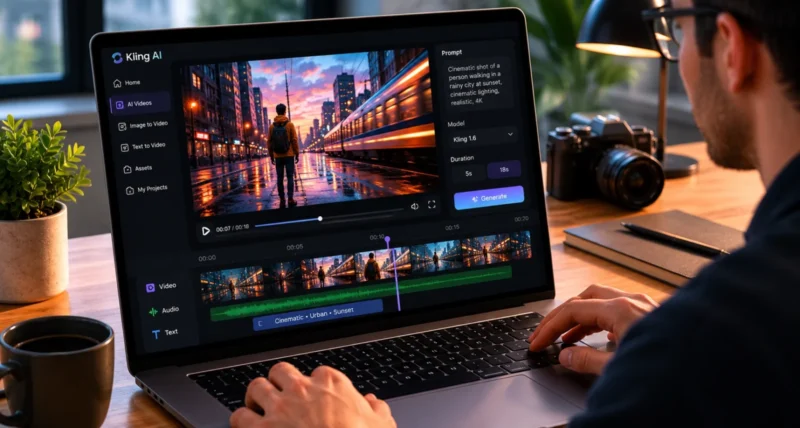
Next, once logged in, click the menu icon and choose “AI Video” then “Text to Video.” You will see a prompt input box at the bottom of the screen. This is where you type a description of the clip you want to create.
Then type your prompt. The more specific and visual you are, the better the output. A good test prompt to start with:
A golden retriever puppy running through a sunlit field of yellow tulips, slow motion, cinematic lighting, shallow depth of field, 4K quality
Now review the settings panel on the right side. The defaults usually work fine but check that you have:
- Duration: 5 seconds (the standard free tier length).
- Aspect ratio: 16:9 for YouTube, 9:16 for Reels and TikTok.
- Model version: Kling 2.6 is generally the best quality-to-credit ratio for free users. Kling 3.0 (the newest model, released February 2026) is also available but consumes more credits per generation, so you may get fewer clips per day.

After that, click the “Generate” button. A progress bar will appear. Generation usually takes 60 to 90 seconds for a 5-second clip. You can navigate to other parts of the site while it processes. You will get a notification when the clip is ready.
Finally, once the clip is ready, hover over it to see options. Click the download icon (a downward arrow) to save the MP4 to your computer. The clip will include a small Kling watermark in the corner. The clip is yours to use for personal projects.
Credit-saving tip: Generate your idea at standard 5-second 720p settings first. If you like the result, only then regenerate at higher quality. Most beginners waste credits by jumping straight to the highest settings and discovering the prompt did not work. Test cheap, finalise expensive.
3. Method 2: Pika Labs (Simplest for Beginners and Mobile)
Pika Labs (at pika.art, now sometimes just called Pika) is the easiest tool to start with if you have never used AI video before. The free plan gives you 80 monthly credits using the current Pika 2.5 model, and the interface is designed to look more like Instagram than a video editor. Pika has an official iOS app as well as the web version, so it works smoothly on a phone. Free-tier clips are 480p with a watermark. Note: commercial use is restricted to paid plans (Pro tier at $28/month and above) per Pika’s current terms, so the free tier is for personal and experimental use only.
Step-by-Step: Generate Your First Pika Video
First, go to pika.art in any browser. Click “Try Pika” or “Sign up.” You can register with Google, Discord, or email. No credit card is requested.
Next, once you are inside the editor, you will see a single prompt input box at the bottom of the screen. Pika is intentionally minimalist. Type your video idea here.
Then pick a style or effect. Pika is known for its “Pikaffects” library (cartoon transformations, retro VHS, melt, squish, explode, etc.) which makes it good for fun social content. Click the style chip next to the prompt to apply one.

Now click the “Generate” button. Pika processes faster than Kling on average (around 30 to 60 seconds for a short clip). You will see your generation appear in your library when it is done.
Finally, click the video to open it, then use the download button to save it. Free Pika clips include a watermark and are limited to 480p resolution. Paid plans remove these restrictions: Standard $8/month, Pro $28/month (the first tier with commercial use rights), and Fancy at $76/month.
Mobile users: Pika has an official iOS app called "Pika: AI Video and Trend Maker" by Mellis, Inc. Android users can access the same features through pika.art in Chrome or Safari. The mobile experience is genuinely good for casual use, you can record voice notes as prompts and trigger generation directly from your phone.
4. Method 3: Luma Dream Machine (Clean Motion, One Clip Per Day)
Luma Dream Machine from Luma Labs is known for producing some of the cleanest, most cinematic motion of any AI video tool, particularly for camera moves and physics. The free tier is genuinely free but tight: roughly 80 daily credits, which gets you about one 5-second 720p video per 24 hours. Credits refresh daily and do not roll over. Free clips are watermarked and limited to personal use (commercial use requires a paid plan). For beginners who only want one quality test clip per day to learn AI video, Luma is the cleanest choice.
Step-by-Step: Generate Your First Luma Video
First, go to lumalabs.ai in any browser. Click “Sign in” or “Get started.” You can register with Google or email. No credit card is needed. The free tier is active from the moment your account is created.
Next, from your Luma dashboard, click into “Dream Machine.” This is the AI video model. You will see a prompt input field at the bottom of the screen along with options for text-to-video and image-to-video.
Then write a specific descriptive prompt. Luma responds particularly well to camera and motion details. A test prompt that works well:
A slow cinematic drone pull-back over a coastal cliff at sunset, soft golden light, gentle waves below, warm tones, shallow depth of field, 35mm film look

Now click “Generate.” Luma usually takes 90 to 120 seconds to render a 5-second clip. The result appears in your library. Luma is particularly good at fluid camera moves (pans, tilts, dolly shots) and natural lighting changes.
Finally, once the clip is ready, click it to preview, then use the download button to save the MP4. The clip includes a Luma watermark. Free credits reset every 24 hours, so plan to use your one daily generation thoughtfully.
One-shot mindset: Because Luma's free tier is essentially one video per day, write your prompt carefully before hitting generate. Beginners often regenerate the same prompt three or four times on tools with plenty of credits. On Luma free you do not get that option, so think of each generation as a small commitment. The flip side: the constraint forces you to write better prompts.
5. How to Write a Prompt That Actually Works
This is where most beginners go wrong. They type “a cat” and wonder why the video looks like a bad video-game cutscene. Good prompts have five ingredients.
| Ingredient | Example |
| Subject | A golden retriever puppy |
| Action | running through a field |
| Setting / atmosphere | sunlit, yellow tulips, late afternoon, warm tone |
| Camera and motion | slow motion, low-angle tracking shot, shallow depth of field |
| Style | cinematic, 35mm film look, soft natural lighting |
Combine them all and the prompt becomes specific enough for the AI to produce something usable:
A golden retriever puppy running through a sunlit field of yellow tulips at late afternoon, warm tones, slow motion, low-angle tracking shot, shallow depth of field, cinematic 35mm film look, soft natural lighting
Prompts That Tend to Fail
- Too vague: “A nice video of a cat.” The AI has no idea what nice means. It will generate a generic, often weird, cat clip.
- Too many subjects: “A cat, a dog, a parrot, and a horse playing chess.” Current AI struggles with more than 2 to 3 entities in a scene.
- Complex physical interactions: “Two people shaking hands.” Hands and physical interactions between people are the hardest things for AI video to render correctly. Expect distortion.
- Specific real people: Most tools refuse to generate clips of specific named celebrities or public figures. Generic “a woman in her 30s” prompts work fine.
- Text in the video: Asking for specific written text inside the video (a sign, a poster, a label) usually produces unreadable gibberish. Add the text afterwards in a regular video editor.
The 3-prompt rule: Almost no AI video tool produces a perfect clip on the first try. Plan to generate the same prompt 2 to 3 times with small variations before you get one you actually want to use. This is normal. Even paid users at $250 a month accept this workflow.
6. What to Do With Your Free AI Videos
You have your downloaded MP4. Now what? A few honest things to know.
Where Watermarks Sit
Free-tier clips from Kling, Pika, and Gemini all include a small tool watermark, usually in a corner. You have three options:
- Live with it. For personal social posts, family videos, or experiments, the watermark is harmless.
- Crop it out. Use any video editor (CapCut is free) to crop the video slightly so the watermark is outside the frame. This costs you a small bit of the visual area.
- Paid plans on all three tools remove the watermark. Kling starts at around $8 to $10 per month, Pika at $8, Gemini at $19.99.
Where AI Videos Work Well in 2026
- Social media (Reels, Shorts, TikTok) where 5 to 10 second clips are the norm.
- Blog header animations and looping backgrounds for websites.
- Concept storyboards for film, advertising, and game pre-production.
- Personal projects: birthday cards, family videos, memes.
- B-roll inserts in longer videos where the AI clip plays for 2 to 3 seconds.
Where AI Videos Still Struggle
- Long-form content: anything over 10 to 15 seconds requires stitching multiple clips, which makes character and scene consistency hard.
- Complex dialogue: lip-sync is improving but still inconsistent on free tiers.
- Repeatable characters across multiple clips: free models often produce a different-looking face every time you generate.
- Brand or commercial work that requires precise control: paid tools and human editors still win here.
7. Quick Comparison: Kling vs Pika vs Gemini
Side by side, what you actually get on the free tier of each tool.
| Feature | Kling AI | Pika Labs | Luma Dream Machine |
| Free credits | 66 per day (refreshes daily) | 80 per month | ~80 per day (~1 video/day) |
| Clip length | 5 seconds (free tier) | 5 seconds (most generations) | 5 seconds (standard) |
| Resolution | 720p | 480p | 720p |
| Audio in video | Available on some models | No (silent clips) | No (silent clips) |
| Watermark on free | Yes (corner) | Yes (corner) | Yes (corner) |
| Commercial use free | Not permitted | Not permitted | Not permitted |
| Best for | Most clips per day, good quality | Mobile, social, beginner-friendly | Cinematic motion, camera moves |
| Sign up URL | klingai.com | pika.art | lumalabs.ai |
If you are new and want one recommendation, start with Kling AI. The 66 daily credit refresh is the most generous free tier in 2026, and the output quality is genuinely good. If Kling feels overwhelming, drop to Pika Labs for a simpler interface and a mobile app. Try Luma Dream Machine when you specifically want cinematic camera moves on a single daily clip.
8. Honest Limitations of Free AI Video
Some things worth knowing before you commit hours to this.
- Quality vs paid is real. Paid AI video tools at $20 to $50 per month produce noticeably better results than free tiers. If you are doing this for client work or brand content, factor that in.
- Commercial use restrictions vary. Some free tiers ban commercial use of generated clips. Pika allows it on all plans. Kling and Gemini have more restrictive free-tier terms. Check the current terms before monetising AI-generated content.
- Daily limits can run out fast. Once your free credits are gone for the day or month, you wait. The 24-hour reset on Kling is the most reliable.
- Tools change pricing frequently. Free tiers can become trial-only without notice. The 2026 free landscape is still in flux. What works in June may change by December.
- Generation can fail. Sometimes the model produces something completely unusable for reasons that are hard to debug. Plan for some wasted credits.
Frequently Asked Questions
What is the best free AI video generator in 2026?
Kling AI is the best overall free option in mid-2026. It offers 66 free credits every 24 hours (refreshes daily, does not roll over), generates 5-second clips at 720p, and works in any browser. The quality is competitive with paid tools at the basic tier. Pika Labs is a strong alternative if you want a simpler interface and a mobile app. Luma Dream Machine is the best choice for cinematic camera moves on a single daily test clip. Note that Google Gemini’s free tier in 2026 does not reliably include video generation. Veo video generation typically requires a paid Google AI subscription, with limited free access available through Google Vids for personal accounts.
Can I make AI videos without signing up?
Almost all reputable AI video tools require an account because they need to track your credit usage. A few sites advertise “no signup” but typically watermark heavily, limit you to a single short test, or aggregate other tools behind a paywall. The practical answer: sign up with an email or Google account. It takes 2 minutes and unlocks far better tools.
Are free AI videos watermarked?
Yes. All major free tiers include a small watermark from the tool, usually in a corner. Kling adds a Kling logo, Pika adds a Pika logo, Luma adds a Luma logo. You can crop the watermark out in a video editor, or upgrade to a paid plan (typically $8 to $30 per month) to remove it.
How long can free AI videos be?
Free-tier video lengths in 2026: Kling produces 5 second clips on the free plan; Pika produces clips up to about 5 seconds; Luma produces 5 second clips. To make a longer video, generate multiple clips and stitch them together in a free editor like CapCut or DaVinci Resolve. Note that character and scene consistency across multiple AI clips is challenging on free tiers.
Can I sell or monetise videos made with free AI tools?
Generally no on free tiers. Kling AI’s free plan explicitly excludes commercial use. Pika’s commercial rights start at the Pro plan ($28/month). Luma Dream Machine’s free plan is for personal experimentation only and excludes commercial use. To use AI-generated videos in ads, paid client work, or monetised YouTube content, you typically need a paid plan ($8 to $30 per month depending on the tool). Always read the current terms of service before commercial use, since these terms can change quarterly.
Do I need a powerful computer to make AI videos?
No. All the tools in this guide run in your web browser. The actual video generation happens on the tool’s servers, not on your device. A basic laptop, Chromebook, or even a phone is enough. You just need a reliable internet connection.
Why does my AI video look weird or distorted?
The most common reasons: your prompt was too vague (“a person walking” instead of a detailed scene description); your prompt asked for something AI struggles with (specific text, multiple people interacting, hands gripping objects, complex physics); or you got an unlucky generation. The 3-prompt rule applies: regenerate the same prompt 2 to 3 times with small wording variations before judging the tool.
Is it legal to use AI-generated videos online?
Generally yes, with caveats. AI-generated content is legal to create and share. However, you should not generate clips that impersonate specific real people, infringe trademarks, or violate the AI tool’s terms of service. Some social platforms (TikTok, YouTube, Meta) now require disclosure that content is AI-generated. Check the current disclosure rules for the platform where you plan to post.
Should I use the free tier or pay for an AI video tool?
Start free. If you are just learning, exploring ideas, or making personal content, the free tier is plenty. Upgrade to a paid plan only when you find yourself running out of credits regularly, need 1080p output, need to remove watermarks, or need commercial-use rights for client work. The honest decision point is when you are generating 10+ clips per week.