
Imagine trying to keep track of billions of files spread across hundreds of storage buckets, using a pile of fragile scripts. It is slow, messy, and easy to get wrong. Google Cloud just made it far simpler with a feature that turns your entire storage estate into a single, searchable table.
This easy guide explains Storage Insights datasets, what it does, why it matters, and a clear step-by-step on how to set it up and use it. No deep cloud expertise needed. Let us dive in.
The Short Version
Short on time? Here is the whole idea in one view.
| Question | Quick Answer |
| What is it | A tool that indexes your whole Google Cloud Storage into a searchable BigQuery table |
| What is new | Activity insights are now generally available, showing how your data is accessed |
| Why it helps | Cut storage costs, place data smartly, and fix errors using simple SQL queries |
| How you use it | Turn it on, set a scope, link it to BigQuery, then run queries |
| Who it is for | Cloud admins and teams managing large amounts of data on Google Cloud |
1. What Are Storage Insights Datasets
Let us start simple. As Google explains on its official Cloud blog, a Storage Insights dataset automatically gathers details about every file and bucket you store on Google Cloud. It then drops them into a BigQuery table you can search.
Think of it like a smart, always-updated spreadsheet of your entire cloud storage. Instead of writing custom scripts to list files one bucket at a time, you simply ask questions in plain SQL. You get instant answers.
It is part of a larger toolkit called Storage Intelligence. The big news in this update is that activity insights are now generally available. That means you can finally see how your data is being used, not just what you have.
Quick Take: Before, you could see what files you had. Now you can also see how they are accessed, moved, and changed, all from one searchable table. That is the leap this update delivers.
2. What Information It Captures
The dataset keeps a rolling, regularly refreshed picture of your storage. It pulls together three kinds of information.
- Metadata, a daily snapshot of your projects, buckets, and files, including storage class, location, and age.
- Activity data, records of reads, writes, updates, deletes, and errors, plus handy summaries per bucket and project.
- Errors and events, details about any problems during the data collection itself.
The metadata refreshes every 24 hours, while the new activity data typically appears within about four hours of the activity happening.
Worth Knowing: The activity views can show which regions talk to your bucket the most, your busiest file prefixes, and where errors are piling up. That is the kind of detail that used to take a custom data pipeline to get.
3. How to Set It Up, Step by Step
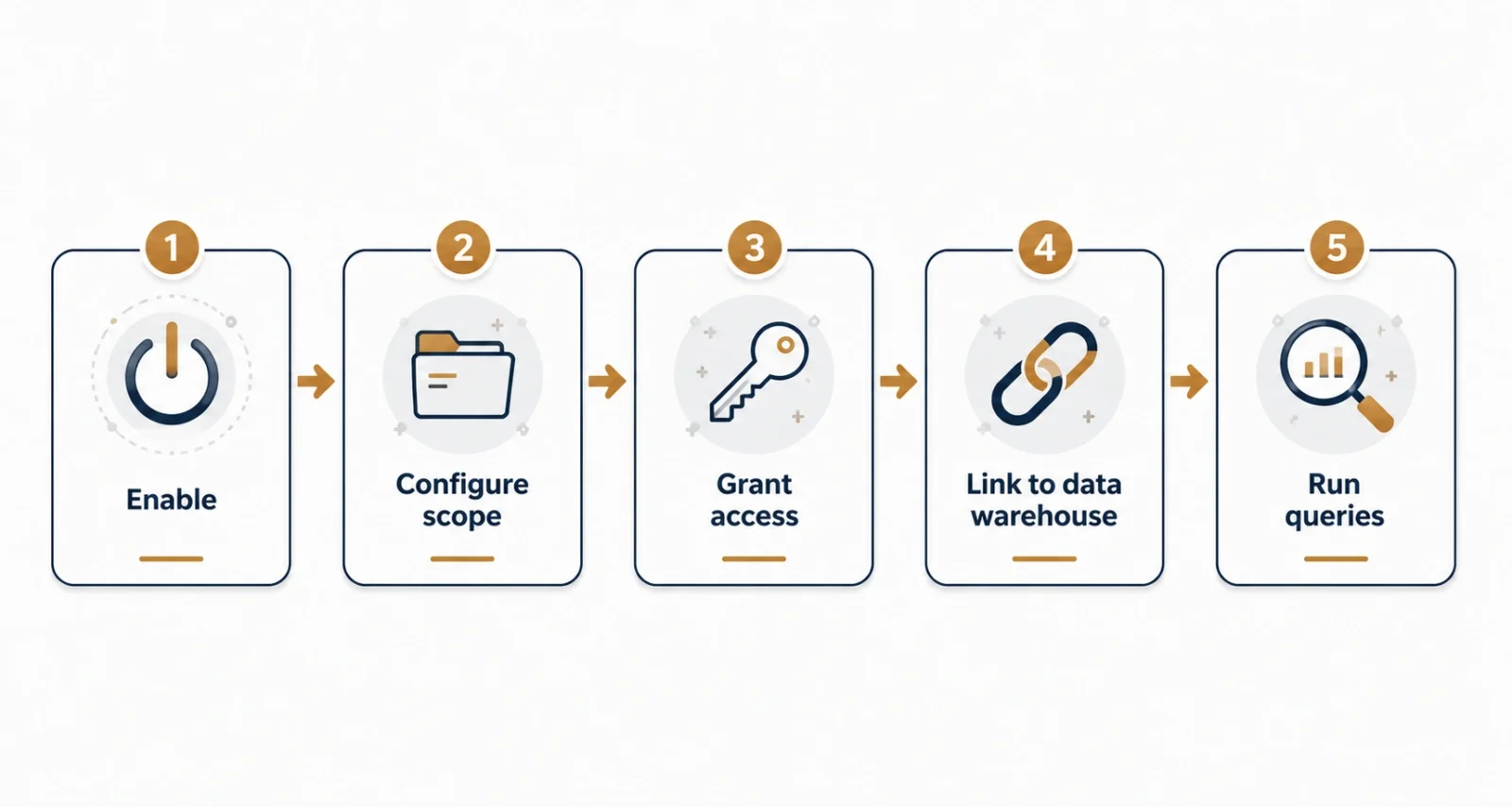
Getting started is straightforward. Here is the full setup, in plain steps.
- Turn on Storage Intelligence in the Google Cloud console, at the organization, folder, or project level. A 30-day free trial is available.
- Enable the Storage Insights API, and make sure your account has the Storage Insights Admin role.
- Configure a dataset, giving it a name and choosing its scope, your whole organization, certain folders or projects, or specific buckets.
- Set a retention period for the data, pick a supported BigQuery location, and choose the service agent type.
- Grant the service agent permission to collect data, using the Storage Insights Collector Service role.
- Link the dataset to BigQuery, then wait for the first data, which can take up to 48 hours to appear.
- Query the linked dataset in BigQuery, or connect the ready-made Looker Studio dashboard template.
Heads Up: Pick a BigQuery location that matches where you work. Only a set list of locations is supported, like US, EU, and us-central1. Check the list before you configure, to avoid extra data-transfer charges.
4. Three Useful Queries to Try
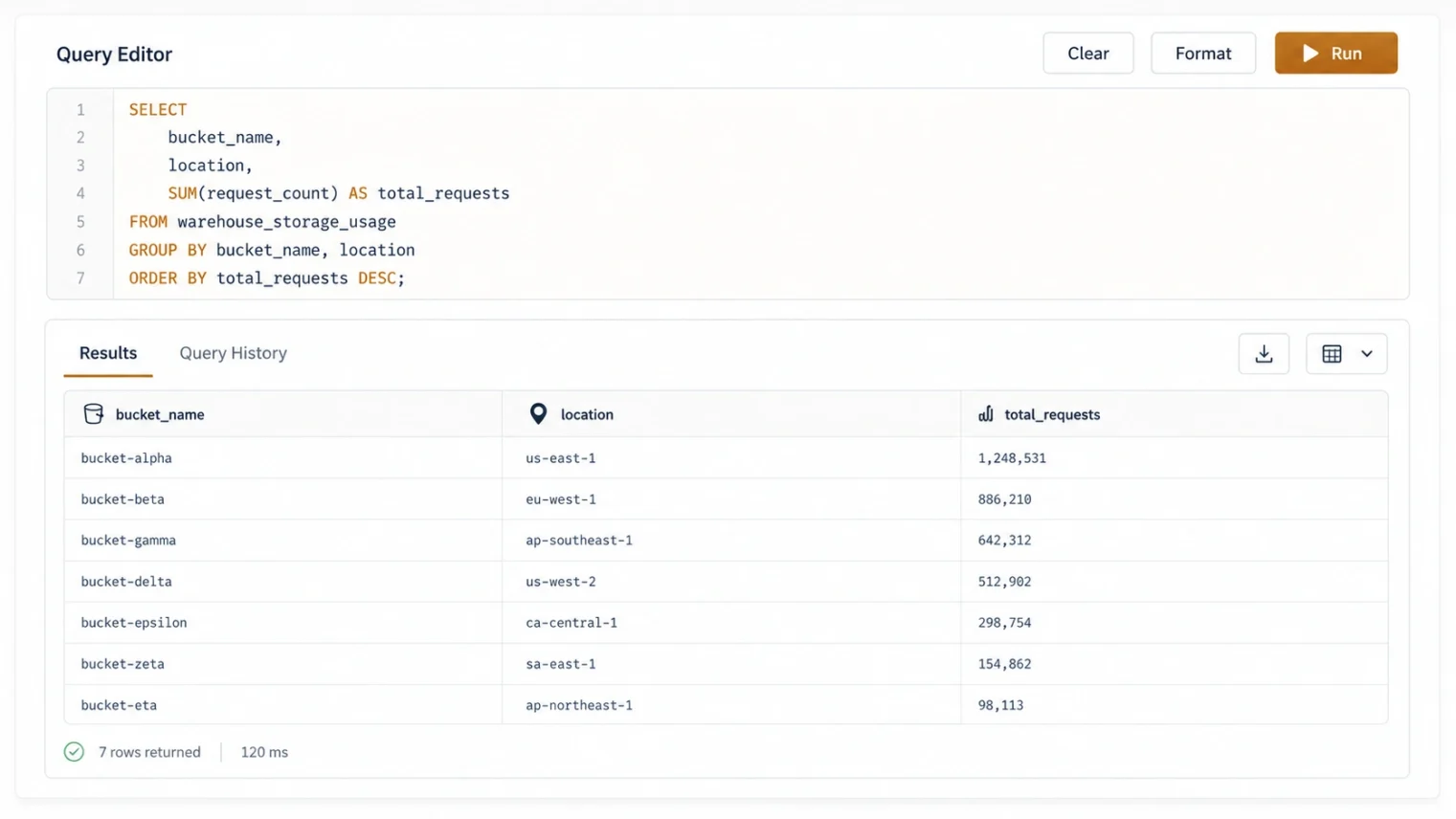
Once your data is in BigQuery, the real value begins. Here are three practical queries the Google team highlights, in plain terms, with the sample code.
Query 1: Find Buckets You Barely Use
This finds buckets with little to no activity, perfect candidates for a cheaper storage class.
SELECT name, location, project, totalRequests
FROM `[project]`.`[dataset]`.`bucket_activity_view`
WHERE snapshotEndTime >= TIMESTAMP(DATE_SUB(
DATE_TRUNC(CURRENT_DATE(), MONTH), INTERVAL 5 MONTH))
AND snapshotEndTime < CURRENT_TIMESTAMP()
ORDER BY totalRequests ASC
Query 2: See Where Your Traffic Comes From
This breaks down which regions read from and write to a bucket, so you can decide if it is in the right place.
SELECT requestLocation, bucketLocation,
SUM(requestBytes) AS total_request_bytes,
SUM(responseBytes) AS total_response_bytes
FROM `[project]`.`[dataset]`.`bucket_region_activity_view`
WHERE name = '[bucket name]'
GROUP BY requestLocation, bucketLocation;
Query 3: Hunt Down Errors
This surfaces 429 errors, the too many requests errors, so you can find exactly which files are under pressure.
SELECT requestOperation, errorReason, objectName,
bucketName, requestCompletionTimestamp, project
FROM `[project]`.`[dataset]`.`object_events_view`
WHERE responseStatus = 429
ORDER BY requestCompletionTimestamp DESC;
Quick Tip: Replace the bracketed parts, like project, dataset, and bucket name, with your own names before running. Also remember that each query you run in BigQuery has its own small cost.
5. What You Can Actually Do With It
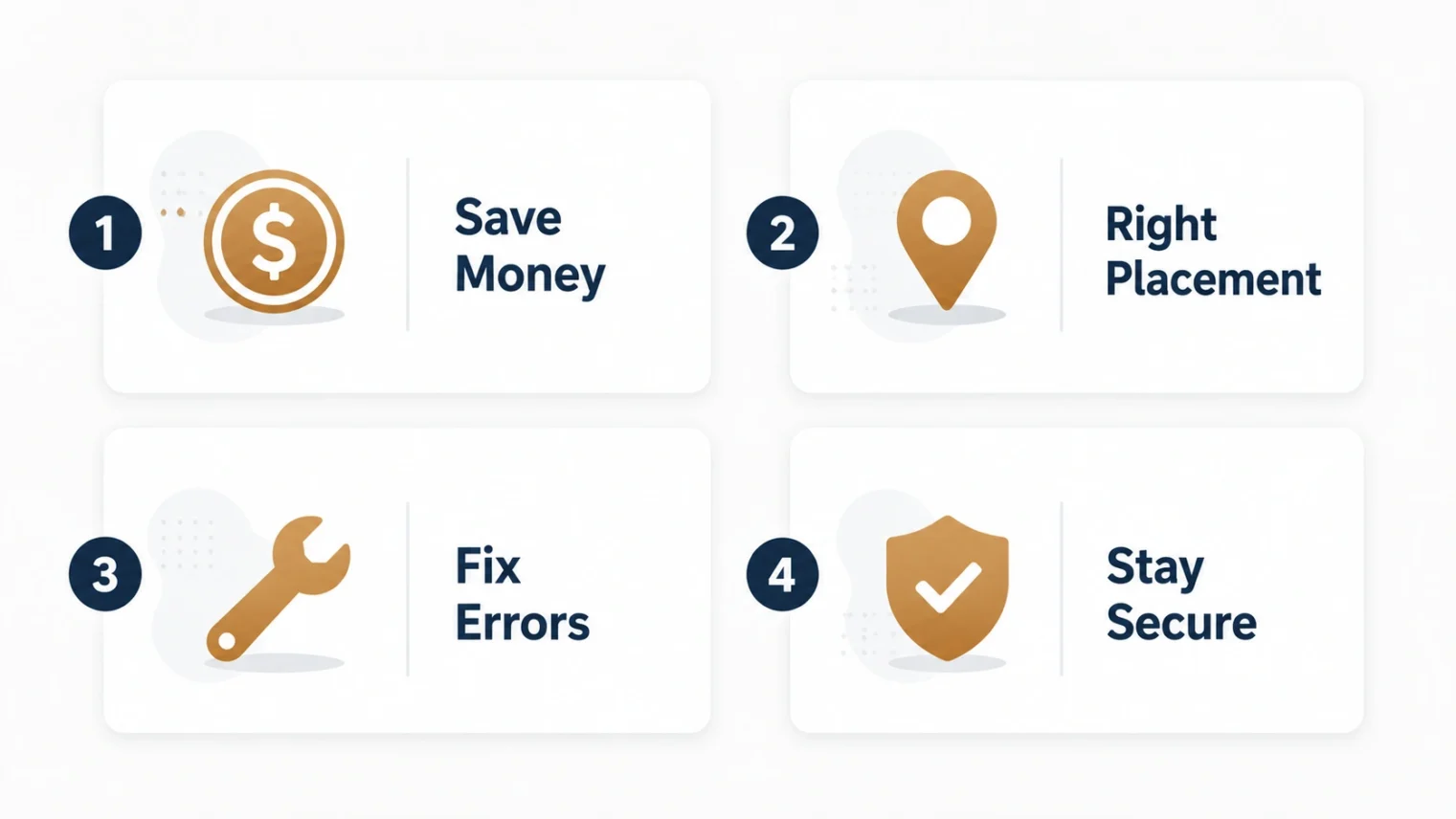
Beyond the queries, here is the real-world payoff. These are the wins teams get from the data.
Save Money on Storage
Find files and buckets nobody has touched in months, then move them to a cheaper class like Coldline or Archive. You stop paying premium rates for data that just sits there.
Put Data in the Right Place
Say a bucket is set to expensive multi-region storage, but almost all its traffic comes from one region. You can move it to single-region storage and cut costs, without hurting performance.
Fix Problems Faster
Those 429 errors trigger automatic retries, which pile up as billable operations and inflate your costs. Spotting them early lets you fix the root cause and stop the waste.
Stay Secure and Compliant
You can also check for files that are publicly readable, audit how data is encrypted, and monitor retention rules, all from the same dataset.
Worth Knowing: The delivery service Shipt used these tools to manage over 2 billion files. By spotting egress charges from multi-region buckets, the team moved 1.3 petabytes of data to regional storage and saved a lot, with no downtime.
6. Pricing and Limits to Know
Before you turn it on for everything, here are the practical numbers.
- Cost: about 2.5 dollars per million files per month, charged as part of the Storage Intelligence subscription.
- Plus queries: running queries in BigQuery adds normal BigQuery costs on top.
- Free trial: a 30-day trial waives the file-management fee, though storage and query costs still apply.
- Scale: a single setup can cover up to 10,000 projects or folders.
Quick Tip: Start the free trial on one or two high-spend projects first. If the data reveals real savings, like cold files or wasted egress, then widen the scope to a whole folder or organization.
7. Your Next Steps
Ready to try it? Here is a simple path to follow.
- Turn on the 30-day Storage Intelligence trial on a high-spend project.
- Configure one dataset and link it to BigQuery.
- Wait up to 48 hours for the first data to land.
- Run the three starter queries above to find quick wins.
- Act on what you find, then widen the scope if the savings are real.
Frequently Asked Questions
What Are Storage Insights Datasets
Storage Insights datasets is a Google Cloud feature that automatically indexes your entire Cloud Storage estate into a searchable BigQuery table. It captures file metadata and activity data, so you can analyze your storage with simple SQL queries instead of custom scripts.
What Is New in This Update
The big addition is activity insights, now generally available. On top of the existing daily metadata snapshots, you can now see how your data is accessed. That includes reads, writes, deletes, errors, and which regions interact with each bucket the most.
How Do I Set Up Storage Insights Datasets
Turn on Storage Intelligence, enable the Storage Insights API, then configure a dataset with a chosen scope. Grant the service agent permission, link the dataset to BigQuery, and wait up to 48 hours for the first data. Then you can query it directly.
How Much Do Storage Insights Datasets Cost
The Storage Intelligence fee is about 2.5 dollars per million objects per month, and running queries adds normal BigQuery costs. A 30-day trial waives the object-management fee, though storage and query charges still apply during the trial.
What Can I Use Storage Insights Datasets For
Common uses include cutting storage costs by finding unused data and placing buckets in the best region. You can also troubleshoot errors like 429s and check security and compliance. Teams can even attribute storage usage for internal cost reporting.
How Often Does the Data Refresh
Metadata snapshots refresh every 24 hours. The newer activity data typically appears within about four hours of the activity. Google notes the delay can occasionally be higher when data volumes are very large.
What Is a 429 Error in Cloud Storage
A 429 error means too many requests in a short time. It triggers automatic retries, which add up as billable operations and raise your costs. Storage Insights datasets let you find exactly which files and prefixes are causing these errors.
Do I Need to Be an Expert to Use It
No. While it helps to know basic SQL, the feature is designed to be approachable. Google provides ready-made example queries and a Looker Studio dashboard template, so you can get useful answers without building anything from scratch.