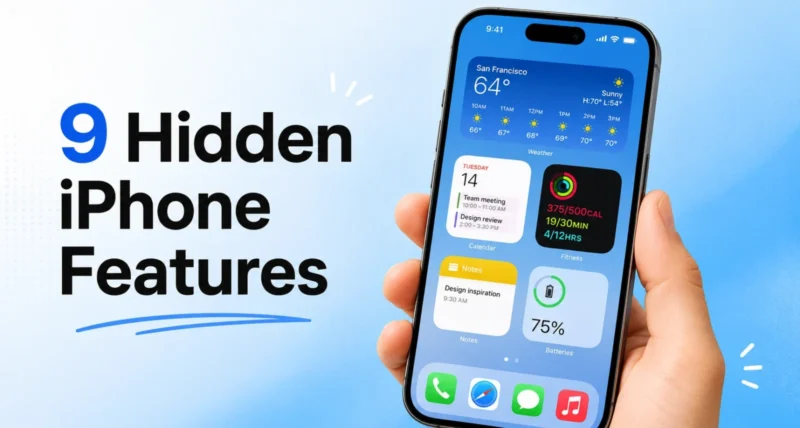
Your iPhone hides dozens of useful tools behind settings you rarely open. Most people use the same handful of apps every day and never discover the rest. The good news is that the best hidden iPhone features take seconds to switch on, and they can make your phone faster, safer, and easier to use.
This guide covers nine practical tricks that work on any iPhone running iOS 26. You will not need a new device or any extra apps. Instead, you will just need a few minutes and the Settings app.
Hidden iPhone features are built in tools that Apple does not highlight during setup. In iOS 26, the most useful ones include turning apps into widgets, full page screenshots, Back Tap gestures, custom vibration patterns, a sleep timer for media, and privacy controls that limit location tracking. You can turn each one on from Settings in under a minute.
Key Takeaways
- Hidden iPhone features are standard iOS 26 tools, not downloads, so they cost nothing and work on most modern iPhones.
- Privacy focused options let you strip location data from photos and limit how closely your carrier tracks you.
- Back Tap turns the back of your phone into a shortcut button for screenshots, the flashlight, or any custom action.
- A sleep timer can stop music or a podcast automatically, which helps if you listen as you fall asleep.
- Apple added several of these tweaks in recent updates, so installing the latest iOS version reveals more of them.
What Are the Best Hidden iPhone Features in iOS 26?
The best hidden iPhone features in iOS 26 are app widgets, full page screenshots, Back Tap gestures, custom vibrations, media sleep timers, photo location removal, carrier location limits, offline music recognition, and Lock Screen button swaps. Each one lives inside Settings or a built in app, and each takes about a minute to set up.
9 Hidden iPhone Features Worth Turning On
1. Turn Any App Into a Widget
You can turn most app icons into widgets straight from the Home Screen. First, press and hold an app icon, then pick a square size from the row at the top. This works with Apple apps and many third party apps that offer a widget. To switch back, press and hold again and choose the standard icon.
2. Capture a Full Page Screenshot
A normal screenshot only saves what fits on your display. To save an entire web page or document, take the screenshot as usual, then tap the small preview. Next, choose “Full Page” at the top, and save the long version as a PDF. This trick is handy for receipts, articles, and recipes.

3. Use Back Tap as a Shortcut Button
Back Tap lets a double or triple tap on the back of your phone trigger an action. To set it up, open Settings, then Accessibility, then Touch, and scroll to Back Tap. From there, you can assign a screenshot, the flashlight, or a custom shortcut. According to Apple Support, this works on iPhone 8 or later.
4. Set Custom Vibration Patterns
If you keep your phone on silent, custom vibrations help you know who is messaging without looking. First, open Contacts, select a person, and tap Edit. Then tap Text Tone or Ringtone, choose Haptics, and select Create New Vibration. Finally, tap out your own pattern and save it.
5. Stop Music and Podcasts With a Timer
A sleep timer can switch off audio after a set time, which suits late night listening. Open the Clock app and tap Timers. Next, set a length, tap “When Timer Ends,” and choose “Stop Playing.” After that, any music, podcast, or audiobook stops when the timer ends.
6. Remove Location Data From Photos
Photos quietly store the place where you took them, which you may not want to share. In the Photos app, open an image, swipe up, and tap Adjust Location, then choose No Location. Alternatively, you can turn off Location under Options as you share a photo.
7. Limit How Closely Your Carrier Tracks You
iOS 26.3 added a setting that limits the precision of carrier location tracking. Apple compares it to sharing your neighbourhood instead of your exact address. To find it, open Settings, then Mobile Service, then Mobile Data Options. Keep in mind that your carrier also needs to support the feature.
8. Identify Songs Without Internet
The Recognize Music control can now work when you are offline, though with one catch. If you tap it without a connection, your iPhone records a short audio snippet. Then it names the song once your device is back online.
9. Swap Your Lock Screen Buttons
Your Lock Screen buttons do not have to stay as the flashlight and camera. Press and hold the Lock Screen, tap Customize, and select your wallpaper. After that, remove a button with the minus icon, then add any Control Center option, including ones from other apps.
Quick tip: Not sure which iOS version you have? Open Settings, tap General, then About, and check the Software Version line. If you see iOS 26 or higher, every trick in this guide will work.
Quick Reference: Where to Find Each Feature
| Feature | Where to find it |
| App to widget | Home Screen, press and hold an icon |
| Full page screenshot | Screenshot preview, tap “Full Page” |
| Back Tap | Settings > Accessibility > Touch > Back Tap |
| Custom vibration | Contacts > Edit > Haptics |
| Media sleep timer | Clock > Timers > When Timer Ends |
| Remove photo location | Photos > swipe up > Adjust Location |
| Carrier location limit | Settings > Mobile Service > Mobile Data Options |
| Offline music recognition | Control Center > Recognize Music |
| Lock Screen buttons | Lock Screen > Customize |
Myths vs Facts About Hidden iPhone Features
Myth: You need the newest iPhone to use these features.
Fact: Most of these tricks work on any iPhone that runs iOS 26, including older models that still support the update.
Myth: Hidden settings drain your battery.
Fact: Most of these are simple toggles. They use little to no extra power, and several actually protect your privacy rather than cost you anything.
Myth: Removing photo location is permanent and complicated.
Fact: You control it per photo or per share. The change is easy to reverse, and your other photos stay untouched.

Start With One Trick Today
Hidden iPhone features prove that your phone can do far more than it shows you at first. You do not need new hardware or paid apps, just a few minutes in Settings. Start with one or two tricks from this list, and add more as they become habits.
Want to get even more from your device? Want to get even more from your iPhone? See our guide on the iOS 18.6 updates to your iPhone’s Phone app for more features worth knowing.
Frequently Asked Questions
How do I find hidden features on my iPhone?
Most sit in the Settings app under General, Accessibility, and Privacy, and Apple adds more with each iOS update.
What iOS version do I need for these features?
You need iOS 26 or later, with a few like the carrier location limit arriving in iOS 26.3.
Can I hide apps on my iPhone?
Yes, press and hold an app to hide it, or hide a whole Home Screen page in jiggle mode.
How do I turn an app into a widget?
Press and hold the app icon on your Home Screen, then tap one of the square sizes at the top.
Are hidden iPhone features safe to use?
Yes, these are official Apple features built into iOS, not third party hacks.