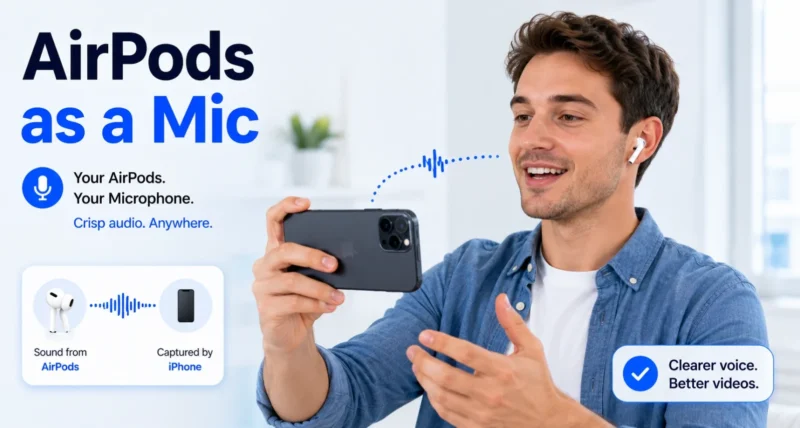
You film a quick video on your iPhone, then play it back and the sound is a letdown. Your voice is faint, and every bit of background noise comes through loud and clear. The built-in mic simply struggles when you are not right next to the phone.
iOS 26 has a neat fix for this. You can use your AirPods as the microphone while you record, like a tiny wireless clip-on mic that moves with you and stays close to your voice.
This guide shows you how to record video using your AirPods as a mic on iPhone, step by step. In short, you put your AirPods in, open the Camera in Video mode, open Camera Controls, and set the audio Input to your AirPods. Here is the full walkthrough.
1. What You Need First
This is a new iOS 26 feature, and it only works with certain gear. Check these before you start, so nothing is missing later.
- An iPhone on iOS 26 or later. Update in Settings, then General, then Software Update if needed.
- Supported AirPods. AirPods 4, AirPods Pro 2, AirPods Pro 3, or AirPods Max 2. Older models do not support this.
- A supported region. The feature is not available everywhere. For example, it is currently excluded in the EU.
If you meet all three and still cannot find the option, that is the likely reason. Apple lists the details on its official AirPods support page.
2. How to Set Your AirPods as the Camera Mic on iPhone
This is the main step. It takes only a few taps.
- Put your AirPods in your ears and make sure they are connected to your iPhone.
- Open the Camera app and swipe to Video mode.
- Swipe down from the top-right corner to open Control Center, then tap Camera Controls at the top.
- Under Audio and Video, tap Input and choose your AirPods. You may also see a Same as System option.
That is it. Your AirPods are now the microphone, and your iPhone camera keeps doing the filming.

3. Choose the Right Mic Mode
On the same Camera Controls screen, you can pick how your AirPods handle sound. The right mode makes a real difference, so match it to where you are filming.
| Mic Mode | What It Does | Best For |
| Automatic | Your iPhone picks the best mode for your surroundings | Everyday use, when you are not sure |
| Standard | Neutral, default processing with no extras | A natural, balanced sound |
| Voice Isolation | Cuts background noise and lifts your voice | Noisy streets or windy outdoor clips |
| Wide Spectrum | Captures the full range of surrounding sound | Music, nature, or room ambience |
For talking to the camera in a busy place, Voice Isolation is usually the winner. If you are unsure, leave it on Automatic and let the iPhone decide.
4. Start and Stop Recording From Your AirPods
You can also start and stop filming straight from your AirPods, which is perfect when the phone is propped up on a stand and you are standing away from it. Set it up once.
- Wear your AirPods, open Settings, then tap the name of your AirPods.
- Scroll to Camera Control and tap Camera Remote, then choose Press Once or Press and Hold.
- Back in the Camera, press the AirPods stem to start recording, and press again to stop.

Reality check: AirPods as a mic are a big step up from the built-in microphone for voice, especially in noise, and they free you to move around. They are not a full replacement for a dedicated clip-on or shotgun mic for professional shoots, but for vlogs, interviews, and everyday clips they sound great and add nothing to carry.
Frequently Asked Questions
Which AirPods can be used as a mic on iPhone?
AirPods 4, AirPods Pro 2, AirPods Pro 3, and AirPods Max 2, on an iPhone running iOS 26 or later. Older AirPods models do not support being used as a camera microphone.
How do I set my AirPods as the microphone for video?
Open the Camera in Video mode, swipe down to Control Center, tap Camera Controls, then under Audio and Video tap Input and choose your AirPods. Your iPhone then records with the AirPods as the mic.
Why do I not see the AirPods mic option?
You need iOS 26, a supported AirPods model, and a supported region, since the feature is excluded in some places like the EU. If you meet all three and still do not see it, update iOS to the latest version.
Can I start recording with my AirPods?
Yes. Set your AirPods up as a Camera Remote in Settings, then press the stem to start and stop recording. This is handy when your iPhone is on a tripod and you are standing away from it.
Are AirPods as good as a real microphone?
They are much clearer than the iPhone’s built-in mic for voice in noisy places and let you move freely, but a dedicated clip-on or shotgun mic is still better for professional video work.
If you enjoyed this, you may also like our roundup of hidden iPhone features, which is full of small tricks like this one that most people never find.