
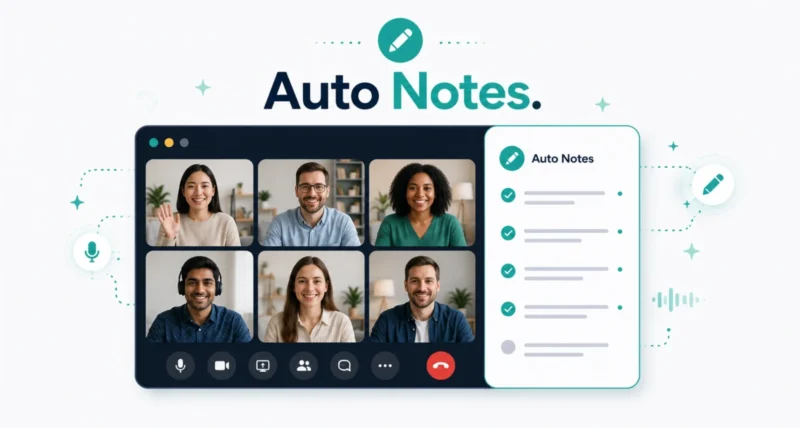
Taking notes and paying attention at the same time has always been a losing game. Google just fixed that. With the new Take notes for me feature in Google Meet, Gemini quietly handles your meeting notes in the background, capturing the conversation, summarizing decisions, and listing action items, so you can stay fully present. Here is exactly what it does, who can use it, and how to turn it on.
| Quick Answer Take notes for me is a Google Meet feature, powered by Gemini, that automatically takes notes during your calls. As of June 29, 2026, it is available to Google AI Pro and Ultra subscribers and eligible Workspace business customers, on web and mobile, in select languages. It transcribes the meeting, writes a summary with action items, saves the notes to a Google Doc in your Drive, and emails you a recap afterward. To use it, click the pencil icon during a call, or enable it for all meetings in your Meet settings. |
Key Takeaways
- Take notes for me lets Gemini handle meeting notes automatically in Google Meet.
- It captures a transcript, a summary, and action items, all in real time.
- Notes save straight to a Google Doc in your Drive, and you get an email recap after.
- Available to Google AI Pro and Ultra subscribers and eligible Workspace business users.
- Start it with the pencil icon in a call, or turn it on for every meeting in settings.
What Is Take Notes for Me?
Take notes for me is a Google Meet feature, powered by Gemini, that does your meeting note-taking for you. With your permission, it works quietly in the background of a call, so you can focus on the discussion instead of scribbling. As Google announced on its blog, it is now available to Google AI Pro and Ultra subscribers on web and mobile, in select languages.
| Worth Knowing This is built for real, everyday meetings, from tracking next steps in a team sync to gathering client requests on a sales call. Anywhere you would normally juggle listening and writing, Gemini can take the writing off your plate. |
What It Does During Your Call
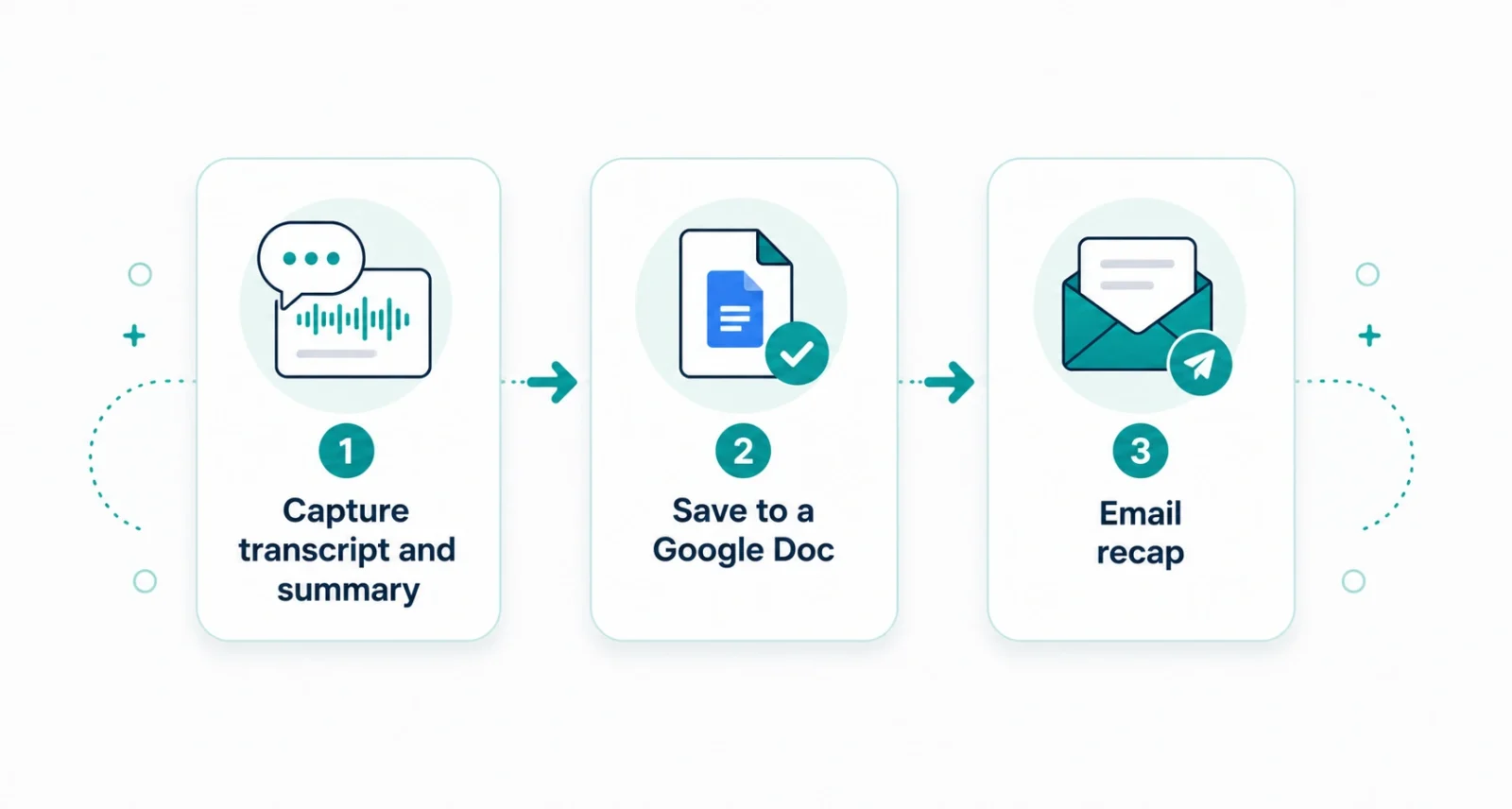
Once it is on, Take notes for me delivers three things without any effort from you. Together they cover the whole note-taking job.
| Feature | What You Get |
| Real-time capture | A live transcript plus a summary with key action items |
| Seamless saving | Notes saved automatically to a Google Doc in your Drive |
| Instant recap | An email after the meeting with the summary and action items |
The result is simple. You finish the call, and the notes are already written, organized, and waiting in your inbox and your Drive. There is nothing to type up later, which is where most meeting notes quietly fall apart.
Who Can Use It?
The feature requires a paid plan, since it runs on Gemini. Here is who has access right now.
- Google AI Pro subscribers. Included as part of the Pro plan.
- Google AI Ultra subscribers. Included as part of the higher Ultra plan.
- Eligible Workspace business customers. Available on qualifying business plans.
One key detail: you can use it for meetings that you host. It also works only in select languages for now, with more expected over time. Google Meet tells all participants when the feature is switched on, so nothing happens secretly.
How to Turn It On, Step by Step
You can start note-taking in a single call, or set it to run for every meeting automatically. Both take seconds.
For a single call
- Join or start a meeting. Open Google Meet on web or mobile and enter the call you are hosting.
- Click the pencil icon. Find it at the top of your Meet window to start Take notes for me.
- Let Gemini work. It captures the conversation in the background while you focus on talking.
For all your meetings
- Open your Meet settings. Go to the settings area in Google Meet.
- Find Meeting records. Look for the Meeting records section.
- Enable the feature. Switch on Take notes for me so it runs automatically for the meetings you host.
| Quick Tip Not seeing the pencil icon? Confirm you are the meeting host, that your plan is eligible, and that your meeting is in a supported language. You can also check Google’s help page for the current list of supported languages. |
A Quick Note on Privacy
Because the tool records and transcribes what is said, transparency matters, and Google built that in. Note-taking only runs with your permission, and every participant sees a clear notification when the feature turns on, so no one is recorded without knowing.
| Good to Know As a courtesy, mention at the start of a call that Gemini is taking notes. It is already shown on screen, but a quick verbal heads-up keeps everyone comfortable, especially with clients or external guests. |
Take notes for me solves a small but constant work problem: you cannot fully listen and write at once. By letting Gemini capture the transcript, summary, and action items, save them to a Doc, and email a recap, Google Meet turns note-taking into something you no longer have to think about.
If you are a Google AI Pro, Ultra, or eligible Workspace user, it is worth switching on for your next meeting. To see how the same Gemini intelligence shows up across Google, our guide to how to use Google AI Mode is a useful next read.
Frequently Asked Questions
What is Take notes for me in Google Meet?
It is a Gemini-powered feature that automatically takes notes during your Google Meet calls. It transcribes the conversation, writes a summary with action items, saves the notes to a Google Doc, and emails you a recap afterward.
Who can use Take notes for me?
As of June 29, 2026, it is available to Google AI Pro and Ultra subscribers and eligible Workspace business customers, on web and mobile, in select languages. You can use it for meetings that you host.
How do I turn on Take notes for me?
During a call, click the pencil icon at the top of your Meet window. To run it automatically for every meeting you host, open your Google Meet settings, find Meeting records, and enable the feature there.
Where are the notes saved?
Your notes are saved automatically to a Google Doc in your Google Drive. You also receive an email after the meeting with the summary and the list of action items, so the notes are easy to find later.
Will other people know notes are being taken?
Yes. All meeting participants are notified when Take notes for me is enabled, so the note-taking is never hidden. It only runs with the host’s permission, and transparency is built into the feature.
Is Take notes for me free?
No. It requires a paid plan, either Google AI Pro or Ultra, or an eligible Workspace business plan. It is not part of the free version of Google Meet, since it relies on Gemini.

